

- Overview of Delta Restore in Hasleo Backup Suite
- Best Windows backup software—Hasleo Backup Suite
- How to Use Delta Restore in Hasleo Backup Suite to Speed Up System Restoration?
- Frequently Asked Questions
- Summary
As professional backup software, Hasleo Backup Suite provides comprehensive backup features while focusing on improving restore functions. This guide details one of its advanced features, Delta Restore, and explains how to use it to speed up system restoration.
Overview of Delta Restore in Hasleo Backup Suite
In data backup, restoration refers to the process of recovering data from a backup copy to its original or a new location. Delta Restore in Hasleo Backup Suite is a smarter and more efficient data restoration technology. It works by comparing the data in the historical backup with what currently exists in the original location, retaining all unchanged data and only restoring the changed parts. Therefore, it significantly speeds up the restoration process.
Unlike traditional full-data restoration, the core goal of Delta Restore in Hasleo Backup Suite is precise restoration. This technological difference demonstrates multiple significant advantages:
- Reduce recovery time: By only processing the data that has changed, the recovery operation is completed much faster, which ensures higher business continuity.
- Reduce system resource usage: By processing less data, it lowers the load on the CPU and storage, thereby minimizing its impact on other business operations.
- Extremely easy to operate: Simply click to select the "Delta Restore" option, and the program will automatically simplify the restoration process for you.
Given its significant advantages in efficiency and resource utilization, Delta Restore is ideal for quick data recovery in both personal operations and maintenance and enterprise production systems. It is an indispensable part of your modern data protection strategy.
Best Windows backup software—Hasleo Backup Suite
Hasleo Backup Suite is a practical and comprehensive backup software. In addition to its core features such as backup, restore, cloning system, disk/partition and file/folder management, it also offers advanced functions like Delta Clone and Delta Restore. and other advanced features. Below are the notable features of Hasleo Backup Suite:
- Comprehensive and powerful: Its backup and restore features let you create system images effortlessly and recover from crashes instantly, while the cloning function promotes seamless data migration.
- Advanced technology and excellent performance: Compatible with all Windows PCs and servers, it supports Windows x86/x64 and ARM64 architectures. It boots in both UEFI and Legacy BIOS modes, ensures safe and stable program running, and operates with high efficiency and low power consumption.
- Multiple backup modes: It supports full, incremental and differential backups. Following an initial full backup, both incremental and differential backups save time and storage space by only copying the data that has changed.
- Features compression and encryption: It allows you to compress backup images to save disk space and encrypt them to protect your important data.
- Practical Toolbox: Here you can access advanced features like creating a WinPE emergency disk, merging backup images, and securely wiping disks.
- Intuitive and user-friendly interface: The interface design is clear, with the main functions immediately obvious, and guided prompts allow even beginners to get started quickly.
How to Use Delta Restore in Hasleo Backup Suite to Speed Up System Restoration?
Hasleo Backup Suite's Delta Restore feature simplifies the process of recovering data to its original location. Here is a step-by-step guide to speed up system restoration using Delta Restore.
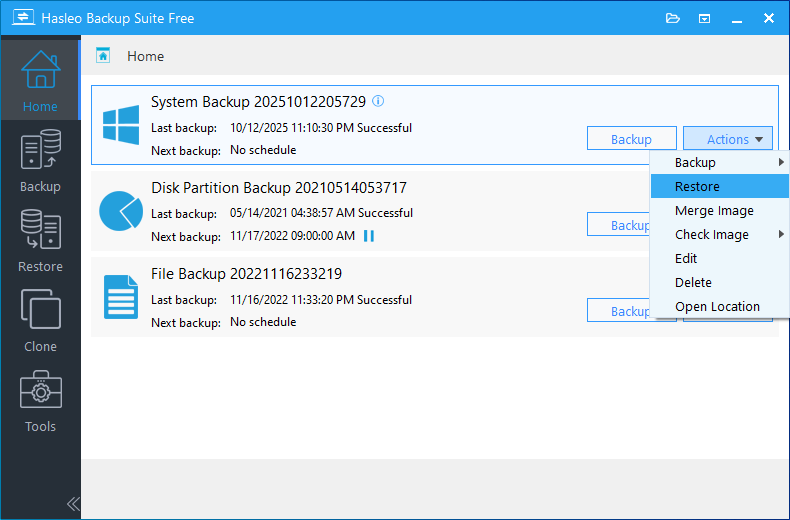
Step 1. Run Hasleo Backup Suite Free. Click the "Home" button in the navigation bar. Then in the operations area, you can see the backup tasks you have created. Select the system backup you need to restore, click "Actions", and choose "Restore" from the dropdown menu.
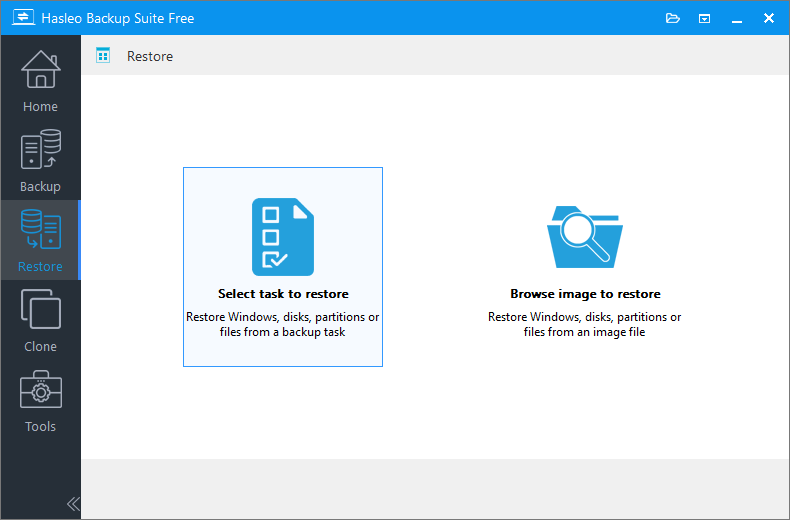
You can also click the "Restore" button in the navigation bar to restore your system by choosing "Select task to restore" or "Browse image to restore".
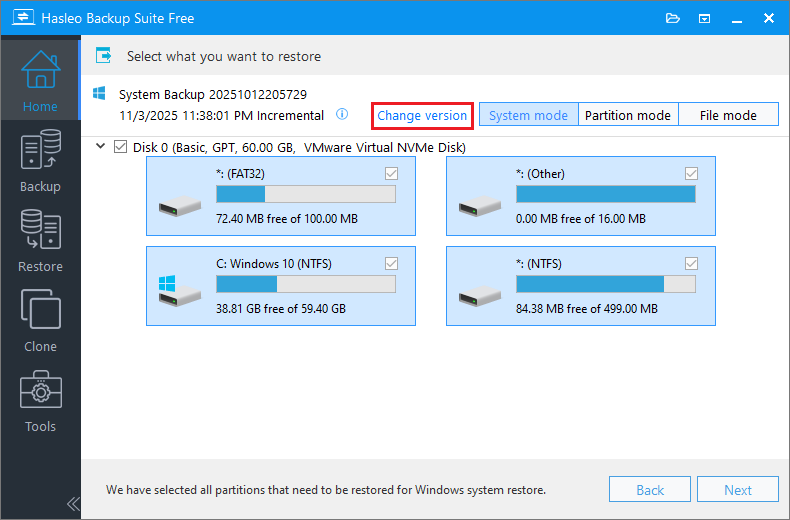
Step 2. Click "Change version" to display the system backups list.
* Tips:
- If you want to restore your entire operating system, please choose "System mode" in the upper-right corner. To restore a single partition, please select "Partition mode". For recovering individual files, please use "File mode".
- Important Note: Restoring only the Windows partition in "Partition Mode" may result in a system that fails to boot or function properly.
Step 3. Select the system backup version you want to restore from the list, and then click "Next".
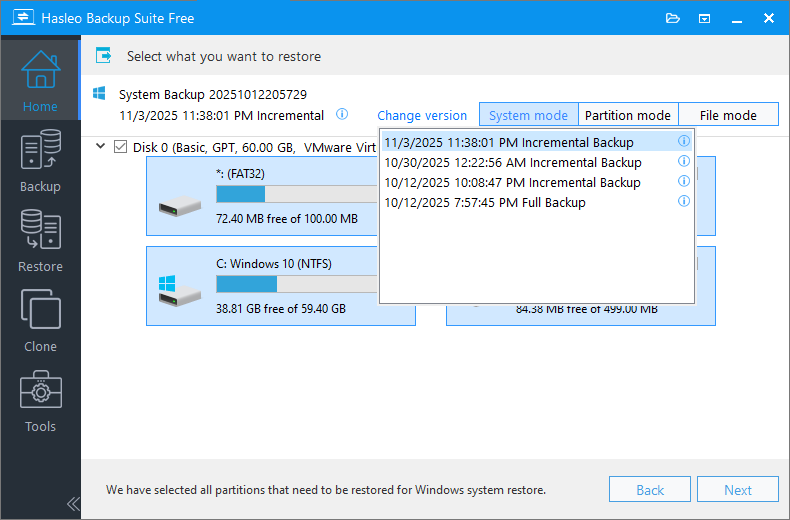
* Tips: When restoring from a system incremental or differential backup version, the program will automatically extract the required data blocks from the relevant backup chain for restoration. This process rolls the system back to its exact state at the time of the backup.
Step 4. After selecting "Restore to original location", the "Delta restore" option will be automatically checked for you. Then, click "Next" to proceed.
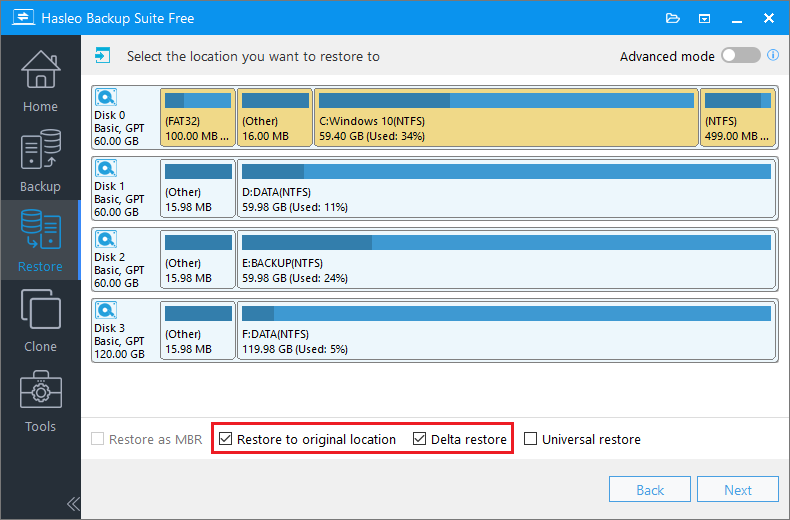
* Tips: When restoring disks/partitions, once you complete step 4, Hasleo Backup Suite will begin the restoration process. Please note that steps 5 through 9 are specifically required for a system restoration.
Step 5. To ensure a successful restore, the system needs to restart into Pre-OS mode. If you agree, please click "Continue".
Alternatively, if you previously created a WinPE image (for example, as a Hasleo Backup Suite emergency disk) and it is still in the program's installation folder, you can skip Steps 5–8 and go directly to system restore.
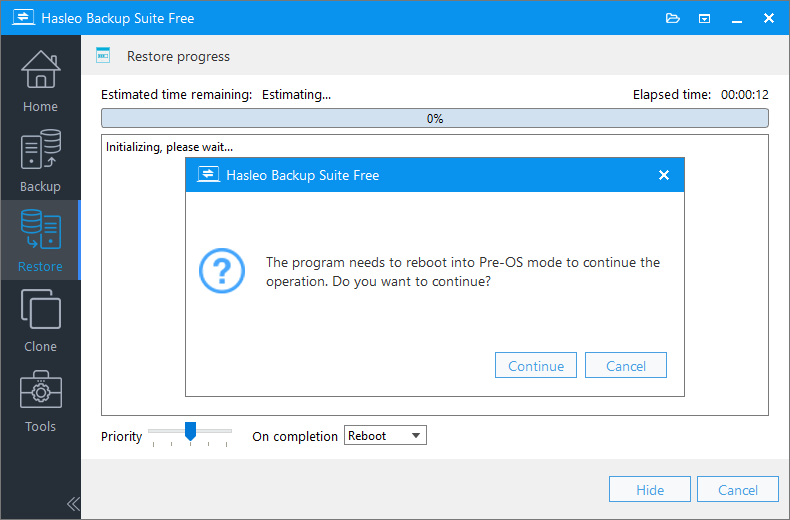
Step 6. To perform a system restore, a WinPE bootable image is required. Please click 'Continue' to proceed with its creation.
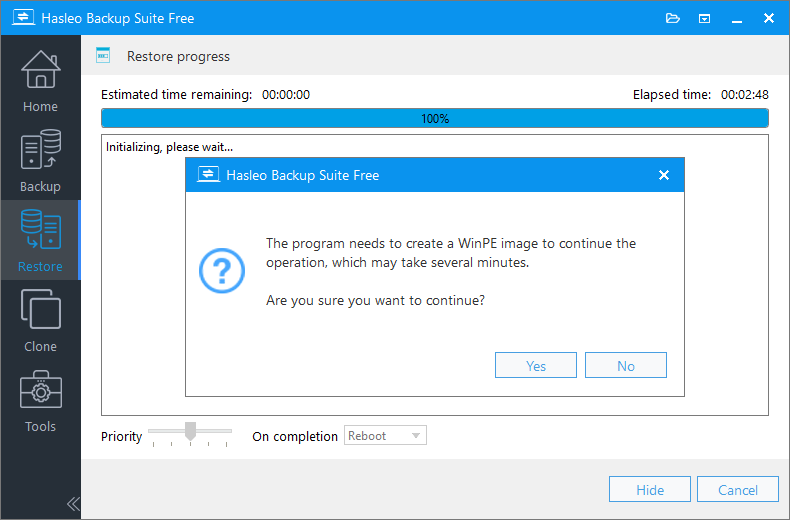
Step 7. Check "Automatic driver injection" to automatically inject the required WinPE drivers, then click "Next". If you need to inject additional drivers, click "Add driver" and make your selection.
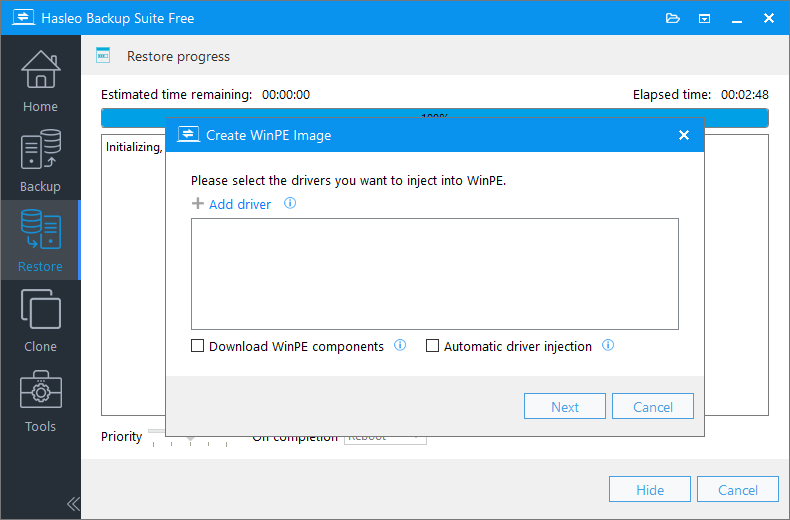
* Tips:
- Only drivers that are based on an .inf file can be injected into WinPE.
- The "Download WinPE components" option allows you to obtain them from Microsoft.
Step 8. Hasleo Backup Suite is starting to create WinPE.
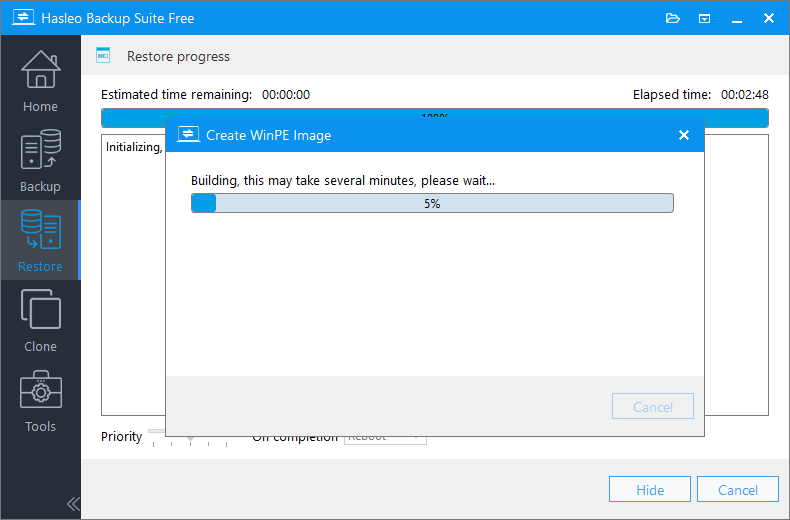
Step 9. After the WinPE image is successfully created, Hasleo Backup Suite will start restoring the system. This process may take some time; please be patient.
* Tips:
- Here you can specify a power management action to be performed after the backup is complete.
- For information on creating a WinPE USB drive, please refer to: How to Create Bootable WinPE Media.
Frequently Asked Questions
A: Delta Restore is an intelligent restoration technology that compares backup data with existing data at the original location, keeping unchanged data and only restoring the changed parts, significantly speeding up the recovery process.
A: Use Delta Restore when restoring to the original location. It works best when you want to quickly recover from recent system changes while preserving data that hasn't changed since the backup was created.
A: Yes, when restoring from incremental or differential backup versions, the program automatically extracts the required data blocks from the relevant backup chain for restoration, rolling the system back to its exact state at the time of the backup.
A: No, Delta Restore is only available when restoring to the original location. For restoring to a different location, you need to use the standard full restore method.
A: Delta Restore is significantly faster because it only processes changed data blocks. The exact speed improvement depends on how much data has changed since the backup was created, but it can be several times faster than full restore.
A: Delta Restore only overwrites data blocks that have changed. Unchanged data at the original location is preserved. However, any data that existed before the backup but has since been deleted from the source will not be restored.
A: Yes, for system restoration, you need to restart into Pre-OS mode. Hasleo Backup Suite will automatically create a WinPE bootable image for you during the restore process.
Summary
Delta Restore in Hasleo Backup Suite is an intelligent and efficient feature. It works by comparing the backup with the existing data at the original location, keeping the same data and only restoring the changed parts. This approach significantly speeds up the recovery process. Hasleo Backup Suite not only provides backup and restore functions, but also supports disk cloning and the creation of a WinPE emergency disk. It is comprehensive, all-in-one data protection software worth having!
Related Articles
- How to Use Delta Clone in Hasleo Backup Suite to Clone Your System Quickly?
- How to back up and restore Windows 11 for free?
- How to Merge/Delete Old Backup Files using Hasleo Backup Suite Free?
- Best Windows Server Backup and Restore Software in 2026
- How to Use the Deduplication in Hasleo Backup Suite to Save Storage Space?


