

- Step-by-Step Guide: Encrypt Windows To Go USB with BitLocker Using Hasleo WinToUSB
- Frequently Asked Questions
- Conclusion
BitLocker Drive Encryption is a full-volume encryption feature developed by Microsoft for the Windows operating system. if you are using early versions of Windows 10 and Windows 8 Enterprise/Education, you can easily create a BitLocker-encrypted Windows To Go (WTG) USB drive using the built-in Windows To Go Creator. Unfortunately, Microsoft announced on May 25, 2019 that it would discontinue development of Windows To Go. As a result, this tool is no longer available in newer versions of Windows 10/11 Enterprise or Education. It is also unsupported to use the Windows Home/Pro editions for Windows To Go creation, as the WTG is only available in Windows 10 or 8 Enterprise/Education editions.
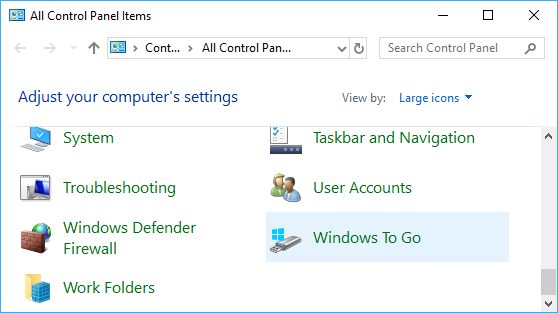
Are you looking for a tutorial to create a BitLocker-encrypted Windows To Go drive for any edition of Windows 11/10/8/7? We recommend Hasleo WinToUSB, the world's first third-party Windows To Go Creator software. Use it to install or clone Windows to a USB drive as Windows To Go , and encrypt the USB drive with BitLocker for data security. The key point is that this method works regardless of your Windows edition. Below, we will detail the steps to proceed.
Step-by-Step Guide: Encrypt Windows To Go USB with BitLocker Using Hasleo WinToUSB.
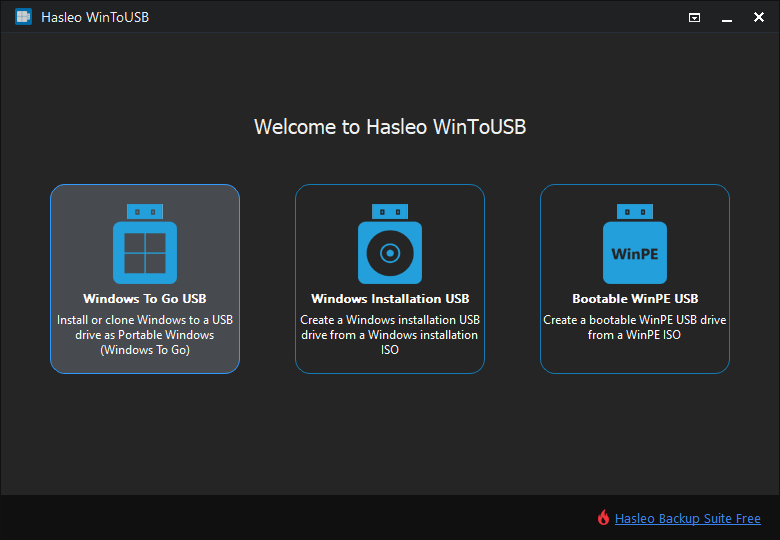
Step 1. Download and install Hasleo WinToUSB on your computer, then connect the USB drive to the PC. Run the software and select the "Windows To Go USB" option.
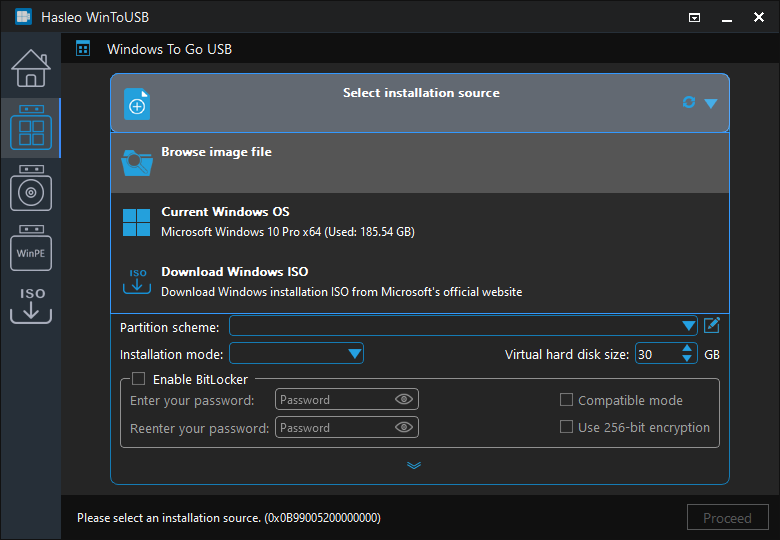
Step 2. Click "Select installation source" => "Browse image file". Then choose the Windows installation ISO file from the dialog box as your source. Alternatively, select a CD/DVD drive with Windows installation media.
Step 3. Hasleo WinToUSB scans for and lists installable operating systems. Select your target Windows edition to proceed with the installation.
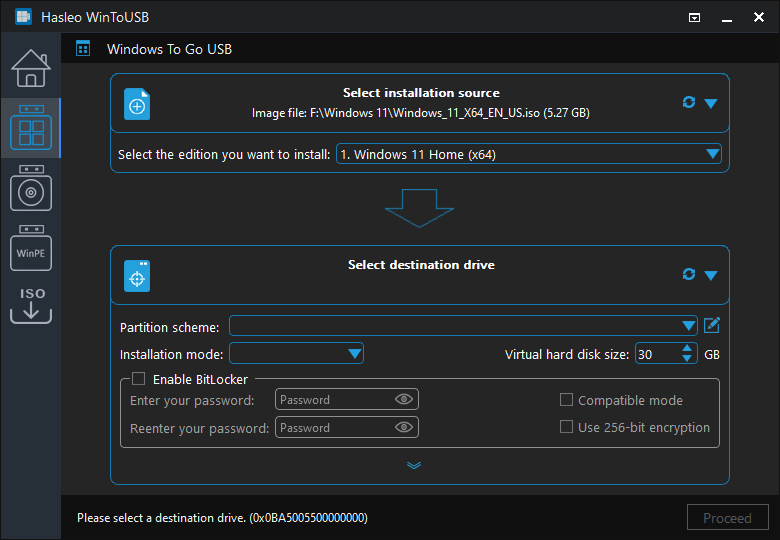
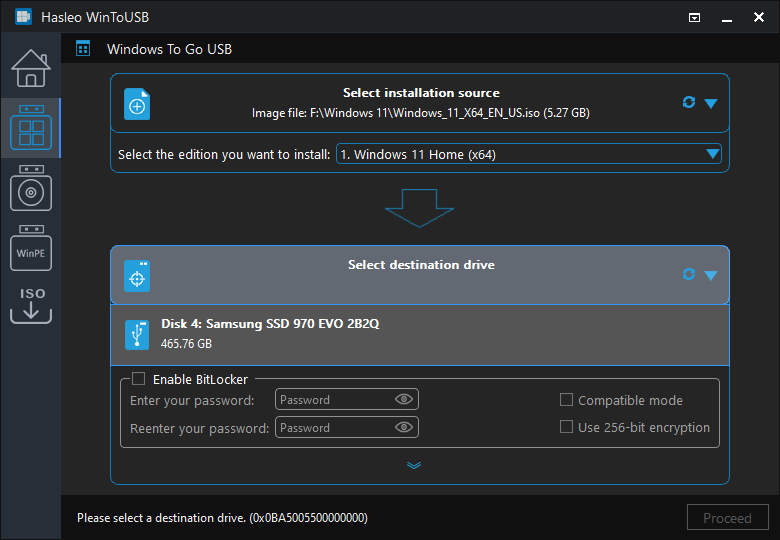
Step 4. Click "Select destination drive", then choose the target drive from the pop-up drive list. If Hasleo WinToUSB fails to detect the drive, click the  button to initiate drive recognition.
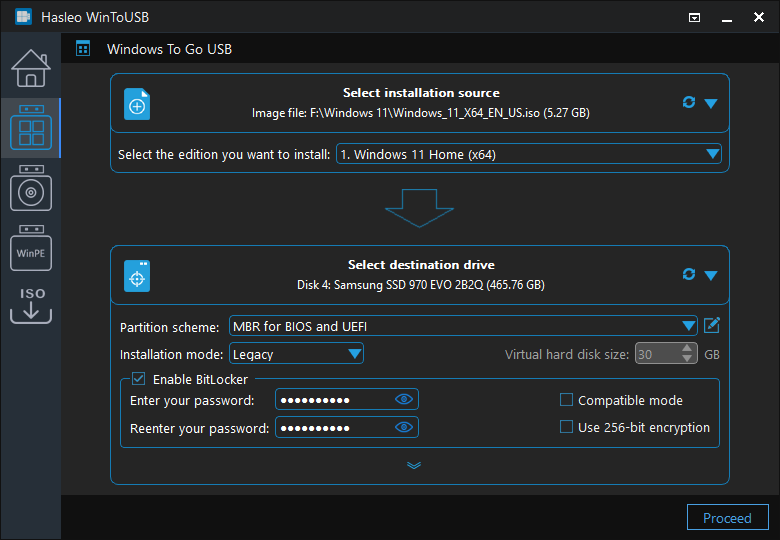
Step 5. Select your preferred partition scheme and installation mode. Check the "Enable BitLocker" checkbox and enter the encryption password. Optionally, you may specify the encryption mode and strength, then click "Proceed".
* Tips:
- For detailed information about "Partition scheme", "Installation mode" and "Enable BitLocker", please refer to: How to Create a Portable Windows 11/10/8/7 from an ISO, WIM, ESD, SWM or VHD(X) file?
- If you select "Keep the existing partition scheme" option, you need to manually prepare the USB drive partitions before this step. View guide: How to Manually Prepare Partitions for Windows To Go?
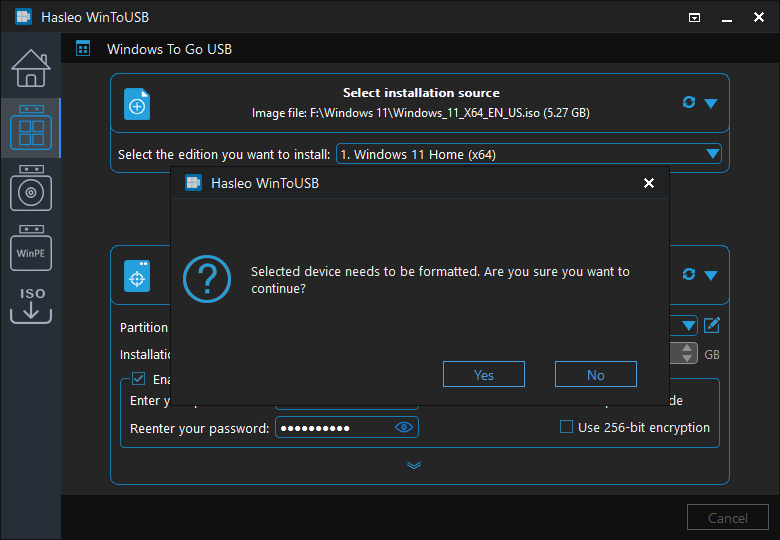
Step 6. After clicking "Proceed", a confirmation dialog will appear asking whether to continue formatting the drive. Click "Yes" if you accept the operation.
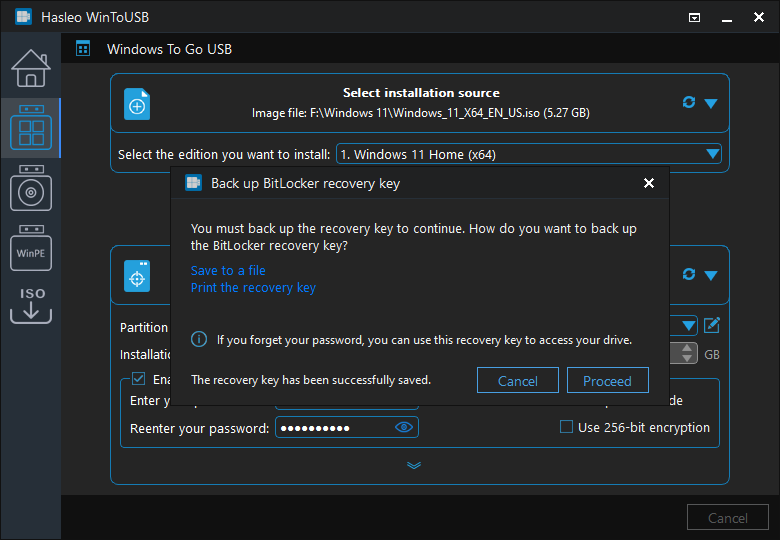
Step 7. Back up BitLocker recovery key, then click "Proceed" to continue.
* Tips:
- You can save the recovery key as a file or print a copy of it. Security Note: Anyone with this key can unlock the drive, even without your password entered in the previous step. Please keep it secure and do not share it.
Step 8. After clicking "Proceed", Hasleo WinToUSB initiates Windows installation on the destination drive.
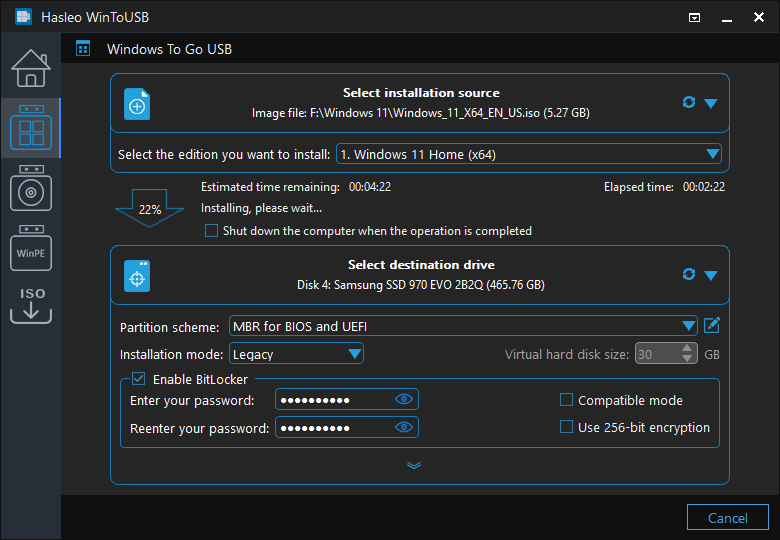
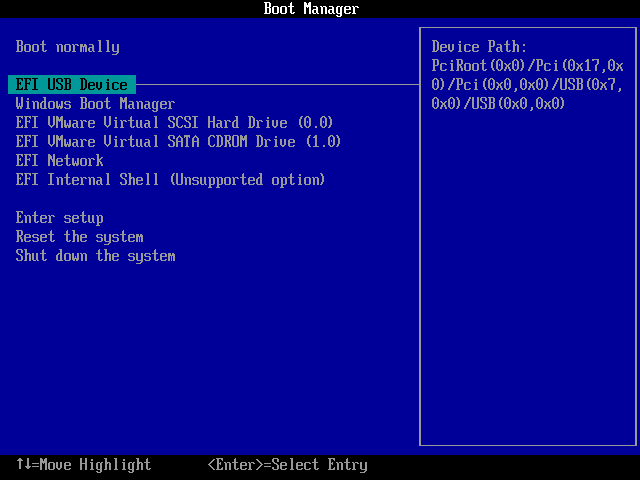
Step 9. The installation will take some time. After installation, restart the computer to enter BIOS/UEFI settings. Set your USB drive as the first boot device.
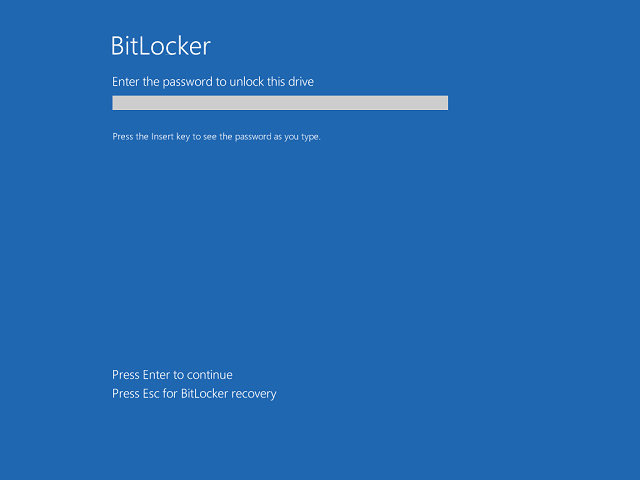
Step 10. To start Windows from the Windows To Go drive, enter the BitLocker password you set when creating the drive.
Step 11. A standard Windows installation requires completing all setup steps during the first boo. Afterward, you can install applications and copy files, etc.

Frequently Asked Questions
A: Yes, WinToUSB supports BitLocker encryption when creating Windows To Go. You can enable BitLocker during the creation process and set an encryption password to protect your portable Windows data.
A: Yes, WinToUSB allows you to create BitLocker-encrypted Windows To Go with all Windows editions including Home, Professional, Education, and Enterprise. This is something Microsoft's built-in Windows To Go Creator cannot do.
A: If you forget your BitLocker password, you can use the recovery key that was saved during the creation process. Make sure to back up the recovery key to a secure location when prompted during Windows To Go creation.
A: During the Windows To Go creation process, select your partition scheme and installation mode, then check the 'Enable BitLocker' checkbox. Enter your desired encryption password and select your preferred encryption mode before proceeding.
A: Yes, you can encrypt an existing Windows To Go drive using BitLocker. However, it is recommended to encrypt during the creation process for best results. For existing drives, you can use BitLocker Through Partitions feature or other encryption tools.
Conclusion
This guide details the creation of a BitLocker-encrypted Windows To Go USB drive step by step using most powerful Windows To Go CreatorHasleo WinToUSB—the most powerful Windows To Go creator tool. Compatible with Windows Enterprise, Pro, or Home editions, the tool supports BitLocker encryption for portable Windows.
If you already have a Windows To Go workspace and want to encrypt it for data protection, please refer to: How to Encrypt an Existing Windows To Go USB Drive?
Related Guides
- How to create Windows To Go using Windows 10 Professional Edition?
- How to create Windows 10 To Go on Non-certification Windows To Go drive?
- How to create Windows 8 To Go without an enterprise edition of Windows 8?
- How to clone Windows 10 to an external hard drive as portable Windows 10?
- How to create Windows 10 To Go on a USB flash drive with both BIOS and UEFI support?


