

- Why do you need daily backup software?
- Best Free Daily Backup Software for Windows - Hasleo Backup Suite Free
- How to Create a Daily Automatic Backup Task Using Hasleo Backup Suite Free?
- Frequently Asked Questions
- Conclusion
With a hectic work schedule, manual data backup can easily be forgotten. That's why we recommend Hasleo Backup Suite Free - a powerful and high-performance free backup and restore tool that automates the process. You only need to set the start time for daily backups in its "Backup Schedule," and the software will automatically perform backup tasks on schedule, requiring no further attention. This guide will show you how to use Hasleo Backup Suite Free to create daily automatic backup tasks, making data protection easy and worry-free.
Why do you need daily backup software?
For both home and business users, daily backup software is a critical safeguard. It ensures that your important data is always protected and can be restored instantly when needed. After an initial full backup, the program can enable incremental backup mode, backing up only new or changed data. This smart approach dramatically saves time and storage space. It operates with minimal system resource consumption, ensuring that other daily operations or business activities are hardly interrupted during backup. The following are the main advantages of daily backup software:
- Minimize the risk of data loss: System failures, hardware damage, or human errors can all lead to data loss, and these situations can occur at any time. Daily backups can limit potential data loss to within a day, significantly reducing the probability and impact of data loss.
- Effectively defend against malicious attacks: Viruses and malware can compromise data integrity and availability. Daily backups serve as a critical defensive layer, minimizing potential data loss and enabling rapid restoration to a pre-attack state.
- Ensure business continuity: In the event of a fault or unexpected disaster, business operations can be restored rapidly through backups. Daily backups retain multiple historical versions, making it easy to restore the system to a specific point in time.
Best Free Daily Backup Software for Windows - Hasleo Backup Suite Free
As a professional Windows backup and restore software, Hasleo Backup Suite Free is widely compatible with mainstream Windows OS, including Windows 7 to Windows 11 on desktop and laptop platforms. Its backup schedule feature allows users to flexibly configure multiple backup frequencies according to actual needs, including one-time, daily, weekly, monthly and event-triggered backups. Users can customize the specific execution time and backup mode for daily backup tasks, and it supports waking the computer during task execution to achieve a fully automated backup process. In addition, Hasleo Backup Suite Free also has the following notable features:
- Comprehensive and powerful free edition: It supports backing up and restoring system, disks/partitions, and files/folders, provides cloning function, and enables seamless data migration.
- Advanced technology and excellent performance: It supports Windows x86/x64 and ARM64 architectures. It boots in both UEFI and Legacy BIOS modes, ensures safe and stable program running, and operates with high efficiency and low power consumption.
- Multiple backup modes: It supports full, incremental and differential backups. Following an initial full backup, both incremental and differential backups save time and storage space by only copying the data that has changed.
- Features compression and encryption: It allows you to compress backup images to save disk space and encrypt them to protect your important data.
- Practical Toolbox: Here you can access advanced features like creating a WinPE emergency disk, merging backup images, and securely wiping disks.
- Intuitive and user-friendly interface: The interface design is clear, with the main functions immediately obvious, and guided prompts allow even beginners to get started quickly.
How to Create a Daily Automatic Backup Task Using Hasleo Backup Suite Free?
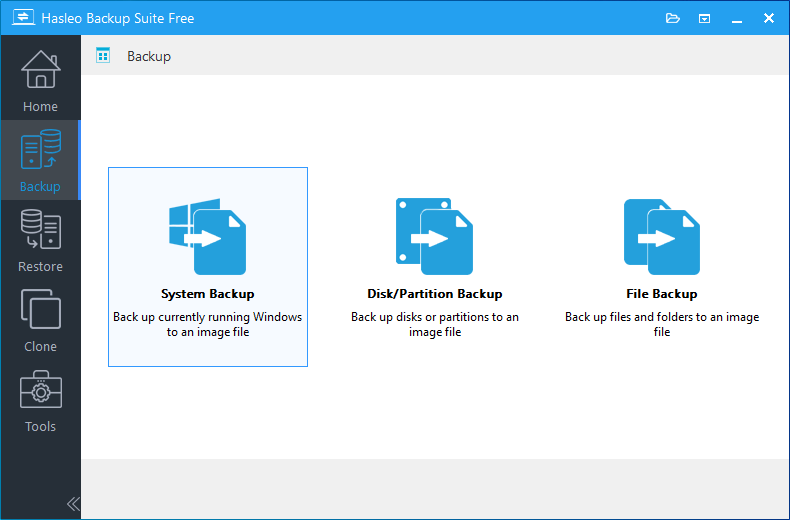
Step 1. Download, install, and run Hasleo Backup Suite Free. Click the "Backup" button in the navigation bar, then click "System Backup", "Disk/Partition Backup", or "File Backup" button in the operation area.
Step 2. Select the system, disk/partition, or file/folder to back up. Then, customize the task name, description, and destination as needed. Click "Backup schedules" to open the settings interface.
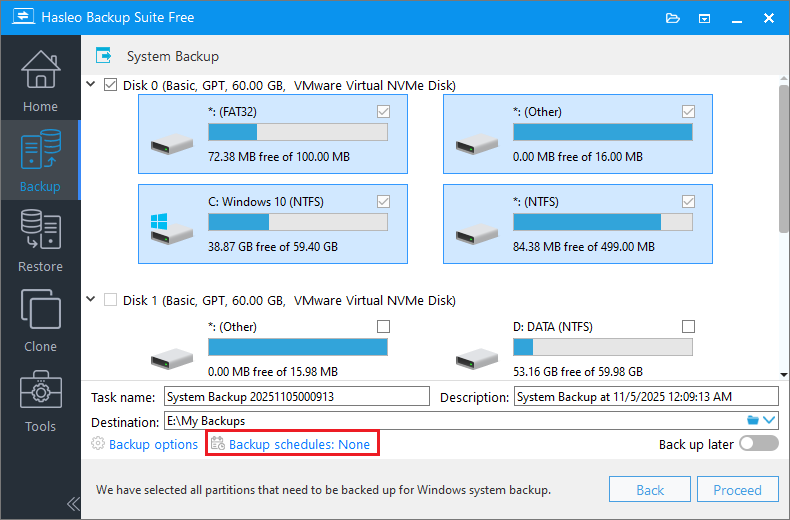
Task name: Specify a task name so that you can quickly find and manage your backup task later.
Description: Briefly describe the purpose of the task and any other relevant information.
Destination: Modify the destination path where the backup image files will be stored by clicking the folder icon.
Backup options: Advanced backup settings. For more details, please refer to Backup options.
Backup schedule: Set up backup schedules to automatically perform your backup tasks on a regular basis. For more details, please refer to Backup schedule.
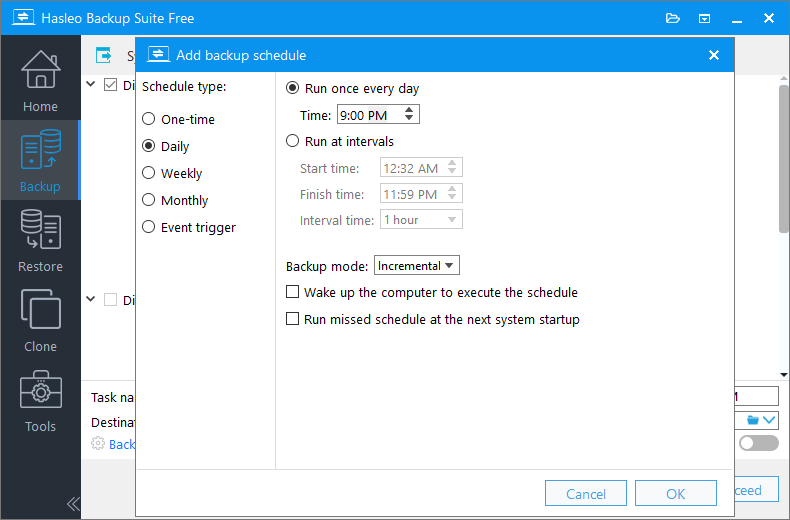
Step 3. Click "Add backup schedule", and select "Daily" as the backup type in the pop-up dialog. Configure the required options, such as the execution time and backup mode. Then, click "OK" to save the settings. You can repeat these steps to add multiple schedules to the same backup task.
Step 4. Click the "OK" button to save the backup schedule.
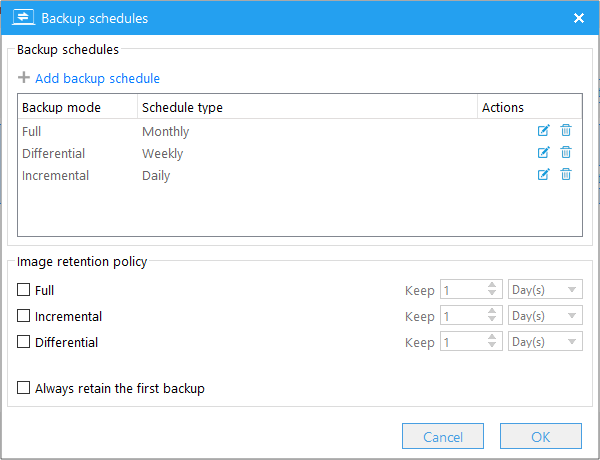
Step 5. Click the "Save" button to create the backup task. Hasleo Backup Suite Free will automatically perform the daily backup task at the time you specify.
Frequently Asked Questions
A: Hasleo Backup Suite Free is the best free daily backup software for Windows. It supports automatic daily backup schedules, incremental backups, and can automatically wake the computer to perform backup tasks.
A: Run Hasleo Backup Suite Free, click Backup > select backup type, then click Backup schedules > Add backup schedule > select Daily, configure execution time and backup mode, then click OK and Save.
A: Yes, after an initial full backup, Hasleo Backup Suite Free can enable incremental backup mode for daily backups, which only backs up changed data to save time and storage space.
A: Yes, Hasleo Backup Suite Free supports waking the computer during task execution to achieve a fully automated backup process, even when the computer is in sleep or hibernation mode.
A: For critical data and business systems, daily backups are recommended. For less critical data, weekly backups may suffice. You can also set up multiple backup schedules for different times.
A: Yes, Hasleo Backup Suite Free supports multiple backup frequencies including one-time, daily, weekly, monthly, and event-triggered backups. You can add multiple schedules to one backup task.
A: Yes, Hasleo Backup Suite Free supports AES 128/256-bit encryption for backup images. You can enable encryption in backup options to protect sensitive data.
A: Hasleo Backup Suite Free supports system backup, disk/partition backup, and file/folder backup.
Conclusion
Daily backups are an important part of a data protection strategy, essentially preventing huge and uncertain data loss risks through regular and small investments. Using Hasleo Backup Suite Free, you only need to set the task start time in advance, and the programme will automatically perform the backup, saving multiple historical versions according to your settings, allowing you to restore the system to any point in time with precision. In addition, Hasleo Backup Suite Free offers extremely fast backup speeds, a rich selection of backup options, and comprehensive and reliable features, making it the best choice to safeguard your data. What are you waiting for? Download and experience it now!
Related Articles
- How to Create Full/Differential/Incremental Backups in Windows Using Hasleo Backup Suite Free?
- How to back up and restore Windows 11 for free?
- How to Encrypt Backup Tasks Using Hasleo Backup Suite Free?
- Best Windows Server Backup and Restore Software in 2026
- How to set up backup schedules to automatically backup Windows?


