

- What Is the "Snapshot-Style" Solution
- Comparison with Conventional Methods
- Preparations Before Testing
- Data Protection & Restoration for Testing Workflows
- Important Notes
- Frequently Asked Questions
- Conclusion
Ever hesitated to try new software for fear it might mess up your system? Wanted to test a portable tool but worried about leftover junk files? Or considered a driver update but didn't want to risk your main machine?
The usual workarounds - virtual machines or system restore points - come with their own problems. VMs lack real-hardware performance and eat up resources. Restore points can fail to create or restore properly when you need them most.
Don't worry. Hasleo Backup Suite offers a unique solution: use Incremental Backup + Delta Restore to treat system backups as "snapshots" you can revert to at any time. This way, you can boldly experiment with all kinds of software while easily returning to a clean state - it's surprisingly simple.
What Is the "Snapshot-Style" Solution
The snapshot-style solution is a set of efficient backup and restore strategies in Hasleo Backup Suite. After installation, it's recommended to first create a full system backup as a clean baseline. Before each subsequent test, you only need to spend a few minutes on an incremental backup to capture the latest system changes.
The key to the entire process lies in the restore phase. Conventional methods require overwriting the entire full image, which is slow. Hasleo's Delta Restore, however, works differently - it intelligently compares the system backup to its original location with the current disk data, restoring only the changed portions. This differential mechanism makes rollbacks significantly faster than traditional full-restore methods, allowing system restores as quick as taking a snapshot.
Applicable Scenarios:
Testing new software
Concerns about bundled plugins, background processes, or incomplete uninstallation.
Trying driver updates or system patches
To avoid system instability caused by compatibility issues.
Running portable tools
Since these tools may modify system files or the registry.
Reverting temporary system changes
No need to remember what changes were made.
Comparison with Conventional Methods
Hasleo Backup Suite VS. Virtual Machines
The isolation provided by virtual machines is an advantage, but it comes with several trade-offs in a testing scenario:
| Comparison Criteria | Hasleo Delta Restore 👑 | Virtual Machines |
|---|---|---|
| Runtime Environment | Physical hardware; test results are fully reliable | Virtualized hardware; driver behavior and performance may vary |
| Resource Usage | Almost no additional resource usage before restoration | Requires allocation of memory, CPU, and disk space |
| Software Compatibility | Unrestricted | Some software detects VM environment and refuses to run |
| Operation Complexity | Backup → Test → Restore in three simple steps | Requires installing OS inside VM and configuring the environment |
Hasleo Backup Suite VS. Windows System Restore Points
Windows system restore points often fail to create or restore due to environmental interference or shadow copy conflicts, making their reliability questionable. In contrast, the backup images created by Hasleo Backup Suite are consistent, block-based copies that offer greater reliability. Moreover, the Check Image feature lets you proactively verify image integrity after each backup, eliminating the uncertainty of restore points at its source.
Preparations Before Testing
Explanation of Core Concepts
Before proceeding, it's helpful to understand how the Hasleo backup chain works.
Incremental Backup
Backs up only data that has changed or been added since the last backup. Restoring requires a complete backup chain (one full backup plus consecutive incrementals). If any version in the chain is corrupted, the entire chain may become invalid.
Delta Restore
This feature intelligently compares the backup with the current disk data and restores only the differences, leaving unchanged data intact. It is available only when restoring to the original location.
Create a Full System Backup (Baseline Image)
This backup serves as a clean baseline for your system and should be created when the system is in optimal condition. Download and install Hasleo Backup Suite. After launching the program, click Backup, select System Backup, and follow the on-screen instructions to complete the process. To ensure successful restoration later, store the backup file on an external drive or another physical hard drive. For more detailed steps, see: How to Back Up Windows 11 to an External Hard Drive?
Data Protection & Restoration for Testing Workflows 🎯
Before Testing: Create an Incremental Backup
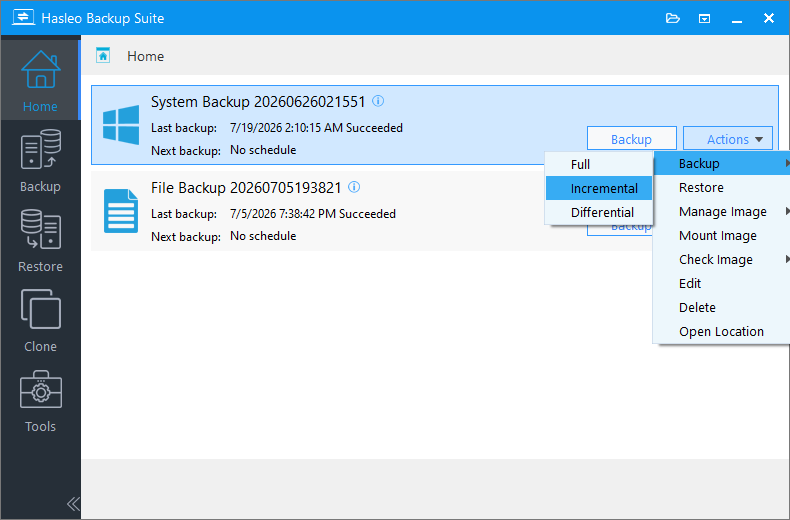
Step 1. Launch Hasleo Backup Suite. On the home page, locate your system backup task and click Action. From the drop-down menu, select Backup > Incremental Backup.
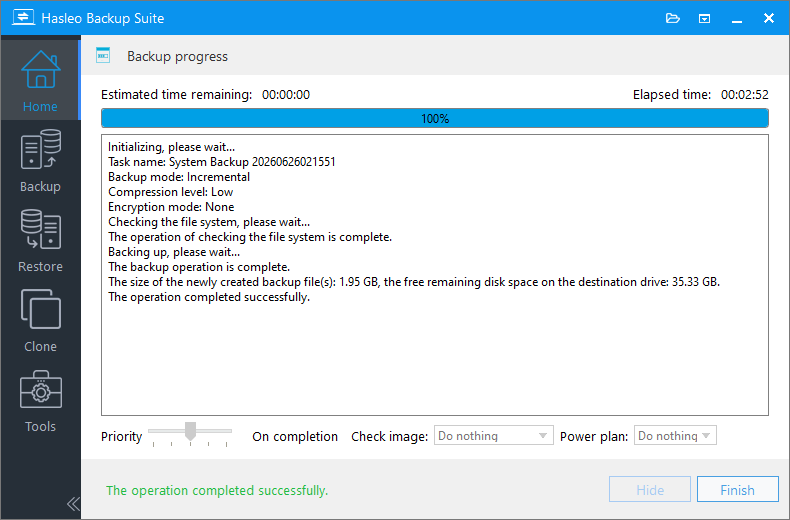
Step 2. The system is currently performing an incremental backup. Please wait until the task completes.
Conduct Software Testing
You can now install and run the software under test directly on a live system and perform any necessary operations - without worrying about damaging the system, since you can easily restore it in the next step.
After Testing: Perform a Delta Restore
Once testing is complete, return to Hasleo Backup Suite.
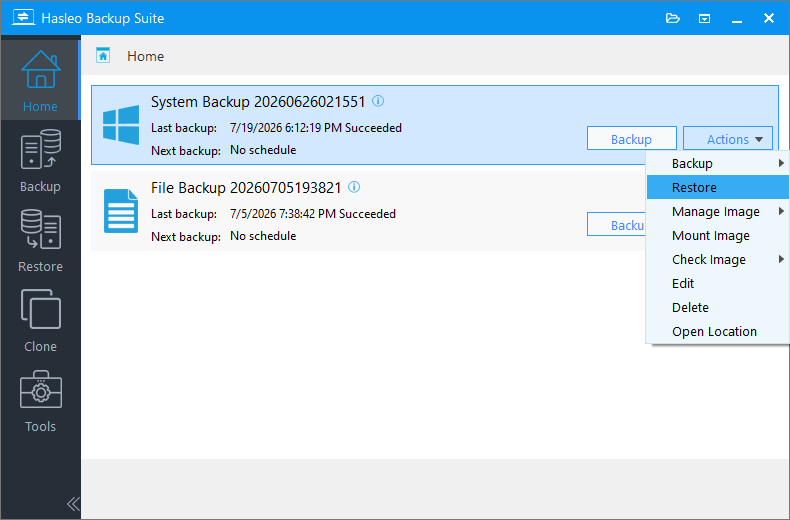
Step 1. On the home page, locate your backup job. Click Action and select Restore from the drop-down menu.
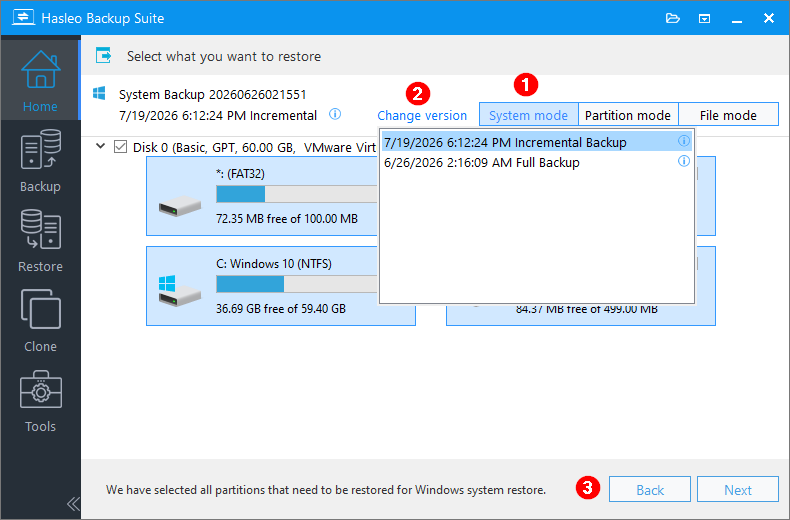
Step 2. In System mode, click Change version, select the incremental version you created before testing from the list, and then click Next.
2. ⚠ Important: Recovering only Windows partitions using Partition mode may prevent the system from booting or functioning properly.
3. When you select an incremental or differential backup version to restore, the program automatically extracts the data blocks required from the relevant backup chain to restore the system to its state at the time of that backup.
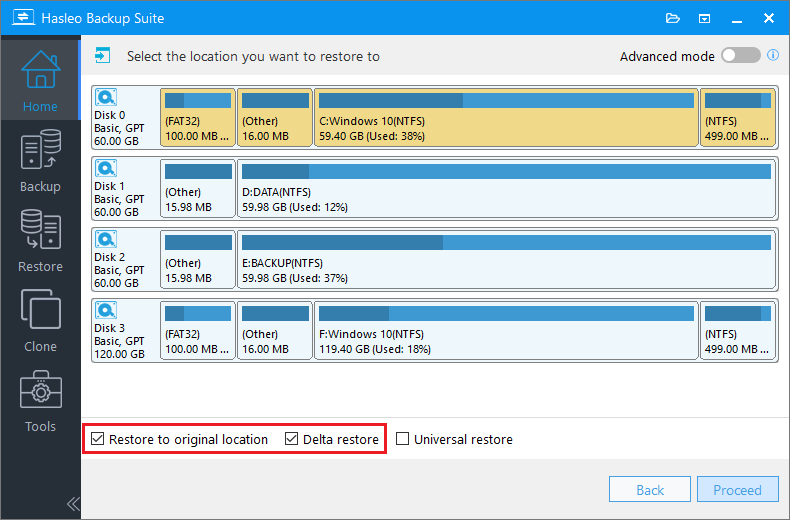
Step 3. After you select Restore to original location, the Delta restore option will be automatically enabled. Then click Proceed.
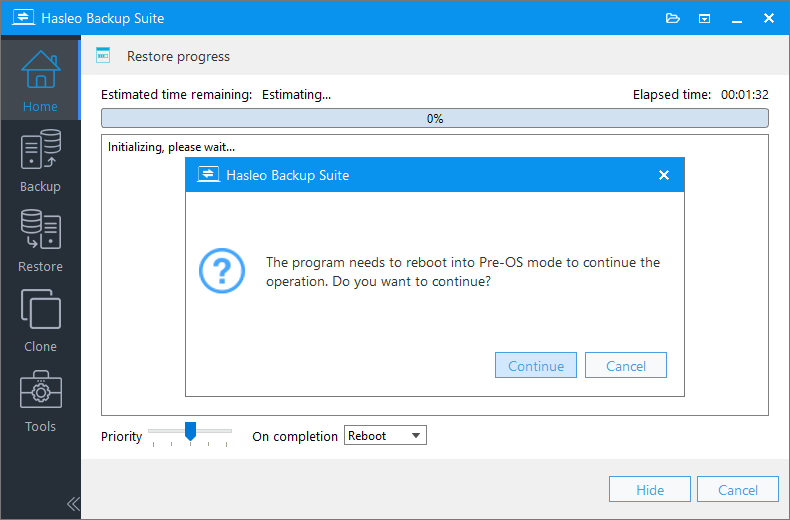
Step 4. Hasleo Backup Suite requires a system restart to enter pre-OS mode and continue the restore. Click Continue to proceed.
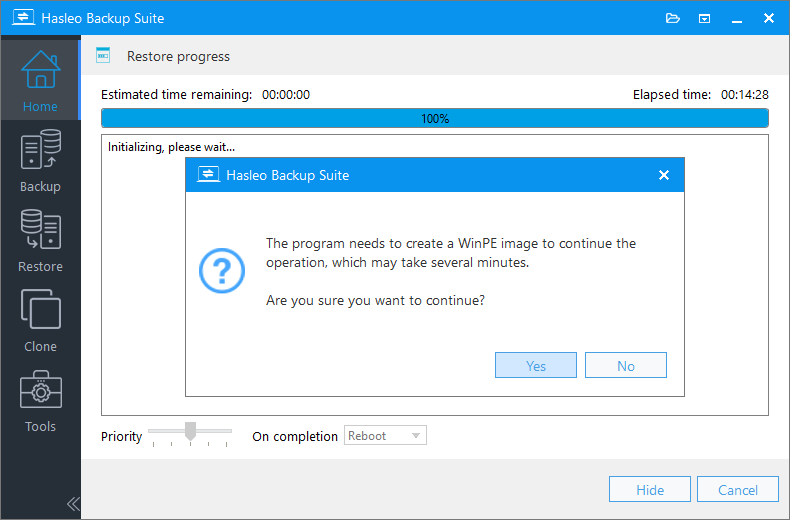
Step 5. System restore requires a WinPE image. Click Yes to create it.
Step 6. Check the Automatic driver injection box to inject the drivers needed for WinPE from this computer, then click Next. To add extra drivers, click Add driver and select the files.
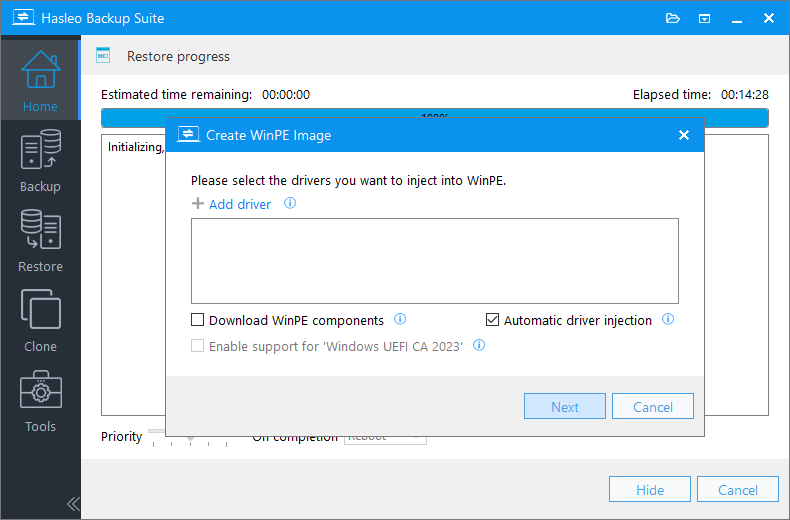
2. Download WinPE components: This option supports downloading WinPE components from Microsoft.
Step 7. Hasleo Backup Suite is creating the WinPE environment...
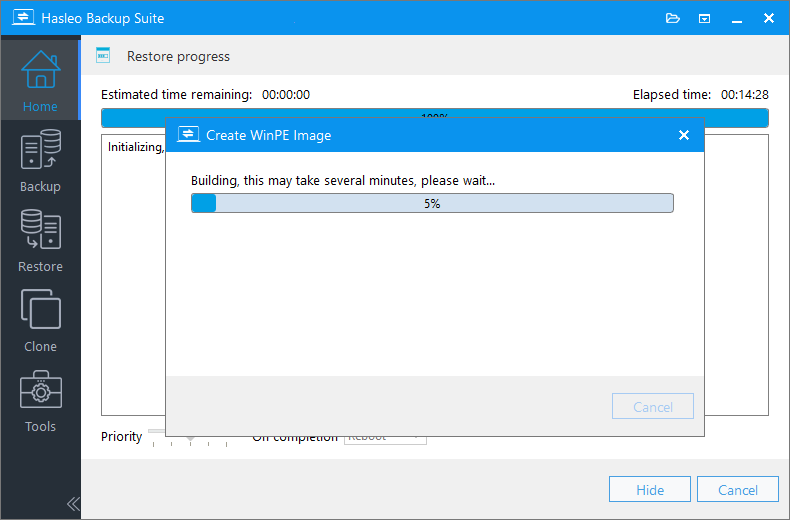
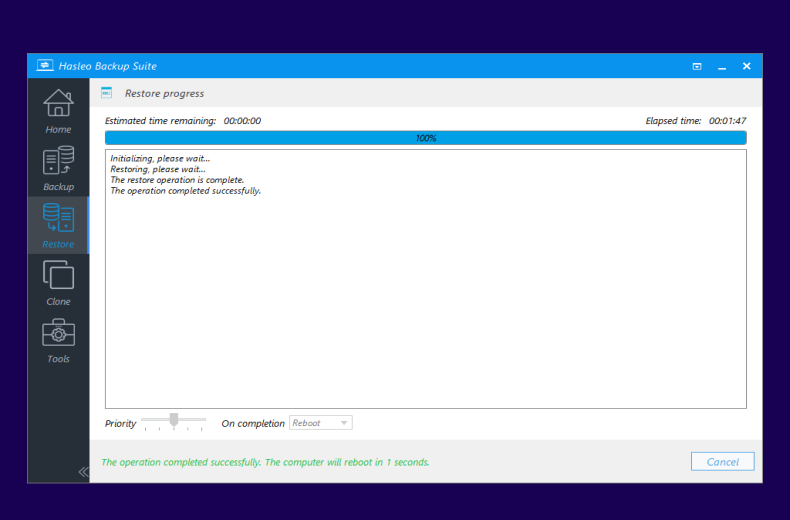
Step 8. After the WinPE image is created, Hasleo Backup Suite will begin restoring your system. This process will only take a few minutes. Please be patient.
2. For information on creating a WinPE USB drive, please refer to: How to Create Bootable WinPE Media.
Important Notes ℹ️
Maintaining the Incremental Backup Chain
Restoring an incremental backup requires a complete backup chain. For example, with the chain Full Backup → Incremental A → Incremental B, restoring Incremental B requires both Full Backup and Incremental A to remain intact.
When Deleting Old Backups:
Deleting the latest backup (e.g., Incremental B): The chain remains valid; Full Backup and Incremental A can still be used.
Deleting an intermediate backup (e.g., Incremental A): This invalidates all subsequent incremental backups (e.g., Incremental B), making them unrecoverable.
Verifying Backup Image Availability
The Check Image feature provides two verification modes:
Quick image check: This is faster but cannot guarantee that all data blocks have not been tampered with (e.g., virus attacks).
Complete image check: This thoroughly verifies data integrity and can effectively detect tampering issues, but it takes longer.
Please select the verification method based on your actual needs and time constraints.
Verification Testing Before Restoration
Before implementing this solution, we recommend performing a complete backup and restoration drill on a spare hard drive. This will validate the solution's reliability and help you become familiar with the entire process, allowing you to avoid potential operational pitfalls in advance.
Frequently Asked Questions 🔥
Q: What is the difference between a full system restore and a Delta Restore?
A full system restore writes the entire backup image back to the disk, overwriting all data. Delta Restore intelligently compares the backup with the current disk data and only restores the parts that differ, keeping identical data in place. This makes Delta Restore significantly faster for restoring to the original location.
Q: Can I delete an intermediate incremental backup without breaking the chain?
No. If you delete an intermediate incremental backup (e.g., Backup A in a chain of Full + Backup A + Backup B), the subsequent backups (Backup B) will become unusable because the chain is broken. However, you can safely delete the last backup in the chain without affecting earlier backups.
Q: Is Delta Restore available for restoring to a different location?
No, Delta Restore is specifically designed for restoring to the original location. It compares the backup with the current disk data on the same drive. For restoring to a different disk or location, a full restore is required.
Q: Do I need to keep the full base backup to use incremental backups?
Yes. Incremental backups depend on a complete backup chain consisting of one full backup and a series of consecutive incremental backups. If any backup version in the chain is damaged, the entire chain may become invalid. Always store your backups on an external drive or a separate physical disk for safety.
Conclusion
Using Hasleo Backup Suite as a "system snapshot" tool essentially means combining full backup, incremental backup, and Delta Restore.
The greatest advantage of this approach is that it removes all worry from software testing. Before installing new software, simply spend a few minutes creating an incremental backup point. After testing, one click restores your system to its previous clean state - no leftover files. Compared to virtual machines, this runs on physical hardware, so test results are fully reliable in accuracy and compatibility. Compared to Windows' built-in restore points, it offers significantly higher reliability and recovery success.
Once you've mastered this workflow, Hasleo Backup Suite becomes your most valuable tool for daily software testing.

Related Articles
- Delta Restore Speeds Up System Restoration in Hasleo Backup Suite
- How to Create Full/Incremental/Differential Backups in Windows?
- How to Restore Your System From Full/Differential/Incremental Backups?
- From First Backup to Regular Schedule - A Beginner's Guide
- How to Reduce Computer Lag During Backup - Hasleo Backup Suite Guide


