

- Why revoke access permissions?
- Step 1: Revoke the access permissions that Outlook has granted to Hasleo Backup Suite.
- Step 2: Remove the token stored by Hasleo Backup Suite that is used to access Outlook.
- Frequently Asked Questions
- Conclusion
If you've connected your Outlook account to Hasleo Backup Suite for email backup notifications but no longer need this feature—or you want to tighten your Microsoft account security—simply disabling the feature inside the software is not enough. The OAuth 2.0 authorization token stored on both Microsoft's servers and your local machine must be removed separately to fully sever the connection. This guide provides a complete walkthrough covering both steps: revoking application permissions in your Microsoft account settings and deleting the locally cached authentication token file.
Why revoke access permissions?
If you no longer want Hasleo Backup Suite to access your Outlook account (e.g., used to send backup notifications), you should revoke its permissions. This prevents the software from reading or sending emails on your behalf. This tutorial shows you how to completely remove access in two steps: revoking permissions via Microsoft's consent management page, and deleting locally stored authentication tokens.
Step 1: Revoke the access permissions that Outlook has granted to Hasleo Backup Suite.
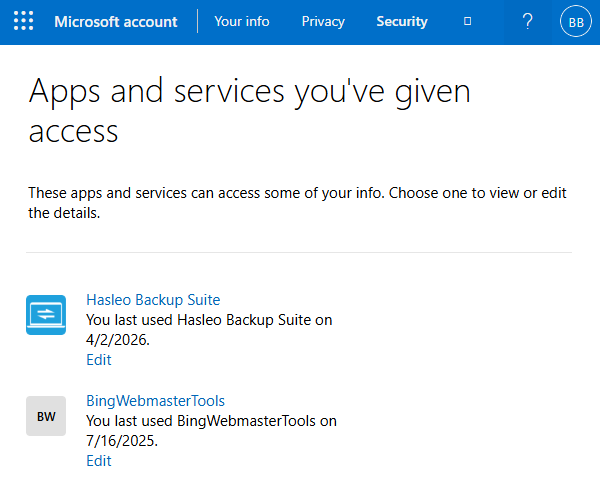
Step 1. Visit https://account.live.com/consent/Manage, sign in with your Microsoft account, and you will see a list of all authorized applications.
Step 2. Locate Hasleo Backup Suite and click "Edit" below it.
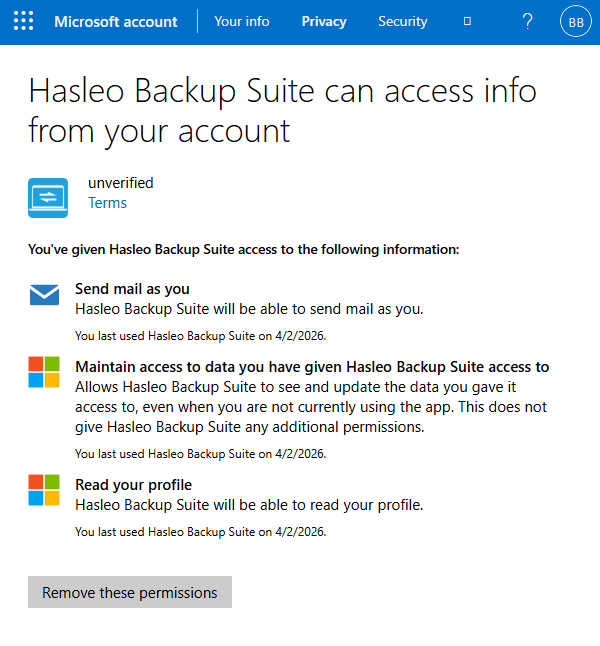
Step 3. The permissions you have granted to Hasleo Backup Suite are listed here. Click "Remove these permissions" below to revoke them.
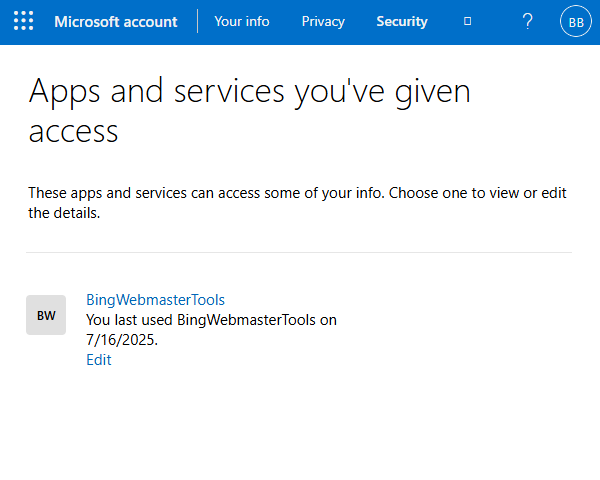
Step 4. Once you have successfully revoked the permissions for Hasleo Backup Suite, it will disappear from the list of apps.
Step 2: Remove the token stored by Hasleo Backup Suite that is used to access Outlook.
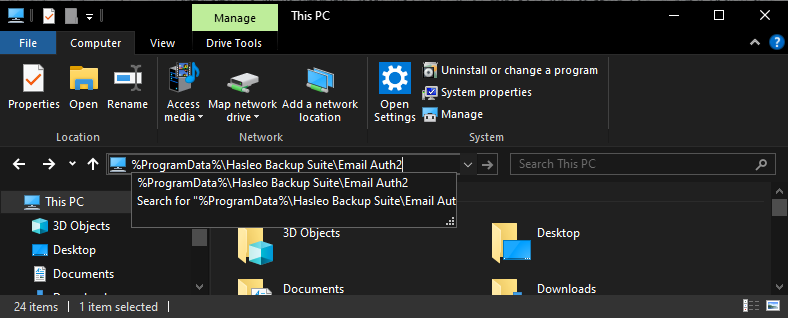
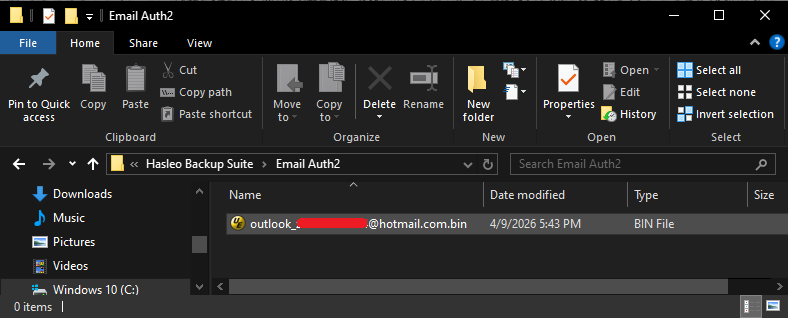
Step 1. In the address bar of File Explorer, directly type %ProgramData%\Hasleo Backup Suite\Email Auth2 to open the folder where the tokens are saved.
Step 2. Locate the file whose name starts with outlook_, followed by your email address, and ends with the .bin extension, then delete that file.
Frequently Asked Questions
A: Revoking prevents Hasleo Backup Suite from reading or sending emails on your behalf, enhancing account security.
A: Yes, both steps ensure complete disconnection. Step 1 removes server permissions, Step 2 removes local tokens.
A: Token files are in %ProgramData%\Hasleo Backup Suite\Email Auth2\ folder, named outlook_youremail.bin.
A: Yes, you can reconnect through Hasleo Backup Suite's email settings whenever needed.
A: Yes, after revoking, Hasleo Backup Suite cannot send email notifications via Outlook.
A: Only the connection is removed. Your email address remains in your Microsoft account.
A: Yes, you can reconnect by going through the email setup process again in Hasleo Backup Suite.
A: No, revoking only removes app access. Your Microsoft account password remains unchanged.
Conclusion
This tutorial provides a detailed description of how to manually revoke the access permissions that Outlook granted to Hasleo Backup Suite, as well as how to manually delete the token files saved by Hasleo Backup Suite.
After revoking the authorization, if you need to grant access again in the future, you can reconnect your Outlook account within the Hasleo Backup Suite software.
Related Articles
- How to Revoke Gmail Permissions for Hasleo Backup Suite?
- How to Create an App Password in Gmail for Hasleo Backup Suite?
- How to clone Windows/Disk/Partition in Windows 11?
- How to back up and restore Windows 11 for free?
- How to Create Full/Differential/Incremental Backups in Windows Using Hasleo Backup Suite Free?


