

最近我买了一台预装 Windows 8 的新笔记本电脑,想在上面安装 Windows 7。通常我们使用 DVD 驱动器在电脑上安装 Windows 7。遗憾的是,这对我的笔记本电脑行不通,因为它没有 DVD 驱动器。因此,我尝试创建一个也能在 UEFI 模式下启动的可启动 U 盘,但到目前为止还没有成功。所以我的问题是:有谁知道我怎样才能把 Windows 7 ISO 写入 U 盘,以便用它在一台 UEFI 电脑上安装 Windows 7?
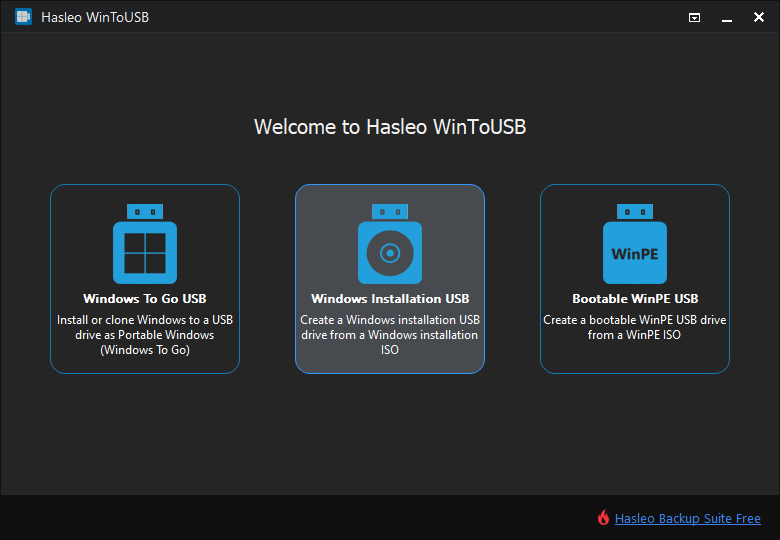
你是否遇到过类似的情况?默认情况下,Windows 7 安装 ISO 不支持 UEFI 启动,因此使用 Windows 7 安装 ISO 创建的可启动 U 盘安装驱动器也不支持 UEFI 启动。要创建可启动的 Windows 7 安装 U 盘,程序必须对从 ISO 中提取的内容进行修改。现在 Hasleo WinToUSB 推出了名为“Windows Installation USB Creator”的新功能,只需几个简单步骤即可创建 Windows 7 安装 U 盘,借助该功能,你可以创建一个Windows 安装 U 盘,用同一个 U 盘即可在传统 BIOS和 UEFI 电脑上安装 Windows 7。
请注意,只有 64 位 Windows 7 支持 UEFI 启动,因此你无法使用 32 位 Windows 7 创建支持 UEFI 启动的安装 U 盘。
创建支持 UEFI 的 Windows 7 安装 U 盘以安装 Windows 7 的教程

 按钮让程序重新识别驱动器。


* 分区方案:
 按钮打开“磁盘布局”窗口。在这里你可以按需调整分区的大小和位置,以及设置卷标和其他信息,然后点击“确定”保存更改。


常见问题(FAQ)
A: 只有 64 位 Windows 7 支持 UEFI 启动。32 位 Windows 7 不支持 UEFI 启动模式,因此你无法使用 32 位 Windows 7 创建支持 UEFI 启动的 U 盘。
A: 选择“MBR for BIOS and UEFI”可创建可在 BIOS 和 UEFI 电脑上启动的 Windows 7 安装 U 盘。这能提供最大的兼容性。如果你只需要 BIOS 启动,请选择“MBR for BIOS”。对于仅支持 UEFI 的系统,请选择“GPT for UEFI”(需要 64 位 Windows 7)。
A: Microsoft 建议 Windows 7 安装至少使用 8GB 的 U 盘。不过,我们建议至少使用 16GB,以确保为 Windows 更新和其他文件留出足够空间。
A: 时间取决于你的 U 盘速度和 Windows 7 安装文件的大小。通常,使用 USB 3.0 驱动器需要 15-30 分钟。使用 USB 2.0 则需要更长时间。
A: 可以,WinToUSB 免费版允许你从 ISO 文件创建 Windows 7 安装 U 盘。其过程与创建 Windows 10/11 安装 U 盘相同。
总结
按照这些简单的步骤,你可以使用 Hasleo WinToUSB 轻松地从 Windows 7 安装 ISO 创建支持 UEFI 的 Windows 7 安装 U 盘,然后从该可启动 U 盘启动,在传统 BIOS和 UEFI 电脑上安装 Windows 7。
作为专业的 Windows 可启动 U 盘创建软件,你不仅可以使用 Hasleo WinToUSB 创建 Windows 安装 U 盘,还可以创建便携版 Windows U 盘。