

I recently upgraded to Windows 10 and tried to use bitlocker on my data partition (D:) which is only for data and documents. Bitlocker reached 54.6% in few hours and then it stop progressing. I waited more than 24 hours before I started worrying and I was sure the bitlocker encryption has been stuck. There is no other way, I have to forcibly terminate the encryption. I am not able to access this partition now, even if I have the correct password and recovery key. It seems that BitLocker encryption stuck causes the partition to not be fully encrypted, so it is corrupted. What should i do to recover data after Bitlocker encryption stuck?
A stuck BitLocker encryption process can put your data at serious risk—this is not an exaggeration. While this may stem from a Windows bug, the reality is that you're left to solve it on your own. If standard methods fail, there's still hope. We recommend Hasleo Data Recovery, a professional BitLocker data recovery tool designed specifically for situations like this. Widely regarded as one of the most reliable tools on the market, Hasleo Data Recovery can recover the data after Bitlocker encryption stuck. Still unsure? Try it for yourself and see the results.
How to Recover Data When BitLocker Encryption Gets Stuck Using Hasleo Data Recovery?
Step 1: Choose BitLocker Data Recovery
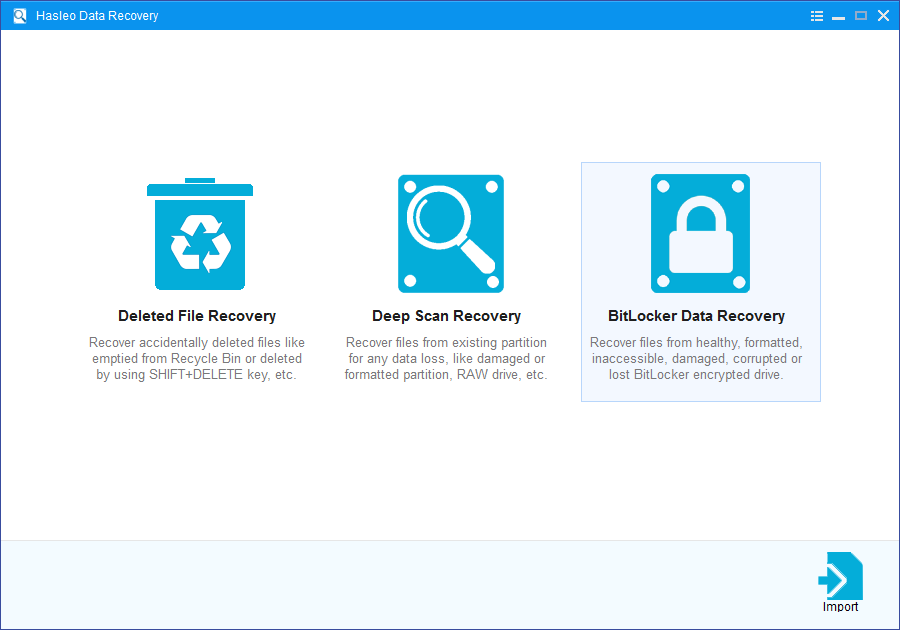
Download, install, and run Hasleo Data Recovery. On the main interface, you'll see several recovery options. Please select BitLocker Data Recovery mode.
Step 2: Select the drive to Scan
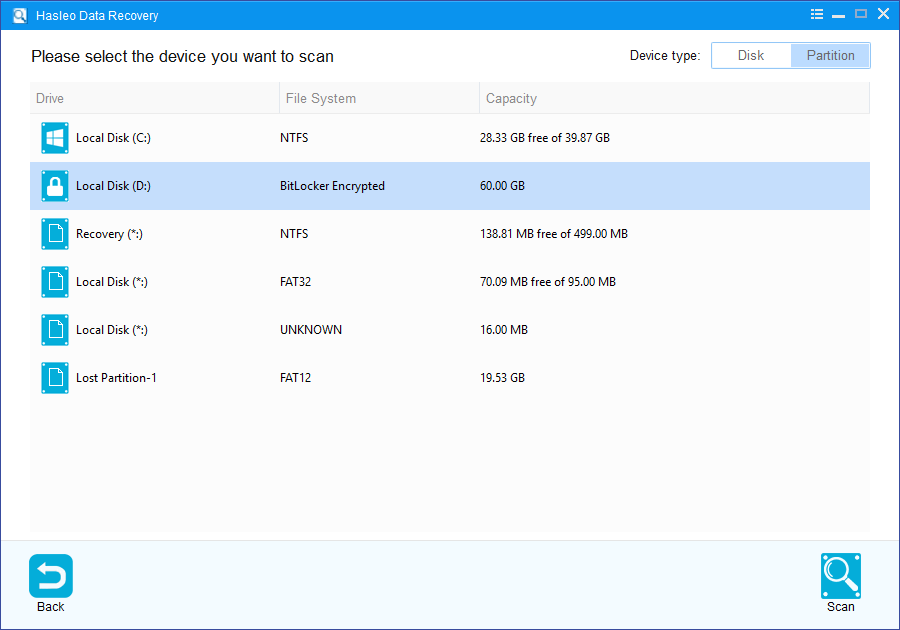
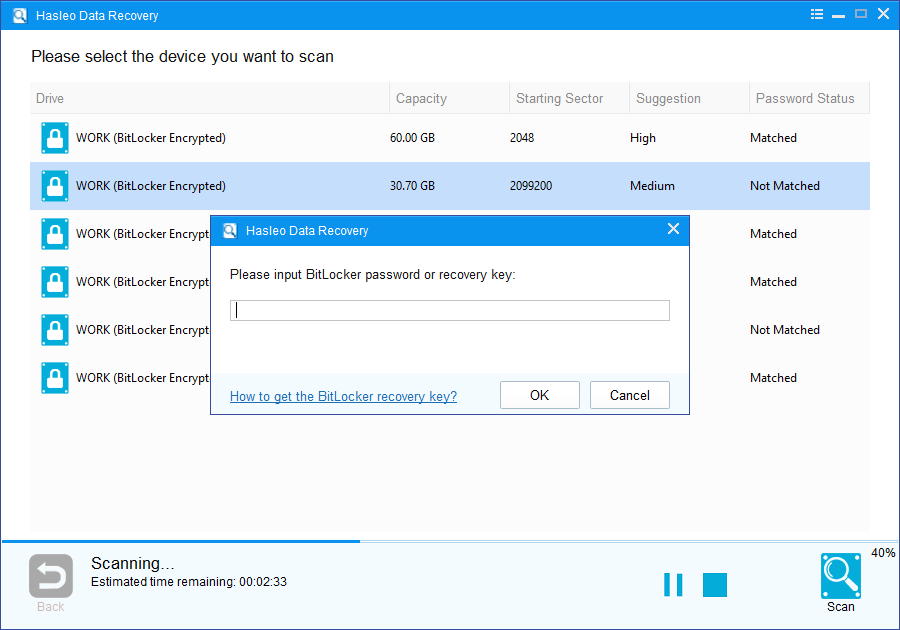
1. Please select the drive where you lost files, then click "Scan" to find all BitLocker-encrypted partitions on the device.
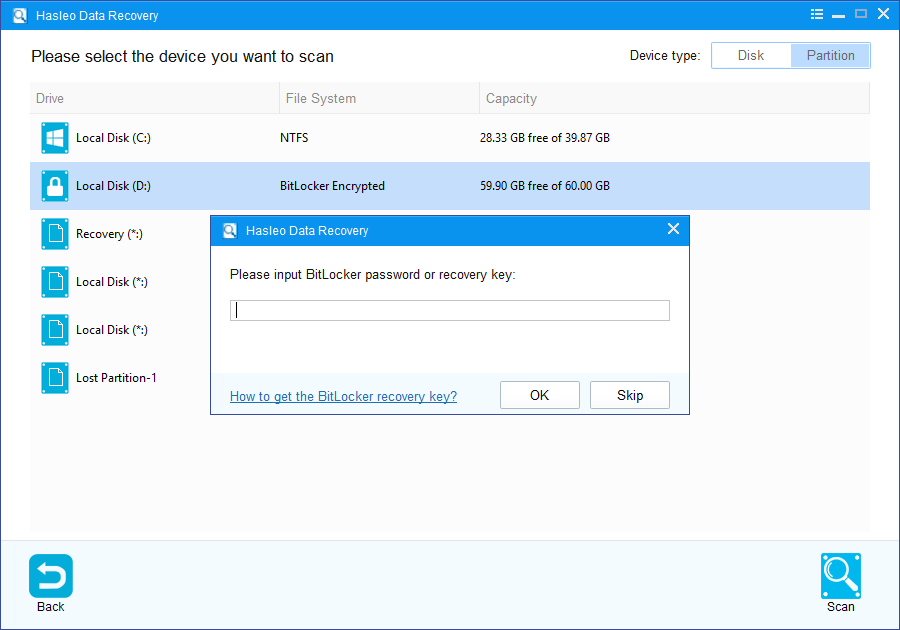
2. A pop-up window will appear asking you to enter the BitLocker password or 48-digit BitLocker recovery key. If you don't want to enter the password or BitLocker recovery key here, just click the "Skip" button to skip it.
3. Hasleo Data Recovery will display all detected BitLocker-encrypted partitions on the target device. If you provided the password or BitLocker recovery key in the previous step, the password status will show whether they match the partition.
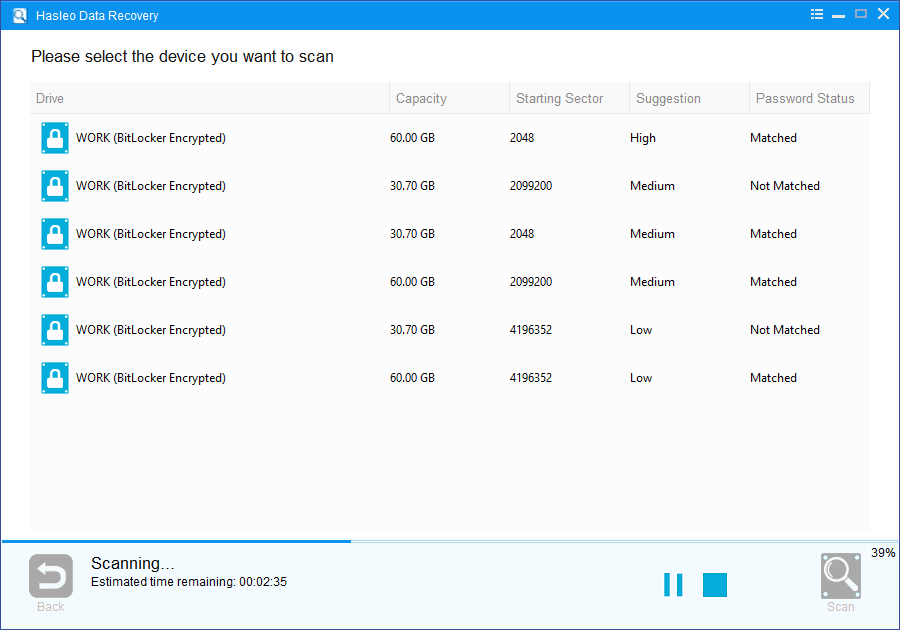
4. Double-click the partition you want to recover data from. If you've already entered the password or BitLocker recovery key and the password or recovery key matches, Hasleo Data Recovery will start scanning lost files. Otherwise, a prompt will appear asking for your BitLocker password or 48-digit recovery key. After entering the correct credentials and clicking "OK", the scan will start.
Step 3: Preview and Recover Deleted Files
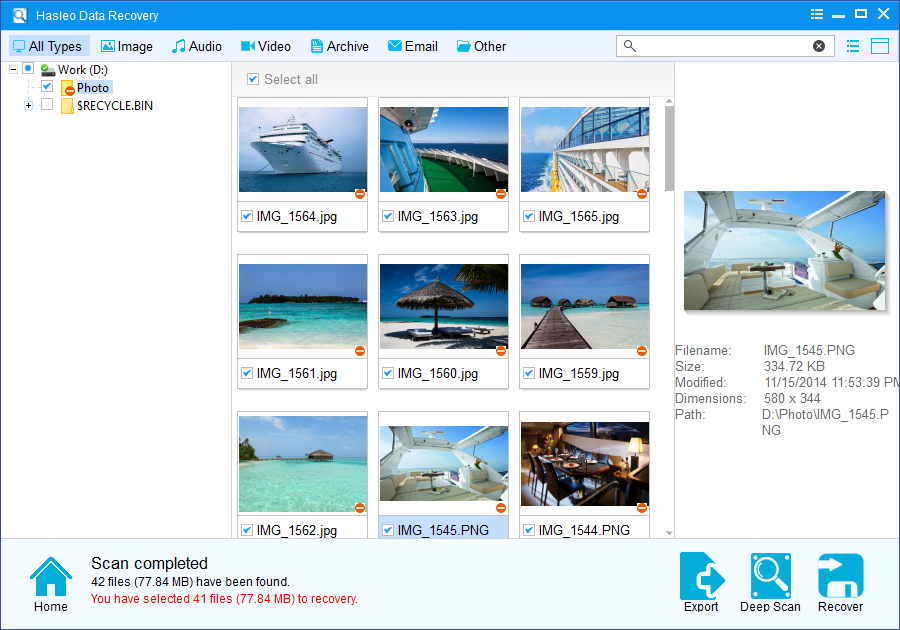
After scanning, the software will display a list of found files. You can preview them by browsing their paths or types. Select the files you wish to recover, then click the "Recover" button to save them to a destination of your choice. If your desired files are not found, click "Deep Scan" to initiate the Deep Scan Recovery process. This process takes additional time but can recover many more lost files.
As a professional BitLocker Data Recovery software, Hasleo Data Recovery can not only recover data from an encryption-stuck BitLocker drive, but also recover data from a decryption-failed BitLocker drive.
Important Notes:
- You must enter the correct Bitlocker password or the 48-digit Bitlocker recovery key to successfully recover data from a BitLocker-encrypted drive.
- If the metadata area of a BitLocker-encrypted drive is severely corrupted, data recovery from that partition may fail—even with the correct password or recovery key.
- Do not save recovered files to the original partition where the lost data was stored. This prevents the data from being overwritten.
- You can export or save the scan results for later use or future recovery sessions.
Frequently Asked Questions (FAQ)
A: BitLocker encryption can get stuck due to several reasons including Windows bugs or system errors, insufficient disk space, corrupted file system, conflicts with third-party software, sudden power interruption, or hardware issues with the storage device. When the encryption process is interrupted or encounters errors, it may freeze at a certain percentage.
A: Unfortunately, when BitLocker encryption is stuck and incomplete, you may not be able to access the partition even with the correct password or recovery key. The partially encrypted state can corrupt the drive's metadata, preventing normal access. You'll need specialized BitLocker recovery software to access the data.
A: First, wait for at least a few hours as the encryption may just be slow. If it remains stuck, try restarting your computer and waiting again. If the problem persists, use Hasleo Data Recovery in BitLocker Data Recovery mode to recover your data before attempting any fixes.
A: Yes, you must enter the correct BitLocker password or 48-digit recovery key to recover data from a BitLocker-encrypted drive, even if the encryption is stuck or failed. Without these credentials, the recovery software cannot decrypt and access the data.
A: To prevent BitLocker encryption issues, ensure your computer has sufficient battery power or is connected to a stable power source during encryption, close all unnecessary programs, ensure sufficient disk space, and avoid using the drive during the encryption process. Also, regularly back up your data to prevent data loss.
Related Articles
- How to recover data from corrupted BitLocker encrypted drive?
- Unable to unlock BitLocker drive with correct password or recovery key.
- How to recover data from Bitlocker encrypted partition in Windows 11/10?
- How to recover data from accidentally formatted BitLocker encrypted drive?
- How to recover data from corrupted/damaged BitLocker encrypted external hard drive?


