

I tried to encrypt one of my external hard disks by using BitLocker yesterday, unfortunately I removed the disk abnormally while encrypting it. Now when I try to access the encrypted partition on this USB drive, this message appears: BitLocker Drive Encryption failed to recover from an abruptly terminated conversion. This could be due to either all conversion logs being corrupted or the media being write-protected. I've tried the password and BitLocker recovery key, and I'm sure I typed the correct password and recovery key. What can i do? Please some one help me.
We have noticed that many users have encountered this issue, the main reason for this issue is to terminate the encryption program or remove the encryption device abnormally during encryption, so we should try to avoid these behaviors. If one day you encounter the issue of "BitLocker Drive Encryption failed to recover from an abruptly terminated conversion. This could be due to either all conversion logs being corrupted or the media being write-protected.", how do you get access to your files? Please don't worry, a powerful and professional BitLocker Data Recovery software - Hasleo BitLocker Anywhere has been discovered by Hasleo Software to help you solve this issue.

How to Recover Data from a BitLocker Drive After the "BitLocker Drive encryption failed to recover from the abruptly terminated" error?
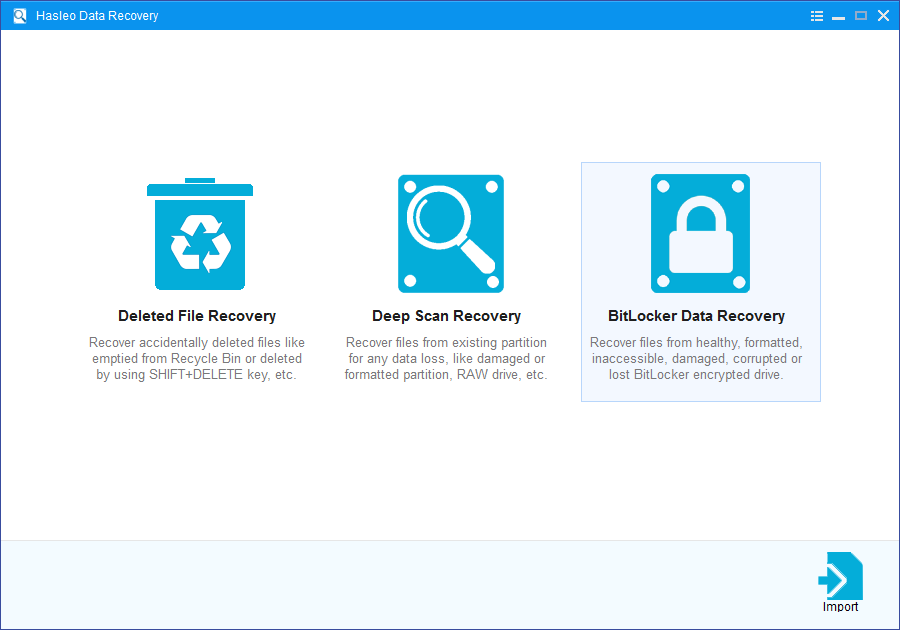
Step 1: Choose BitLocker Data Recovery
Download, install, and run Hasleo Data Recovery. On the main interface, you'll see several recovery options. Please select BitLocker Data Recovery mode.
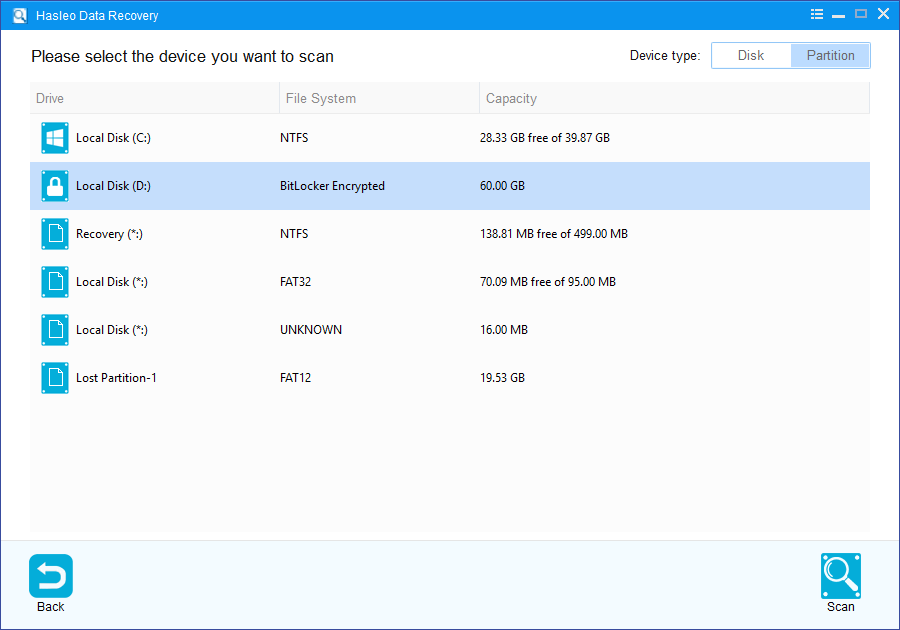
Step 2: Select the drive to Scan
1. Please select the drive where you lost files, then click "Scan" to find all BitLocker-encrypted partitions on the device.
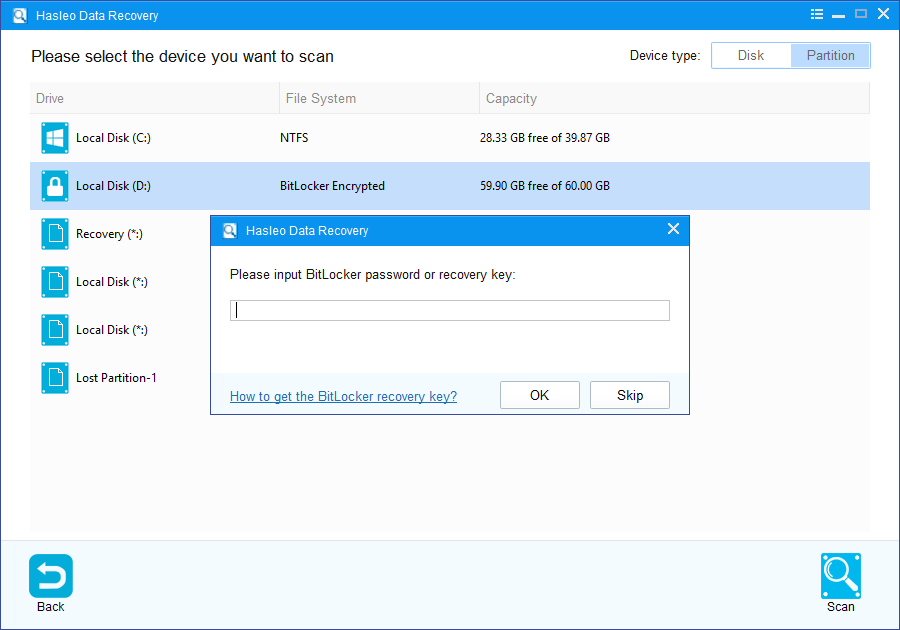
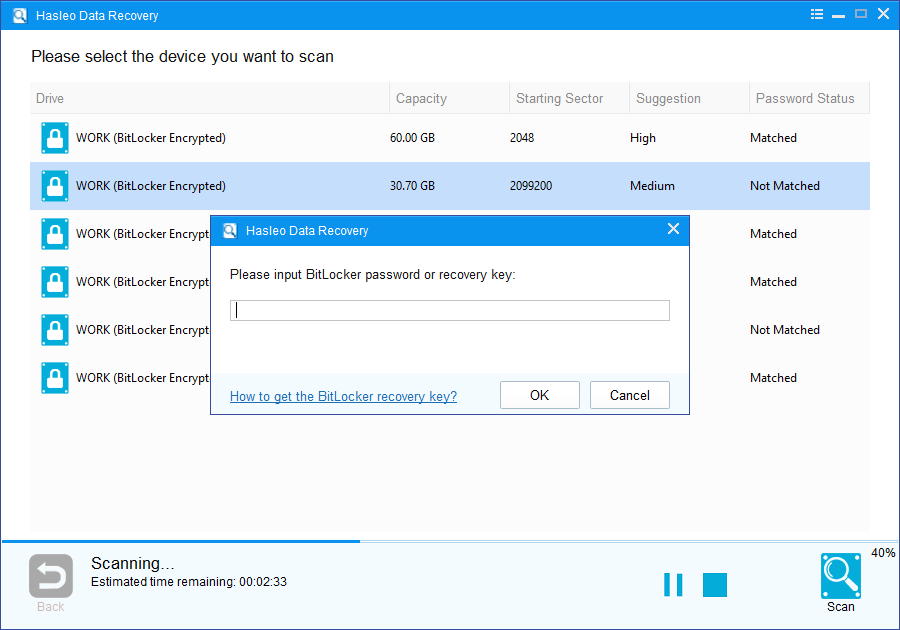
2. A pop-up window will appear asking you to enter the BitLocker password or 48-digit BitLocker recovery key. If you don't want to enter the password or BitLocker recovery key here, just click the "Skip" button to skip it.
3. Hasleo Data Recovery will display all detected BitLocker-encrypted partitions on the target device. If you provided the password or BitLocker recovery key in the previous step, the password status will show whether they match the partition.
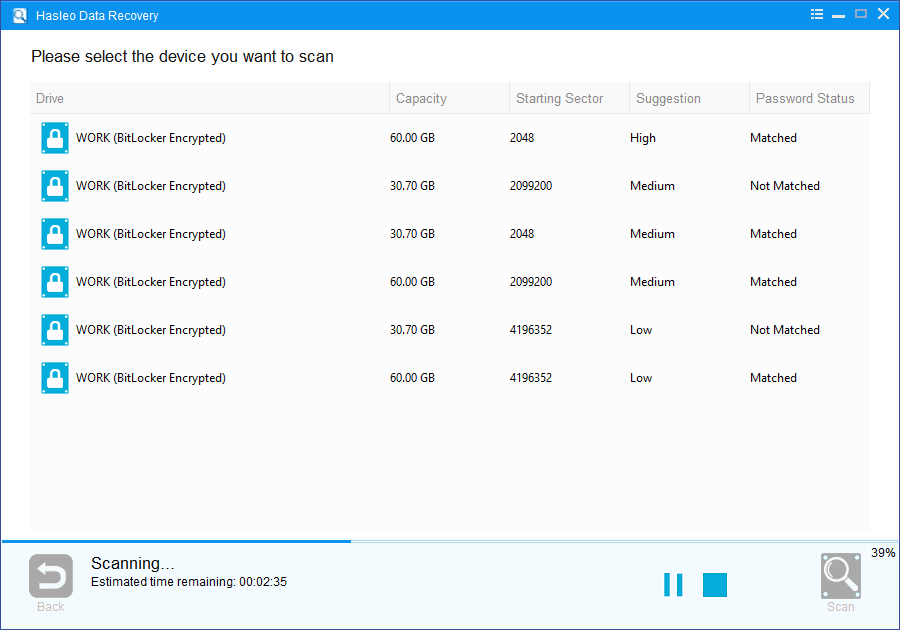
4. Double-click the partition you want to recover data from. If you've already entered the password or BitLocker recovery key and the password or recovery key matches, Hasleo Data Recovery will start scanning lost files. Otherwise, a prompt will appear asking for your BitLocker password or 48-digit recovery key. After entering the correct credentials and clicking "OK", the scan will start.
Step 3: Preview and Recover Deleted Files
After scanning, the software will display a list of found files. You can preview them by browsing their paths or types. Select the files you wish to recover, then click the "Recover" button to save them to a destination of your choice. If your desired files are not found, click "Deep Scan" to initiate the Deep Scan Recovery process. This process takes additional time but can recover many more lost files.

To sum up, Hasleo Data Recovery is a professional BitLocker data recovery software that can help you recover data from Bitlocker encrypted drive after you encounter the "BitLocker Drive encryption failed to recover from the abruptly terminated" error.
Important Notes:
- You must enter the correct Bitlocker password or the 48-digit Bitlocker recovery key to successfully recover data from a BitLocker-encrypted drive.
- If the metadata area of a BitLocker-encrypted drive is severely corrupted, data recovery from that partition may fail—even with the correct password or recovery key.
- Do not save recovered files to the original partition where the lost data was stored. This prevents the data from being overwritten.
- You can export or save the scan results for later use or future recovery sessions.
Frequently Asked Questions (FAQ)
A: This error typically occurs when the BitLocker encryption process is interrupted abnormally - such as removing the drive while encryption is in progress, power loss during conversion, or forced termination of the encryption program. The conversion logs become corrupted, preventing BitLocker from resuming the process.
A: No, you need either the correct BitLocker password or the 48-digit recovery key to decrypt and recover data from an encrypted partition. Without these credentials, the data remains inaccessible. If you have forgotten both, professional data recovery services may still attempt recovery depending on the severity of metadata corruption.
A: You can use specialized BitLocker data recovery software like Hasleo Data Recovery. Select BitLocker Data Recovery mode, choose the affected drive, enter your password or recovery key when prompted, then scan and recover your files. The software can handle partially encrypted or corrupted BitLocker partitions.
A: Not necessarily. As long as the encryption metadata isn't severely corrupted and you have the correct password or recovery key, professional BitLocker recovery software can often extract your data. The key factors are: having valid credentials, avoiding further write operations on the drive, and using reliable recovery software.
A: Always complete the BitLocker encryption process without interruption. Avoid removing the drive or shutting down the computer during encryption or decryption. Ensure stable power supply during the conversion process, and never force-stop the BitLocker service. Regularly back up your recovery key to a safe location.
Related Articles
- How to recover a deleted or lost Bitlocker encrypted partition?
- How to recover data from inaccessible BitLocker encrypted drive?
- How to recover data from Bitlocker encrypted partition in Windows 11/10?
- How to recover data from accidentally formatted BitLocker encrypted drive?
- How to recover data from corrupted/damaged BitLocker encrypted external hard drive?


