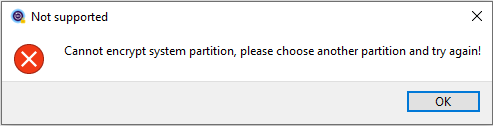
When we try to use M3 Bitlocker Loader to encrypt the Windows system partition, M3 Bitlocker Loader will prompt "Cannot encrypt system partition, please choose another partition and try again!" error. This error means that M3 Bitlocker Loader does not support encryption of Windows system partition (C: drive).
Hasleo BitLocker Anywhere For Windows is the world's first all-in-one BitLocker solution for Windows 11/10/8/7 Home and Windows 7 Pro. It supports encryption of both the system partition (C: drive) and data partitions. This tutorial will teach you how to fix the "Cannot encrypt system partition, please choose another partition and try again" error for M3 BitLocker Loader using Hasleo BitLocker Anywhere.



How to Fix the "Cannot Encrypt System Partition" Error in M3 BitLocker Loader with Hasleo BitLocker Anywhere For Windows
Step 1. Download and install Hasleo BitLocker Anywhere For Windows.
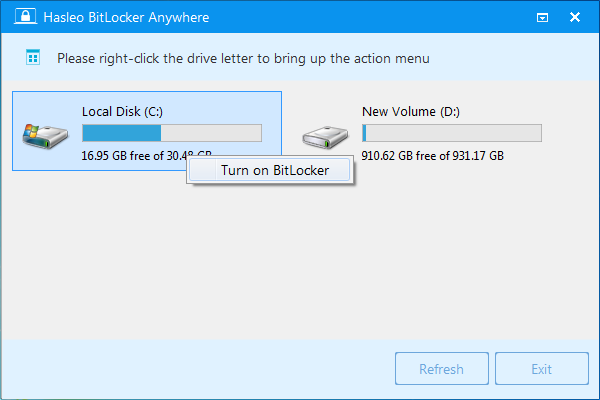
Step 2. Launch Hasleo BitLocker Anywhere For Windows, right-click the Windows system partition drive letter (usually C:), then click "Turn On BitLocker".
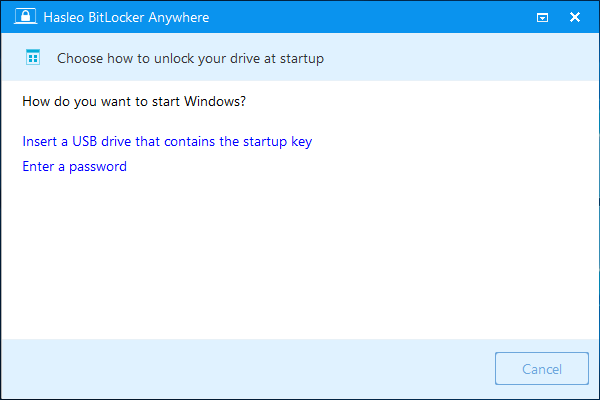
Step 3. In this step, you are asked to choose how to unlock the Windows drive at startup. Please select Enter a password to start the computer.
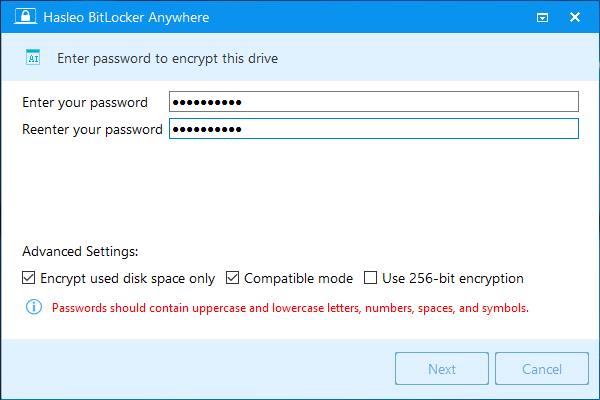
Step 4. Now you are required to specify a password for encrypting the drive, enter the password and click "Next". You should choose a password having a combination of upper and lower case letters, numbers, spaces, and special symbols.
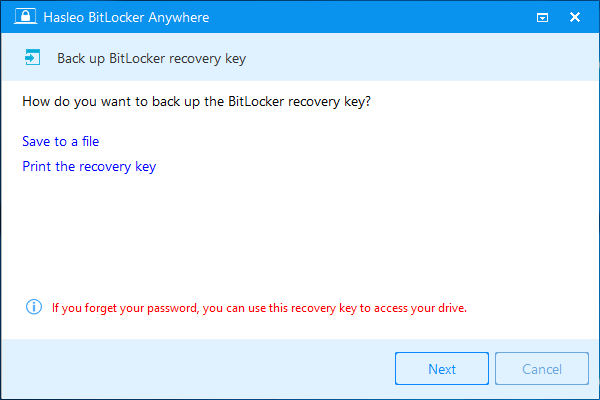
Step 5. After clicking "Next", you are asked how you want to backup the BitLocker recovery key. You can save the recovery key to a file or print a copy of it, then click "Next" to move on. Please note that anyone can use the recovery key to gain access to the drive, even if they do not have the password created in the previous step, so please do not disclose it to others.
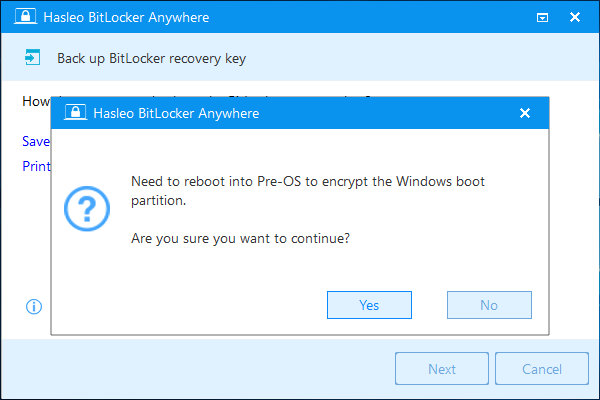
Step 6. Now a pop-up will appear asking you if you want to reboot into Pre-OS to encrypt the Windows partition. Click "Yes" to continue.
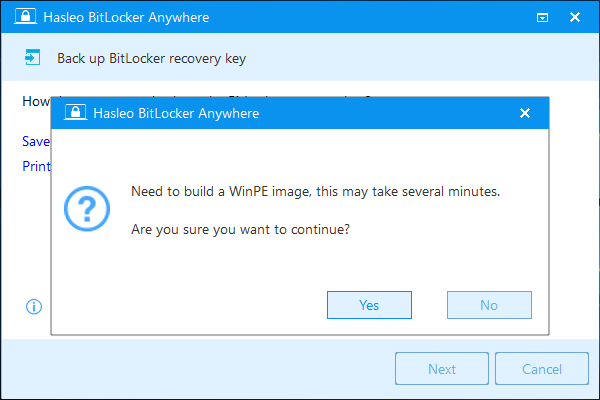
Step 7. Another pop-up will appear asking you if you want to build a WinPE image to continue. Click "Yes".
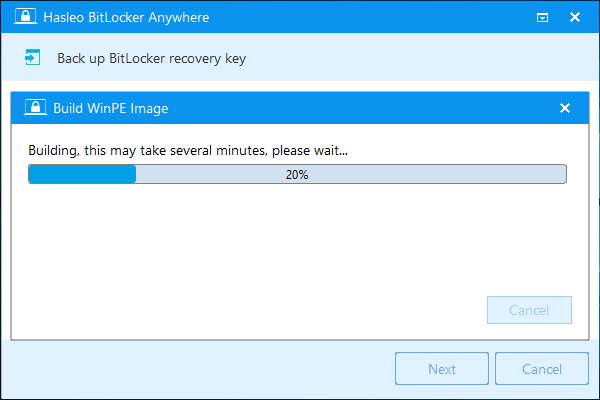
Step 8. Hasleo BitLocker Anywhere is building the WinPE environment. This may take several minutes, so please be patient.
Step 9. After successfully builded the WinPE image, Hasleo BitLocker Anywhere will prompt you to reboot the computer, click "Yes" button to allow Hasleo BitLocker Anywhere to reboot your computer.
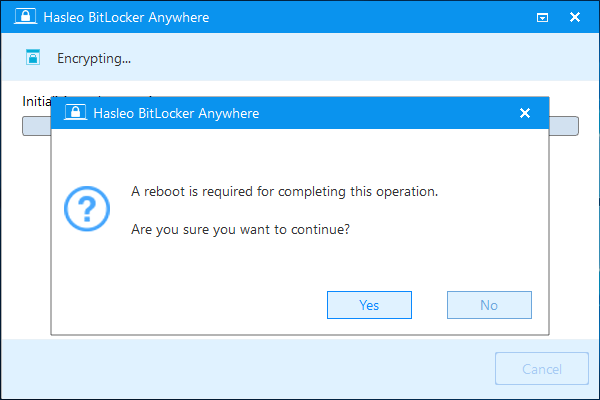
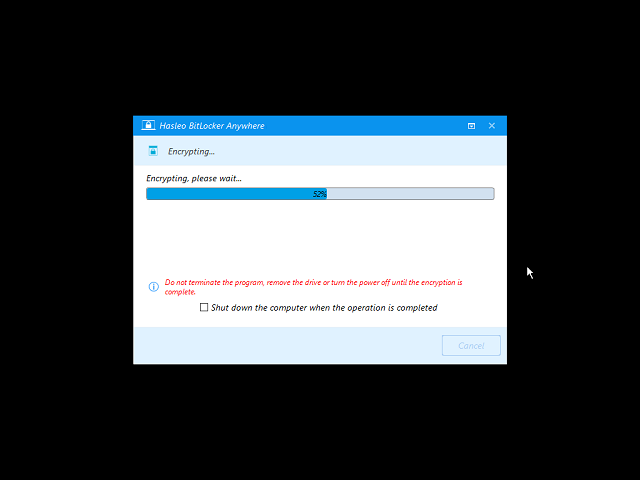
Step 10. Hasleo BitLocker Anywhere will now reboot and enter Pre-OS mode to encrypt the selected drive using BitLocker drive encryption. The encryption process may take a long time to complete depending on the drive size, so please be patient. If you prefer not to wait, you can select the "Shut down the computer when the operation is completed" option by checking the corresponding box.
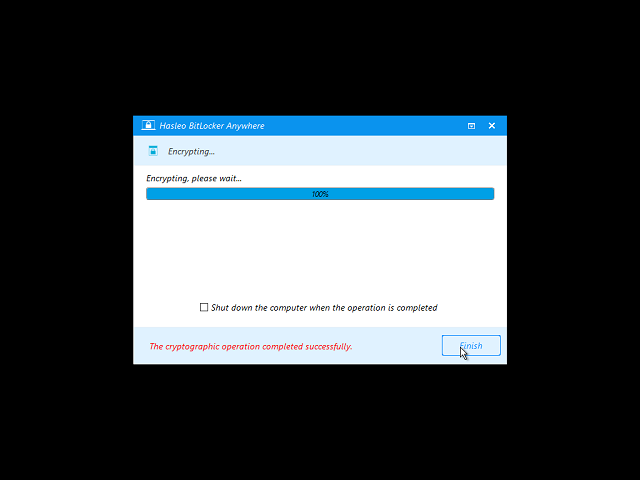
Step 11. After the encryption is complete, click the "Finish" button to close the window.
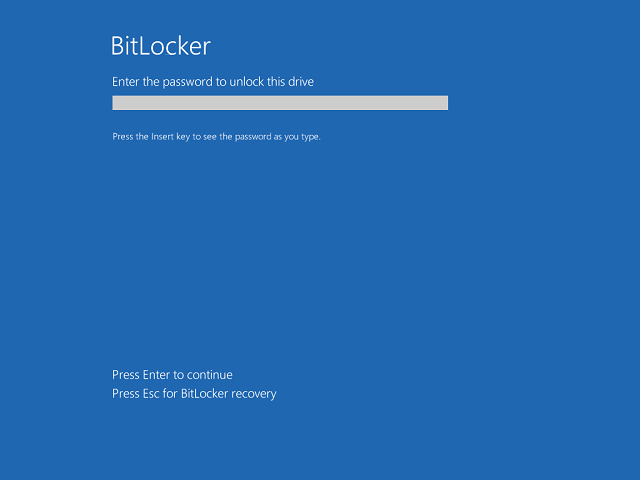
Step 12. Now you must enter the BitLocker password before you can start the Windows.
As mentioned above, Hasleo BitLocker Anywhere for Windows can help you encrypt the Windows system partition (C: drive). It is the best solution for fixing the "Cannot encrypt system partition" error in M3 BitLocker Loader. In addition, it supports decrypting BitLocker partitions and changing passwords for BitLocker-encrypted partitions—features not supported by M3 BitLocker Loader. This makes Hasleo BitLocker Anywhere the best BitLocker solution for Windows Home Edition.
Frequently Asked Questions (FAQ) for Fixing M3 BitLocker Loader System Partition Error
A: M3 BitLocker Loader does not support encrypting the Windows system partition (C: drive). It can only encrypt data partitions, not the partition where Windows is installed.
A: Yes, Hasleo BitLocker Anywhere supports encrypting the Windows system partition (C: drive). It uses a pre-OS encryption method to securely encrypt the boot partition.
A: Yes, encrypting the Windows system partition requires rebooting into pre-OS mode because the system files cannot be encrypted while Windows is running. Hasleo BitLocker Anywhere creates a WinPE environment to complete the encryption.
A: If you forget the password, you can use the BitLocker recovery key to unlock the drive. Make sure to back up the recovery key during encryption and store it in a safe place.
A: Yes, Hasleo BitLocker Anywhere supports both password and startup key protectors. You can choose to use a USB flash drive containing the startup key to unlock the encrypted system partition at startup.
A: M3 BitLocker Loader appears to be discontinued and no longer actively maintained. Hasleo BitLocker Anywhere is the recommended alternative that provides more features and active support.
A: BitLocker encryption has minimal impact on system performance. The encryption is transparent during normal operation, and most users won't notice any difference in speed.
A: Yes, you can decrypt the system partition using Hasleo BitLocker Anywhere. However, similar to encryption, decryption also requires rebooting into pre-OS mode to complete the process.
Related Articles
- How to fix 'BitLocker Setup requires the drive file system to be NTFS error'?
- How to Turn On BitLocker in Windows 10 Home?
- How to Enable BitLocker in Windows 10 Home Edition?
- How to Protect Data with Best TrueCrypt Alternative in Windows 11/10/8.1/8/7 Home?
- How to fix "The BitLocker encryption on this drive isn't compatible with your version of Windows" error?