

在特定使用场景下,你可能需要从外接硬盘运行 Windows Server。本教程详细介绍如何将 Windows Server 安装或克隆到外接硬盘,作为便携系统。
Windows Server 概述
Windows Server 指的是 Microsoft 的一系列服务器操作系统,专为企业级管理、数据存储、数据库应用和通信而设计。这意味着 Windows Server 几乎在所有情况下都用于企业环境。每个 Windows Server 版本都对应一个桌面 Windows 版本。例如,Windows Server 2008 是 Windows Vista 的服务器版本。由于 Windows Server 与桌面 Windows 共享相同的代码库,它们支持许多相同的功能。Windows Server 支持安装常见应用程序(浏览器、图片编辑器等),同时也包含记事本等标准 Windows 实用工具和其他系统工具。与桌面操作系统相比,Windows Server 操作系统具有以下特点:
✦ 1. Windows Server 支持更多内存
✦ 2. Windows Server 更高效地使用 CPU
✦ 3. 允许更多网络连接
✦ 4. 后台任务和服务优先
到目前为止,Windows Server 已发布以下版本:
| 版本 | 代号 | 内核版本号 | 发布日期 |
|---|---|---|---|
| Windows Server 2000 | NT5.0 Server | NT 5.0 | 2000-02-17 |
| Windows Server 2003 | Whistler Server, .NET Server | NT 5.2 | 2003-04-24 |
| Windows Server 2003 R2 | Release 2 | NT 5.2 | 2005-12-06 |
| Windows Server 2008 | Longhorn Server | NT 6.0 | 2008-02-27 |
| Windows Server 2008 R2 | Server 7 | NT 6.1 | 2009-10-22 |
| Windows Server 2012 | Server 8 | NT 6.2 | 2012-09-04 |
| Windows Server 2012 R2 | Server Blue | NT 6.3 | 2013-10-17 |
| Windows Server 2016 | Threshold Server, Redstone Server | NT 10.0 | 2016-10-13 |
| Windows Server 2019 | Redstone Server | NT 10.0 | 2018-11-13 |
| Windows Server 2022 | Sun Vallery Server | NT 10.0 | 2021-11-5 |
| Windows Server 2023 | Sun Vallery 2 Server | NT 10.0 | 2023-1-10 |
| Windows Server 2025 | Germanium Server | NT 10.0 | 2024-11-1 |
什么是 Windows Server To Go(便携版 Windows Server)?
Windows To Go (WTG) 是 Microsoft 的一项技术,允许从 U 盘安装并启动 Windows,通常也称为便携版 Windows。将 Windows 安装到 U 盘后,你可以随身携带它,并在任何电脑上启动你的便携版 Windows。同样,Windows Server To Go 指的是在 U 盘上安装并启动 Windows Server。
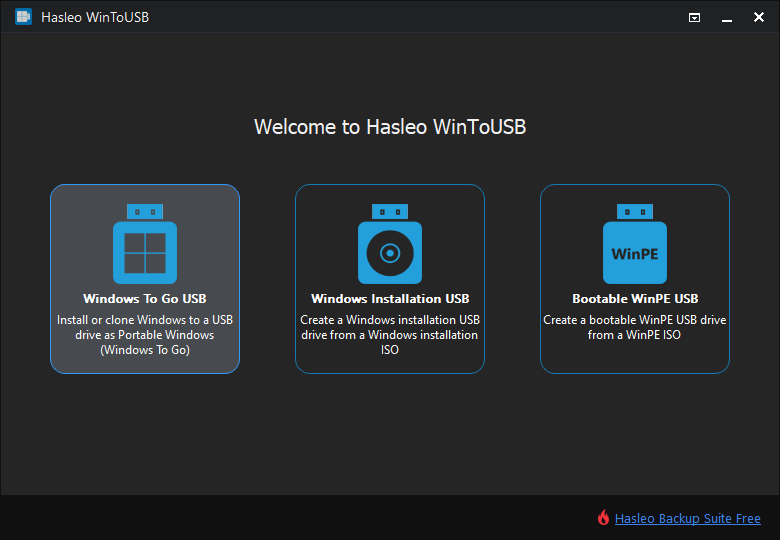
不过,Windows Server 无法直接安装到 U 盘上。有没有办法把 Windows 安装到外接磁盘驱动器上?有!本教程详细介绍如何使用 Hasleo WinToUSB 将 Windows Server 安装或克隆到外接硬盘,并从该驱动器启动。
将 Windows Server 安装到外接硬盘作为便携版 Windows Server 的教程。

* 提示: DBI 是由 Hasleo Backup Suite 创建的系统备份映像文件的扩展名。

 按钮以启动驱动器识别。


* 提示:


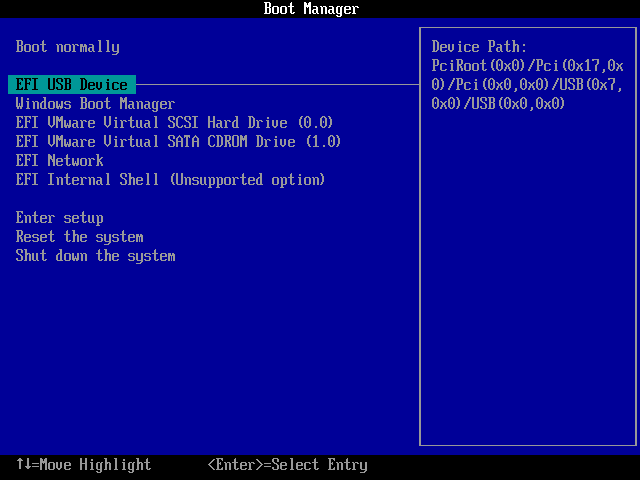
将 Windows Server 克隆到外接硬盘作为便携版 Windows Server 的教程。


* 提示:


常见问题(FAQ)
A: Hasleo WinToUSB 支持将所有 Windows Server 版本(包括 Windows Server 2000 到 Windows Server 2025)安装到外接硬盘。过程与安装桌面 Windows 版本类似。
A: 可以。使用 WinToUSB 的“Current Windows OS”功能,你可以将现有的 Windows Server 安装克隆到外接硬盘。这样会保留 Windows Server 上的所有应用程序、设置和数据。
A: 从 ISO 安装会创建全新的 Windows Server 安装,而克隆会复制现有的 Windows Server 并保留所有设置和数据。克隆速度更快,并能保持你已配置好的环境。
A: 主机电脑需要支持 USB 启动。为获得最佳性能,建议使用 USB 3.0 或更快的连接。Windows Server 的硬件要求取决于所安装的具体版本。
A: 可以,Windows Server To Go 驱动器完全支持 BitLocker 加密,可为你的便携版 Windows Server 环境提供数据保护。
总结
本教程介绍了 Windows Server 操作系统和 Windows To Go,并提供了将 Windows Server 安装或克隆到外接硬盘作为便携系统的分步说明。按照这些步骤,你可以从外接硬盘安装并运行 Windows Server。
作为专业的便携版 Windows 创建工具,Hasleo WinToUSB 支持将 Windows Server 和桌面操作系统安装或克隆到外接硬盘,作为便携版 Windows 系统。