

本教程介绍如何使用 Hasleo WinToUSB,从 ISO 或 CD/DVD 光驱将 Windows Server(2008 R2 或更高版本)安装到外接硬盘,作为便携版 Windows。
Windows Server 概述
Windows Server 是 Microsoft 开发的一系列企业级操作系统,专为服务器环境设计。这些系统提供强大的服务器能力,并集成了多种企业级功能,包括网络管理、数据存储和安全控制。Windows Server 提供以下核心功能:
1. 服务器管理:Windows Server 提供丰富的服务器管理功能,包括用户管理、进程监控、资源管理等,确保服务器高效稳定运行。 2. 网络管理:集成 DHCP(动态主机配置协议)和 DNS(域名系统)等网络服务,支持企业级网络环境的配置和管理。 3. 虚拟化支持:借助内置的 Hyper-V 虚拟化技术,Windows Server 让用户能轻松部署、配置和管理虚拟机,提高资源利用率。 4. 安全与稳定:Windows Server 配备防火墙、身份验证和数据加密等高级安全功能,以保护企业网络和数据。同时,其稳定的架构设计确保长时间连续运行。 5. 多功能性:它支持多种服务器角色和功能,以满足多样化的企业需求,包括文件服务器、Web 服务器和打印服务器等。
选择将 Windows Server 安装到外接硬盘作为便携版 Windows Server 的最佳软件
我们打算用 WinToUSB 为我们的一个课程创建 Windows Server 2016 To Go U 盘。Hasleo WinToUSB 支持创建 Windows Server 2016 To Go U 盘吗?我在你们的文档中确实看到可以创建 U 盘来安装 Windows Server 2016 操作系统。不过,文档没有提到我们是否可以创建 Windows Server 2016 To Go U 盘。
你能把 Windows Server 安装到外接硬盘上作为便携版 Windows Server 吗?很多人都有同样的疑问,答案是肯定的。虽然 Windows 无法直接安装到 U 盘上,但你可以使用第三方软件来实现这一点。寻找一款能把 Windows 安装到 U 盘的工具是解决这个问题的关键。我们推荐 Hasleo WinToUSB,这是一款强大可靠的便携版 Windows 创建软件。Hasleo WinToUSB 不仅支持安装 Windows 11/10/8/7,还支持将 Windows Server(2008 R2 或更高版本)安装到外接硬盘。所以,下载试用一下吧。
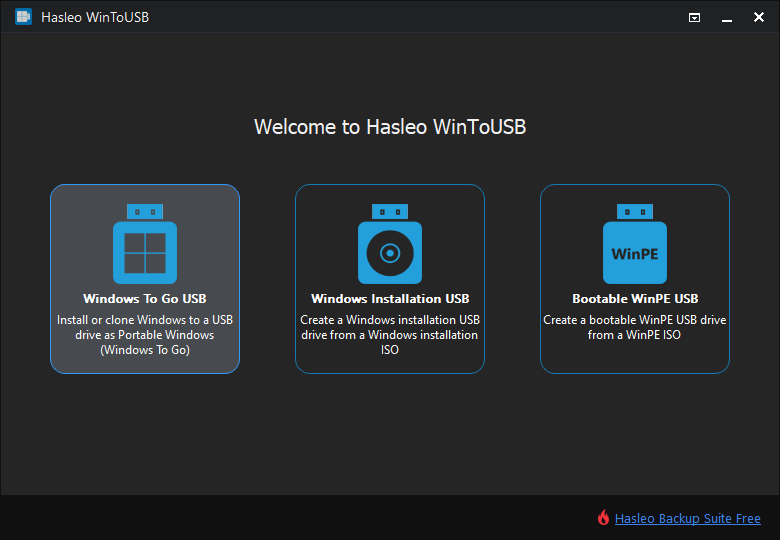
将 Windows Server 安装到外接硬盘作为便携版 Windows Server 的教程。


 按钮以启动驱动器识别。


* 提示:


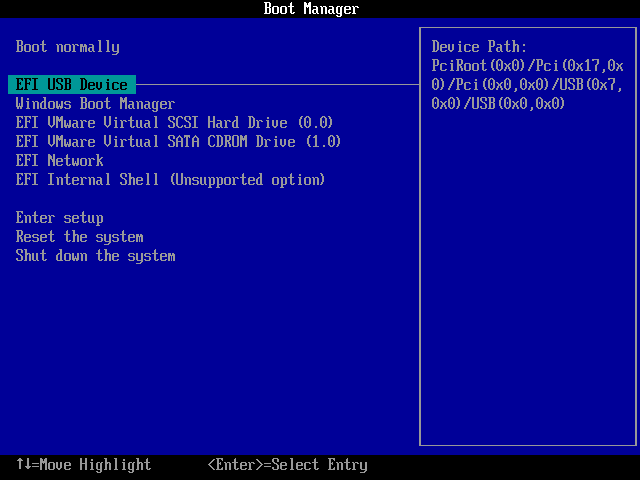
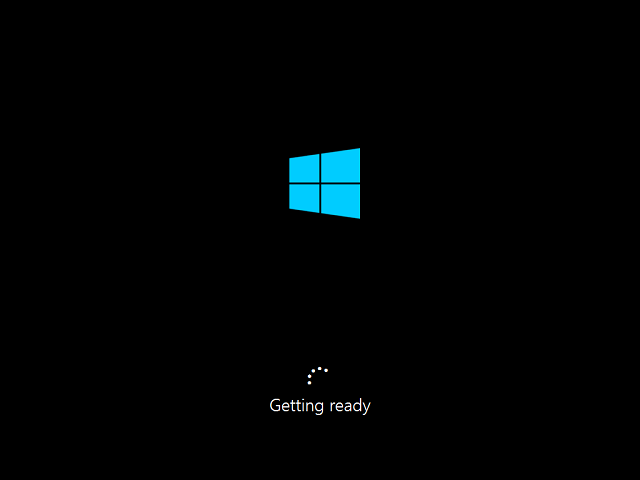
常见问题(FAQ)
A: Hasleo WinToUSB 支持将 Windows Server 2008 R2 及更高版本安装到外接硬盘作为便携版 Windows Server,包括 Windows Server 2012、2016、2019、2022、2023 和 2025。
A: 与 U 盘相比,外接硬盘(尤其是 SSD)提供更快的性能和更大的存储容量。我们建议使用外接 SSD 创建 Windows Server To Go,以获得最佳体验。
A: 可以。使用 Hasleo WinToUSB 的“Current Windows OS”选项,你可以将现有的 Windows Server 安装克隆到外接硬盘,同时保留所有设置和数据。
A: 需要,Hasleo WinToUSB 会格式化目标驱动器。如果你想保留现有分区,请选择“Keep the existing partition scheme”选项,并事先手动准备分区。
A: 可以,Windows Server To Go 驱动器支持 BitLocker 加密,可为你的便携版 Windows Server 环境提供数据保护。
总结
按照这些步骤,你可以将 Windows Server(2008 R2 或更高版本)安装到外接硬盘作为便携版 Windows Server。虽然 Hasleo WinToUSB 也支持将 Windows Server 安装到 U 盘,但我们强烈建议在创建 Windows Server To Go 驱动器时使用外接 SSD,以获得最佳性能。