

- Why does the "The service program did not start properly" error occur?
- Tutorial to Fix "The Service Program Did Not Start Properly" Error
- Frequently Asked Questions (FAQ)
- Conclusion
This tutorial explains how to fix the "The service program did not start properly, please contact us for support" error that may occur when starting Hasleo Disk Clone.
Why does the "The service program did not start properly" error occur?
The Hasleo Disk Clone service program (DiskCloneService.exe) receives commands from the GUI program (DiskCloneUI.exe), processes them, and returns the results to the GUI. If this service fails to start properly, you will get the "the service program did not start properly, please contact us for support." error.
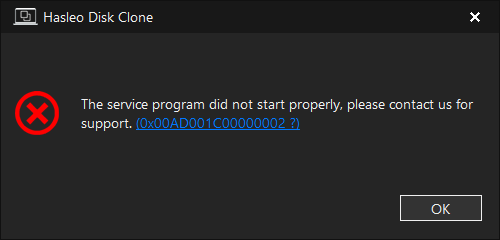
This problem may occur if the service program has crashed, was accidentally removed or disabled, or its startup type was set to manual. Common causes include system optimization tools disabling the service or antivirus software blocking it from running.
Tutorial to Fix "The Service Program Did Not Start Properly" Error
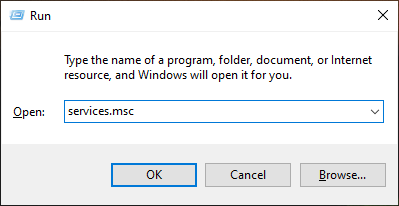
Step 1. Press the Windows + R keys to open the Windows Run dialog.
Step 2. Type "services.msc", then press "Enter" or click "OK".
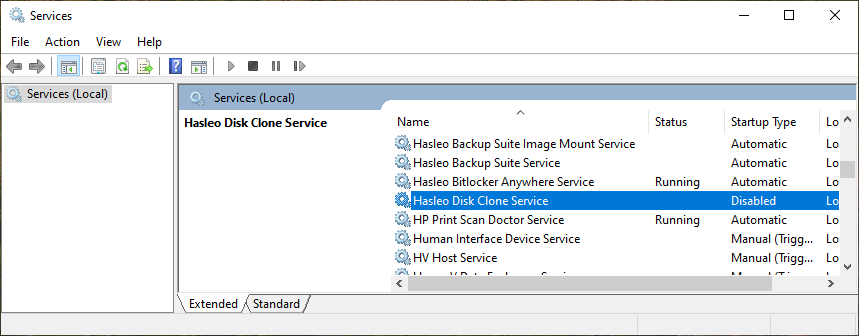
Step 3. Double-click the "Hasleo Disk Clone Service" program.
Step 4. Configure the service to start automatically, then start it and close the window.
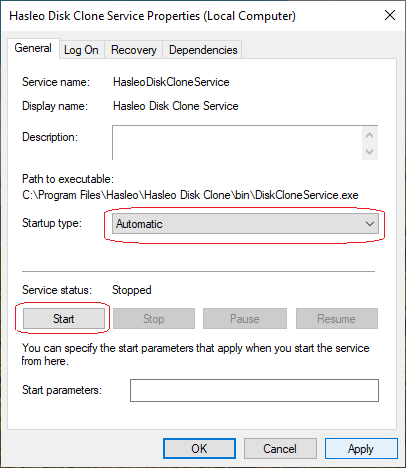
Step 4.1. If the program still does not work properly after restarting the service, please contact us for further assistance.
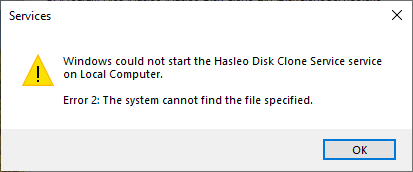
Step 4.2. If Windows prompts that the service file cannot be found, this usually means that DiskCloneService.exe has been removed abnormally. You will need to reinstall Hasleo Disk Clone to fix the problem.
Frequently Asked Questions (FAQ)
A: The service may fail due to being disabled by system optimization tools, blocked by antivirus software, or accidentally removed. These tools sometimes disable background services to improve system performance.
A: Yes. If Windows reports that the service file cannot be found, it means the DiskCloneService.exe has been removed abnormally. Reinstalling Hasleo Disk Clone will restore the service program.
A: You can add Hasleo Disk Clone to your antivirus exclusions and avoid using aggressive system optimization tools that disable background services. Also, set the service to start automatically.
A: If restarting the service doesn't resolve the error, try reinstalling Hasleo Disk Clone completely. If the problem persists after reinstalling, contact technical support for further assistance.
A: This particular error is specific to Hasleo Disk Clone since it uses a background service (DiskCloneService.exe) to handle disk operations. Other Hasleo products may have different requirements.
Conclusion
This tutorial describes how to fix the error "The service program did not start properly, please contact us for support" when starting Hasleo Disk Clone.
Related Articles
- How to fix older version is no longer supported or the beta version has expired error?
- How to Fix the "Windows Can Only Be Installed to GPT Disks" Error Step-by-Step
- How to Clone Windows 11/10 to an SSD or New Disk Using Hasleo Disk Clone?
- How to Perform a Sector-by-Sector Clone Using Hasleo Disk Clone?
- How to Convert an MBR System Disk to GPT Without Data Loss by Cloning?


