There are two BIOS mode: Legacy BIOS mode and UEFI BIOS mode. In most cases, we don't need to know which BIOS mode our Windows OS is using. But sometimes, we need to know which BIOS mode Windows OS is using. This tutorial will show you how to check if your Windows is booted in UEFI or Legacy BIOS mode.
How to Check if Windows is Booted in UEFI or Legacy BIOS Mode?
Method 1: Check if UEFI or Legacy BIOS Mode with Hasleo EasyUEFI in Windows 7/8/10/11
1. Download and install Hasleo EasyUEFI.
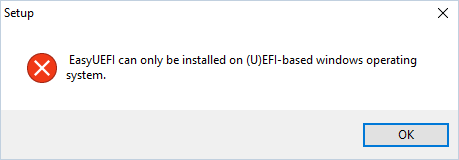
2. Double click to open the installation file, then follow the steps in the setup dialogs. If it prompts that "EasyUEFI can only be installed on (U)EFI-based Windows operating system.", then Windows is booted in legacy BIOS mode. If you can successfully install EasyUEFI, then Windows is booted in UEFI BIOS mode.
Method 2: Check if UEFI or Legacy BIOS Mode in System Information in Windows 8/10/11
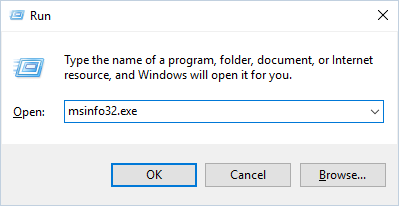
1. Press the Windows + R keys to open the Windows Run dialog, type msinfo32.exe, and then press Enter to open System Infomation window.
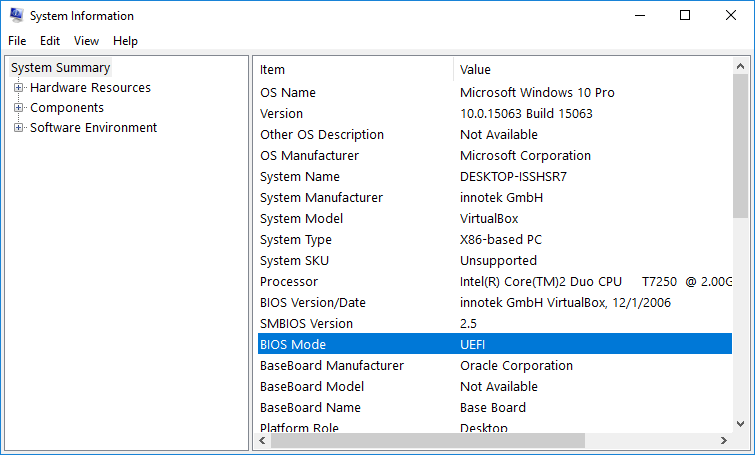
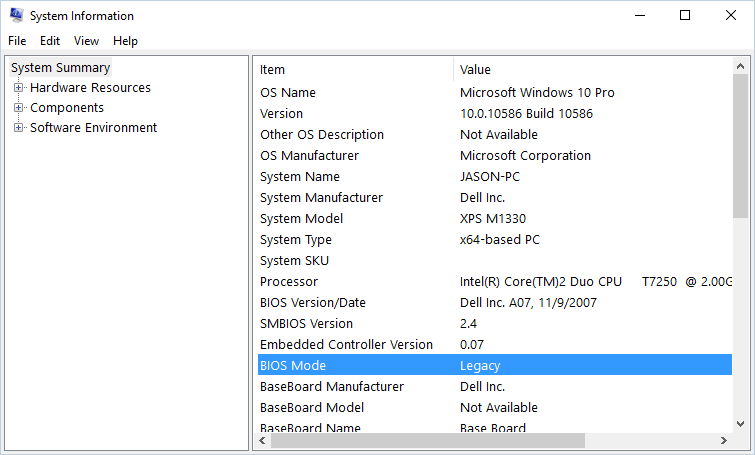
2. In the right pane of System Summary, you should see the BIOS MODE line. If the value of BIOS MODE is UEFI, then Windows is booted in UEFI BIOS mode. If the value of BIOS MODE is Legacy, then Windows is booted in legacy BIOS mode. Please see the screenshots below.
Method 3: Check if UEFI or Legacy BIOS Mode in setupact.log in Windows 7/8/10/11
1. In Windows Explorer, navigate to C:\Windows\Panther, you will see a file named setupact.log.
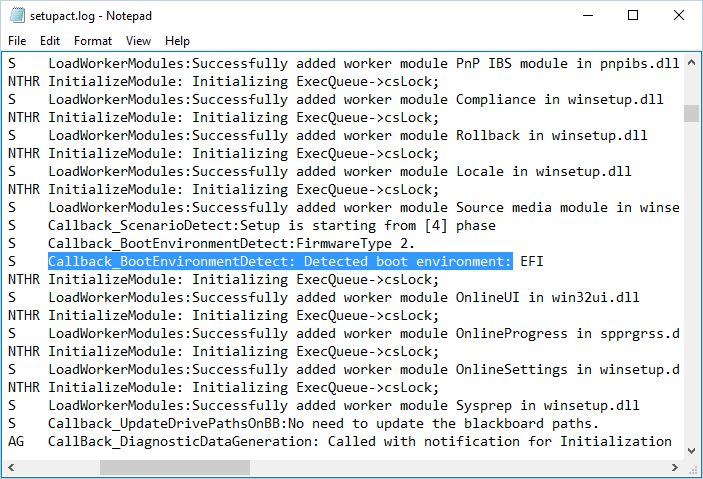
2. Open the setupact.log file with notepad, click Ctrl + F to open the Find dialog, enter Callback_BootEnvironmentDetect: Detected boot environment: in the Find dialog to search for a line begin with Callback_BootEnvironmentDetect: Detected boot environment:.
3. Once you find Detected Boot Environment, you will see it say EFI or BIOS.
Frequently Asked Questions
A: UEFI (Unified Extensible Firmware Interface) is the modern replacement for Legacy BIOS, offering faster boot times, support for larger hard drives (over 2TB), a graphical user interface, and security features like Secure Boot. Legacy BIOS is the older standard with slower boot speeds, 2TB drive limitation, and text-based interface.
A: You can check the boot mode using three methods: 1) Use System Information (msinfo32.exe) and look for 'BIOS Mode' - it will show 'UEFI' or 'Legacy', 2) Try installing Hasleo EasyUEFI - if it fails, Windows is in Legacy mode, 3) Check the setupact.log file in C:\Windows\Panther for 'Detected boot environment'.
A: Yes, you can switch from Legacy BIOS to UEFI by converting your disk from MBR to GPT and enabling UEFI boot in your motherboard settings. However, this requires disabling Legacy boot, enabling UEFI, and ensuring your disk is using GPT partition style. You may need to reinstall Windows for a clean conversion.
A: Yes, Windows 11 requires UEFI boot mode with Secure Boot enabled. It cannot be installed on systems using Legacy BIOS mode. This is one of the strict hardware requirements for Windows 11 along with TPM 2.0.
A: UEFI provides several benefits: faster startup and shutdown times, support for drives larger than 2TB (using GPT), graphical interface with mouse support, built-in networking and driver support, faster OS boot through UEFI booting, and enhanced security through Secure Boot that prevents unauthorized operating systems from loading.
A: To check Secure Boot status, open System Information (msinfo32.exe) and look for 'Secure Boot State'. It will show 'On', 'Off', or 'Unsupported'. You can also access your UEFI/BIOS settings during startup (usually by pressing F2, F12, or Delete) and navigate to the Security or Boot section to view Secure Boot status.
A: Your computer may boot in Legacy mode if: 1) UEFI is disabled in BIOS settings, 2) Your hard drive uses MBR partition style rather than GPT, 3) The motherboard only supports Legacy BIOS (older systems), or 4) Windows was installed in Legacy mode. You can change this in BIOS settings by enabling UEFI and disabling Legacy support.
A: It is possible to have multiple operating systems with different boot modes, but it requires separate disks or partitions. You cannot dual boot UEFI Windows and Legacy Windows on the same disk because they require different partition styles (GPT vs MBR). Each disk can only use one boot mode.