

After you purchase the software, you will receive an email containing your license code. The next step of the registration process is to authorize the software, please refer to the steps below:
Step 1. Download and install the free/trial version of Hasleo Backup Suite.

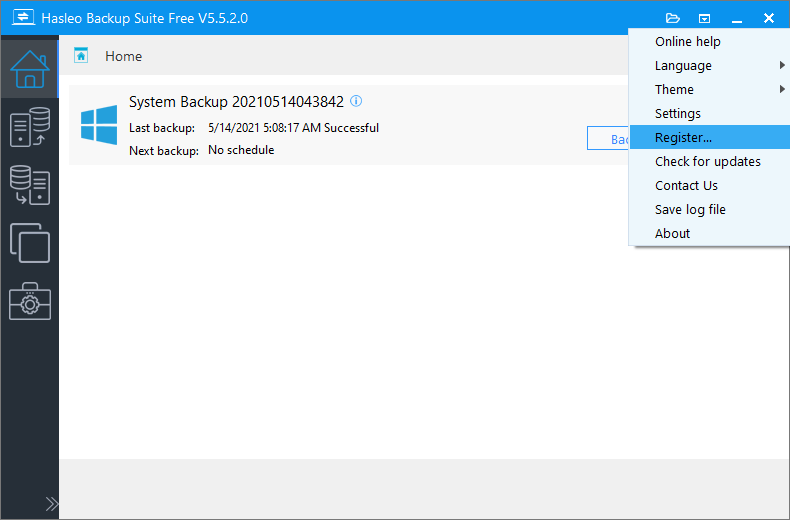
Step 2. Launch Hasleo Backup Suite, then click  > Register....
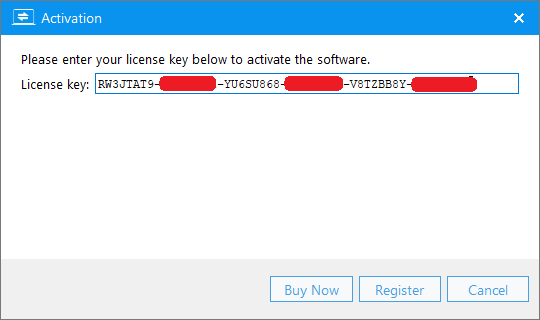
Step 3. Enter your license code in the activation window, then click Register button.
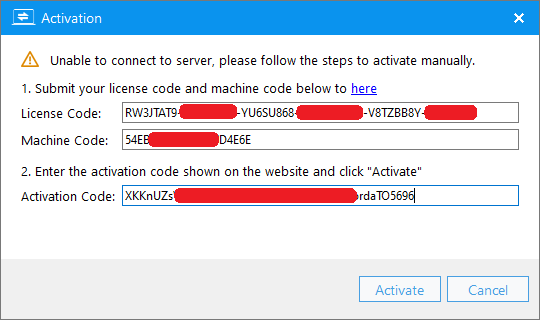
Step 4. If the Internet connection is unavailable on the computer, another offline activation window will appear and require you to enter the offline activation code. Please save the License code and Machine code listed in the window and find another Internet connected computer to access Hasleo Offline Activation Page to generate a required Activation Code, then enter the Activation Code in the window and click Activate button to activate the software.
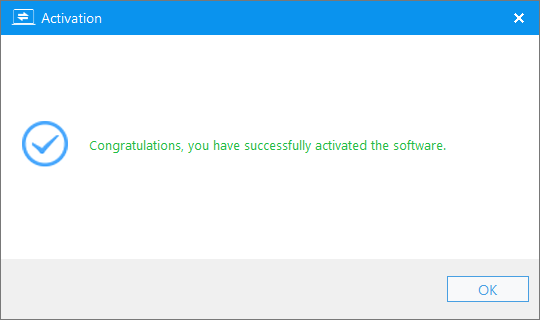
Step 5. Click OK button to close the activation window when the activation is complete.
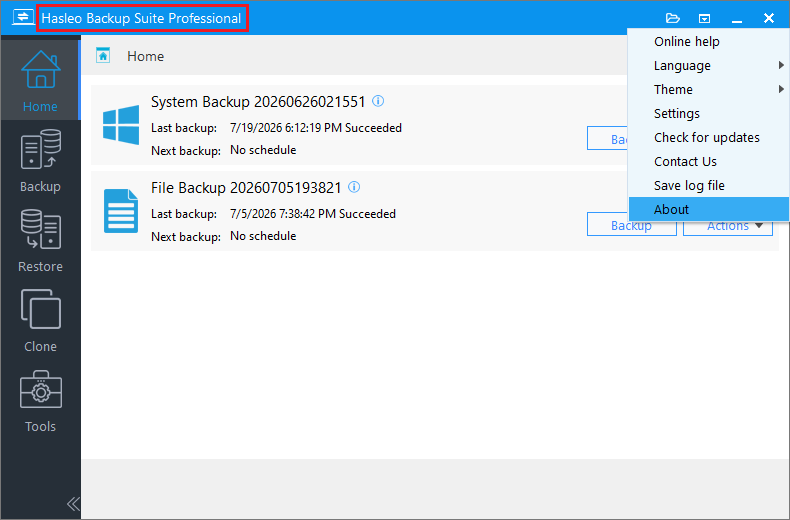
Step 6. If there is no Register... option in the drop-down menu, the program has already been activated. Check the program title - if it shows the paid version, the program is activated. To change the license, open the program's About window
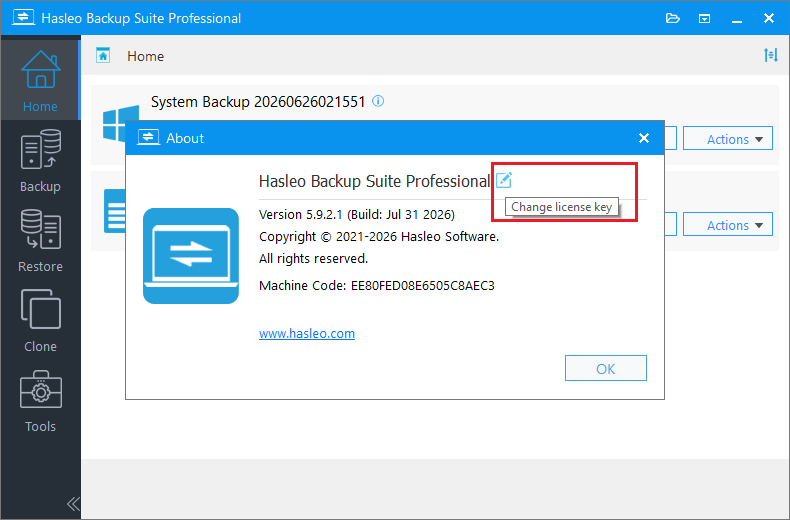
Step 7. Then click the edit icon next to the program name to enter a new license key.
Frequently Asked Questions
A: After purchasing, you will receive an email with your license code. Check your inbox (and spam folder). The email is sent from our official store. If you can't find it, contact [email protected] with your order information.
A: License codes are typically single-computer licenses. Check your license terms for the number of devices allowed. For multi-PC use, you may need to purchase additional licenses.
A: First, verify your license code is correctly entered (no extra spaces). If it fails, try offline activation: click the menu > Register > enter code > if offline window appears, use it to generate activation code on another computer.
A: The free version includes most backup, restore, and cloning features. Some advanced features like Universal Restore and Delta Clone require the paid version. Visit our comparison page for details.
A: Uninstall from the old computer first (recommended), then install and activate on the new computer using your existing license code. Some licenses allow deactivation for transfer.
A: Offline activation is used when your computer has no internet connection. The software generates license and machine codes—you then use another internet-connected device to generate an activation code.
A: Your backup image files remain on your drive. Uninstalling the software does not delete them. You can reinstall and browse/restore your backups at any time.


