Have you ever imagined that to create a Windows installation USB containing all your Windows installation ISO files (including Windows 11, Windows 10, Windows 8/8.1, Windows 7 and Windows Vista), then you can install Windows 11/10/8/8.1/7/Vista from the same USB drive on both BIOS and UEFI computers? In this guide, we will show you how to create the multiple Windows installation USB flash drive with free Windows deployment tool WinToHDD.
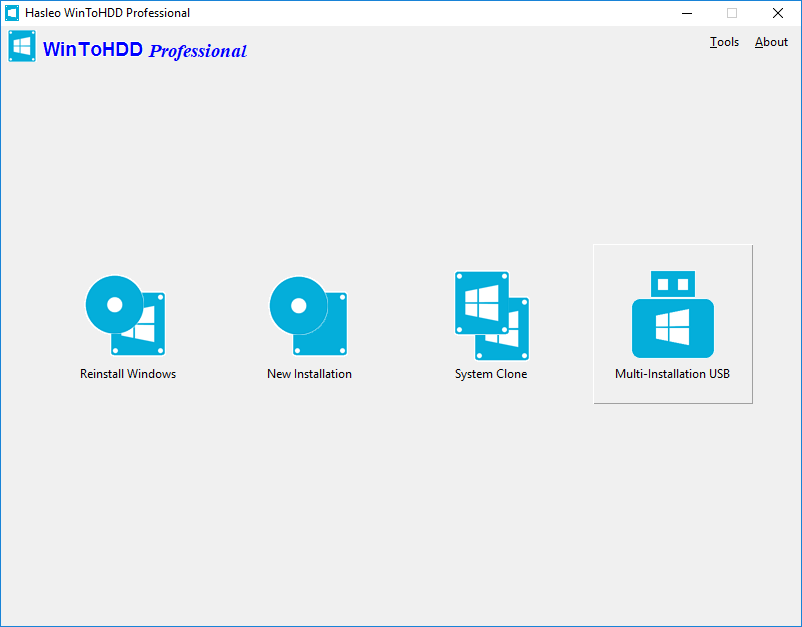
Step 1. Run WinToHDD, then click the "Multi-installation USB" button.
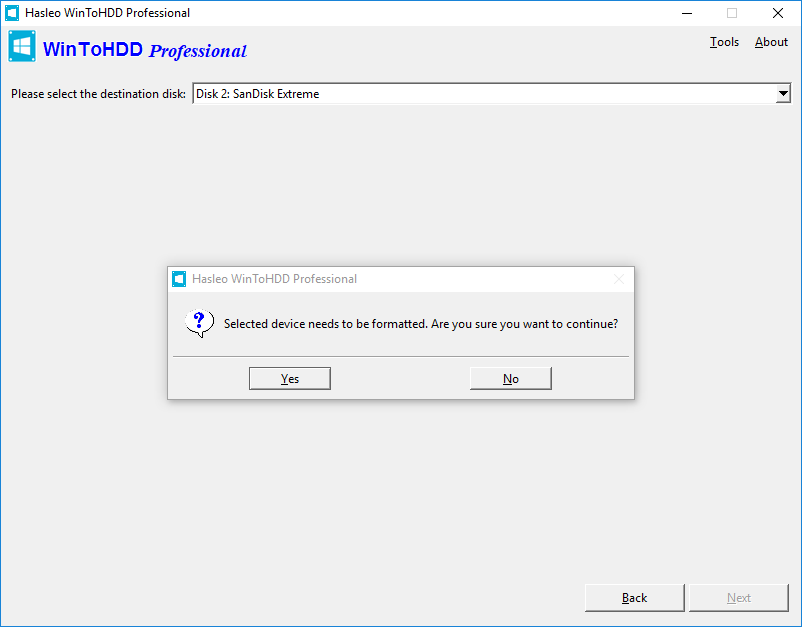
Step 2. Select the USB drive in the drop-down list. After you select the USB drive, a pop-up will appear asking you if you want to format it to continue, click "Yes".
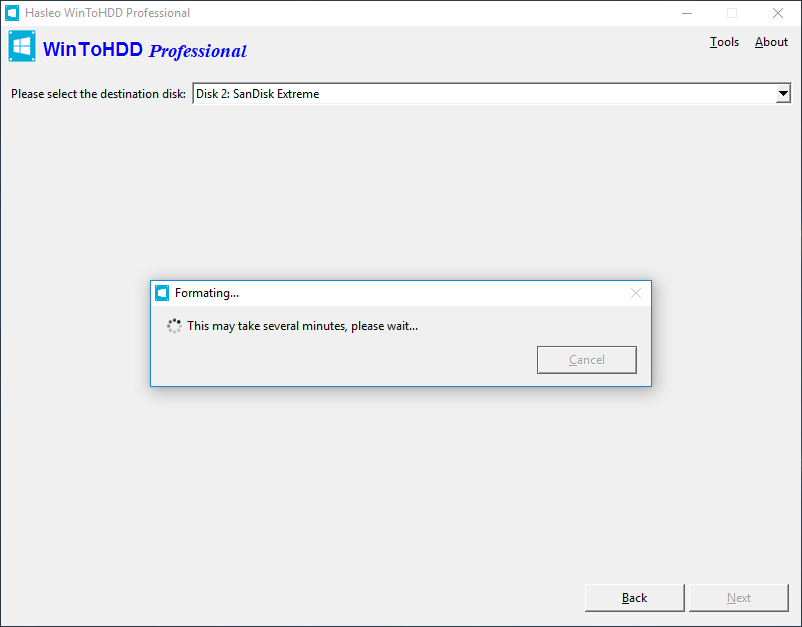
Step 3. After clicking "Yes", WinToHDD begins formatting. Please wait until that format operation is complete.
 Tips: If you have formatted the wrong USB drive, you can use our Free Data Recovery Software Hasleo Data Recovery to recover your lost files.
Step 4. After successfully formated the USB drive, WinToHDD will automatically select the boot partition and system partition from the partition list, and the selected partitions will be marked in red.
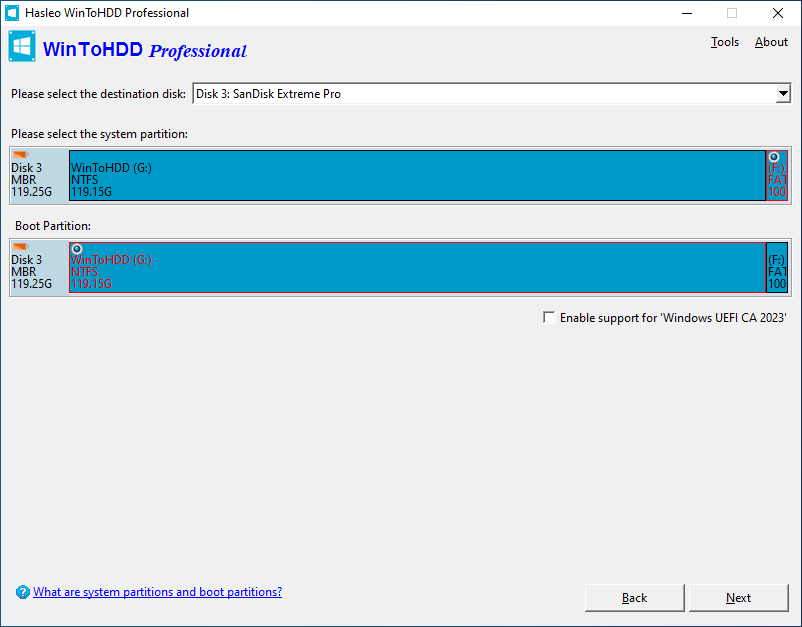
Tips:
Step 5. Click "Next", a pop-up will appear asking where you will download the WinPE components from. You can choose to download from Microsoft.com or from an offline WinPE package.
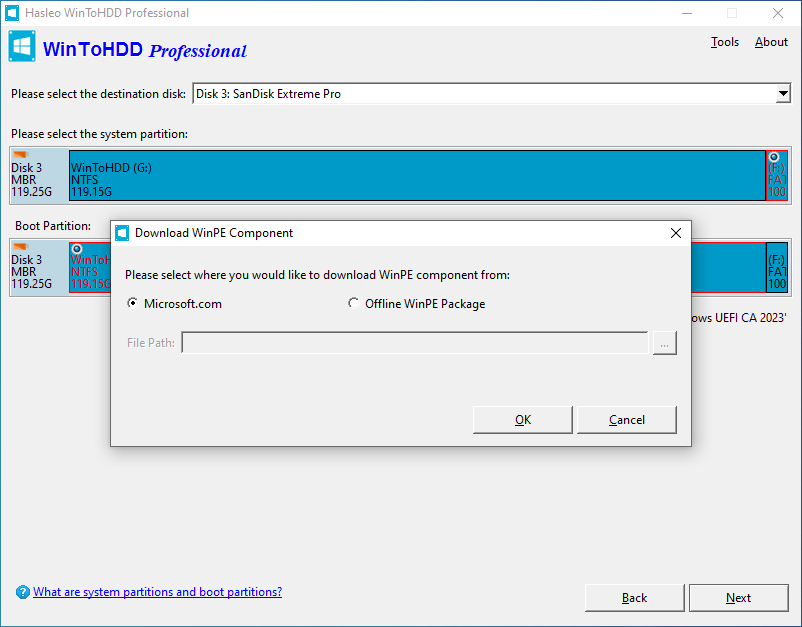
Step 6. Click "OK", WinToHDD begins creating the multiple Windows installation USB drive.
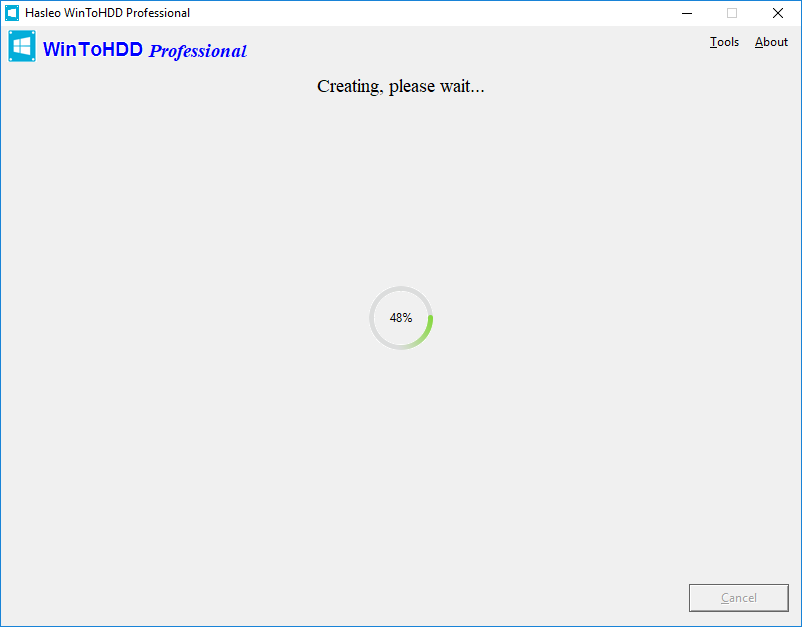
Step 7. It will take some time to create the multiple Windows installation USB drive. After the creation is completed, you can copy any number of Windows installation ISO to the destination USB flash drive, as long as the USB drive is large enough, then unplug the USB drive.
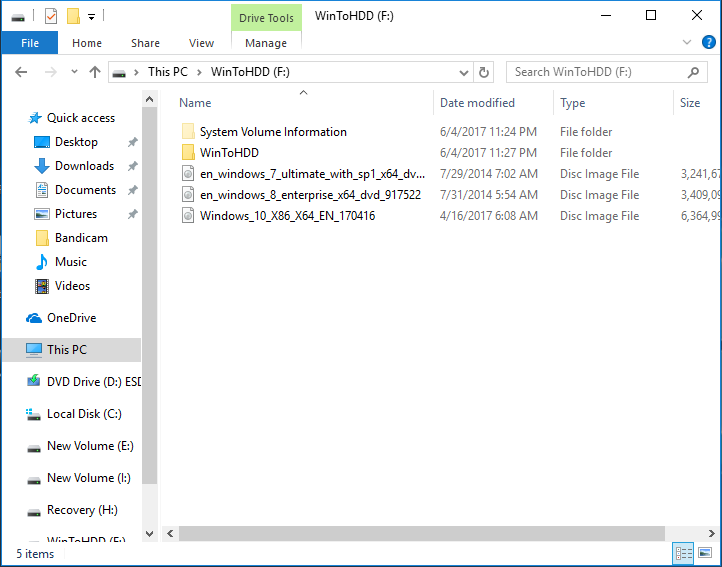
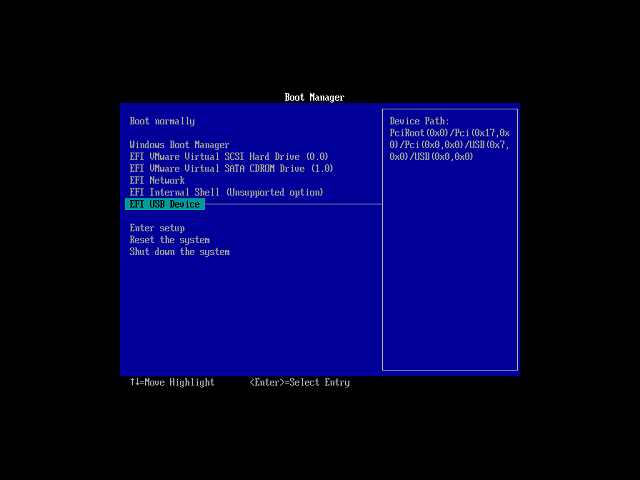
Step 8. Connect the multiple installation USB flash drive to the computer which you want to intall Windows. Power on the computer, and change BIOS to boot from the USB drive.
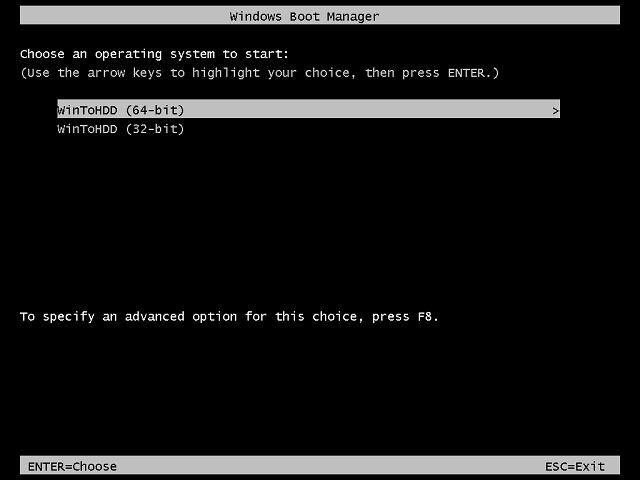
Step 9. If the computer is 64-bit, please run "WinToHDD (64-bit)", otherwise run "WinToHDD (32-bit)".
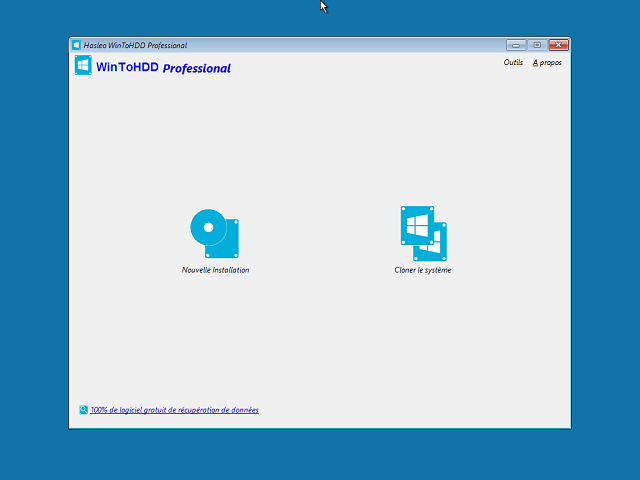
Step 10. The computer will boot into Windows PE environment and automatically run WinToHDD. Click the "New Installation" button.
Step 11. Now please refer to the following guide to install Windows:
How to Install Windows With WinToHDD?
Follow these simple steps, you can create a multiple Windows installation USB drive with free Windows deployment tool WinToHDD easily.