As time goes by, the free space of Windows 10/11 system partition will become less and less and Windows 10/11 will get slower and slower. In this case, most of us will choose to reinstall the entire Windows 10/11 operating system. That's no problem, you can install Windows from a CD/DVD dirve or you can install Windows from a USB drive. But if your computer doesn't have an optical drive or you don't know anything about computer technology, then reinstalling Windows 10/11 operating system becomes very difficult.
Is there any way we can reinstall Windows 10/11 directly from an ISO file, even if I don't know much about computer technology? The answer is yes, free Windows deployment tool WinToHDD can help you reinstalling Windows 10/11 directly from an ISO file instead of from a CD/DVD or USB drive.
Tutorial to reinstall Windows 10/11 directly from an ISO file with WinToHDD.
Step 1. Download, install, and Run WinToHDD, then click the  button.
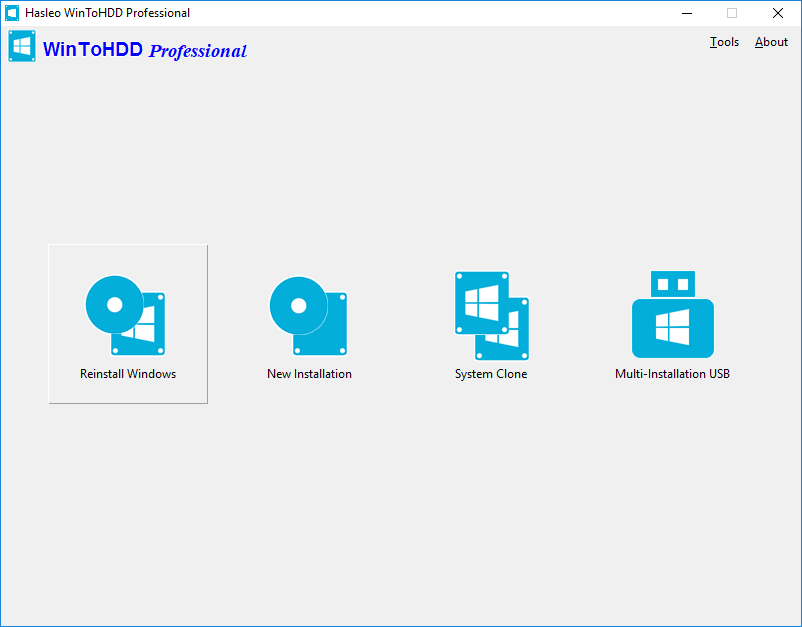
Step 2. Click the  button, then click the
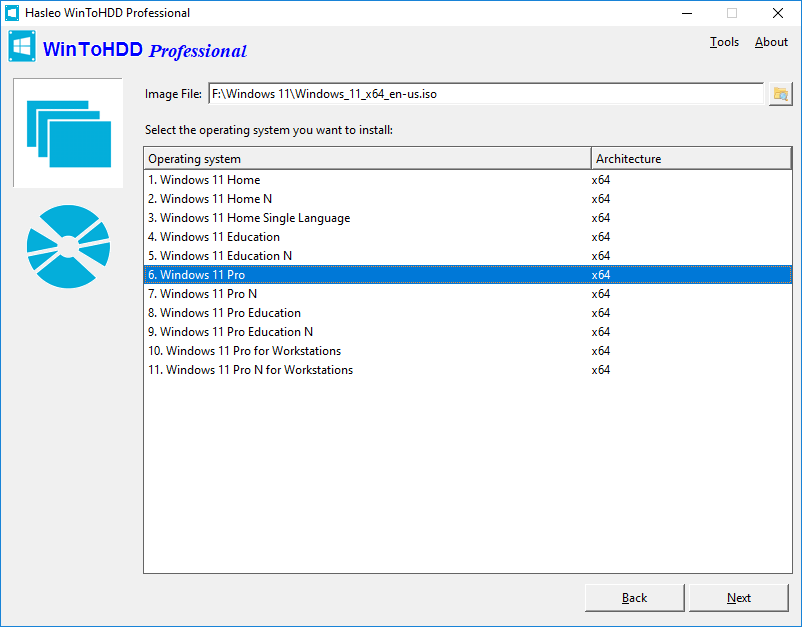
  button and select the ISO file from the open dialog box.
Step 3. WinToHDD scans for and lists installable operating systems. If you see the edition of Windows you want to install, select it, then click "Next".
Step 4. WinToHDD will automatically select the target boot partition and system partition from the partition list, and the selected partitions will be marked as red.
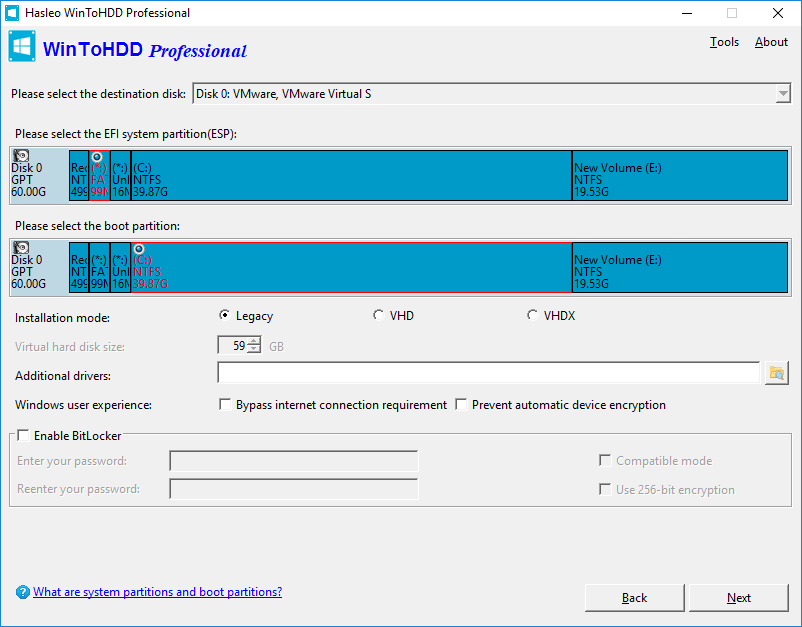
Step 5. Click "Next". After clicking "Next", a pop-up will appear asking you if you want to build a WinPE image to continue. Click "Yes".
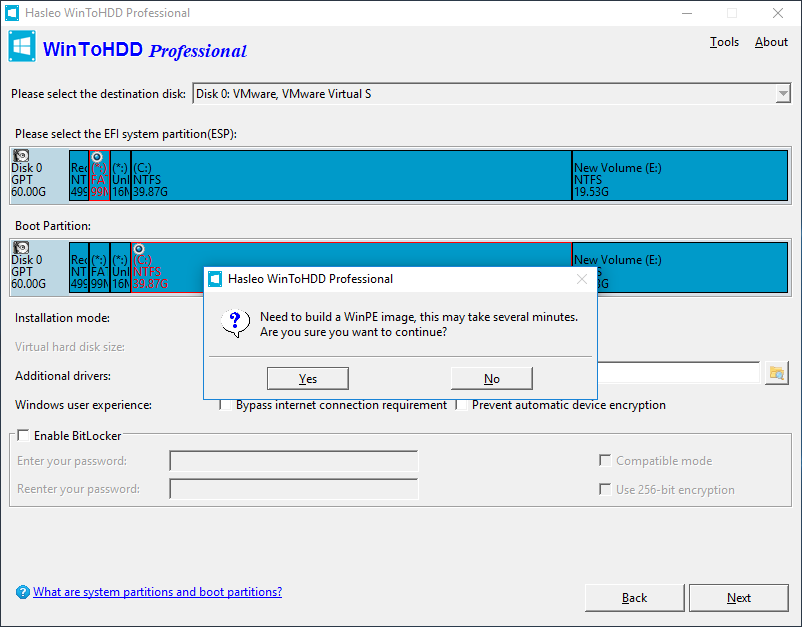
Step 6. After successfully builded the WinPE image, WinToHDD will prompt you to reboot the computer, click "Yes" button to allow WinToHDD to reboot your computer.
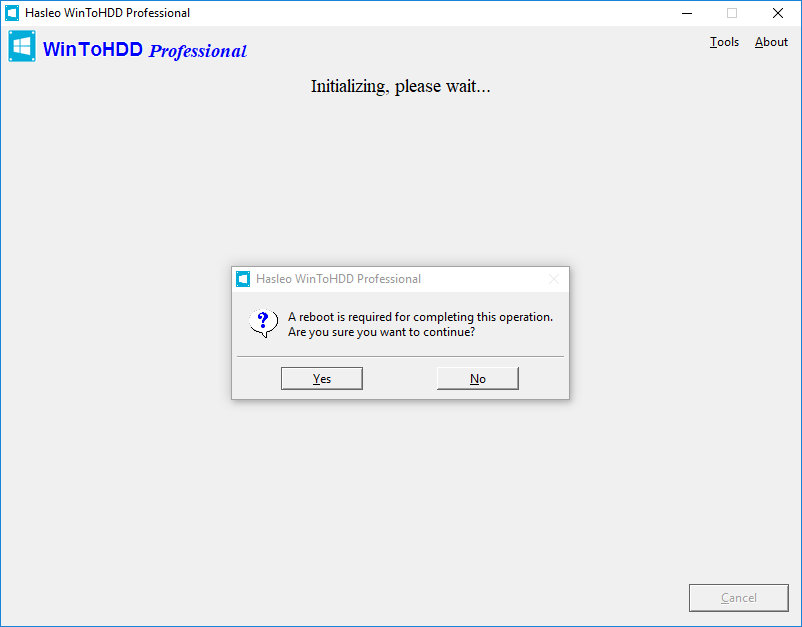
Step 7. It takes some time to reinstall Windows. After successfully reinstalled restart the computer, Windows installation starts up and you have to complete all the installation steps.
Follow these simple steps, you can reinstall Windows 10/11 with free Windows deployment tool WinToHDD easily.
Frequently Asked Questions (FAQ)
A: Yes, WinToHDD allows you to reinstall Windows 10/11 directly from an ISO file without using a CD/DVD or USB drive. The process runs entirely within Windows.
A: No, WinToHDD eliminates the need for CD/DVD drives or USB drives. You can install Windows directly from an ISO file stored on your computer's hard drive.
A: Yes, reinstalling Windows will format the target partition. Make sure to back up important data before proceeding. You may want to consider system cloning instead to preserve your data.
A: Yes, WinToHDD will scan your ISO file and display all available Windows editions. You can select the specific edition you want to install.
A: Yes, you need to have a Windows ISO file. If you don't have one, you can download it from Microsoft's official website before using WinToHDD.
Related Guides
- How to do system clone or system Migration?
- How to move Windows 7 to new hard drive without reinstalling Windows?
- How to transfer Windows 10 to new hard drive without reinstalling Windows?
- How to install Windows without using a CD/DVD or USB drive?
- How to reinstall Windows without using a CD/DVD or USB drive?