Two months ago, I created a Windows To Go USB drive with WinToUSB for testing Windows 10 on an old PC. The Windows To Go has been working well, I was very happy. Now I'm used to using Windows 10, so I have ordered a brand new SSD for Windows 10 on this PC and I'm waiting for it to be delivered. I've been using the Windows 10 To Go for over two months and have installed a lot of software on it, I don't want to reinstall the entire operating system and applications. Is there any way to clone the Windows To Go to the SSD without reinstalling Windows and applications? Any help you could provide would be really appreciated.
Like this user, there are many other Windows To Go users ask us how to clone Windows To Go from a USB drive to an internal hard disk (HDD) or solid-state drive (SSD) without reinstalling Windows and applications? The answer is very simple, you can use our free system clone software WinToHDD to clone Windows To Go from the USB drive to the internal HDD or SSD.
Tutorial to clone a Windows To Go USB drive to an internal hard disk with WinToHDD.
Step 1. Download, install, and run WinToHDD, then click the  button.
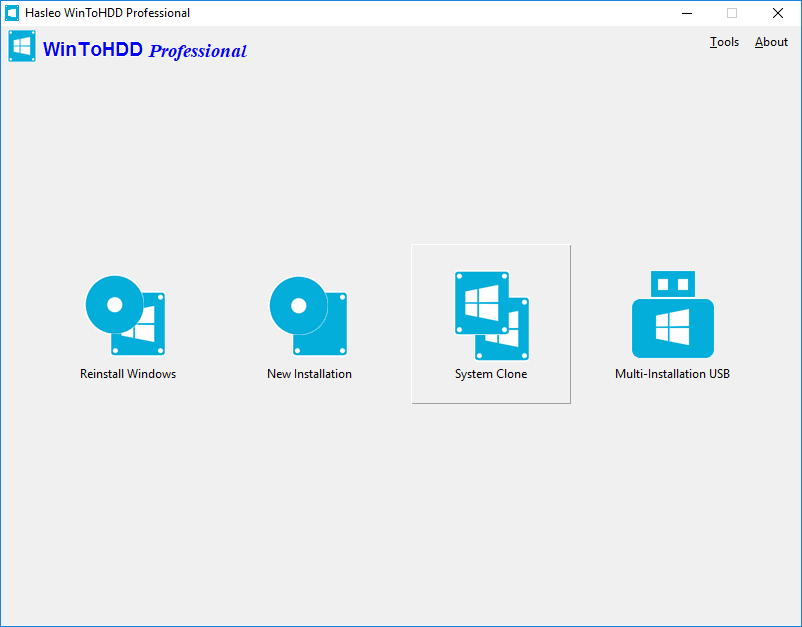
Step 2. Select the Windows OS which you want to clone in the drop-down list, you will see the detailed system information under it, click "Next" if you are sure.
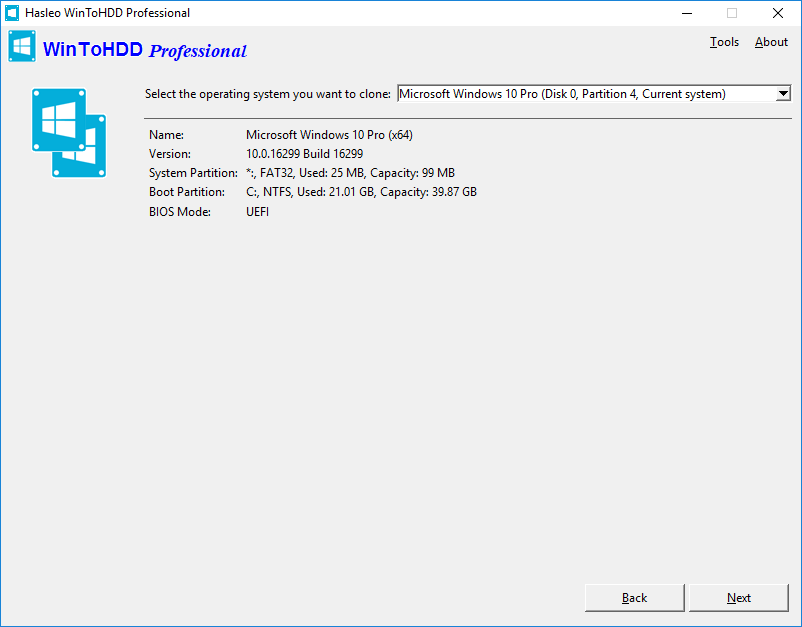
Step 3. Select the destination disk in the drop-down list, a pop-up will appear asking you if you want to format it to continue, select the partition scheme you want to use and click "Yes" to format it. If you choose "Keep the existing partition scheme", you need to manually prepare the partitions on the disk before this step, and here is the user guide on how to manually prepare partitions for the destination disk.
Step 4. Select the boot partition and system partition from the partition list, the selected partitions will be marked as red.
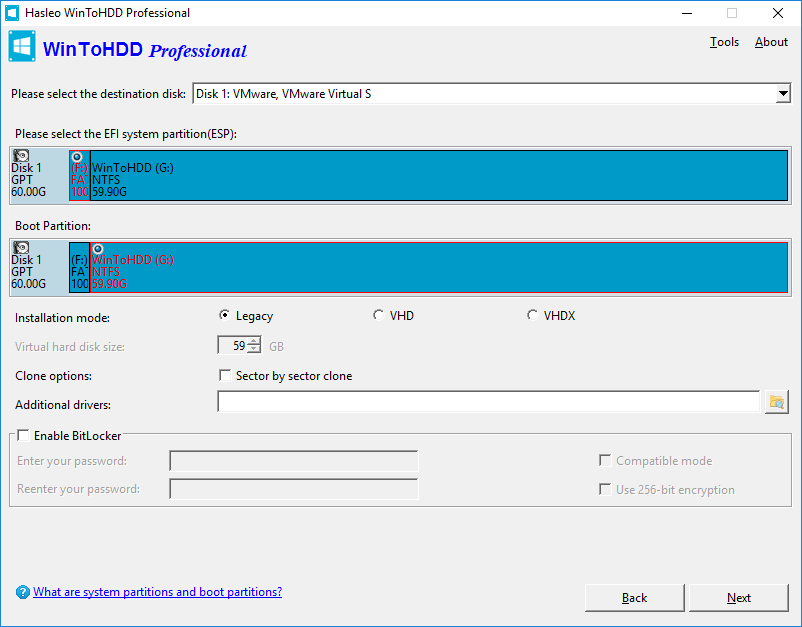
You can inject the drivers into the cloned Windows operating system with the help of the "Additional drivers" option.
Step 5. Click "Next". After clicking "Next", WinToHDD begins cloning Windows to the destination disk. Please note that if the destination disk is currently in use, WinToHDD needs to create a WinPE image and reboot into WinPE to complete the cloning operation.
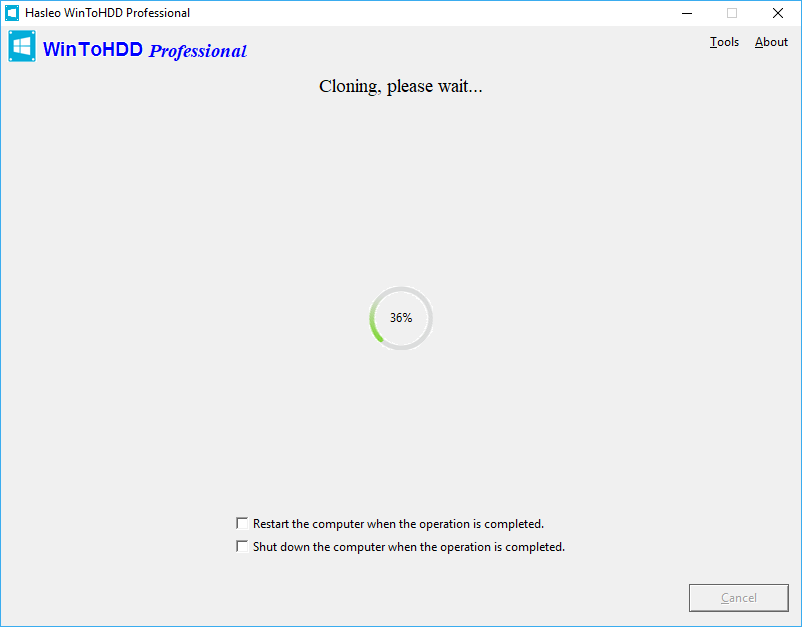
Step 6. It takes some time to clone. After the clone is successful completed, restart the computer and change BIOS to boot from your hard disk drive.
Follow these simple steps, you can clone Windows from a USB drive to an internal hard disk with free system clone software WinToHDD easily.
Frequently Asked Questions (FAQ)
A: You can use WinToHDD's system clone feature to clone Windows To Go from a USB drive to an internal SSD. Simply select the Windows OS on your USB drive as the source, choose your SSD as the destination, and follow the on-screen instructions to complete the cloning process.
A: No, you don't need to reinstall Windows. WinToHDD performs a true system clone that migrates your entire Windows installation including all applications, settings, and data to the new drive without requiring a fresh installation.
A: Yes, as long as the destination SSD has enough capacity to hold all the used data from your Windows To Go drive. WinToHDD allows you to resize partitions during the cloning process if needed.
A: Yes, WinToHDD's system clone feature is completely free and allows you to clone Windows To Go from USB to HDD or SSD.
A: No, cloning Windows To Go to an internal disk will not affect your existing Windows installation. The clone operation writes to the destination disk only, keeping your source USB drive intact.
Related Guides
- How to transfer Windows 11 to new hard drive without reinstalling Windows?
- How to transfer Windows 10 to new hard drive without reinstalling Windows?
- How to do system clone in Windows 10 without reinstalling Windows?
- How to move Windows 7 to new hard drive without reinstalling Windows?
- How to install Windows 11 without TPM 2.0?