

I have the old password and the recovery key, and I need to change the BitLocker password in Windows 7, but it seems impossible. I cannot find where to change the password to something more secure: there is no "Change BitLocker password" entry in the Windows Explorer context menu, and no BitLocker manager in Control Panel. How do I change the BitLocker password in Windows 7 Professional?
Why change the password for BitLocker-encrypted drives?
By default you cannot change a BitLocker password in Windows 7 Professional, because Microsoft treats BitLocker as an enterprise feature and does not provide it in this edition. For data security, however, you may still need to change the password, for example when:
- You change passwords periodically to keep the drive secure.
- The password has been compromised.
- You have forgotten the password.
- The password is not strong enough.
- The password is too complicated to type reliably.
Tool to change the password for BitLocker-encrypted drives
Hasleo BitLocker Anywhere is a third-party BitLocker tool for Windows editions that do not include the built-in manager. It changes the password with either the old password or the recovery key, so a forgotten password is not a dead end.
Change the BitLocker password in Windows 7 Professional: step by step
Step 1. Download, install and launch Hasleo BitLocker Anywhere.
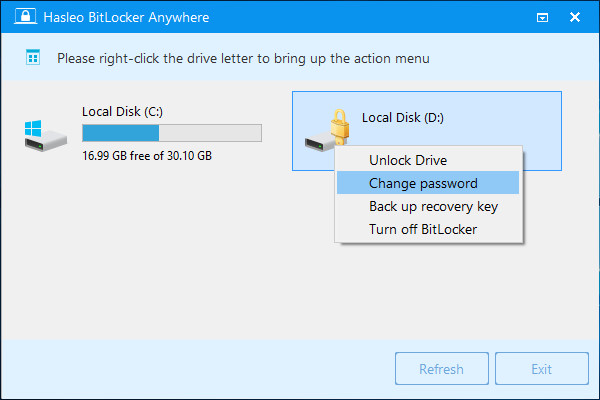
Step 2. Right-click the BitLocker-encrypted drive whose password you want to change, then choose "Change password".
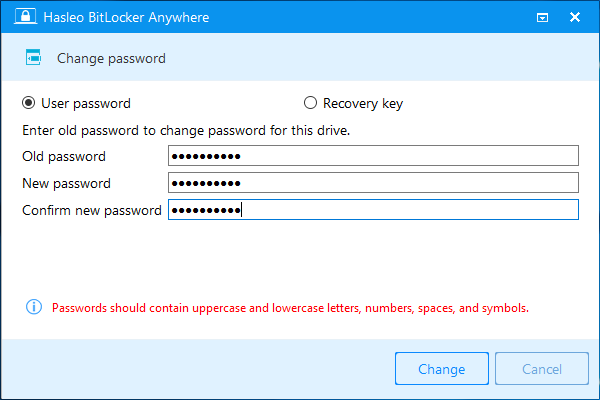
Step 3. Enter the old password or the recovery key, then the new password twice, and click "Change". For security, the new password should contain upper- and lower-case letters, numbers and special symbols.
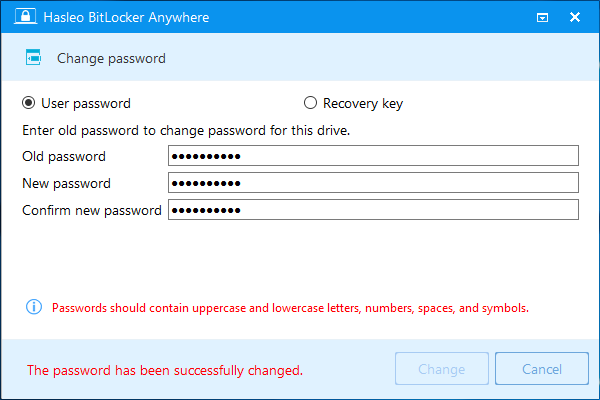
Step 4. When the program reports that the password has been changed successfully, click "Cancel" to close the window.
Conclusion
With Hasleo BitLocker Anywhere you can change the password of a BitLocker-encrypted drive in Windows 7 Professional even though the built-in manager is missing. The same tool also changes BitLocker passwords in Windows 11/10/8/7 Home and can encrypt and decrypt drives.
Frequently Asked Questions
A: No. Windows 7 Professional does not include the BitLocker manager, so you need third-party software such as Hasleo BitLocker Anywhere.
A: Use the BitLocker recovery key instead of the old password: open Hasleo BitLocker Anywhere, right-click the encrypted drive, choose "Change password", enter the recovery key and set a new password.
A: Use at least 12 characters with upper- and lower-case letters, numbers and special symbols.
A: No. The encryption algorithm and the encrypted data stay the same; only the authentication key is updated.
A: No. Each BitLocker-encrypted drive has to be changed individually, although the tool can manage multiple drives.
A: It is normally saved during encryption: in your Microsoft account, on paper, or on a USB drive.
A: Yes. It works on Windows 7 Professional, Enterprise and Home, and adds features beyond the built-in manager.