- Why Do You Need to Change BitLocker Password?
- Limitations of Changing BitLocker Password in Windows Home and Windows 7 Pro Editions
- Overview of Hasleo BitLocker Anywhere for Windows
- How to Change a BitLocker Password Using Hasleo BitLocker Anywhere
- Important Notes When Changing Password
- Frequently Asked Questions (FAQ) for BitLocker Password Change
- Conclusion
In the digital age, data security has become increasingly important. BitLocker Drive Encryption is a professional data protection solution provided by Microsoft for Windows Professional, Enterprise, and Education editions. It uses industrial-grade AES encryption algorithms to protect your data. However, many users are using Windows 11/10/8.1/8/7 Home editions as well as Windows 7 Professional editions, which do not support BitLocker functionality by default. In this case, besides upgrading the operating system version, you can also use third-party tools—such as Hasleo BitLocker Anywhere for Windows—to achieve data encryption.
After completing encryption, users may need to change their password. This tutorial shows you how to change the password on a BitLocker-encrypted drive using Hasleo BitLocker Anywhere on Windows editions that do not natively support BitLocker.
🚨Why Do You Need to Change BitLocker Password?
In the following common situations, it is recommended or necessary to change the BitLocker encryption password:
- Suspected password leak: If you believe the password may have been known by others, you should change it immediately to prevent unauthorized data access.
- Insufficient password strength: If the current password is too simple (such as being too short or containing only numbers), it should be replaced with a more complex password to enhance security.
- Following security best practices: To comply with data security best practices, it is recommended to change passwords regularly (for example, every 3-6 months).
- Forgot password but have recovery key: If you forgot the original password, you can reset a new password using the recovery key.
⚠️Warning: Without the recovery key and if the password cannot be recovered, the data will be permanently locked.
Limitations of Changing BitLocker Password in Windows Home and Windows 7 Pro Editions
BitLocker is a full-volume encryption feature designed by Microsoft for enterprise and professional users. By default, it provides complete functionality only in Windows Professional, Enterprise, and Education editions. In Windows Home editions and Windows 7 Professional edition, Microsoft does not support BitLocker functionality. This means that if you are using Windows 10/11 Home or Windows 7 Home editions, you cannot directly enable or change existing BitLocker encryption passwords through the built-in system tools.
Fortunately, by using third-party tools, you can easily manage BitLocker in any Windows version. For example, Hasleo BitLocker Anywhere for Windows supports complete operations such as changing BitLocker passwords and encrypting/decrypting drives even in restricted versions (including Windows Home and Windows 7 Pro).
👍Overview of Hasleo BitLocker Anywhere for Windows
Hasleo BitLocker Anywhere is the world's first third-party BitLocker solution specifically designed for Windows Home editions and Windows 7 Pro users. It has the following core features:
- Drive Encryption: Encrypt drives using XTS-AES or AES-CBC encryption algorithms (supporting 128/256-bit)
- Drive Decryption: Easily remove BitLocker encryption protection
- Password Management: Change BitLocker encryption passwords, supporting verification with either old password or recovery key
- Key Export: Export startup keys and recovery keys for backup
- Drive Lock/Unlock: Easily control access to encrypted drives
- Command Line Interface: Convenient for advanced users to use scripts (such as batch files, PowerShell, etc.) or cmd.exe to encrypt and decrypt drives
Hasleo BitLocker Anywhere is fully compatible with Windows built-in BitLocker, using the same encryption standards to ensure your data is properly protected in all circumstances.



How to Change a BitLocker Password Using Hasleo BitLocker Anywhere
Step 1. Download, install, and launch Hasleo BitLocker Anywhere For Windows.
Step 2. In the main interface, you can see all connected drives and their status. Find the BitLocker encrypted drive you want to change the password for (usually indicated by a lock icon showing the drive is encrypted). Right-click on the target drive and select "Change password" from the context menu.
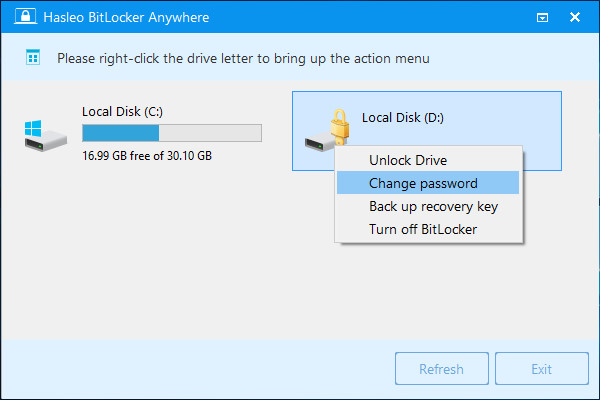
Step 3. In the password change window, you need to verify your identity. Hasleo BitLocker Anywhere supports two verification methods:
- Use old password: If you remember the original password, you can verify directly by entering the old password
- Use recovery key: If you forgot the old password, you can use the BitLocker recovery key saved during encryption for verification
After completing identity verification, you need to enter the new password. To ensure data security, it is recommended that the new password meet the following requirements:
- At least 8 characters long (supports up to 256 characters)
- Contains uppercase letters (A-Z)
- Contains lowercase letters (a-z)
- Contains numbers (0-9)
- Contains special symbols (such as !@#$%^&* etc.)
To confirm, you need to re-enter the new password in the confirmation field. Once confirmed, click the "Change" button to submit the changes.
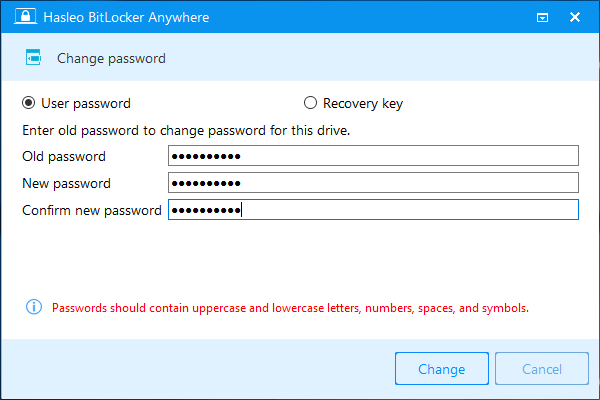
Step 4. The program will process your request. When the password has been successfully changed, the program will display a success prompt. Click the "Cancel" button to close the current window.
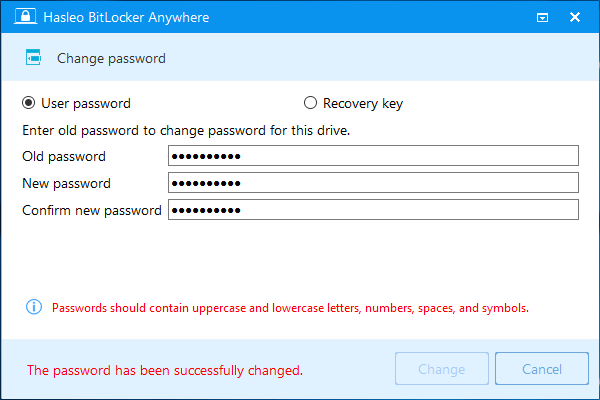
From now on, you need to use the new password to access this BitLocker encrypted drive.
🎯Important Notes When Changing Password
Please pay special attention to the following points when changing the BitLocker password:
- Memorize the new password: After changing the password, be sure to remember the new password. If you forget both the old and new passwords and don't have the recovery key saved, you will not be able to access the data on the drive.
- Keep the recovery key safe: If you cannot provide the old password when changing the password, make sure you have a valid recovery key. It is recommended to store the recovery key in a safe place, such as a password manager or paper backup.
- Back up important data: Although changing the password will not affect the data on the drive, it is recommended to back up important files before changing the password to be on the safe side.
- Avoid using simple passwords: The new password should be complex enough, avoid using easily guessable information such as birthdays or phone numbers as passwords.
- Do not operate on public computers: Changing the BitLocker password is a sensitive operation, please ensure it is done on a secure private computer.
Frequently Asked Questions (FAQ) for BitLocker Password Change
A: No, Windows Home editions don't support BitLocker natively. You need third-party software like Hasleo BitLocker Anywhere to change the password.
A: You can use the BitLocker recovery key to change the password. Make sure you have it backed up when you first enabled encryption.
A: No, changing the password only updates the authentication keys. Your data remains safe and accessible.
A: For best security, change your password every 3-6 months, or immediately if you suspect the password has been compromised.
A: Use at least 8 characters with uppercase, lowercase, numbers, and special symbols. Avoid common words or personal information.
A: Yes, the recovery key remains valid even after you change the password. Keep it stored safely.
A: Yes, Hasleo BitLocker Anywhere supports both verification methods - using the old password or the recovery key.
A: Without either password or recovery key, your data is permanently inaccessible. Always back up the recovery key securely.
Conclusion
This tutorial provides detailed instructions on how to change BitLocker password in Windows 11/10/8.1/8/7 Home and Windows 7 Pro editions using Hasleo BitLocker Anywhere. This method is simple and easy to use, supporting two authentication methods: using the old password or the recovery key.
As the world's first third-party BitLocker solution for Windows Home users, Hasleo BitLocker Anywhere not only helps you change passwords but also provides rich features such as drive encryption, decryption, and key export. No matter which version of Windows you are using, you can easily manage BitLocker encryption with this software.
Related Articles
- How to Remove/Turn Off BitLocker in Windows 10 Home?
- How to Enable BitLocker in Windows 10/11 Home?
- How to Encrypt a Drive in Windows 11/10/8/7 Home & Windows 7 Pro?
- Best BitLocker Alternative for Windows Home Editions!
- Best TrueCrypt Alternatives to Safeguard Your Data in Windows 11/10/8.1/8/7 Home!