- Overview of FUSE for macOS
- Download and Install Fuse for macOS
- How to Access BitLocker-Encrypted Drives on Mac Using FUSE for macOS and Hasleo BitLocker Anywhere For Mac?
- Frequently Asked Questions (FAQ) for FUSE and BitLocker on Mac
FUSE for macOS extends the native file handling capabilities of macOS by supporting third-party file systems. Access to file systems such as NTFS and Ext4 on Mac is accomplished through FUSE for macOS. Hasleo BitLocker Anywhere For Mac is designed to help users access BitLocker-encrypted drives on Mac computers, and it also relies on FUSE for macOS to complete this process. This tutorial will show you how to download and install both FUSE for macOS and Hasleo BitLocker Anywhere For Mac to access BitLocker-encrypted drives on a Mac.



Overview of FUSE for macOS
FUSE for macOS (also called macFUSE, formerly OSXFUSE) is an open-source framework that allows you to create and run your own file systems in macOS user space without modifying the system kernel code.
Technical Principles
A FUSE-based file system functions properly through the collaboration of the following three components:
- Kernel Driver: When a user or application accesses a FUSE-mounted directory, the driver intercepts all requests, packages them, and forwards them to the userspace program.
- Userspace Library (libfuse): This library communicates with the kernel driver to receive requests and return results. It also provides developers with a simple API (available in C, Rust, Go, and other languages) to implement custom file system logic.
- Filesystem Process: It receives requests forwarded by the kernel through the userspace library, handles specific business logic (such as downloading file content from a remote server), and finally returns the results back via the same route.
Main Application Scenarios
macFUSE allows you to access various non-native and network storage directly in Finder as if operating ordinary folders. The most common uses include:
- Reading and writing NTFS drives: Enables Mac to natively read and write Windows-formatted NTFS external drives.
- Mounting remote servers: Mount directories from remote servers locally via SSHFS.
- Accessing cloud storage: Maps cloud services (such as Google Drive, Dropbox) as a local disk.
Download and Install Fuse for macOS
Step 1. Go to the homepage of FUSE for macOS.
Step 2. Download the latest and most stable release of FUSE for macOS.
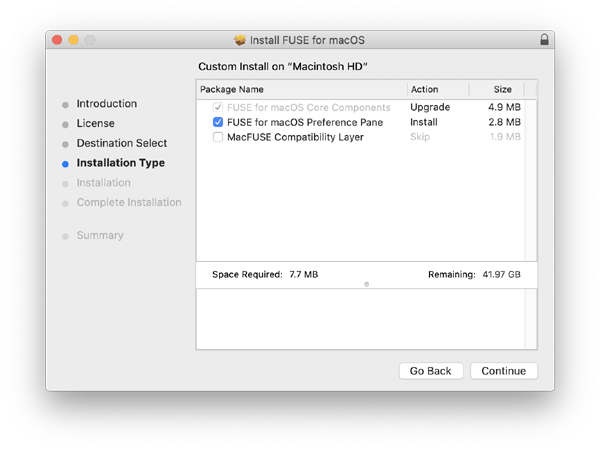
Step 3. Install FUSE for macOS.
How to Access BitLocker-Encrypted Drives on Mac Using FUSE for macOS and Hasleo BitLocker Anywhere For Mac?
Step 1. Go to the homepage of Hasleo BitLocker Anywhere For Mac.
Step 2. Download the latest version of Hasleo BitLocker Anywhere For Mac.
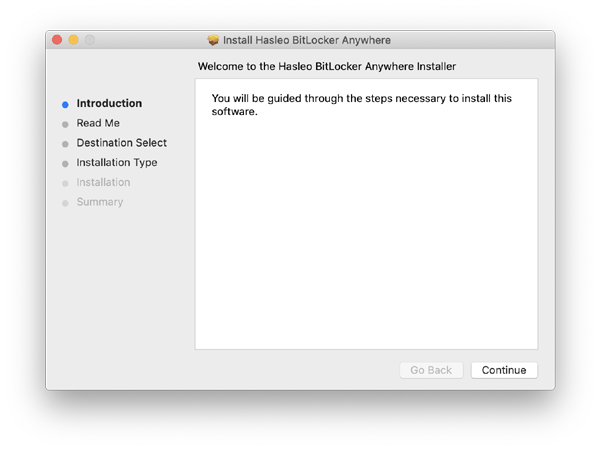
Step 3. Install Hasleo BitLocker Anywhere For Mac.
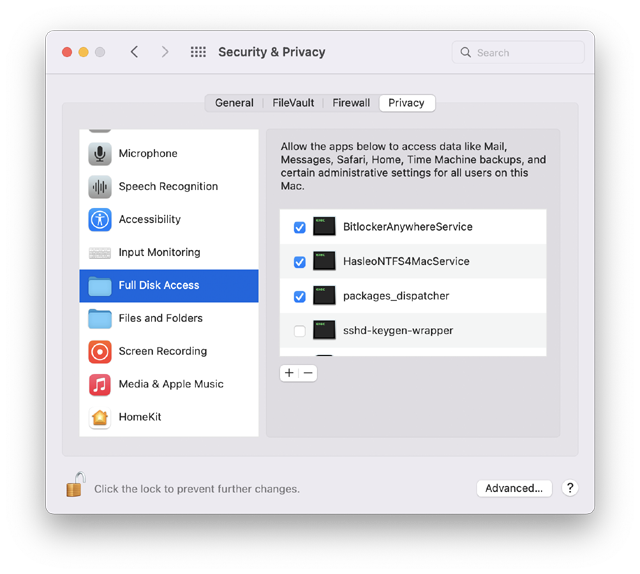
Step 4. For macOS Mojave (10.14) and later, you need to grant Full Disk Access to Hasleo BitLocker Anywhere For Mac. For more information, please refer to Granting Full Disk Access to Hasleo BitLocker Anywhere For Mac.
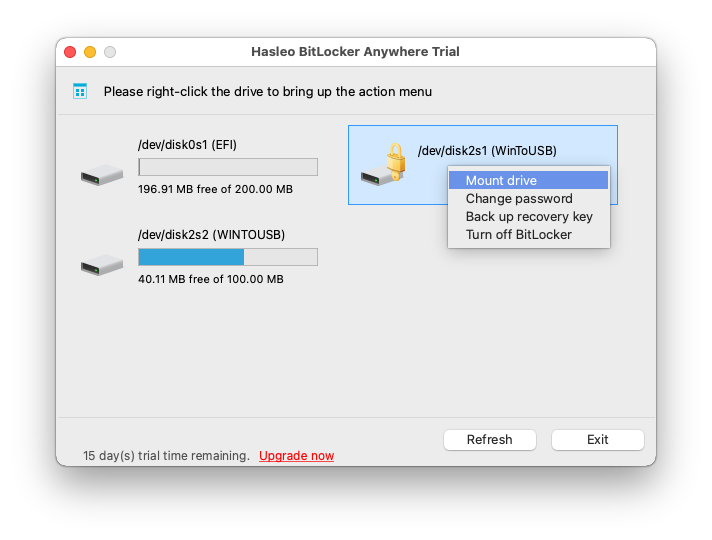
Step 5. Run Hasleo BitLocker Anywhere For Mac, right-click the BitLocker encrypted drive you want to access in main window, then click "Mount drive".
Step 6. Enter the password or recovery key, then click "Mount" button to mount the drive.
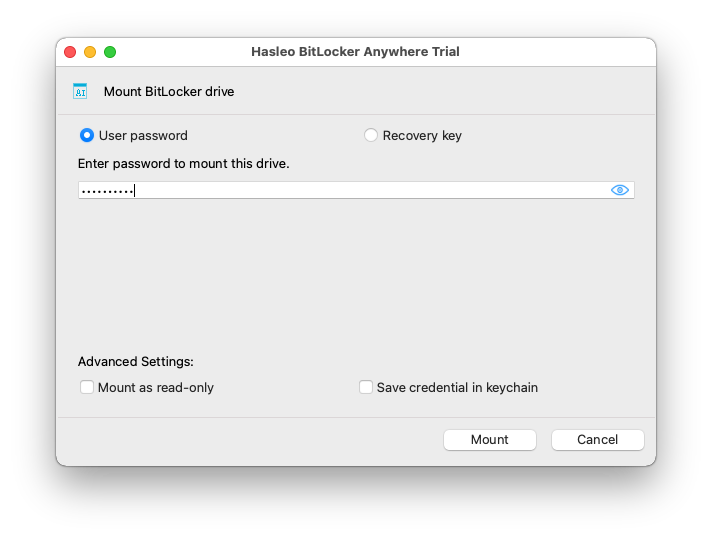
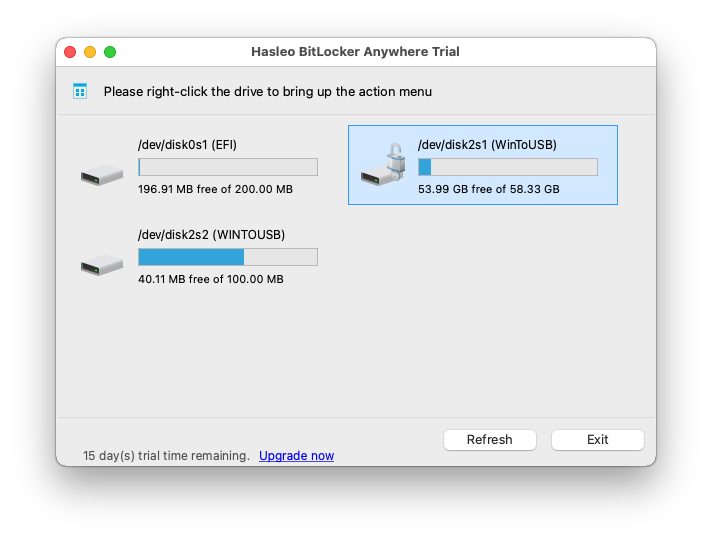
Step 7. After the operation completes successfully, the drive will be mounted, and its icon will appear on your Mac's desktop.
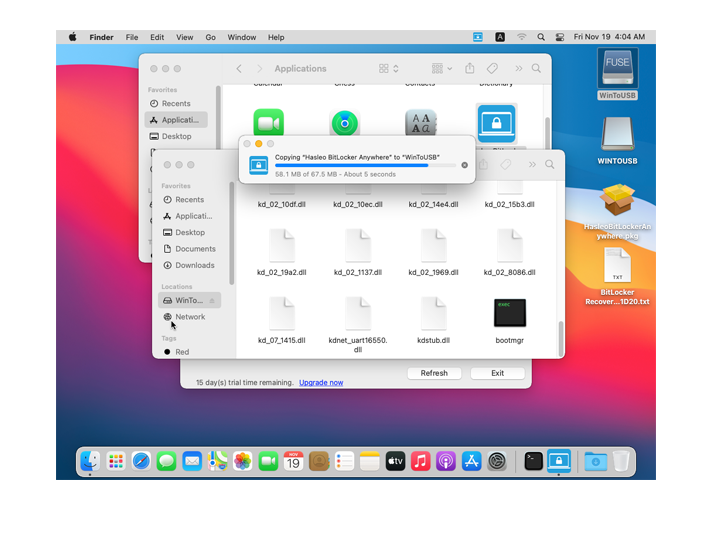
Step 8. Click the icon on your Mac's desktop to open the drive. You can now access the BitLocker-encrypted drive just like a native Mac drive, allowing you to read, write, copy, and delete files with ease.
Frequently Asked Questions (FAQ) for FUSE and BitLocker on Mac
A: FUSE for macOS extends the native file handling capabilities of macOS to support third-party file systems. Hasleo BitLocker Anywhere for Mac relies on FUSE to access BitLocker-encrypted drives on Mac.
A: Yes, FUSE for macOS is required to access BitLocker-encrypted drives on any Mac computer, regardless of the macOS version.
A: No, FUSE for macOS only activates when you need to access third-party file systems. It does not affect system performance otherwise.
A: Sometimes major macOS updates may require you to reinstall FUSE for macOS. After updating, check if Hasleo BitLocker Anywhere for Mac can still access your drives.
Related Articles
- How to full read & write access to BitLocker encrypted drives on macOS 10.15 Catalina?
- How to Encrypt Drive with BitLocker in Mac OS?
- The Best Free Alternative to M3 Bitlocker Loader for Mac!
- How to access BitLocker encrypted exFAT drive in macOS?
- How to access BitLocker encrypted USB drive in macOS?