BitLocker for Mac is a common need for users who work across both Windows and macOS environments. Microsoft's BitLocker Drive Encryption is a Windows-exclusive feature, meaning macOS cannot natively open or access BitLocker-encrypted drives. If you've connected a BitLocker-encrypted external drive to your Mac, you'll find it completely inaccessible without a BitLocker for Mac solution.
This guide shows you how to open BitLocker encrypted drives on macOS using Hasleo BitLocker Anywhere For Mac - the most reliable BitLocker reader for Mac. Whether you need to access a BitLocker USB drive, external hard drive, or any BitLocker-encrypted storage on your Mac, it will help you unlock, mount, read, and write BitLocker drives in minutes.



Tutorial to open BitLocker Encrypted Drive in macOS for free.
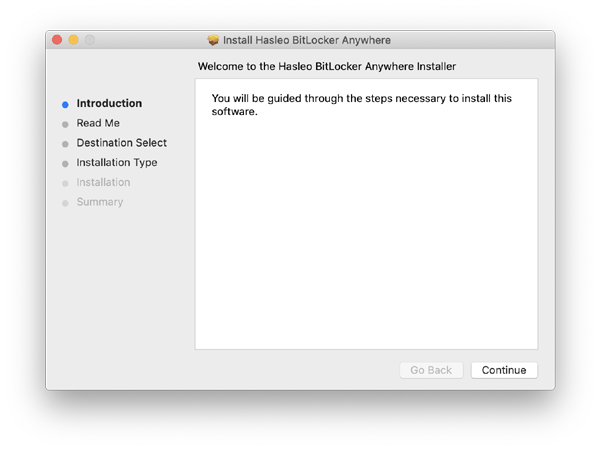
Step 1. Download and install Hasleo BitLocker Anywhere For Mac.
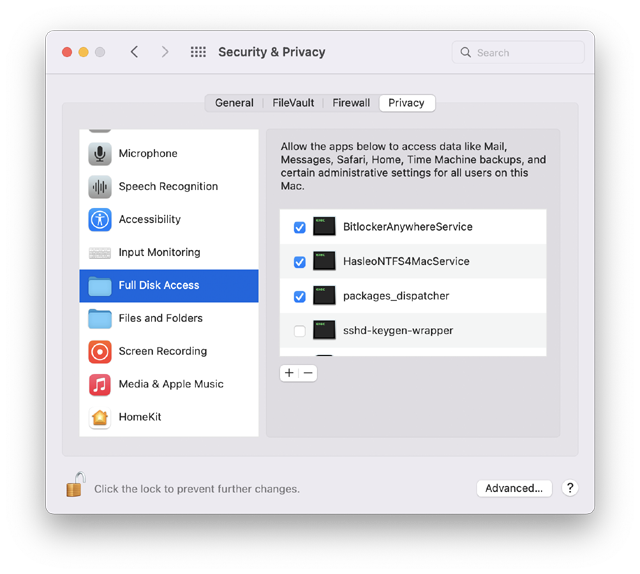
Step 2. For macOS Mojave (10.14) and later, you need to grant Full Disk Access to Hasleo BitLocker Anywhere For Mac. For more information, please refer to Granting Full Disk Access to Hasleo BitLocker Anywhere For Mac.
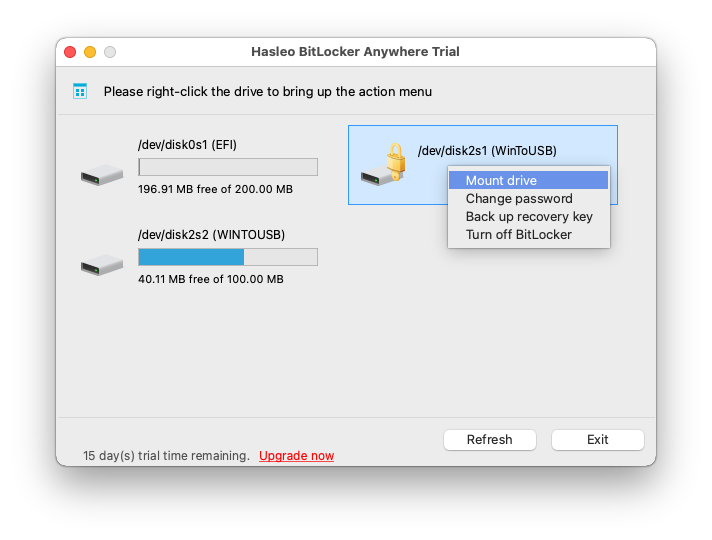
Step 3. Run Hasleo BitLocker Anywhere For Mac, right-click the BitLocker encrypted drive you want to access in main window, then click "Mount drive".
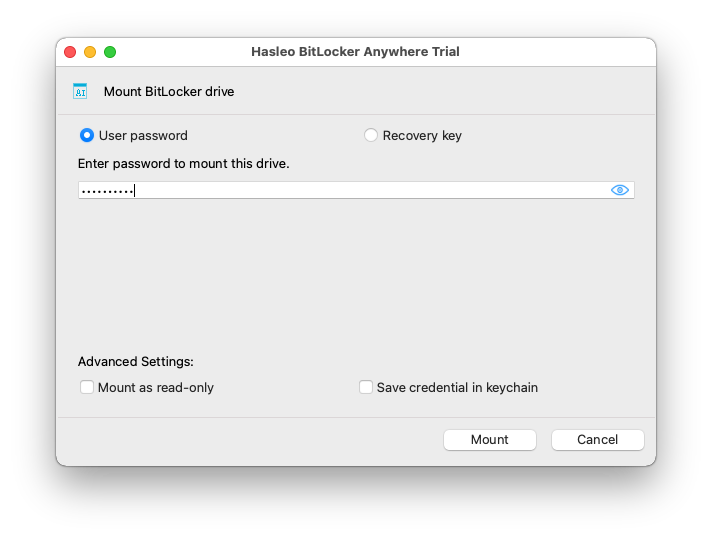
Step 4. Enter the password or recovery key, then click "Mount" button to mount the drive.
Step 5. After the operation completes successfully, the drive will be mounted and its icon will appear on your Mac's desktop.
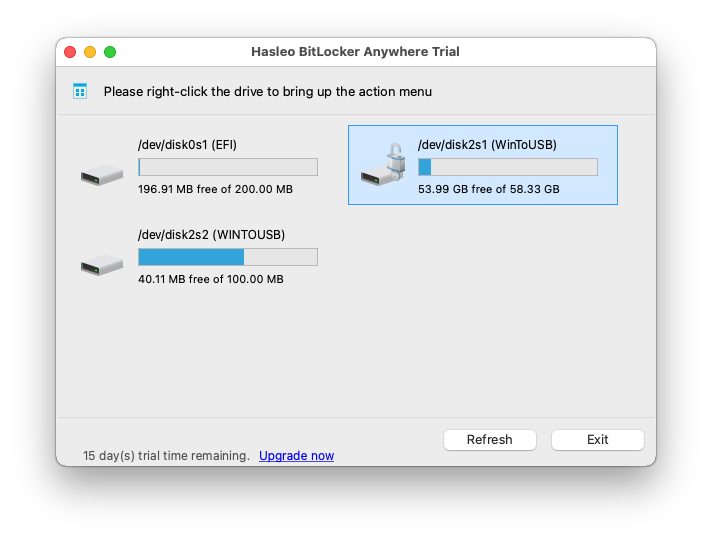
Step 6. Click the desktop icon on your Mac to open the drive. You can then access the BitLocker-encrypted drive just like a native Mac drive, allowing you to read, write, copy, delete files, and more.
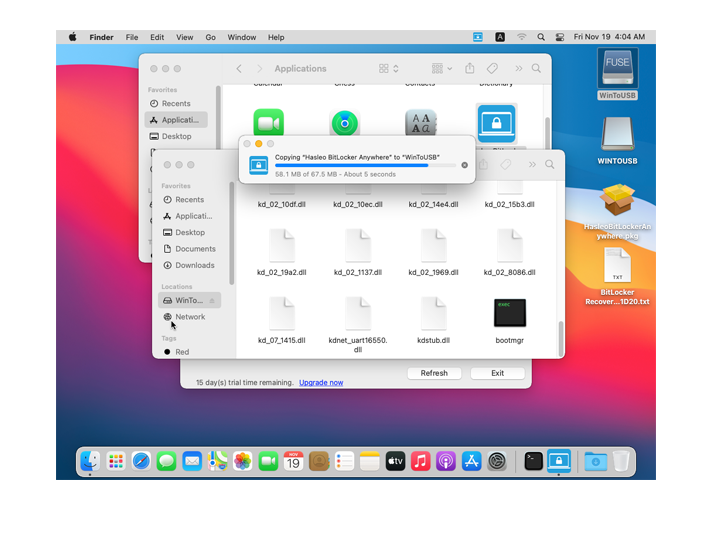
Hasleo BitLocker Anywhere for Mac helps you open BitLocker-encrypted drives in macOS for free. If you still have doubts, download it for free and try it yourself.
Frequently Asked Questions (FAQ) for Free BitLocker Drive Access on Mac
A: Yes, Hasleo BitLocker Anywhere for Mac offers a free trial version that allows you to open and access BitLocker-encrypted drives on Mac.
A: No, macOS does not natively support BitLocker. However, you can use the free trial of Hasleo BitLocker Anywhere for Mac to open BitLocker drives.
A: BitLocker is a Windows-specific encryption feature. macOS does not have native support for BitLocker, so you need third-party software to access these drives.
A: No, you don't need to decrypt the drive. Hasleo BitLocker Anywhere for Mac can unlock and mount the BitLocker-encrypted drive directly.
A: You can use either your BitLocker password or the 48-digit recovery key to unlock and open the BitLocker drive on Mac.
A: Yes, Hasleo BitLocker Anywhere for Mac provides full read and write access to BitLocker-encrypted drives on Mac.
A: Hasleo BitLocker Anywhere for Mac offers a free trial with full functionality. Some other tools like M3 also offer free versions but with limited features.
A: If you forgot your password, you can use the 48-digit BitLocker recovery key to unlock the drive on Mac. This is the only way to access the drive without the password.
Related Articles
- How to full read & write access to BitLocker encrypted drives on macOS 10.15 Catalina?
- How to Encrypt Drive with BitLocker in Mac OS?
- How to access BitLocker encrypted USB drive in macOS?
- How to access BitLocker encrypted exFAT drive in macOS?
- The Best Free Alternative to M3 Bitlocker Loader for Mac!