Full Disk Access is a security feature introduced in macOS 10.14 Mojave that requires some applications to be explicitly granted permission to access protected user files. In previous versions of macOS, this permission was automatically granted to all applications during installation. However, starting with macOS 10.14, you must manually enable it for certain applications. BitLocker Anywhere For Mac needs Full Disk Access to list BitLocker-encrypted drives. Without this permission, the software will not be able to detect BitLocker drives, making it impossible to access their contents.
Now that you know on systems running macOS Mojave (10.14) and later you need to add Hasleo BitLocker Anywhere For Mac to the Full Disk Access list, let's talk about how to do it.



How to Add Hasleo BitLocker Anywhere for Mac to the Full Disk Access List.
Step 1. Go to your Mac's System Preferences, open 'Security & Privacy' window > 'Privacy' tab > 'Full Disk Access'.
Step 2. Click the lock and enter an administrator password to allow changes.
Step 3. Add Hasleo BitLocker Anywhere to Full Disk Access based on your macOS version.
3.1 For macOS 26, open Finder, click 'Go' => 'Applications'.

3.2 Right-click on 'Hasleo BitLocker Anywhere.app', then select 'Show Package Contents' from the pop-up menu.

3.3 Go to 'Contents' => 'MacOS'
3.4 Drag 'BitLockerAnywhereService' from 'Hasleo BitLocker Anywhere.app/Contents/MacOS' into the Full Disk Access list.

For macOS 13~15, check the "BitlockerAnywhereService" check box.
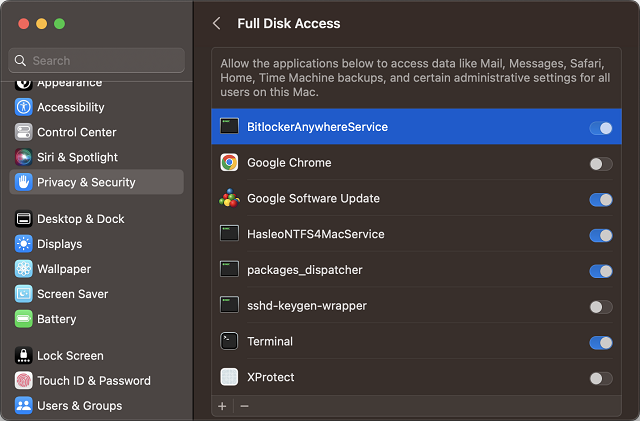
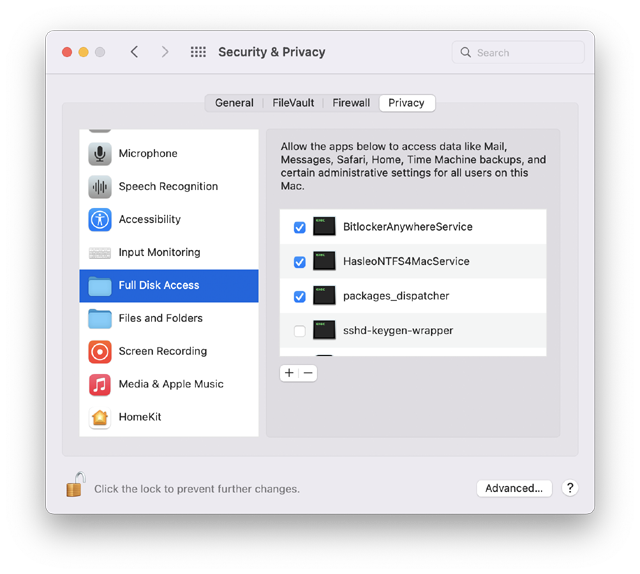
For macOS 12, check the "BitlockerAnywhereService" check box.
For macOS 11 and lower, add Hasleo BitLocker Anywhere to the list by using the "+" button and locating the app in your Applications folder, or by dragging and dropping it onto the list. Please note that after adding it to the Full Disk Access list, you need to check the checkbox in front of "Hasleo BitLocker Anywhere," as shown in the image below.
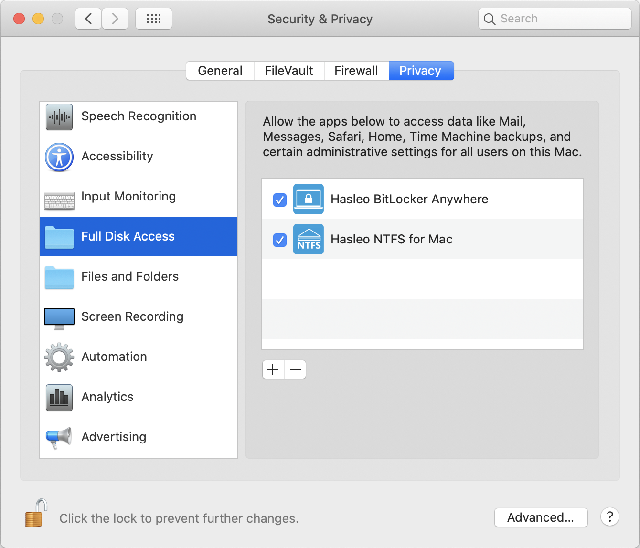
After completing the steps above, Hasleo BitLocker Anywhere For Mac now has Full Disk Access and can list, read, and write to BitLocker-encrypted drives normally.
Frequently Asked Questions (FAQ) for BitLocker Drive Recognition on Mac
A: In macOS 10.14 Mojave and later, Full Disk Access permission is required for the software to access BitLocker drives. Without this permission, Hasleo BitLocker Anywhere for Mac cannot detect BitLocker-encrypted drives.
A: Full Disk Access is only required for macOS 10.14 Mojave and later. Earlier versions of macOS automatically grant this permission during installation.
A: Go to System Preferences > Security & Privacy > Privacy > Full Disk Access, then add Hasleo BitLocker Anywhere to the list and enable it.
A: Without Full Disk Access, Hasleo BitLocker Anywhere for Mac cannot list or access BitLocker-encrypted drives. The drive will not appear in the software.
A: Usually not, the permission persists after updates. However, if you reinstall the software, you may need to grant the permission again.
A: Full Disk Access is a security feature in macOS 10.14 and later that protects user data by requiring explicit permission for apps to access protected files and drives.
A: No, Full Disk Access is required for Hasleo BitLocker Anywhere for Mac to access BitLocker-encrypted drives on macOS 10.14 and later.
A: Yes, Hasleo BitLocker Anywhere for Mac is a legitimate software from Hasleo Technology. Granting Full Disk Access is safe and necessary for the software to function properly.
Related Articles
- How to full read & write access to BitLocker encrypted drives on macOS 10.15 Catalina?
- How to Encrypt Drive with BitLocker in Mac OS?
- The Best Free Alternative to M3 Bitlocker Loader for Mac!
- How to access BitLocker encrypted exFAT drive in macOS?
- How to access BitLocker encrypted USB drive in macOS?