

There is a partition on my internal hard disk which is encrypted with BitLocker drive encryption, it works fine until yesterday my computer ran into a power failure. After the drive crashed I tried different methods and data recovery software to recover the data, but none of them worked for me. My question is how to recover data from crashed Bitlocker encrypted drive? Is there anyone who can help me?
A BitLocker-encrypted drive can crash and become inaccessible for various reasons, including file system corruption and BitLocker metadata corruption. When this happens, you need reliable data recovery software to retrieve your data. Many common recovery tools claim to support BitLocker, but few actually possess the capability to recover data from a crashed encrypted drive. That's why choosing professional and effective BitLocker data recovery software is essential. We recommend Hasleo BitLocker Data Recovery. Follow the user guide below to recover your data.

How to Recover Data From a Crashed BitLocker-Encrypted Drive in Windows 10 with Hasleo Data Recovery?
Tips for Recovering Data from a Damaged Hard Drive
Stop using the hard drive immediately
Continuing to use it may overwrite the lost data, reducing the chances of a successful recovery.
Clone the drive before recovery
If the drive is faulty, perform a sector-by-sector clone first and recover from the clone to avoid further data loss.
Locate your BitLocker key
If you've set a BitLocker password, use it directly. Otherwise, find your 48‑digit recovery key via your Microsoft account, USB drive, or printed backup.
Do not reformat
Formatting permanently deletes data, making recovery extremely difficult or impossible.
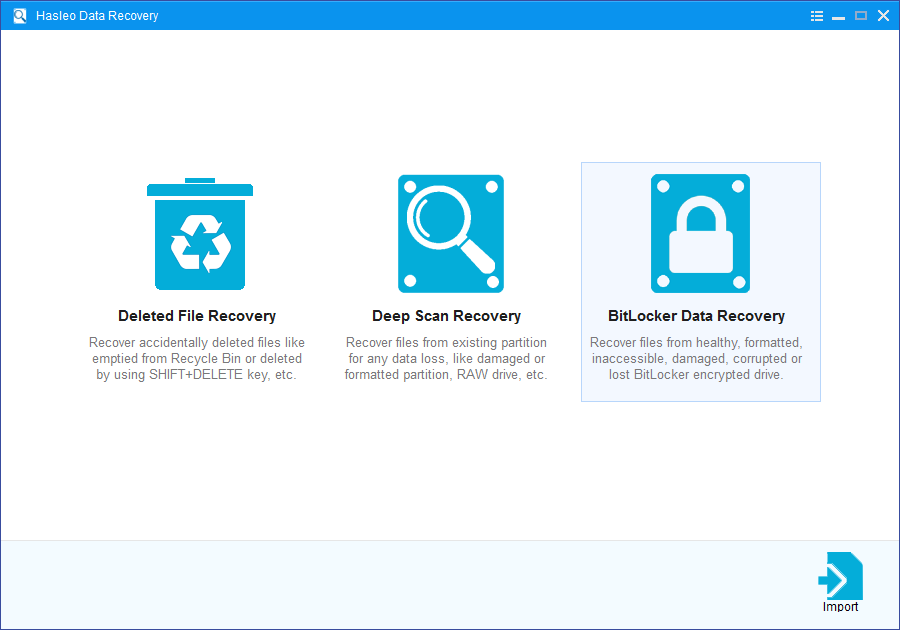
Step 1: Choose BitLocker Data Recovery
Download, install, and run Hasleo Data Recovery. On the main interface, you'll see several recovery options. Please select BitLocker Data Recovery mode.
Step 2: Select the drive to Scan
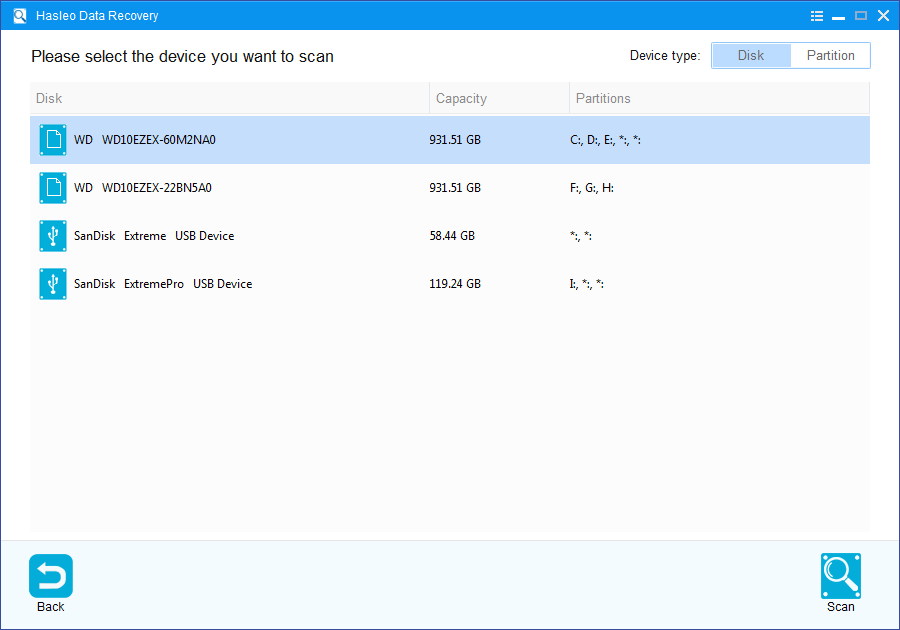
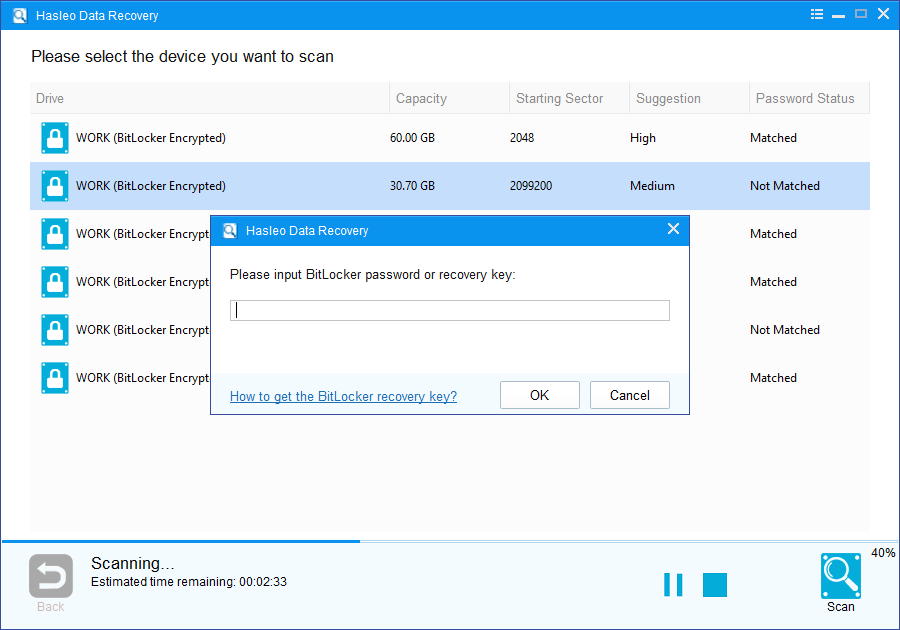
1. Please select the drive where you lost files, then click "Scan" to find all BitLocker-encrypted partitions on the device.
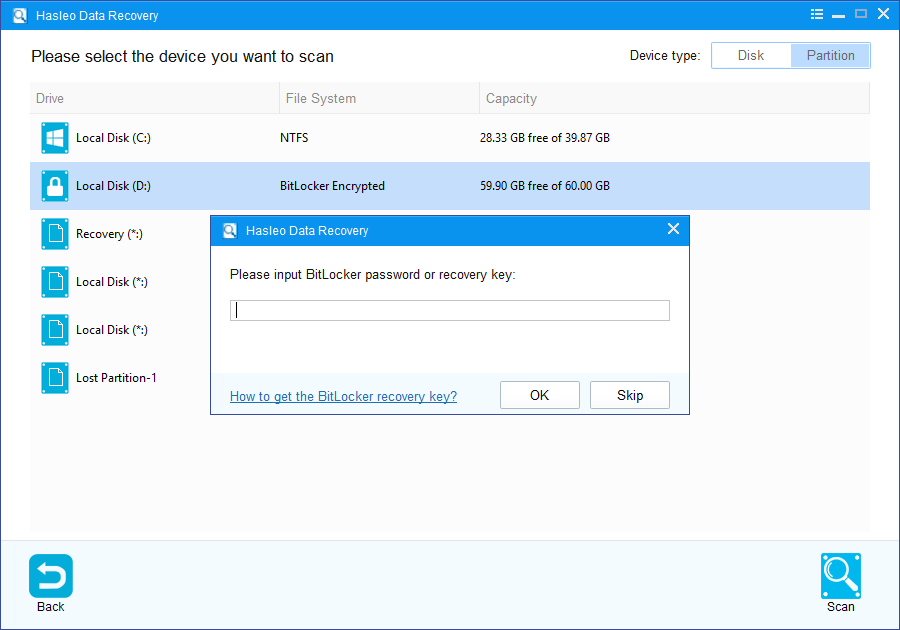
2. A pop-up window will appear asking you to enter the BitLocker password or 48-digit BitLocker recovery key. If you don't want to enter the password or BitLocker recovery key here, just click the "Skip" button to skip it.
3. Hasleo Data Recovery will display all detected BitLocker-encrypted partitions on the target device. If you provided the password or BitLocker recovery key in the previous step, the password status will show whether they match the partition.
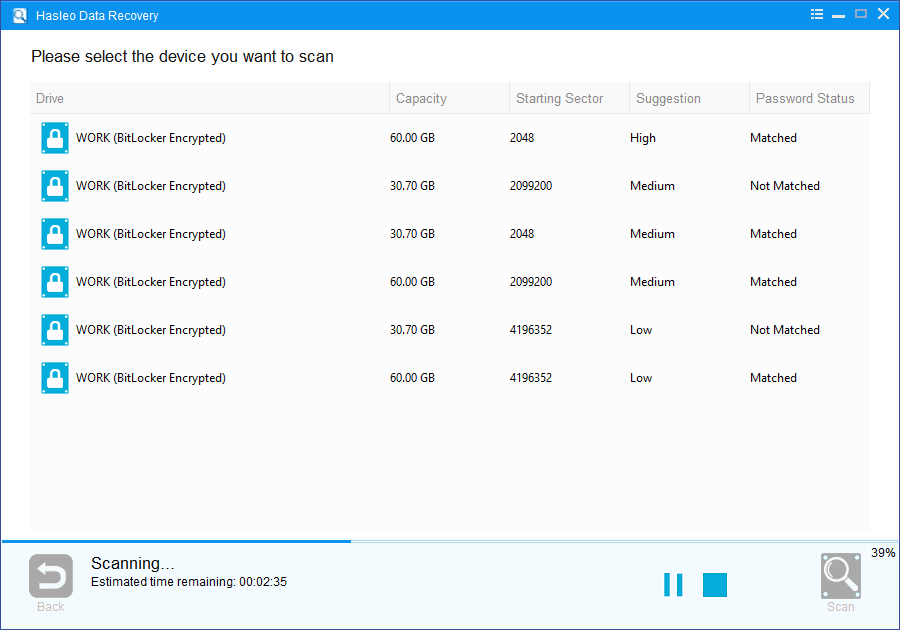
4. Double-click the partition you want to recover data from. If you've already entered the password or BitLocker recovery key and the password or recovery key matches, Hasleo Data Recovery will start scanning lost files. Otherwise, a prompt will appear asking for your BitLocker password or 48-digit recovery key. After entering the correct credentials and clicking "OK", the scan will start.
Step 3: Preview and Recover Deleted Files
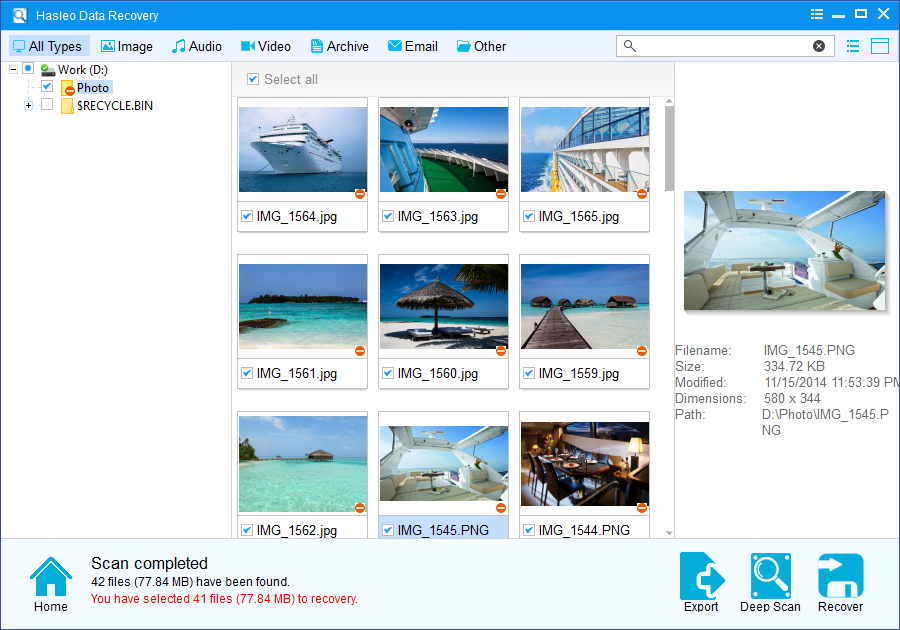
After scanning, the software will display a list of found files. You can preview them by browsing their paths or types. Select the files you wish to recover, then click the "Recover" button to save them to a destination of your choice. If your desired files are not found, click "Deep Scan" to initiate the Deep Scan Recovery process. This process takes additional time but can recover many more lost files.
Important Notes:
- You must enter the correct Bitlocker password or the 48-digit Bitlocker recovery key to successfully recover data from a BitLocker-encrypted drive.
- If the metadata area of a BitLocker-encrypted drive is severely corrupted, data recovery from that partition may fail—even with the correct password or recovery key.
- Do not save recovered files to the original partition where the lost data was stored. This prevents the data from being overwritten.
- You can export or save the scan results for later use or future recovery sessions.
Frequently Asked Questions (FAQ)
A: BitLocker-encrypted drives can crash due to various reasons including power failures, file system corruption, BitLocker metadata corruption, improper ejection of external drives, system crashes, virus attacks, and bad sectors on the storage device. These issues can make the drive inaccessible even when using the correct password.
A: Yes, you can recover data from a crashed BitLocker-encrypted drive using specialized BitLocker recovery software like Hasleo Data Recovery. The software can scan the drive and recover files once you provide the correct BitLocker password or 48-digit recovery key.
A: Regular data recovery software cannot recover data from a crashed BitLocker drive because the data is encrypted. Without proper BitLocker decryption capabilities, these tools cannot access the encrypted data even if they can detect the drive. You need specialized BitLocker recovery software that combines decryption with data recovery.
A: Yes, you must enter the correct BitLocker password or 48-digit recovery key to recover data from a crashed BitLocker-encrypted drive. Without these credentials, the recovery software cannot decrypt and access the encrypted data.
A: If your BitLocker drive crashes due to power failure, first try restarting your computer and see if the drive becomes accessible. If the drive still shows as inaccessible, use Hasleo Data Recovery in BitLocker Data Recovery mode to scan the drive and recover your files using your password or recovery key.
Related Articles
- How to recover data after Bitlocker decryption failed?
- How to recover data from corrupted BitLocker encrypted drive?
- How to recover data from Bitlocker encrypted partition in Windows 11/10?
- How to recover data from accidentally formatted BitLocker encrypted drive?
- BitLocker Drive encryption failed to recover from the abruptly terminated.


