

There is a BitLocker-encrypted partition on my Windows 10 computer that holds important data. The partition was accidentally deleted when I tried to install Ubuntu. How do I recover the partition such that I can continue to unlock it using my bitlocker password? I have downloaded and tried several data recovery tools which are recommended by my friends or colleagues, none of the tools mentioned are able to detect the bitlocker encrypted partition. Therefore, not able to recover the partition.
Yes, there are many data recovery software claiming that they can recover deleted or lost BitLocker partitions in Windows 11/10. We have tested these software, and the fact is that almost all of them are not able to recover the deleted or lost BitLocker partitions, they are more just for the sake of propaganda needs. Luckily, Hasleo Data Recovery is an effective BitLocker Data Recovery software that can help you recover deleted or lost BitLocker encrypted partitions in Windows 11/10. This program has very sophisticated algorithms to detect the deleted or lost BitLocker partition on the selected storage device, so all your lost files on the deleted or lost partition can be fully restored with the help of this tool.

How to Recover Data From a Deleted or Lost BitLocker-Encrypted Drive in Windows 11/10 Using Hasleo Data Recovery?
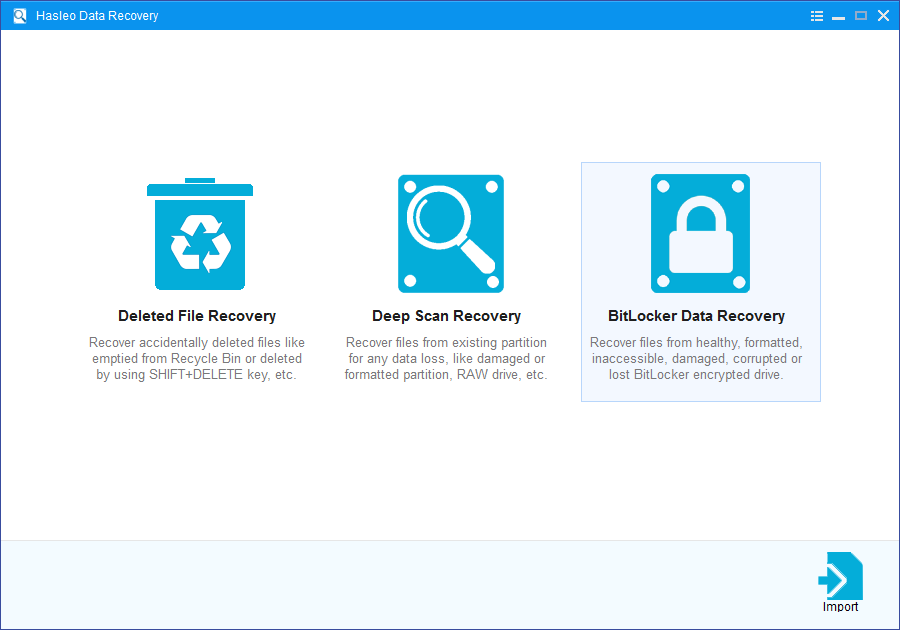
Step 1: Choose BitLocker Data Recovery
Download, install, and run Hasleo Data Recovery. On the main interface, you'll see several recovery options. Please select BitLocker Data Recovery mode.
Step 2: Select the drive to Scan
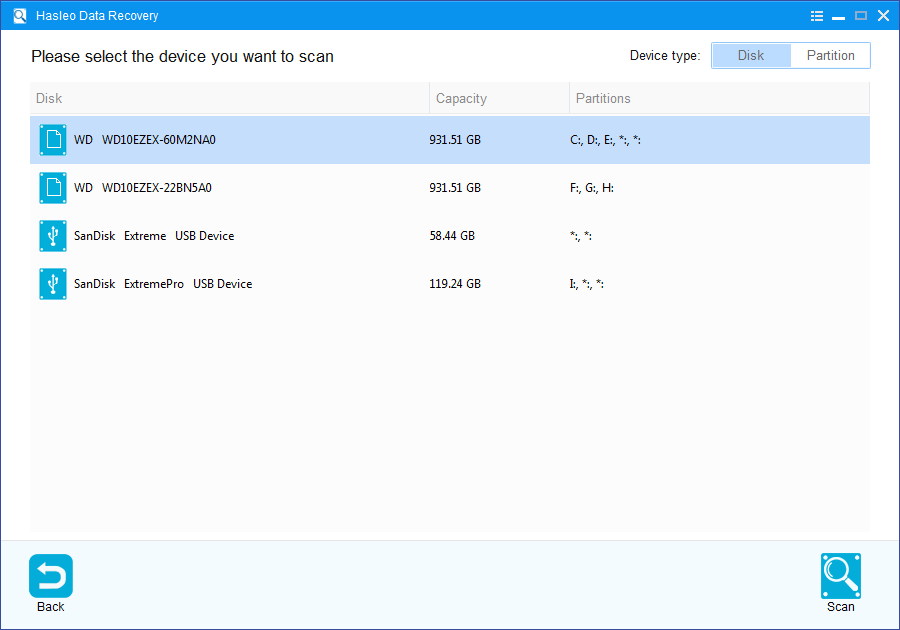
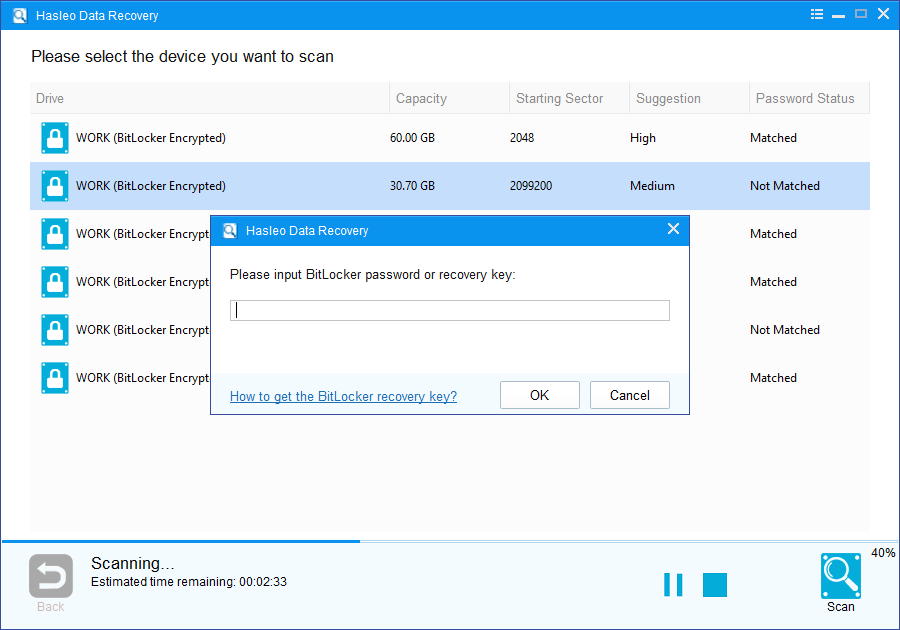
1. Please select the hard drive where you accidentally deleted or lost a BitLocker-encrypted partition, then click the "Scan" button to locate all BitLocker-encrypted partitions on the device.
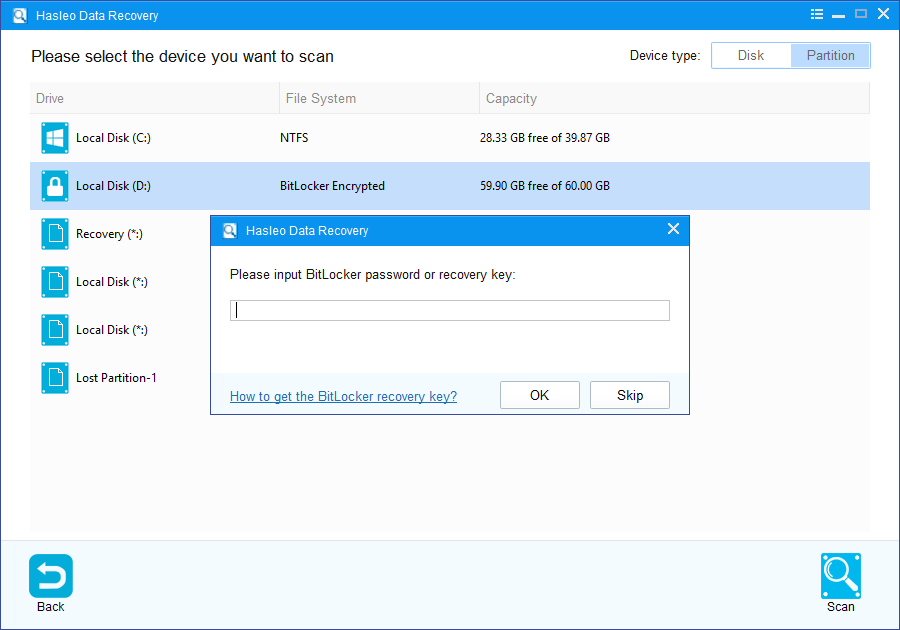
2. A pop-up window will appear asking you to enter the BitLocker password or 48-digit BitLocker recovery key. If you don't want to enter the password or BitLocker recovery key here, just click the "Skip" button to skip it.
3. Hasleo Data Recovery will display all detected BitLocker-encrypted partitions on the target device. If you provided the password or BitLocker recovery key in the previous step, the password status will show whether they match the partition.
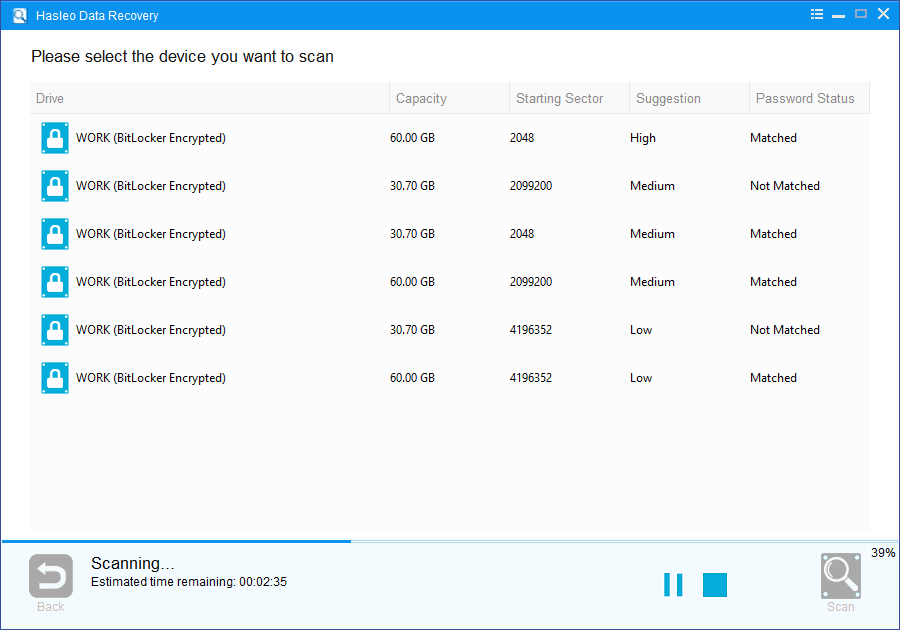
4. After the deleted or lost BitLocker-encrypted partition is found, double-click it. If the password or recovery key was previously entered and matches, Hasleo Data Recovery will immediately start scanning for lost files. If no password or key has been entered, a pop-up window will appear asking for it. Enter the password or BitLocker recovery key, then click "OK". If the credentials match, scanning will begin.
Step 3: Preview and Recover Deleted Files
After scanning, the software will display a list of found files. You can preview them by browsing their paths or types. Select the files you wish to recover, then click the "Recover" button to save them to a destination of your choice. If your desired files are not found, click "Deep Scan" to initiate the Deep Scan Recovery process. This process takes additional time but can recover many more lost files.
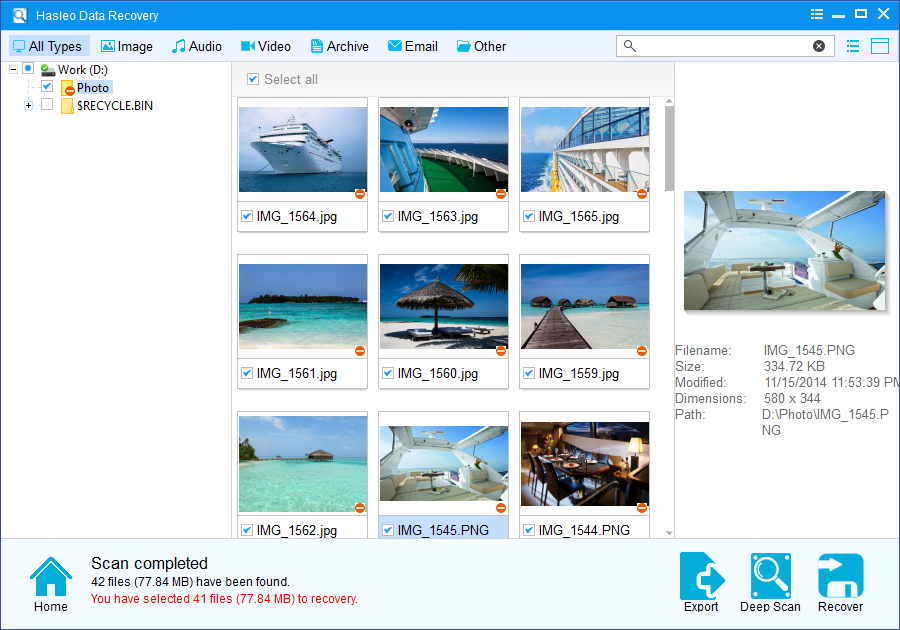
As professional BitLocker Data Recovery software, Hasleo Data Recovery not only recover data from a deleted or lost BitLocker encrypted drive, but also recover data from a formatted BitLocker encrypted drive.
Important Notes:
- You must enter the correct Bitlocker password or the 48-digit Bitlocker recovery key to successfully recover data from a BitLocker-encrypted drive.
- If the metadata area of a BitLocker-encrypted drive is severely corrupted, data recovery from that partition may fail—even with the correct password or recovery key.
- Do not save recovered files to the original partition where the lost data was stored. This prevents the data from being overwritten.
- You can export or save the scan results for later use or future recovery sessions.
Frequently Asked Questions (FAQ)
A: BitLocker partition recovery in Windows 11 and Windows 10 follows the same fundamental principles—both use identical BitLocker encryption. Hasleo Data Recovery works the same way on both operating systems. The recovery process involves scanning for encrypted partition metadata, attempting decryption with your credentials, and recovering accessible files. The key difference may be in how BitLocker is managed in the OS settings, but the underlying encryption remains the same.
A: BitLocker partitions can be lost due to: accidental disk management operations (deleting or resizing partitions), failed Windows updates that corrupt partition tables, system reinstallation that erases partitions, malware attacks targeting the MBR or partition entries, sudden power loss during disk operations, and disk conversion or resize operations that fail midway. The BitLocker encryption makes recovery more complex because partition boundaries are hidden.
A: No, Windows disk management tools cannot recover deleted BitLocker partitions. These tools work with visible, unencrypted partition structures and cannot recognize encrypted BitLocker partitions. Even if Disk Management shows unallocated space, it doesn't know the partition boundaries of the encrypted partition. You need specialized BitLocker-aware recovery software like Hasleo Data Recovery to identify and recover the encrypted partition.
A: The best method is to use Hasleo Data Recovery with BitLocker support: 1) Download and install the software on a different drive, 2) Run the software and select the disk containing the lost BitLocker partition, 3) Enter your BitLocker password or 48-digit recovery key when prompted, 4) Allow the software to scan and identify the encrypted partition, 5) Preview found files and recover them to a safe location. This process works whether Windows boots or not.
A: Hasleo Data Recovery can recover both individual files and help you regain access to the entire BitLocker partition. When you scan with the correct credentials, the software decrypts the partition and allows you to browse all recoverable files. You can selectively recover specific files or save scan results for later. The complete partition restoration (reconstructing the partition entry) is more complex and may require professional data recovery services if the partition table is severely corrupted.
Related Articles
- How to recover a deleted or lost Bitlocker encrypted partition?
- How to recover data from Bitlocker encrypted partition in Windows 11/10?
- How to recover data from accidentally formatted BitLocker encrypted drive?
- How to recover deleted/lost files from BitLocker To Go encrypted USB drive?
- How to recover data from corrupted/damaged BitLocker encrypted external hard drive?


