There are two hard disk styles: MBR and GPT. In most cases, we don't need to know which partition scheme (MBR or GPT) our disk is using. Sometimes, however, some professional tools need to specify the partition scheme which they require. In this case, we need to check which partition scheme our disk is using. This tutorial will show you how to check which partition scheme your disk is using by using Windows built-in Disk Management.
How to check if my disk uses MBR or GPT?
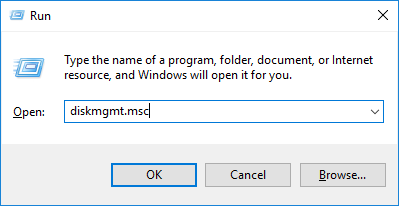
1. Press the Windows + R keys to open the Windows Run dialog, type diskmgmt.msc, and then press Enter to open Disk Management window.
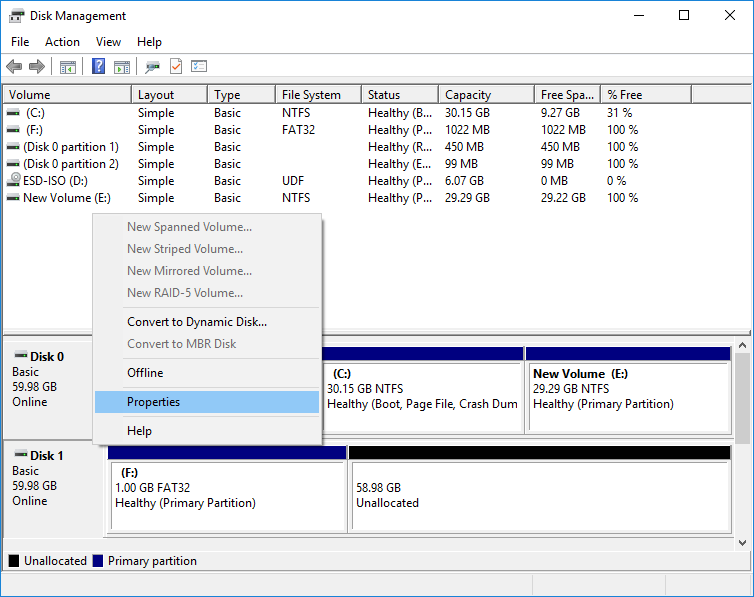
2. Locate the disk you want to check in the Disk Management window. Right-click it and select "Properties".
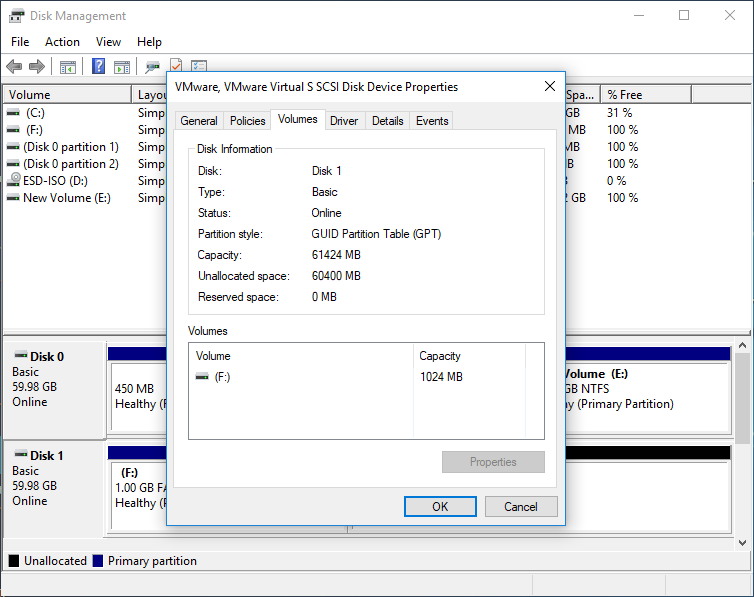
3. Click over to the "Volumes" tab. To the right of "Partition style", you'll see either "Master Boot Record (MBR)" or "GUID Partition Table (GPT)", depending on which the disk is using.
Frequently Asked Questions
A: MBR (Master Boot Record) is the older partition style with a 2TB storage limit and supports only 4 primary partitions. GPT (GUID Partition Table) is the newer standard supporting drives larger than 2TB and up to 128 partitions. GPT also includes CRC checksums for better data integrity and stores partition information redundantly.
A: Open Disk Management (diskmgmt.msc), right-click on the disk you want to check, select Properties, go to the Volumes tab, and look for 'Partition style'. It will display either 'Master Boot Record (MBR)' or 'GUID Partition Table (GPT)'.
A: You can convert MBR to GPT without losing data using built-in Windows tools or third-party partition software. However, some methods require deleting existing partitions first. Windows provides the 'mbr2gpt.exe' tool for in-place conversion on data disks, or you can use partition management software like Hasleo Backup Suite.
A: Windows 11 requires UEFI firmware, which typically works with GPT partition style. While it's technically possible to install Windows 11 on MBR, GPT is the recommended and more modern choice for better hardware compatibility and support for larger drives.
A: GPT offers several advantages: supports drives larger than 2TB (up to 256TB), allows nearly unlimited partitions (128 by default), includes CRC protection for data integrity, stores partition table redundantly for recovery, and works seamlessly with UEFI firmware for faster boot times.
A: Yes, a single computer can have multiple disks with different partition styles. You can have MBR and GPT disks coexisting in the same system. However, each individual disk can only use one partition style - it cannot be a hybrid of MBR and GPT.
A: There is no significant performance difference between MBR and GPT for everyday use. The partition style primarily affects storage capacity limits and partition count rather than read/write speeds. However, GPT with UEFI boot provides faster startup times compared to legacy BIOS with MBR.
A: This is a common MBR limitation issue. MBR only supports disks up to 2TB, so a 3TB drive will only show 2TB of usable space if initialized as MBR. To use the full capacity, you must convert the disk to GPT partition style, which supports much larger drives.