- Method 1. Convert MBR disk to GPT disk by using Windows Disk Management
- Method 2. Convert MBR disk to GPT disk by using mbr2gpt.exe
- Frequently Asked Questions
There are two partition schemes: MBR partition scheme and GPT partition scheme. Sometimes, we need to convert a disk from MBR partition scheme to GPT partition scheme. Here, we will introduce two ways to convert MBR disk to GPT disk for free by using Windows built-in mbr2gpt.exe and Disk Management.
The mbr2gpt.exe is only available in Windows 10 1709 and later operating systems, it can not only be used to convert data disks but also the disk where Windows is located. This way can ensure the consistency of the data and the operating system can start normally after the conversion. Windows Disk Management is available in all versions of operating systems, but it can only convert a empty disk from MBR to GPT, which means you need to delete all partitions on the disk before you you can perform the conversion operation. If you just need to convert the MBR disk to GPT disk and do not need to keep the files on the disk, please use the first method directly.
Method 1. Convert MBR disk to GPT disk by using Windows Disk Management
 Notes: This method will destroy all data on the disk you choose to convert, , we recommend that you use Hasleo Backup Suite Free to back up the data on this drive before continuing.
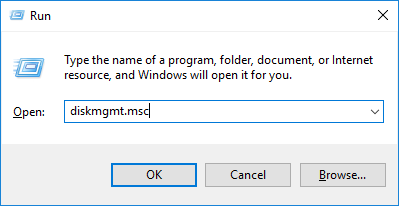
1. Press the Windows + R keys to open the Windows Run dialog, type diskmgmt.msc, and then press Enter to open Disk Management window.
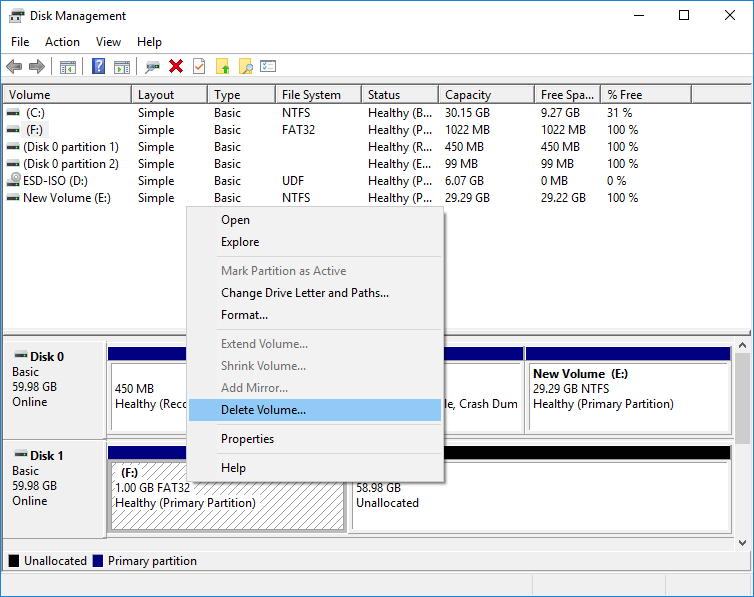
2. Locate the disk you want to convert in Disk Management. Right-click any partitions on the drive and select “Delete Volume” or “Delete Partition” to remove them. Repeat this process for each partition on that disk.
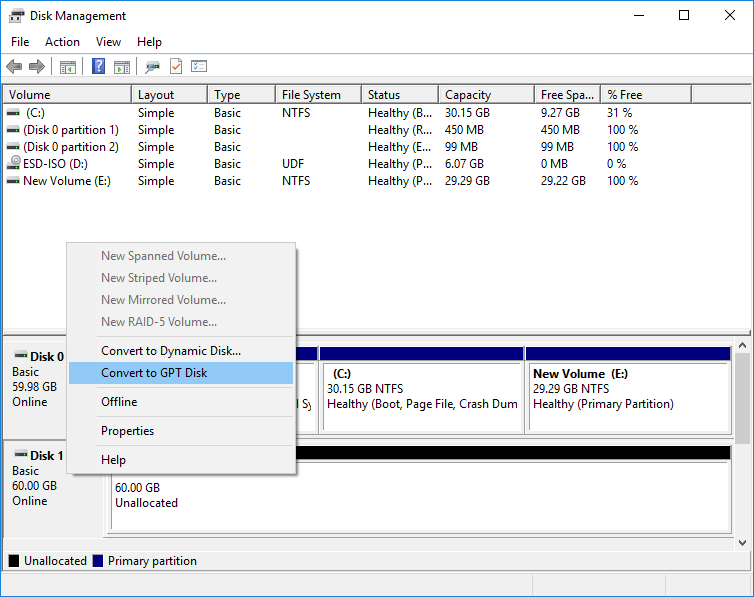
3. When all the partitions are removed from the disk, you can right-click the disk in Disk Management and select “Convert to GPT Disk”. This option will only be available once all partitions have been removed.
Method 2. Convert MBR disk to GPT disk by using mbr2gpt.exe
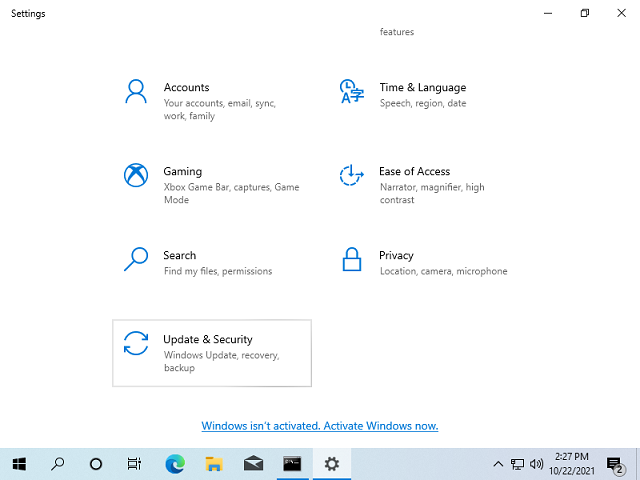
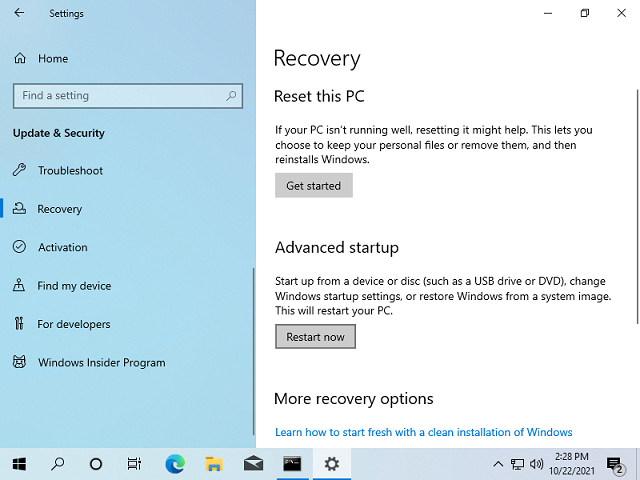
1. Press Win + i to open the Windows Settings, then click Update & Security.
2. Click Recovery on the left, and then click Restart now under Advanced startup.
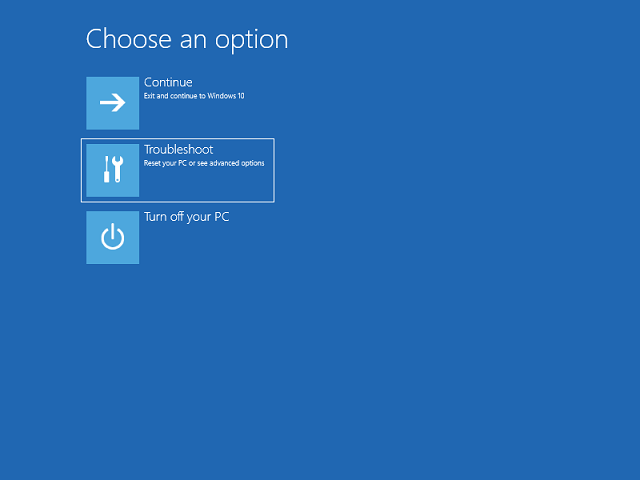
3. Click Troubleshoo.
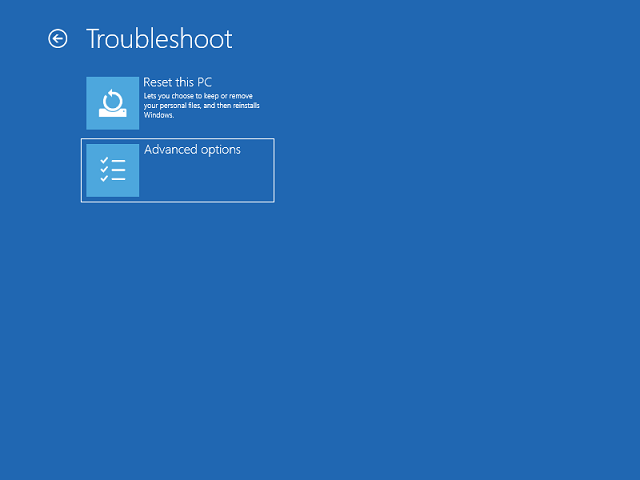
4. Click Advanced Options.
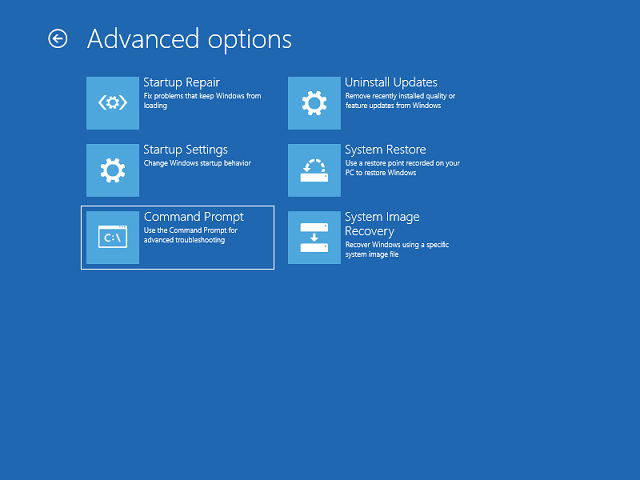
5. Click Command Prompt.
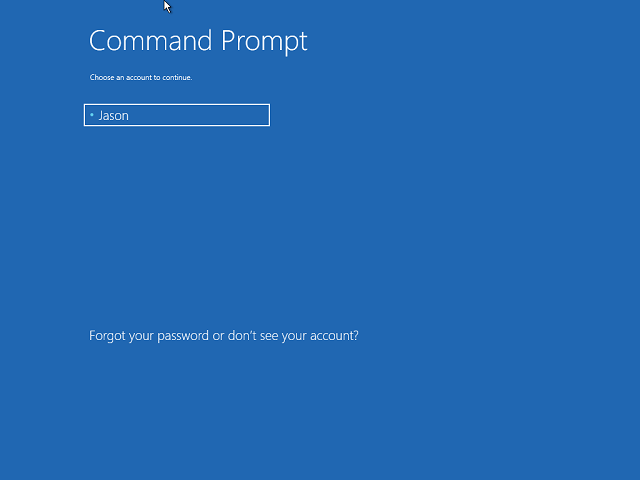
6. Select the user account and enter the password to log in.
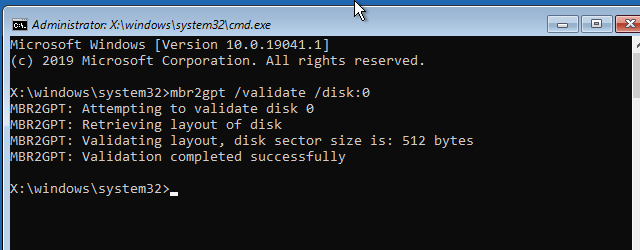
7. Execute the command 'mbr2gpt /validate /disk:disk number' to validate whether the disk can be converted. Please note that you need to replace disk number with the disk number of the disk you want to convert to GPT.
8. If the validation in the previous step does not prompt any errors, then execute the command 'mbr2gpt /convert /disk:disk number /allowfullos' to convert the disk to GPT. Please note that you need to replace disk number with the disk number of the disk you want to convert to GPT.
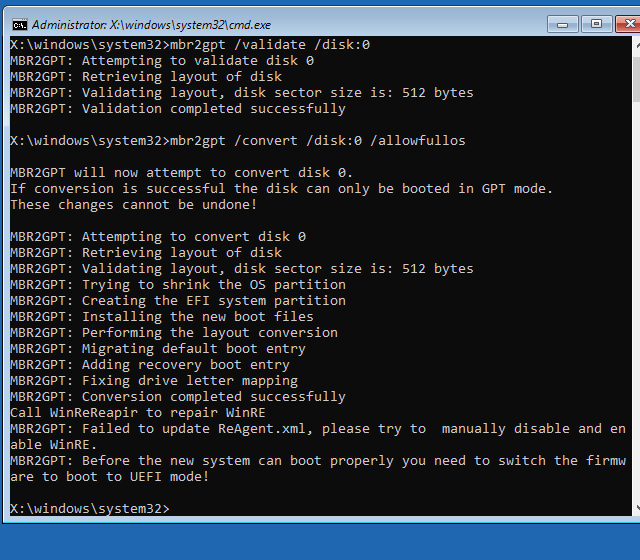
Notes: After converting the disk where Windows resides to GPT through mbr2gpt.exe, you must start the computer in UEFI mode to start Windows normally from the disk.
Frequently Asked Questions
A: When using Windows Disk Management method, yes - you must delete all partitions before converting, which destroys all data. However, when using mbr2gpt.exe, you can convert without losing data as long as the disk meets certain requirements.
A: mbr2gpt.exe is a built-in Windows tool available in Windows 10 version 1709 and later. It can convert MBR to GPT without deleting partitions, preserving your data. It validates the disk first, then performs the conversion. The tool requires running from Command Prompt in either Windows or WinRE environment.
A: To use mbr2gpt.exe, you need: Windows 10 version 1709 or later, enough free disk space for conversion (about 1MB overhead), and the disk must not have more than 3 primary partitions. You can validate with 'mbr2gpt /validate /disk:0' before converting.
A: No, after converting your Windows system disk to GPT using mbr2gpt.exe, you must boot your computer in UEFI mode (not Legacy BIOS) for Windows to start normally. You may need to change your BIOS/UEFI settings to enable UEFI boot.
A: GPT offers several advantages: supports disks larger than 2TB (up to 256TB), allows up to 128 partitions, includes CRC checksums for data integrity, provides better protection against partition table corruption, and works with UEFI for faster boot times.
A: Windows 7 does not have mbr2gpt.exe, so you must use Disk Management which requires deleting all partitions. Alternatively, you can use third-party partition software that supports MBR to GPT conversion without data loss, or use a Windows 10/11 installation media to access the conversion tool.
A: If mbr2gpt /validate fails, common causes include: disk has more than 3 partitions, not enough free space, disk is a dynamic disk, or disk uses BitLocker encryption. You may need to delete extra partitions, free up space, or convert dynamic disks to basic before trying again.
A: No, if you use mbr2gpt.exe to convert your system disk, you do not need to reinstall Windows. Just make sure to change your BIOS to UEFI boot mode after conversion. If you use Disk Management method, you will need to reinstall Windows since all data is lost.