There are two partition schemes: GPT partition scheme and MBR partition scheme. Sometimes, we want to convert a disk from GPT partition scheme to MBR partition scheme. Here, you can find the complete guide to convert a GPT disk to MBR disk in Windows by using Windows built-in Disk Management.
 Notes: This will destroy all data on the disk you choose to convert, we recommend that you use Hasleo Backup Suite Free to back up the data on this drive before continuing.
How to convert a GPT disk to MBR disk?
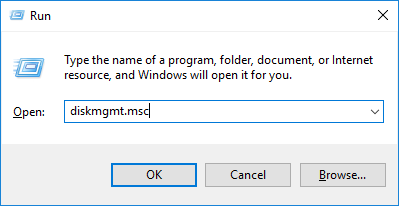
1. Press the Windows + R keys to open the Windows Run dialog, type diskmgmt.msc, and then press Enter to open Disk Management window.
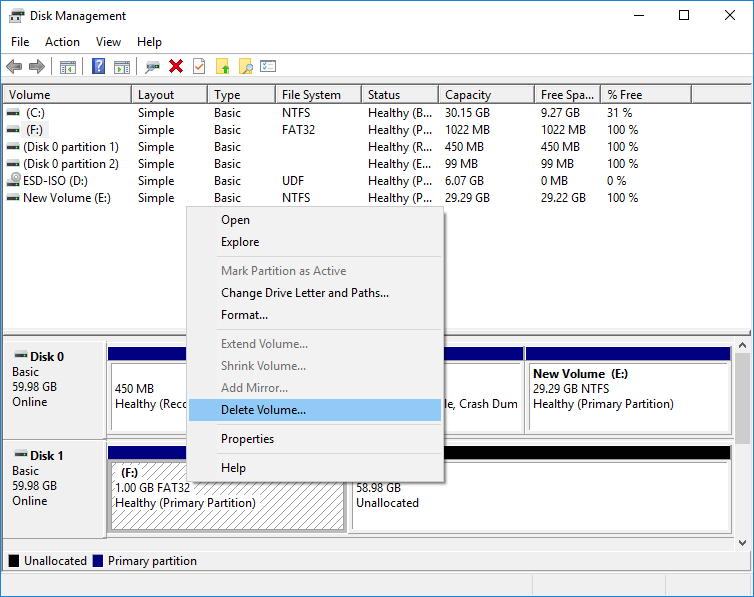
2. Locate the disk you want to convert in Disk Management. Right-click any partitions on the drive and select “Delete Volume” or “Delete Partition” to remove them. Repeat this process for each partition on that disk.
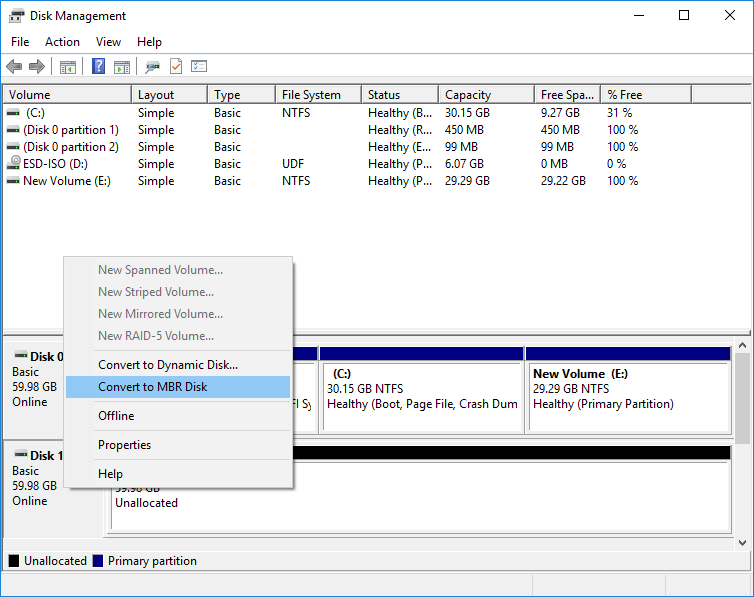
3. When all the partitions are removed from the disk, you can right-click the disk in Disk Management and select “Convert to MBR Disk”. This option will only be available once all partitions have been removed.
Frequently Asked Questions
A: Yes, converting GPT to MBR using Windows Disk Management will destroy all data on the disk. You must delete all partitions on the disk before you can perform the conversion. We strongly recommend backing up your data using Hasleo Backup Suite Free before proceeding.
A: No, Windows Disk Management requires you to delete all partitions before converting. However, you can use third-party partition software that supports non-destructive conversion. Alternatively, you can clone the GPT disk to another drive using disk cloning software, then initialize the target disk as MBR.
A: MBR (Master Boot Record) has a maximum disk size limit of 2TB (terabytes). If you have a larger disk, you cannot use the full capacity with MBR - you must use GPT partition style instead.
A: MBR supports up to 4 primary partitions. If you need more than 4 partitions, you must make one of them an extended partition and create logical partitions within it. In contrast, GPT supports up to 128 partitions by default.
A: You might convert GPT to MBR if: 1) You need to use the disk on an older computer that only supports BIOS (not UEFI), 2) You need to install an older operating system like Windows XP that doesn't fully support GPT, or 3) Certain disk cloning or recovery tools only work with MBR disks.
A: Yes, but you must also change the boot mode from UEFI to Legacy BIOS in your motherboard settings after conversion. If you convert the system disk to MBR while keeping UEFI boot, Windows will not start. You may need to use the mbr2gpt tool or reinstall Windows.
A: Yes, you can convert MBR back to GPT using the same method - delete all partitions and select 'Convert to GPT Disk' in Disk Management. However, remember that both conversions will erase all data on the disk.