
Hasleo Data Recovery is an all-in-one solution for retrieving lost files from virtually any storage device, including computer's hard drives, external hard drives, USB flash drives, cameras, mobile phones, MP3/MP4 players, and more. It even supports recovery from drives encrypted with BitLocker Drive Encryption. With just a few simple steps, you can recover your lost files, provided they haven't been overwritten by new data.
Shift from laborious recovery after loss to proactive backup preparation. Establishing a regular backup strategy for your important data is the most reliable habit for data security. To help you achieve this, we invite you to try our dedicated free tool—Hasleo Backup Suite Free. It is user-friendly and feature-rich, designed to help you easily create and execute backup plans, making data security simple, efficient, and worry-free.
User Guide: How to Recover Deleted or Lost Files with Hasleo Data Recovery?
Step 1: Launch the Program and Choose a Recovery Mode
Download and install Hasleo Data Recovery. Please do not install it on the disk where you lost your data, otherwise those lost files and data will be overwritten. Launch the program and select the recovery mode.
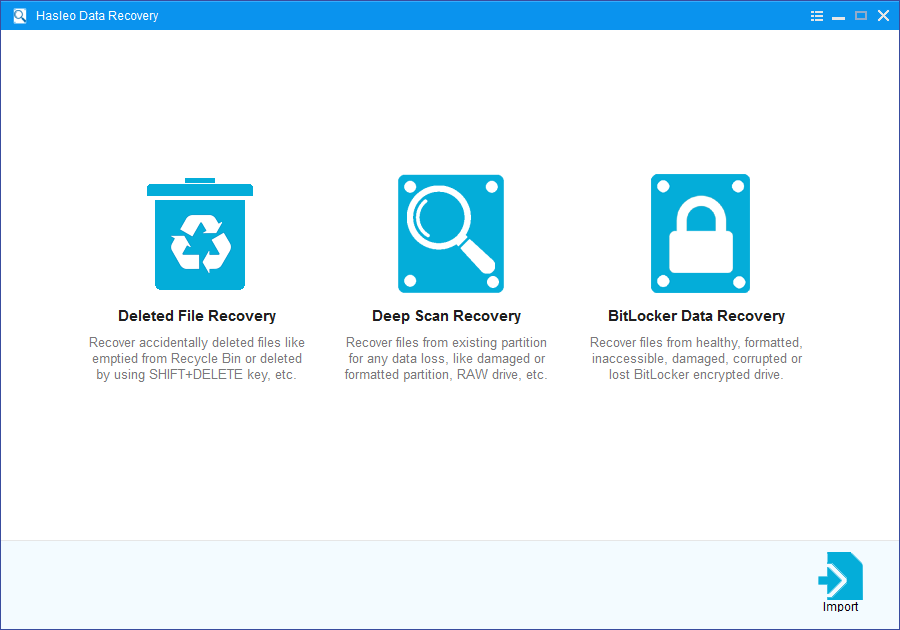
Hasleo Data Recovery provides three data recovery modes to ensure finding everything you want to recover.
- Deleted File Recovery - This recovery mode will quickly scan your device to find deleted or recently lost files within a short time, typically completing in just minutes. So we strongly recommend that you try it first. If your desired files aren't found, please try "Deep Scan Recovery" to find more lost files.
- Deep Scan Recovery - This mode will deeply scan your device with advanced algorithms to find every recoverable file. It performs sector-by-sector scanning, so it will take longer but delivers significantly more results.
- BitLocker Data Recovery - This mode is specifically designed for Windows BitLocker encrypted drives. It can recover deleted or lost files from drives that are healthy, inaccessible, failed, damaged, corrupted, deleted, or lost. (A password or 48-digit recovery key is required.).
Step 2: Select the Target Device to Scan
Please select the device where you lost your files, then click "Scan" to start scanning.
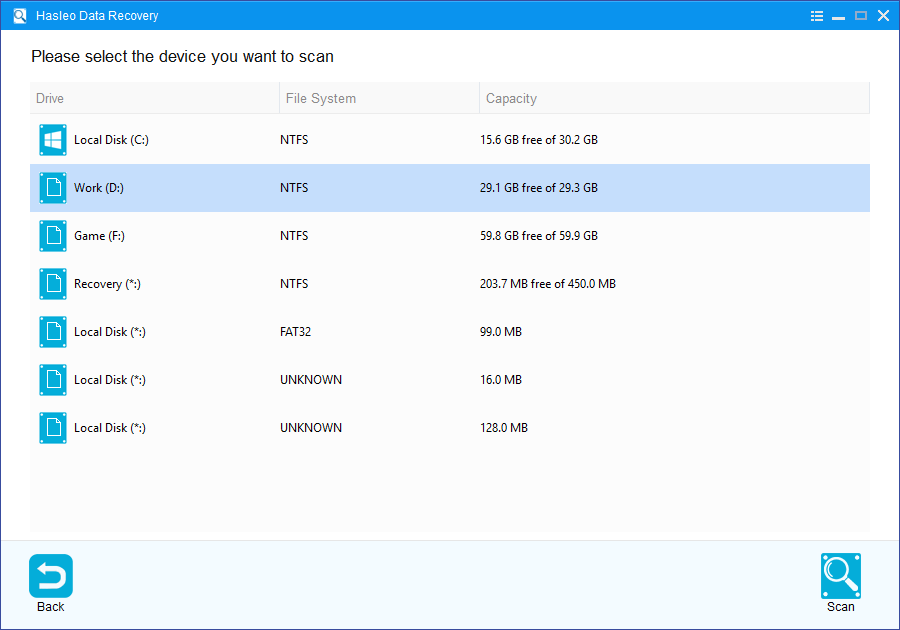
For BitLocker recovery mode, you need to provide the correct BitLocker access credentials and follow the prompts to recover lost data from the BitLocker encrypted drive.
Step 3: Preview and Recover Lost Files
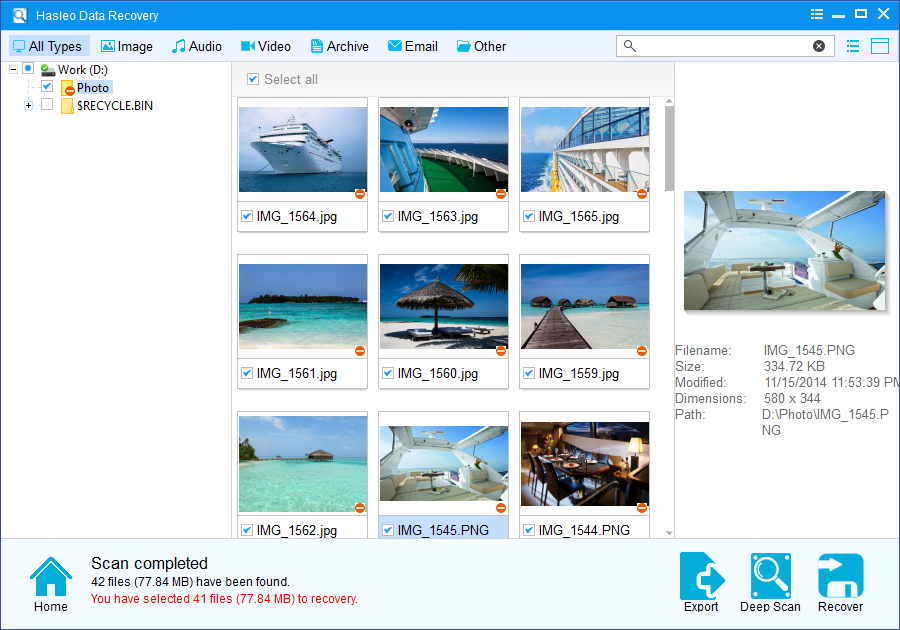
After scanning completes, all found files will be displayed in the interface. You can quickly locate target files by path and file types. Preview pictures, documents, videos, and other files before deciding which ones to recover. Simply tick the desired items and click the "Recover" button to restore them. Important: To avoid overwriting lost data, do not save recovered files to the same device where the data loss occurred.
In summary, Hasleo Data Recovery is completely safe and effective software for both standard hard drive and BitLocker recovery. It provides a reliable data recovery solution for all types of data loss scenarios.
Please Note:
- If "Deleted File Recovery" does not locate your files, please click "Deep Scan Recovery" to start a deeper search. This process takes longer but can recover significantly more lost data.
- If your device is encrypted with BitLocker Drive Encryption, use the "BitLocker Data Recovery" feature instead.
- Do not save recovered files to the original device where data loss occurred, as this may overwrite the lost data.
- You can export or save scan results for later use or future recovery sessions.
Related Articles
- How to recover a deleted or lost Bitlocker encrypted partition?
- How to recover data from Bitlocker encrypted partition in Windows 10?
- BitLocker Drive encryption failed to recover from the abruptly terminated.
- How to recover lost data after you lose or forget your BitLocker password?
- How to recover data from accidentally formatted BitLocker encrypted drive?


