The ESP partition stores boot files (such as bootx64.efi, Windows Boot Manager, etc.) necessary for UEFI booting. If the files are mistakenly deleted, corrupted, or infected by viruses, it will cause the system to fail to boot, and you will need to rebuild the partition to recover the boot files. This tutorial details how to rebuild/recreate the ESP partition manually with diskpart and bcdboot, you can do this in Windows or WinPE.
Tutorial to rebuild/recreate the EFI system partition (ESP) manually.
Step 1. Open an elevated cmd.exe in Windows.
Step 2. Run diskpart and enter list disk.
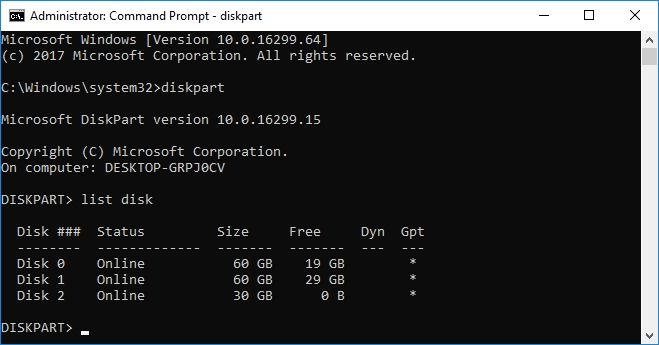
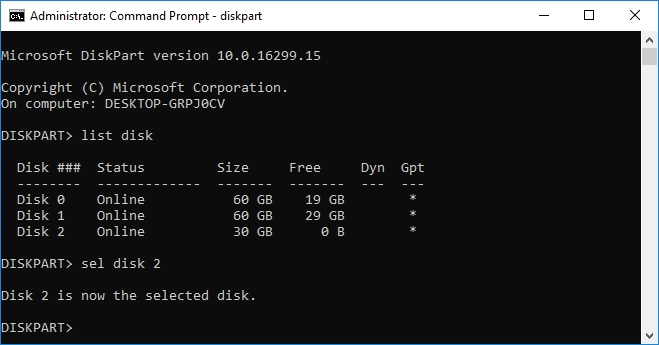
Step 3. Enter sel disk x. x is the number of the disk you want to rebuild the ESP on as listed in the previous step. For example, I want to rebuild the ESP on disk 2, so I enter sel disk 2.
Step 4. Enter list part to view the partition number of the ESP to be rebuilt.
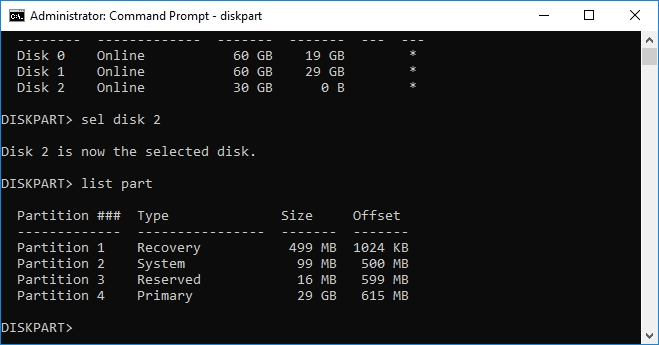
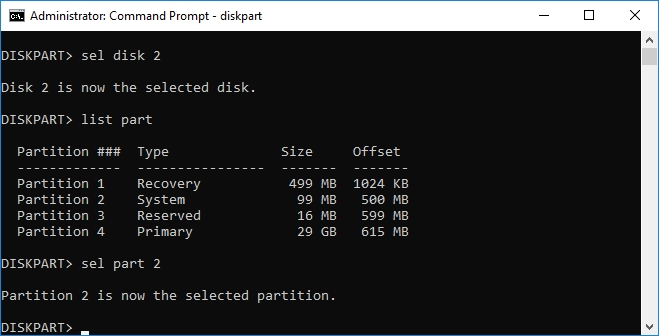
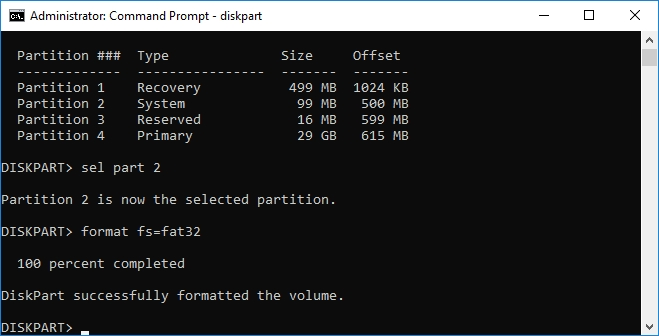
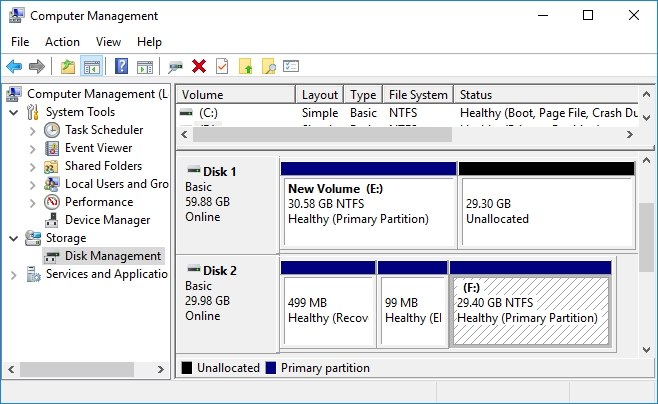
Step 5. Enter sel part x. x is the number of the ESP listed in the previous step. My ESP partition (Windows Disk Management shows it it a 99 MB partition) number in this example is 2.
Step 6. Enter format fs=fat32 to format the selected partition to FAT32 format.
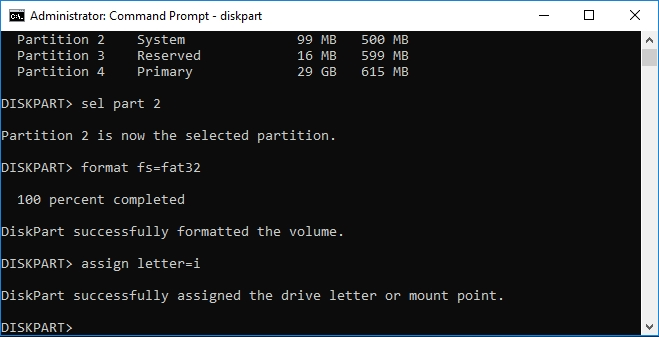
Step 7. Enter assign letter=x to assign a drive letter to this ESP. x is the drive letter you want to assign to the ESP. In this example, the drive letter I assigned to the ESP is I:.
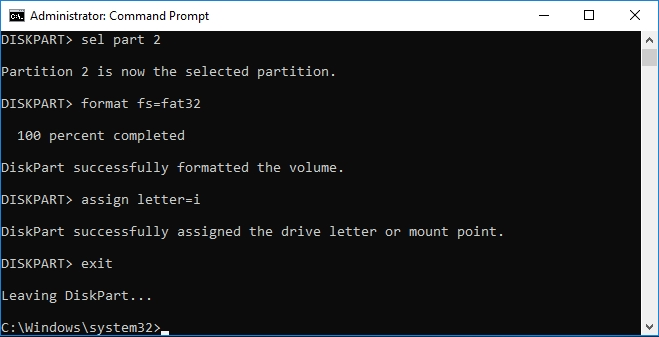
Step 8. Enter exit to exit diskpart.
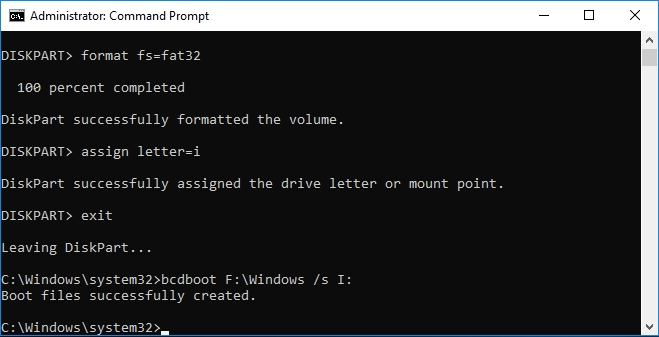
Step 9. Enter bcdboot w:\Windows /s x: to to rebuild the ESP partition. x is the drive letter you assign to the ESP, w is the drive letter of the Windows partition on the disk where you want to rebuild the ESP. In this example, the drive letter I assigned to the ESP is I:, the drive letter of the Windows partition is F:.
As described above, ESP partition corruption can cause us to not be able to boot Windows properly, and you can rebuild/recreate the ESP partition manually with diskpart and bcdboot. However the process is a bit more complicated in Windows and WinPE, fortunately you can easily rebuild the ESP partition with Hasleo EasyUEFI.
Frequently Asked Questions
A: The EFI System Partition is a special partition on GPT disks that stores UEFI boot files including bootloaders, drivers, and firmware files. Without a properly configured ESP, your computer cannot boot in UEFI mode. It's essential for Windows startup on modern systems.
A: Common causes include: accidental deletion during disk management, virus attacks that corrupt boot files, power outages during system updates, disk conversion errors, or improper partitioning tools. These issues prevent Windows from booting properly.
A: Yes, rebuilding the ESP only recreates the boot files on the ESP. Your Windows installation and personal data on the Windows partition remain untouched. However, you should always backup important data before performing disk operations.
A: Microsoft recommends a minimum of 100MB for the ESP, though 260MB is recommended for optimal functionality. The partition must be formatted as FAT32 for UEFI boot. A larger ESP (like 500MB) provides more room for multiple bootloaders and recovery images.
A: The bcdboot command creates or repairs the Boot Configuration Data (BCD) store on the ESP. It copies the necessary boot files from your Windows installation (like bootx64.efi and other boot files) to the EFI folder on the ESP, enabling Windows to boot.
A: Yes, you can rebuild the ESP on BitLocker-encrypted systems. However, you may need the BitLocker recovery key after rebuilding. The bcdboot command doesn't affect the encryption status of your Windows partition.
A: If bcdboot fails: verify the Windows partition path is correct, ensure the ESP is properly formatted as FAT32, check that you have administrator privileges, and confirm the Windows partition has all necessary boot files. You may also need to run chkdsk on the partitions first.
A: Yes, Hasleo EasyUEFI provides a simple graphical interface to rebuild the ESP with just a few clicks. It handles all the technical steps automatically and is much more user-friendly than using command-line tools.