EFI System Partition (ESP) is a critical FAT32 partition required for UEFI boot, containing the boot loader programs for all operating systems installed on the computer. Windows provides additional protection for it, which is why the option to delete the volume is grayed out in Windows Disk Management. Learn more about the EFI System Partition (ESP)
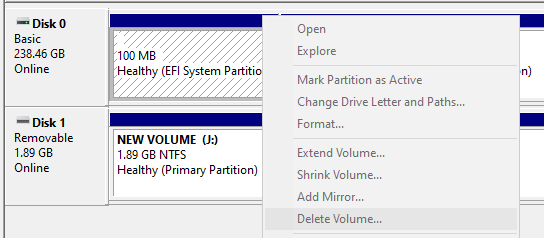
If you are familiar with diskpart, you can use it to delete the EFI system partitions in Windows. However, diskpart is a command-line program, which is too difficult for some users. As a professional EFI system partition management tool, EasyUEFI can hlep you delete a EFI system partition with just a few clicks, below we will teach you how to do it.
Step 1. Run EasyUEFI and click the 'Manage EFI System Partition' button in the main window.
Step 2. Click the 'Delete EFI System Partition' button.
Step 3. Select the EFI System Partition (ESP) you want to delete in the disk/partition list, then click the "Delete" button to delete it.
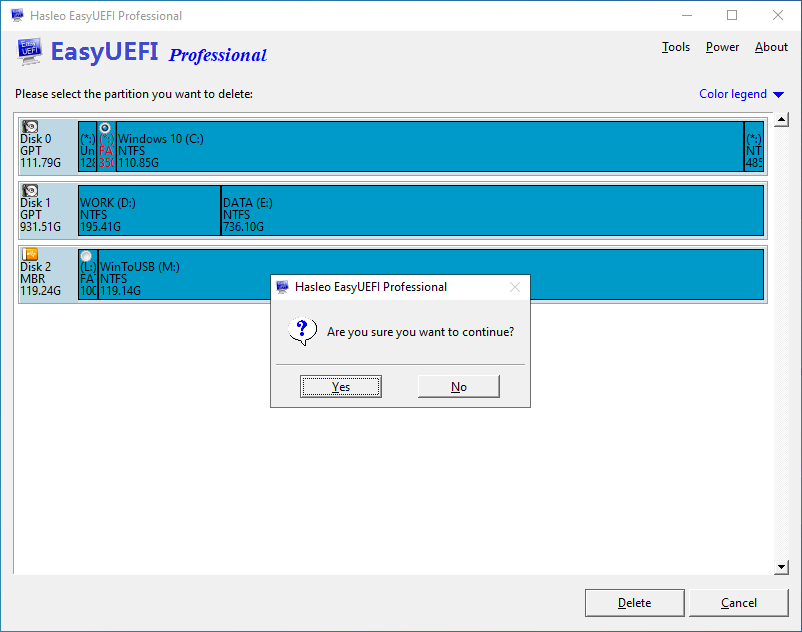
To sum it all up, EasyUEFI is a professional EFI system partition management tool, with it, you can easily delete an EFI System Partition (ESP) in Windows 11/10/8.1/8/7 and Windows Server 2019/2016/2012/2008.