
If you already have a Windows installation DVD, and now you want to convert it to a Windows installation ISO file to use it in software that only doesn't support DVD drives. Hasleo WinToUSB can help you to convert a CD or DVD to ISO image file with a few simple steps.
Tutorial to convert a CD or DVD to ISO image file with WinToUSB
Step 1. Insert the CD or DVD disc which you want to convert in your CD/DVD-ROM.
Step 2. Run WinToUSB as administrator.
Step 3. Click  > "CD/DVD To ISO".
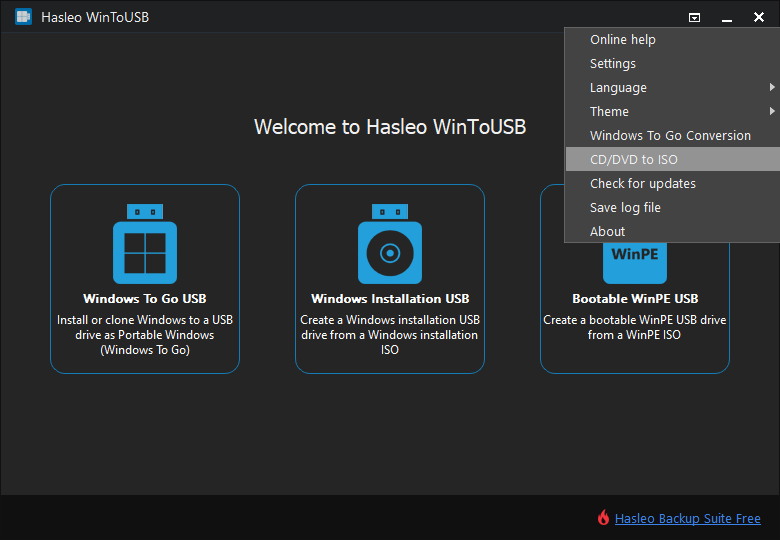
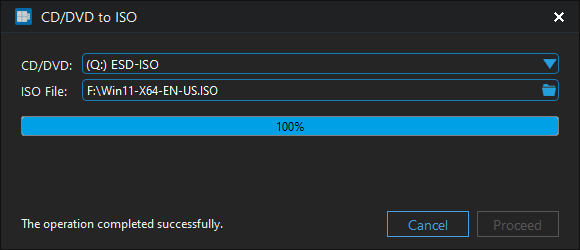
Step 4. Select the CD/DVD drive in the drop-down list.
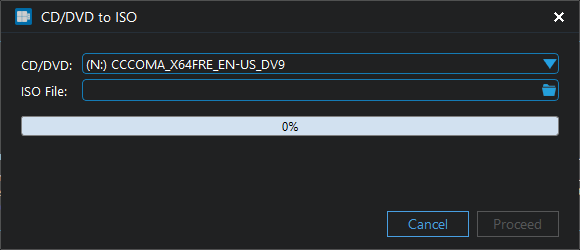
Step 5. Click the  button. A dialog window will appear asking you where you want to save the ISO file to, select where you want to save the ISO file and give it a name.
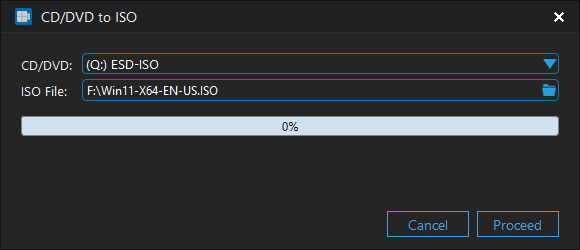
Step 6. Click "Proceed", WinToUSB begins converting.
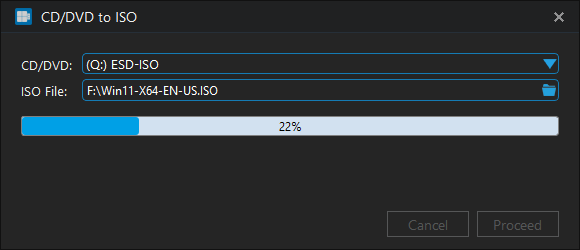
Step 7. Click "Cancel" to exit when the conversion is complete. The CD or DVD disk has been converted to ISO image file now.
Summary
Follow these simple steps, you can convert a CD or DVD disc to ISO image file with WinToUSB easily.
Related Guides
- How to clone current Windows OS to USB drive as a portable Windows?
- How to create a Windows bootable USB from an ISO/WIM/ESD/SWM/VHD/VHDX file?
- How to create a portable Windows 11/10 USB drive for free?
- How to install or clone Windows Server to USB drive as portable Windows Server?
- How to create Windows 10 To Go on a USB flash drive with both BIOS and UEFI support?


