Usually, the EFI System Partition (ESP) and the boot partition are on the same disk, but if your computer has more than one internal disk, then the EFI system partition and the boot partition may be separated on different disks. In such case, you may want to move the EFI System Partition (ESP) to the disk which the boot partition is on. Before moving, it is recommended to back up the EFI System Partition to avoid data loss. You can learn how in our guide: How to Back Up EFI System Partition?. Here you can find the solution about how to move the EFI System Partition (ESP) to another drive.
The EFI System Partition (ESP) is a specially formatted partition used by UEFI firmware to store the bootloader and related files required to start Windows. It typically contains the EFI executable files, boot managers, and device drivers essential for the boot process.
When a system has multiple internal disks, the ESP may reside on a different drive from the Windows boot partition. Moving the ESP to the same disk as the boot partition can simplify boot configuration and improve system compatibility.
Always back up the EFI System Partition before attempting any partition moves. Unexpected errors can result in an unbootable system. EasyUEFI provides a safe method, but data loss risk remains if proper backups are not performed.
Step 1. Run EasyUEFI as administrator, then click the 'Manage EFI System Partition' button.
Step 2. Click the 'Move EFI System Partition' button.
Step 3. Select the EFI System Partition (ESP) you want to move in the first disk/partition list, then select the destination partition in the second disk/partition list, the selected partitions will be marked as red.
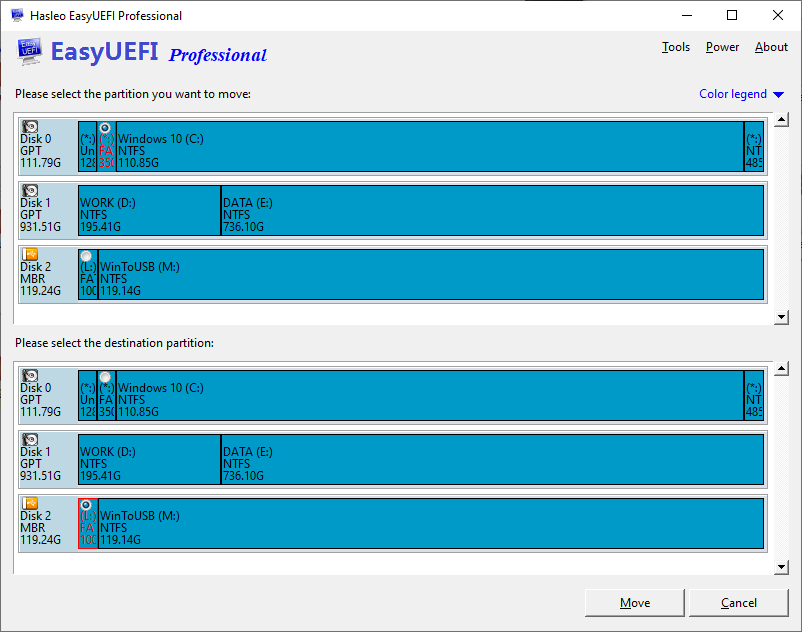
Step 4. Click the "Move" button to move the partition.