

- Step-by-Step: Enable or Disable Hibernation in Windows To Go with Group Policy Settings
- Troubleshooting
- Frequently Asked Questions
A hibernated Windows To Go (WTG) workspace can only resume operation on the original host computer because hardware drivers and system state are saved to disk during hibernation. To guarantee successful operation across different computers, hibernation is disabled by default in Windows To Go workspaces. This tutorial explains how to enable or disable hibernation in Windows To Go workspaces via Group Policy settings.
 Tips: Hibernation is unavailable for Windows running on VHD/VHDX due to Microsoft restriction. Therefore, Windows To Go workspaces deployed on VHD/VHDX cannot enable hibernation functionality.
Step-by-Step: Enable or Disable Hibernation in Windows To Go with Group Policy Settings
Step 1. Boot your computer from the Windows To Go USB drive created with Hasleo WinToUSB.
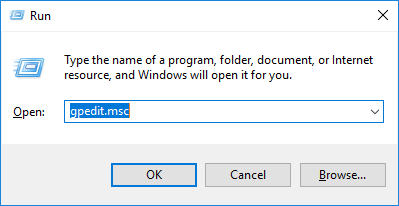
Step 2. Press the Windows + R keys to open the Windows Run dialog. Then type gpedit.msc and press Enter to open Local Group Policy Editor.
Step 3. In the Local Group Policy Editor, navigate through the left pane to: Computer Configuration>Administrative Templates>Windows Components>Portable Operating System.
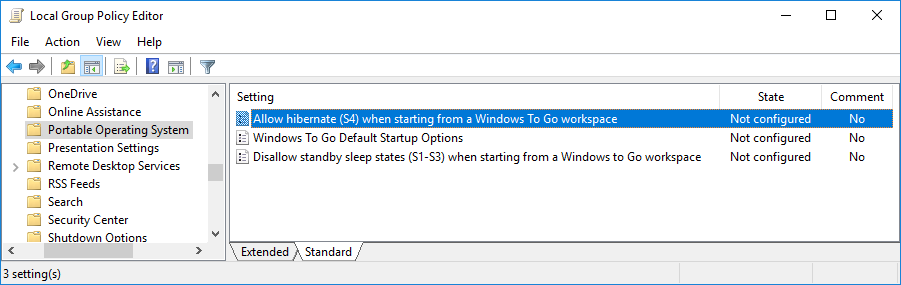
Step 4. In the right pane of Portable Operating System in Local Group Policy Editor, double-click the policy "Allow hibernate (S4) when starting from a Windows To Go workspace" to modify its settings. (see the screenshot above.)
Step 5. In the "Allow hibernate (S4) when starting from a Windows To Go workspace" dialog box, check the "Enable"/"Disable" checkbox to activate/deactivate hibernation support. Then click "OK" or "Apply" button to confirm the setting.
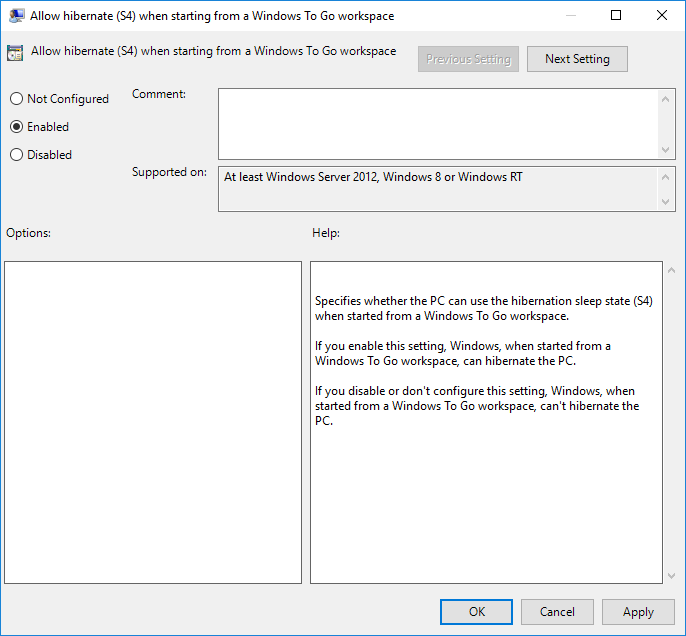
Following to the above steps, you can easily enable or disable hibernation in Windows To Go (WTG) workspaces.
Troubleshooting
The "Allow hibernate (S4)" policy is grayed out or missing.
This policy only appears on Windows editions that include Group Policy Editor (Pro, Enterprise, Education). If you are using Windows Home edition, use the Registry Editor method instead.
Hibernation option does not appear in the Power menu after enabling the policy.
Run the following command in an elevated Command Prompt to make hibernation visible: powercfg /hibernate on. Then open Control Panel > Power Options > Choose what the power buttons do and ensure "Hibernate" is checked under Shutdown settings.
Changes do not take effect after restart.
Verify that your Windows To Go workspace is not deployed on a VHD/VHDX virtual disk. Open Disk Management (diskmgmt.msc) and check whether your Windows partition resides on a physical disk or a virtual disk. Hibernation is unsupported on VHD/VHDX.
Frequently Asked Questions
A: Hibernation saves the entire system state, including hardware drivers, to disk. A hibernated Windows To Go workspace can only resume on the original computer, which defeats the purpose of portability. Microsoft disables it by default to ensure workspaces can boot reliably across different hardware.
A: Enable hibernation by opening Local Group Policy Editor (gpedit.msc), navigate to Computer Configuration > Administrative Templates > Windows Components > Portable Operating System, and enable the policy 'Allow hibernate (S4) when starting from a Windows To Go workspace'.
A: No, hibernation is unavailable for Windows running on VHD/VHDX due to Microsoft restriction. Windows To Go workspaces deployed on VHD/VHDX cannot enable hibernation functionality.
A: The system may fail to resume properly or may experience errors because hardware drivers and configuration differ between computers. This is why hibernation is disabled by default for cross-computer portability.
A: The Group Policy settings in Windows To Go allow you to control various sleep and hibernation states (S1-S4). WinToUSB creates workspaces that fully support these power management features when properly configured.
Related Guides
- How to online internal disks in Windows To Go workspace?
- How to enable or disable sleep in Windows To Go workspace?
- How to clone current Windows OS to USB drive as a portable Windows?
- How to clone Windows 10 to an external hard drive as portable Windows 10?
- How to create portable Windows 10 on Non-certification Windows To Go drive?


