

Since Windows 10's release on July 29, 2015, Microsoft maintained it would be the last version of Windows. However, when a leaked version of Windows 11 surfaced online in June 2021, it suggested that Microsoft changed this position.
Hasleo WinToUSB is the market's most professional portable Windows creation tool since its launch in 2014. We were very interested in installing Windows 11 on USB flash drives. Regardless of the ISO installation's authenticity, we tested it. The results confirmed that Windows 11 installed via Hasleo WinToUSB successfully boots from the USB drive. After Microsoft officially released Windows 11 on June 24, 2021, we tested again with the release version. After fixing some compatibility issues, Hasleo WinToUSB now fully supports creating Windows 11 To Go on USB flash drives. - Admin (Published June 2021).
Microsoft has stated that it will stop supporting Windows 10 on October 14, 2025 and recommends users upgrade to Windows 11 for the latest updates and security support, so more and more users are now using Windows 11 as their primary operating system. As the best free portable Windows 11 creation software, Hasleo consistently updates new versions to support the newest Windows 11 version. This guide details how to install and run Windows 11 on a USB flash drive as a portable system using Hasleo WinToUSB.
Tutorial to Install and Run Windows 11 on a USB Flash Drive as a Portable Windows 11.
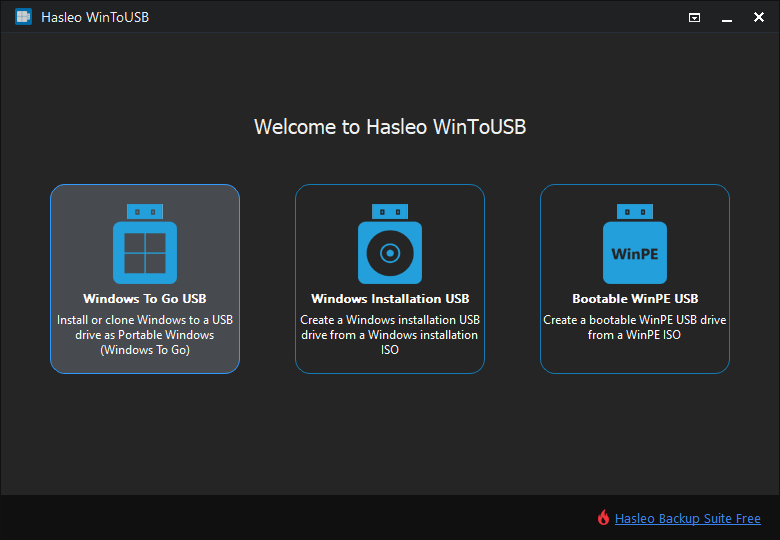
Step 1. Connect the USB flash drive to your computer, then download, install, and run Hasleo WinToUSB. Click the "Windows To Go USB" option.
Step 2. Click "Select installation source", then click "Browse image file". Then choose the Windows 11 installation ISO file from the dialog box as installation source. Alternatively, select a CD/DVD drive with Windows 11 installation media.
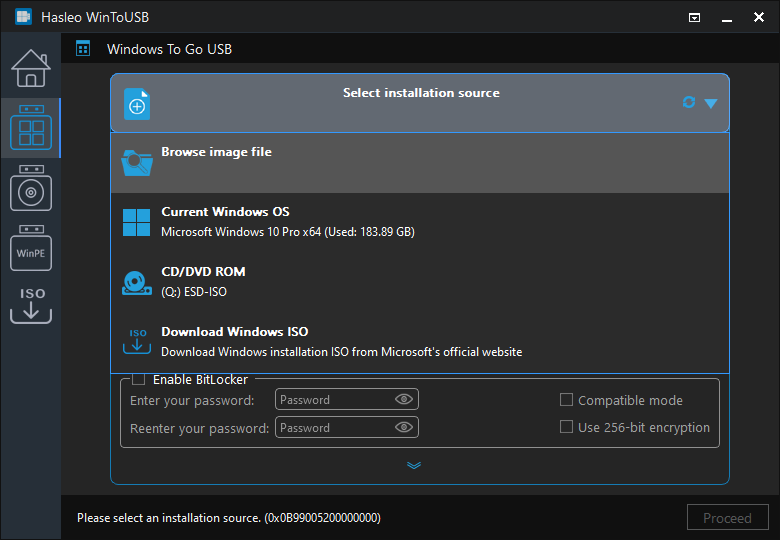
* Tips: If you don't have a Windows 11 installation ISO, please download it first.
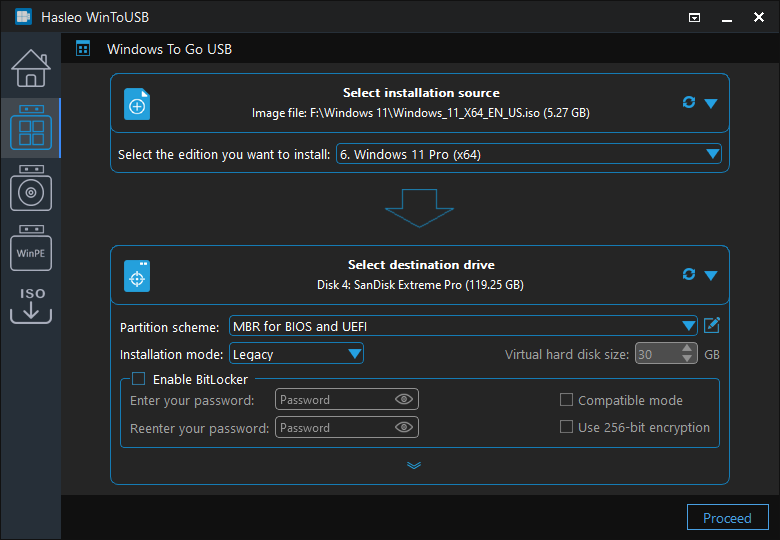
Step 3. Hasleo WinToUSB will scan for and list the available Windows editions. Please select the edition you want to install.
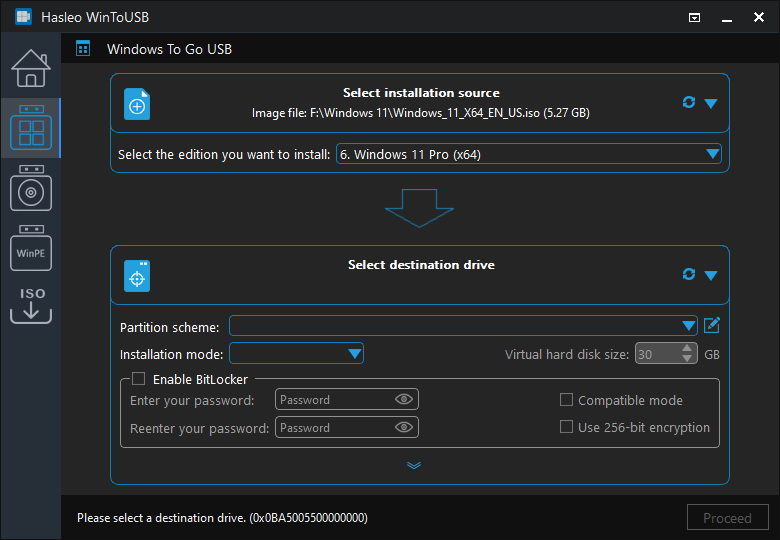
Step 4. Click "Select destination drive", then choose the target drive from the pop-up list. If Hasleo WinToUSB fails to detect the drive, click the  button to initiate drive recognition.
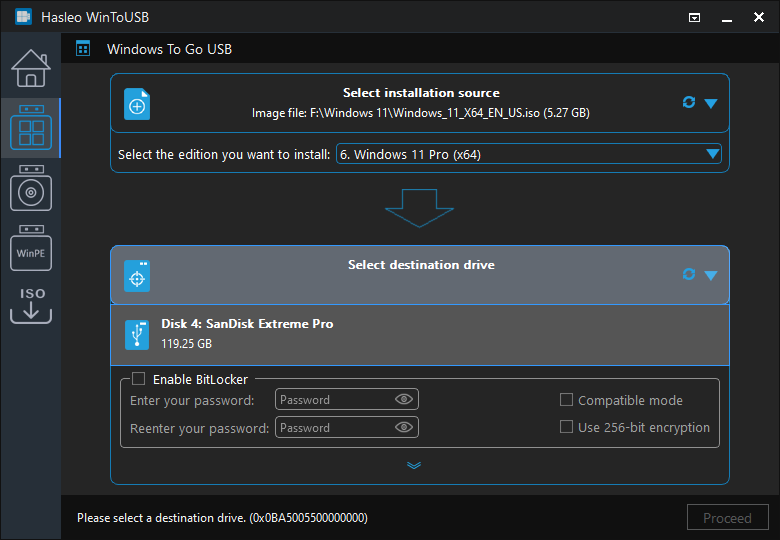
Step 5. Select your preferred partition scheme and installation mode. Optionally, you may specify additional drivers or enable BitLocker encryption for the Windows To Go drive, then click "Proceed".
* Tips:
- We recommend choosing the VHD/VHDX installation mode for better compatibility when creating a Windows To Go on a USB flash drive.
- For detailed information about "Partition scheme", "Installation mode" and "Enable BitLocker", please refer to: How to Create Portable Windows 11/10/8/7 from ISO, WIM, ESD, SWM, VHD(X) or DBI Files?
- If you select "Keep the existing partition scheme" option, you need to manually prepare the USB drive partitions before this step. View guide: How to Manually Prepare Partitions for Windows To Go.
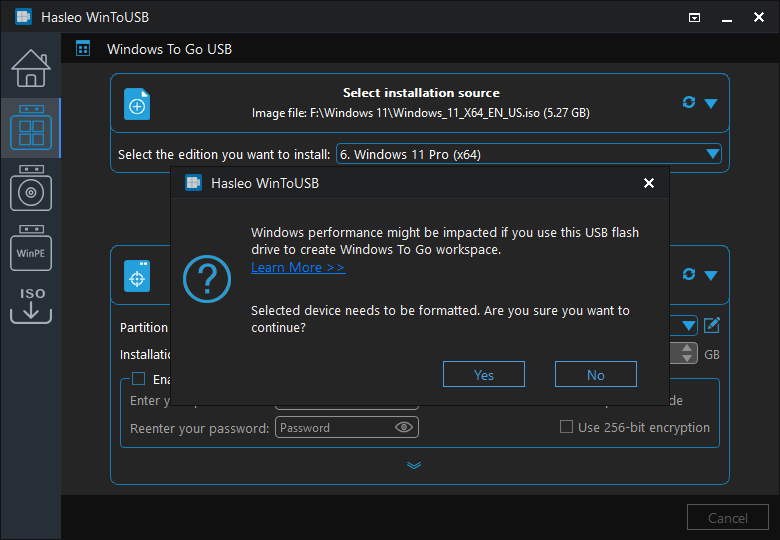
Step 6. After clicking "Proceed", a confirmation dialog will appear asking whether to continue formatting the drive. Click "Yes" if you accept the operation.
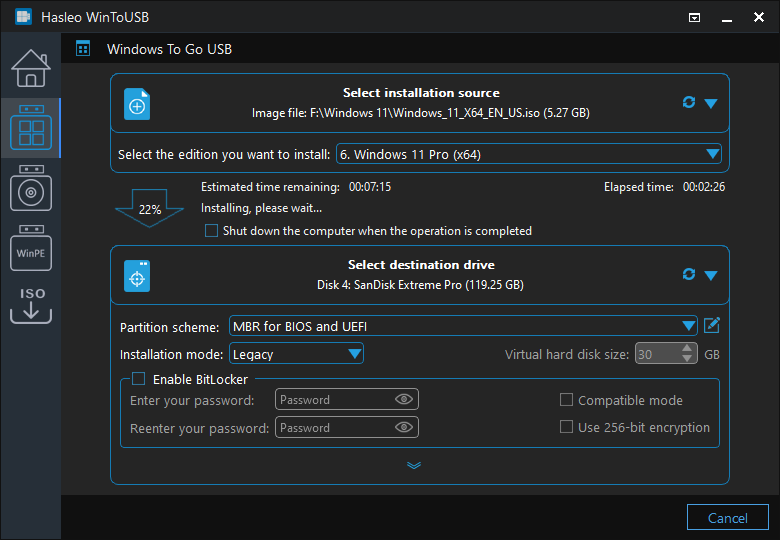
Step 7. After clicking "Yes", WinToUSB initiates Windows installation on the destination drive.
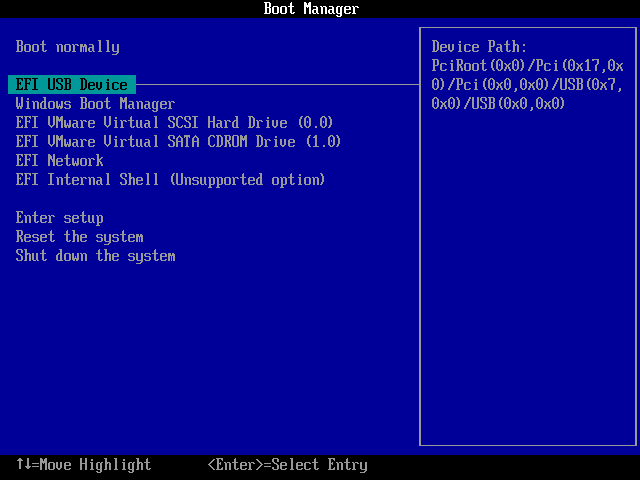
Step 8. The installation will take some time. After installation, restart the computer and enter UEFI/BIOS settings to boot from the USB drive.
Step 9. A standard Windows 11 installation requires completing all setup steps during the first boot. Afterward, you can install applications and copy files, etc.

Frequently Asked Questions
A: Windows 11 requires at least 64GB of storage space. We recommend using a USB flash drive with 128GB or more for optimal performance and to have enough space for Windows updates and applications.
A: While technically possible, USB 2.0 flash drives will result in very slow performance due to limited bandwidth. We strongly recommend using USB 3.0 or faster flash drives for a usable experience with Windows 11 To Go.
A: VHD mode creates a virtual hard disk file on the USB drive, which offers better compatibility and allows easy backup and restoration of the Windows environment. Regular installation installs Windows directly to the USB partitions. VHD mode is recommended for USB flash drives.
A: Yes, you can install applications on Windows 11 To Go just like on a regular Windows installation. However, keep in mind that the applications and data will be stored on the USB drive, so performance may be slower than on internal drives.
A: To boot from the USB flash drive, restart your computer and access the boot menu or UEFI/BIOS settings. Select the USB drive as the primary boot device. The process varies by computer manufacturer - typically pressing F12, F2, or Delete during startup opens the boot menu.
Conclusion
As a professional portable Windows creation tool, Hasleo WinToUSB can install and run Windows 11 on external hard drives and USB flash drives easily.
Hasleo WinToUSB supports creating Windows To Go workspaces not only with Windows 11, but also with Windows 10/8/7 operating systems.
Related Guides
- How to create a portable Windows 11/10 USB drive?
- How to create Windows 11 To Go with any edition of Windows 11?
- How to install and run Windows 11 on an external hard drive as portable Windows 11?
- How to clone Windows 11 to USB flash drive as portable Windows 11?
- How to clone Windows 11 to an external hard drive as portable Windows 11?


