

- Understanding UEFI CA 2023 Requirements
- Prerequisites and Preparation
- Step-by-Step Creation Guide
- Secure Boot Configuration
- Testing and Troubleshooting
- Frequently Asked Questions
- Conclusion
Creating a Windows To Go drive that works reliably on modern hardware requires understanding and implementing UEFI CA 2023 compliance. Microsoft introduced the UEFI Certificate Authority 2023 hierarchy as part of ongoing efforts to enhance system security and prevent firmware-level attacks. Starting with Windows 11 22H2 and expanding through subsequent updates, Microsoft now requires that all UEFI boot loaders and firmware components meet stricter signature requirements using certificates from the UEFI CA 2023 hierarchy.
For users who rely on Windows To Go for portable work environments, IT troubleshooting, or system deployment, understanding UEFI CA 2023 is essential. Windows To Go drives created with older installation media or containing outdated boot components may fail to boot on newer computers that enforce these security requirements. This guide provides comprehensive instructions for creating a Windows To Go drive that meets modern UEFI CA 2023 standards, ensuring compatibility with both legacy systems and the latest hardware requiring strict certificate validation.
Understanding UEFI CA 2023 Requirements
UEFI CA 2023 represents Microsoft's updated approach to securing the UEFI boot process through improved certificate hierarchy and signature requirements. Unlike traditional BIOS systems that performed minimal validation during boot, UEFI systems with Secure Boot enabled verify the authenticity of all boot components before allowing the system to start. The Certificate Authority establishes a chain of trust that traces back to Microsoft, ensuring that only properly signed code can execute during the boot process.
The implementation timeline for UEFI CA 2023 enforcement began in late 2022 with announcements from Microsoft, followed by initial enforcement for Windows 11 22H2 devices shipping in 2023. Throughout 2024, enforcement expanded to include more component categories and stricter verification of third-party components. By 2025, virtually all Windows 11 certified devices require UEFI CA 2023 compliant components for boot and operation. This means Windows To Go drives that functioned perfectly on older computers may fail to boot on newer systems that strictly enforce these requirements.
Common symptoms indicating UEFI CA 2023 incompatibility include several distinct error patterns. "Secure Boot violation" or "Signature verification failed" errors typically appear during the boot process when boot components lack proper signatures. If boot loaders or firmware components lack proper UEFI CA 2023 signatures, computers may display errors during the boot process or fail to complete startup. Some computers simply return to the BIOS/UEFI boot menu immediately after attempting to boot from the USB drive, indicating a fundamental certificate validation failure.
Understanding these symptoms helps diagnose compatibility issues quickly. When encountering boot failures on newer computers, UEFI CA 2023 compliance should be one of the first factors to investigate, particularly for Windows To Go drives created before mid-2023 or those that have not been updated.
Prerequisites and Preparation
Before creating your UEFI CA 2023 compliant Windows To Go drive, ensure you have all necessary components properly prepared. The foundation of a compatible installation begins with appropriate Windows installation media that includes properly signed components. Obtain your Windows 10 or Windows 11 installation ISO directly from Microsoft or authorized distributors—any installation ISO released after mid-2023 should include the necessary signed components. Avoid using heavily modified "custom" Windows ISOs from unofficial sources, as these may contain replaced UEFI components with older, incompatible signatures.
Hasleo WinToUSB should be updated to the latest available version before beginning the creation process. Newer versions include improved handling of UEFI secure boot and compatibility updates for recent Windows versions. Visit the official Hasleo website to download the most recent release, ensuring you have access to all features necessary for creating UEFI CA 2023 compliant installations.
USB drive selection significantly impacts both performance and compatibility. Choose a USB 3.0 or faster drive with sufficient capacity—at least 64GB for Windows 10 or 128GB for Windows 11 is recommended to accommodate the operating system, updates, and workspace requirements. External SSDs provide the best performance and reliability, reducing boot times and improving overall system responsiveness. Verify the USB drive is in good condition and properly formatted; if the drive previously contained a Windows To Go installation, consider reformatting to ensure a clean installation.
The computer used to create the Windows To Go drive must have UEFI firmware with Secure Boot capability, typically available on computers from 2018 onward. Verify Secure Boot is enabled in BIOS/UEFI settings, as this ensures the creation process produces properly signed boot components. Administrator privileges are required for WinToUSB to modify disk partitions and install boot components successfully.
Step-by-Step Creation Guide
With all prerequisites in place, follow these steps to create your UEFI CA 2023 compliant Windows To Go drive. Begin by connecting your USB drive to the creation computer and verifying it appears correctly in Windows. Back up any important data from the USB drive, as the creation process will format the device and erase all existing content. Launch Hasleo WinToUSB with administrator privileges by right-clicking the application icon and selecting "Run as administrator."
Step 1. In the WinToUSB main interface, click "Windows To Go USB" to enter portable Windows creation mode. This mode creates a fully functional, bootable Windows environment on your USB drive rather than installation media alone.
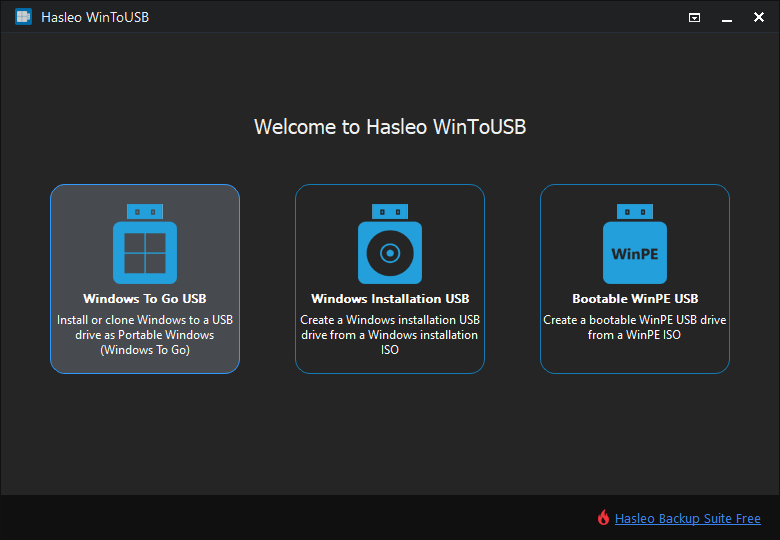
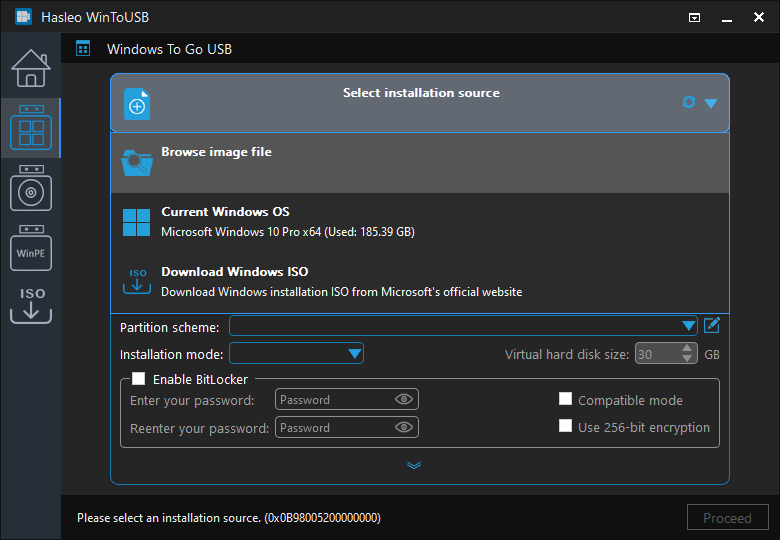
Step 2. Click "Select installation source" and choose "Browse image file" to locate your Windows installation ISO file. Navigate to the downloaded ISO and select it. WinToUSB will mount the ISO and scan for available Windows editions. Select the appropriate edition for your needs—Windows 11 Pro or Windows 10 Pro is recommended for business use as these editions include additional management and security features.
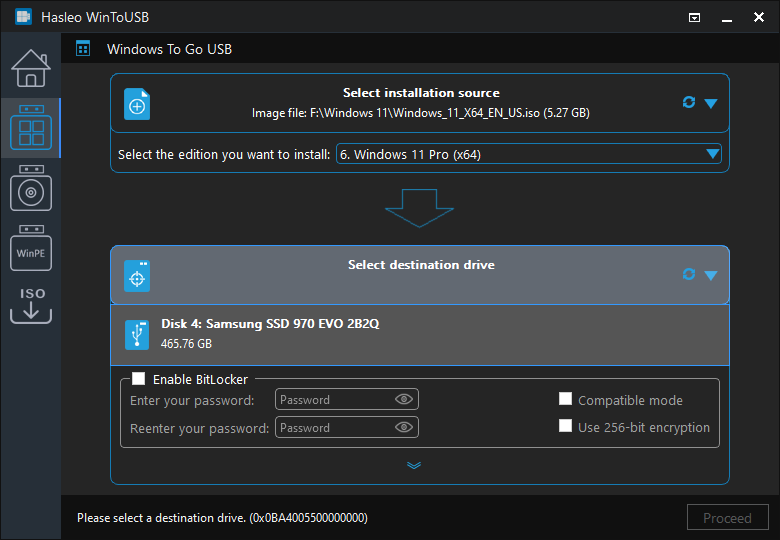
Step 3. Click "Select destination drive" to choose your USB drive from the list of connected removable devices. Carefully verify the correct drive by checking the capacity and model information displayed. If your USB drive doesn't appear, click the refresh button to rescan for devices or try reconnecting the USB connection. Ensure no other USB storage devices are connected to avoid accidentally selecting the wrong drive.
Step 4. Configure the partition scheme by selecting "GPT for UEFI" for modern computers with UEFI firmware. This format is required for proper UEFI boot and Secure Boot support on contemporary systems. The "MBR for BIOS and UEFI" option provides broader compatibility with older computers but may not fully support all UEFI CA 2023 security features. Select the installation mode based on your requirements—Windows To Go mode creates a portable environment, while Windows Installation mode creates installation media.
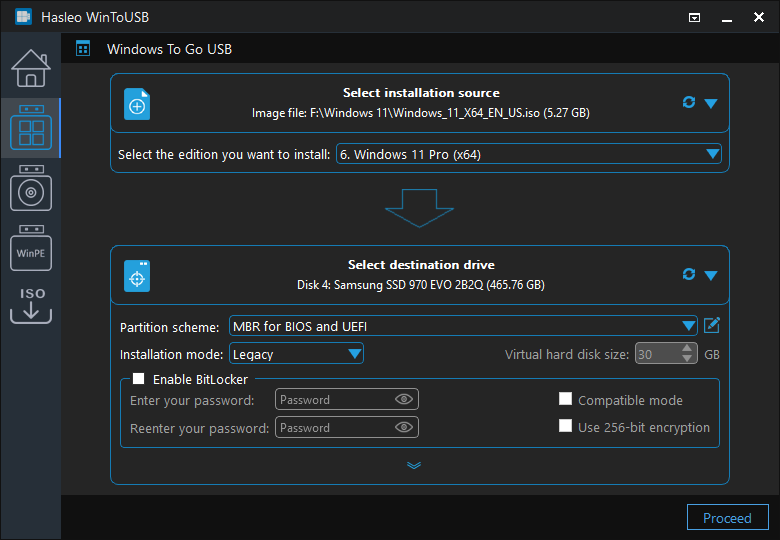
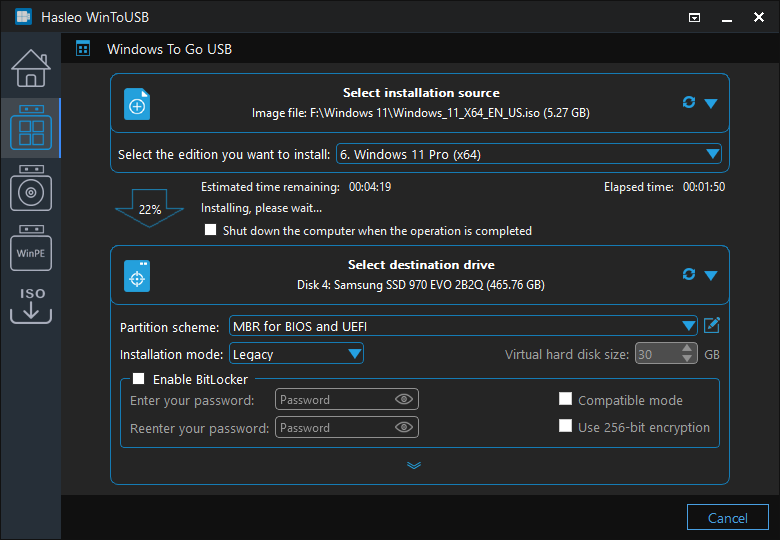
Step 5. Review all settings carefully before proceeding. Verify correct Windows edition, USB drive, and partition scheme. Click "Proceed" to begin the creation process. WinToUSB will display a warning that the destination drive will be formatted—confirm this action to continue. The creation process partitions the USB drive, copies Windows files, and installs boot components. This typically takes 15-30 minutes depending on computer speed and USB write performance.
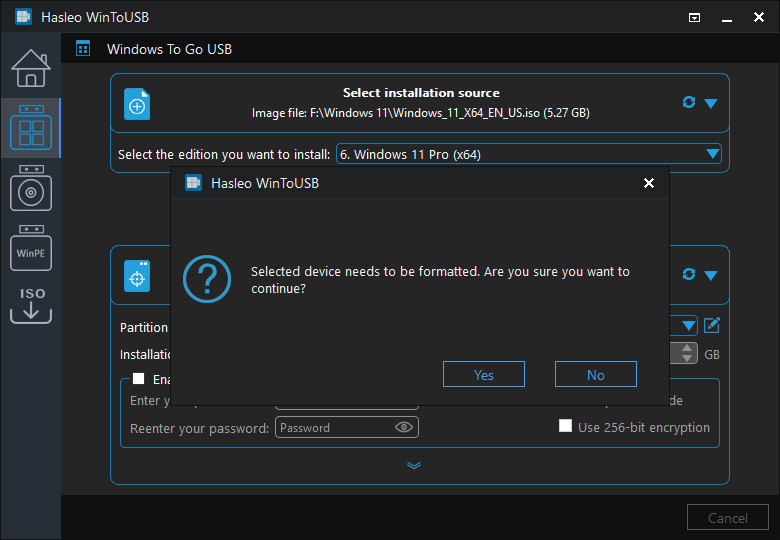
Step 6. After the initial creation completes, boot into your new Windows To Go environment and complete the out-of-box experience (OOBE) with your preferred settings. Connect to the internet and run Windows Update immediately to install the latest patches, including updated components and UEFI CA 2023 compliant files. Allow all available updates to install, as these may include critical security patches.
Secure Boot Configuration
Secure Boot is a fundamental UEFI security feature that verifies the authenticity of boot components before allowing the system to start. Proper Secure Boot configuration on both the creation computer and target systems ensures your Windows To Go drive meets security requirements while maintaining compatibility. On the computer used to create the Windows To Go drive, access BIOS/UEFI settings during startup (typically by pressing F2, F10, F12, or Delete) and verify Secure Boot is set to "Enabled." This ensures the creation process produces properly signed boot components.
On target computers where you intend to use the Windows To Go drive, Secure Boot should also be enabled for maximum security and proper UEFI CA 2023 enforcement. Access the BIOS/UEFI settings and locate the Secure Boot option, typically found in Boot or Security sections. Ensure it's set to "Enabled" rather than "Disabled" or "Setup Mode." Some systems offer "Standard" or "Custom" Secure Boot modes—Standard mode provides appropriate security without complex configuration for most users.
When troubleshooting boot failures related to Secure Boot, first determine whether the issue is specifically certificate-related. Try booting the Windows To Go drive on a computer with Secure Boot disabled—if it boots successfully, the problem relates to certificate validation rather than fundamental incompatibility. If "Secure Boot violation" or similar errors appear, the boot components may lack proper signatures or may have been modified. In this case, recreate the Windows To Go drive using a fresh Windows installation ISO from official sources without any modifications to boot files.
For systems with older UEFI firmware that doesn't properly recognize UEFI CA 2023 certificates, consider updating the system BIOS/UEFI to a newer version. Manufacturers release firmware updates that include updated certificate databases, potentially adding UEFI CA 2023 support. Check your computer or motherboard manufacturer's website for available updates and follow their instructions carefully, as incorrect firmware updates can render systems inoperable.
Testing and Troubleshooting
Thorough testing across different hardware configurations ensures your UEFI CA 2023 compliant Windows To Go drive operates reliably. Develop a test matrix by listing all computers where the Windows To Go drive will be used, including specifications like manufacturer, model, processor generation, UEFI firmware version, and Secure Boot status. Organize computers into categories: newer systems (2023-2024) with latest UEFI firmware, mid-range systems (2020-2022), and older systems (2018-2019). Test on representative systems from each category to identify any compatibility patterns.
For each test computer, connect the Windows To Go drive and access the boot menu (typically F12, F9, or Esc during startup) to select the USB drive as the boot device. Observe the boot process carefully, noting any error messages, delays, or unusual behavior. A successful boot should progress through the Windows logo and reach the desktop within 1-2 minutes from an SSD or 2-4 minutes from a USB flash drive. Document any failures including exact error messages and the point at which they occur.
After successful boot, verify system functionality systematically. Check Device Manager for warning icons on any devices. Test network connectivity (both wired and wireless), USB ports and connected devices, display output and multi-monitor support, and any specialized peripherals specific to your use case. Run file transfers to and from the USB drive and test applications that rely on network access to ensure full functionality.
For boot failures on specific computers, first verify the computer meets minimum requirements and has updated BIOS/UEFI firmware. If boot fails only on certain systems, the issue may be specific to that system's firmware or hardware configuration rather than UEFI CA 2023 compliance. Document any incompatible systems and consider alternative approaches such as creating separate Windows To Go configurations for those specific computers or using virtualization solutions as an alternative.
Frequently Asked Questions
A: UEFI CA 2023 is Microsoft's updated Certificate Authority hierarchy for Secure Boot, introduced to enhance system security and prevent firmware-level attacks. Starting with Windows 11 22H2 and expanding through subsequent updates, UEFI CA 2023 compliance is now required for boot components on modern hardware. Windows To Go drives created with outdated installation media may fail to boot on computers that enforce these security requirements.
A: To create a UEFI CA 2023 compliant Windows To Go drive, use a Windows installation ISO released after mid-2023, download the latest version of Hasleo WinToUSB, enable Secure Boot on your creation computer, and select GPT partition scheme for UEFI boot. After creation, run Windows Update immediately to install the latest patches and UEFI CA 2023 compliant components.
A: Windows To Go drives may fail to boot on newer computers due to UEFI CA 2023 certificate enforcement. If your drive was created before mid-2023 or uses modified installation media with replaced boot components, the boot loaders may lack proper UEFI CA 2023 signatures. Recreate the drive using a fresh, unmodified Windows ISO from official sources.
A: Yes, Secure Boot should be enabled for maximum security and proper UEFI CA 2023 compatibility. Ensure both the creation computer and target computers have Secure Boot enabled in BIOS/UEFI settings. If your Windows To Go drive boots with Secure Boot disabled but fails with it enabled, the boot components may lack proper UEFI CA 2023 signatures.
A: Test your Windows To Go drive by connecting it to computers from different eras: newer systems (2023-2024), mid-range (2020-2022), and older (2018-2019). Access the boot menu during startup and select the USB drive. Document any 'Secure Boot violation' or 'Signature verification failed' errors. A drive that boots successfully across all categories is fully compliant.
Conclusion
Creating a Windows To Go drive compatible with UEFI CA 2023 requirements ensures reliable operation on modern hardware with strict security enforcement. By using properly signed Windows installation media, the latest WinToUSB version, and correct Secure Boot configuration, you can create a portable Windows environment that works across diverse computer systems from different eras and manufacturers.
The key to success lies in understanding UEFI CA 2023 requirements, preparing appropriate components before creation, following the detailed creation process carefully, and thoroughly testing across target hardware. Regular maintenance including Windows updates ensures continued compatibility as security requirements evolve. For comprehensive Windows To Go creation and troubleshooting, Hasleo WinToUSB provides professional tools with extensive support for modern hardware compatibility.


