

Short answer: This article explains three ways to determine your current operating system's architecture: checking system information through Settings, using the Run dialog box to open a graphical system information tool, and checking the system architecture via Command Prompt. For detailed steps, please read on.
Why Does the "Version Not Supported" Message Appear?
If the Hasleo Backup Suite installer displays the message "Your version of Windows is not supported," it is usually not because your computer is "too old," but because the installer's architecture does not match your system's architecture. Hasleo Backup Suite offers two separate installation packages: x86/x64 and ARM64. Please make sure the version you download matches your system's architecture. You can use any of the methods below to check your system's architecture in less than a minute, then select the appropriate installation package.
Method 1: View System Information Through Settings
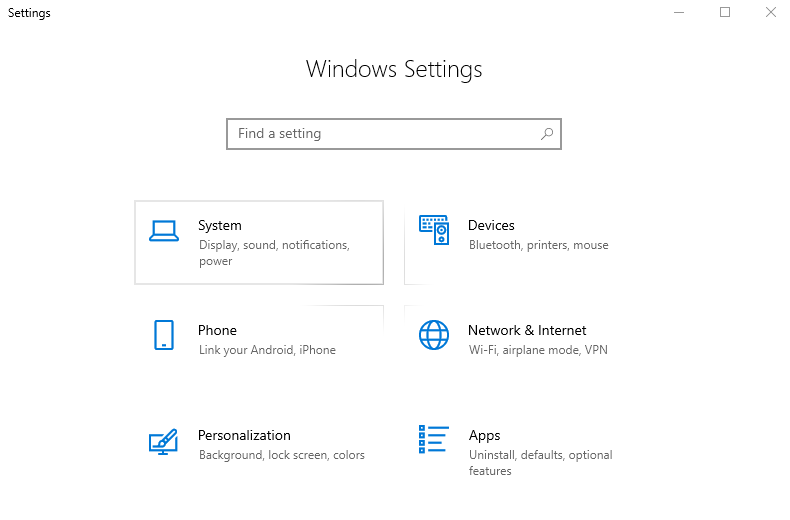
Step 1. Click the Start button, open Settings, and then choose System.
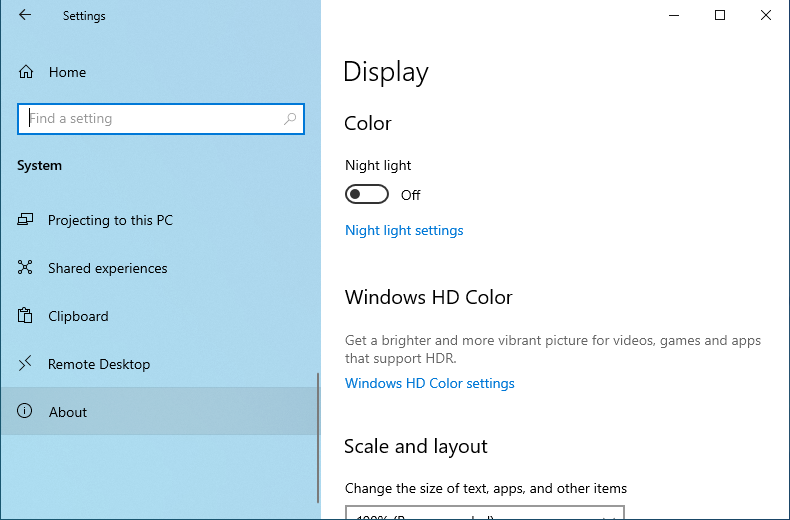
Step 2. In the left-hand navigation bar, locate System information or About and click it.
Step 3. Check the Device specifications section to view the System type.
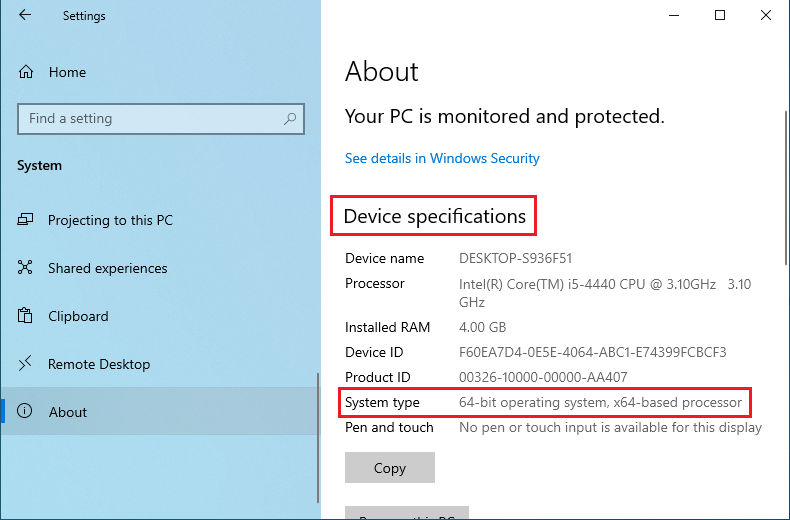
32-bit operating system, x86-based processor: This means your system is 32-bit and the processor uses the x86 architecture
64-bit operating system, ARM-based processor: This means your device uses ARM64 architecture (commonly found in some ultrathin laptops and tablets).
Method 2: View the System Type With the Graphical System Information Tool
Step 1. Press Win + R to open the Run dialog box.
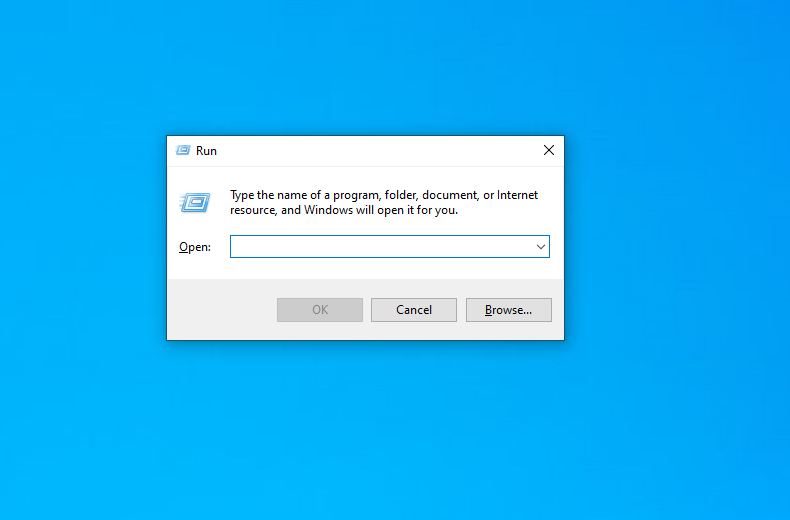
Step 2. Type msinfo32 and press Enter.
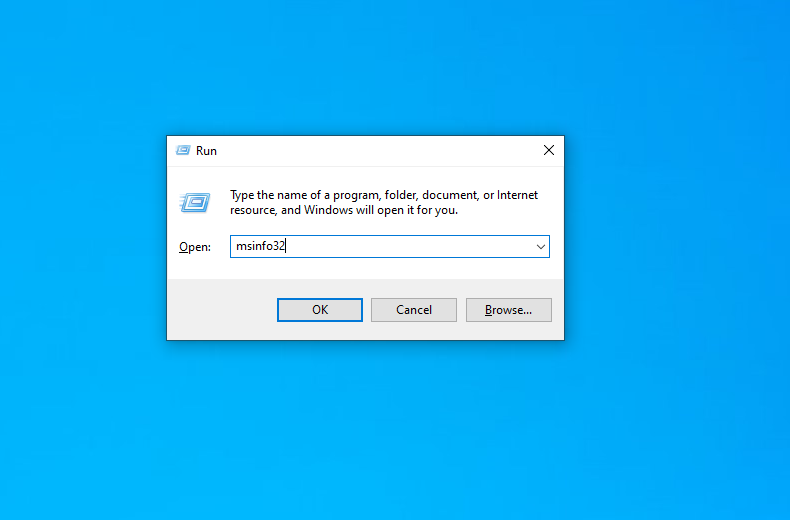
Step 3. In the System Information window that appears, look for System Type on the right side.
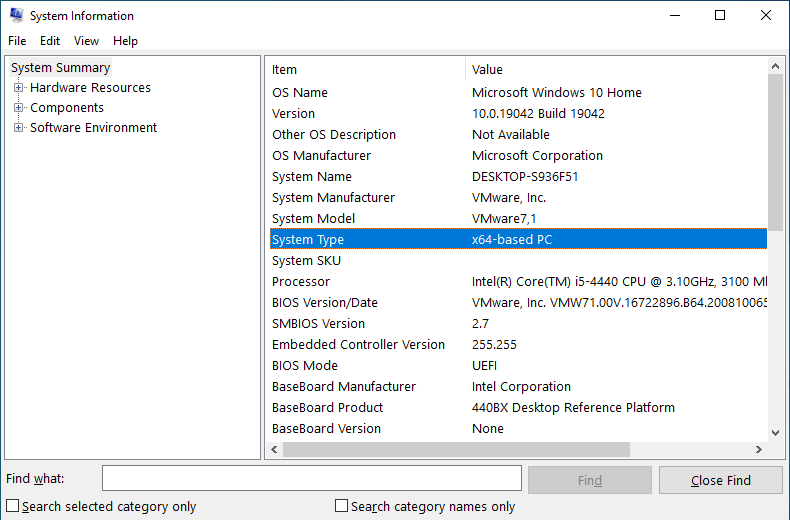
x86-based PC: This means your computer is running a 32-bit version of Windows. (Windows 11 is only available in a 64-bit version; there is no 32-bit version.)
ARM-based PC: This means your computer's architecture is ARM64.
Method 3: Check the System Architecture Through Command Prompt
Step 1. Press Win + R to open the Run dialog box.
Step 2. Type cmd, then press Enter to open the Command Prompt.
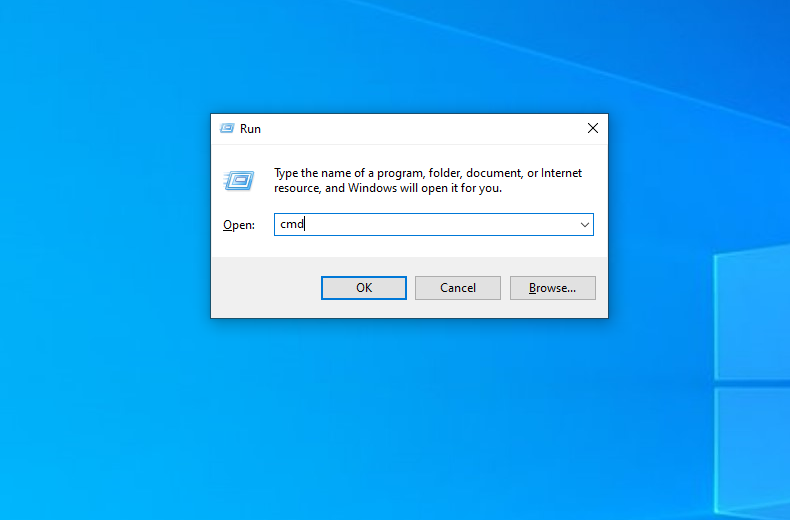
Step 3. Type the following command and press Enter:
echo %PROCESSOR_ARCHITECTURE%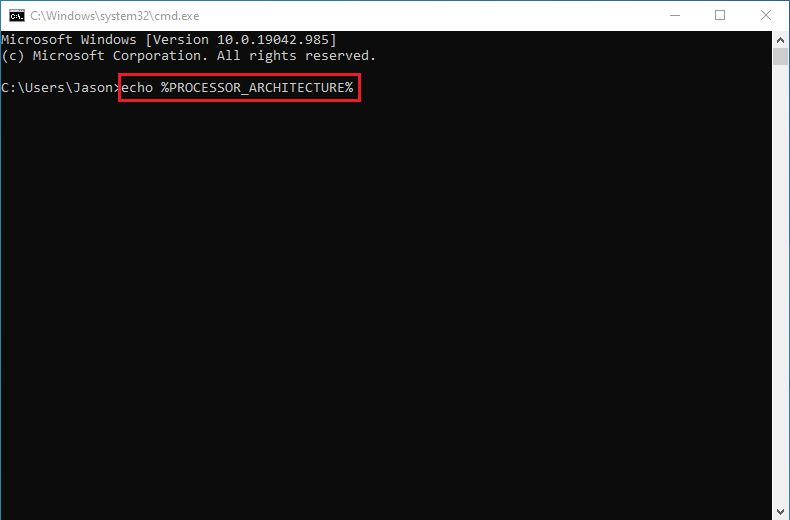
Step 4. Determine the current system architecture based on the returned results.
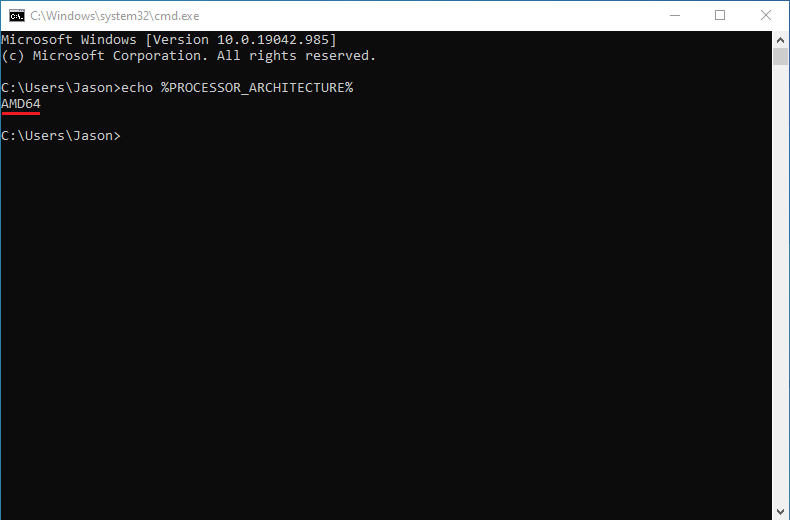
x86: The current system is 32-bit.
ARM64: The current system is a 64-bit ARM architecture.
Once you have confirmed your system architecture, return to the Hasleo Backup Suite download page and download the appropriate installation package.
Additional Notes
About Windows 11 and 32-bit: Windows 11 is available only in 64-bit versions; there is no 32-bit version. Therefore, if you are using Windows 11, the System Type you see will be either x64 or ARM64.
Compatibility with ARM64 Devices: Some ARM64 computers can run x64 applications via emulation, but backup and restore software involves low-level disk access, kernel-level drivers, and boot environment operations. These components are not covered by x64 emulation and must be handled by native ARM64 binaries. Forcing the installation of x86/x64 versions may result in driver loading failures, the inability to create ARM64 boot media, or failed bare-metal restores—leading to incomplete core functionality. Please be sure to use the native ARM64 installer on ARM64 devices to ensure full functionality and stability.
Frequently Asked Questions
A: x86 is the 32-bit architecture used by older processors. x64 is the 64-bit extension of x86 and is reported as AMD64 in Command Prompt. ARM64 is the 64-bit ARM architecture found in many ultrathin laptops and tablets.
A: No. Although Windows on ARM can emulate x64 applications, emulation does not cover kernel-mode drivers, low-level disk access, or boot environment operations. The x64 package may install but fail to load its drivers, fail to create ARM64 boot media, or fail to complete a bare-metal restore. Always use the native ARM64 package on ARM64 devices.
A: Press Win + R, type msinfo32, press Enter, and check System Type on the right side of the window. You can also open Command Prompt and run echo %PROCESSOR_ARCHITECTURE%.
A: Backup image files themselves are not tied to the CPU architecture and can be stored on any drive. However, the bootable recovery media must match the architecture of the device that boots it.
A: Yes. Uninstall the mismatched package first, restart the computer, and then install the package that matches your system architecture.
Conclusion
Before downloading and installing Hasleo Backup Suite, verify your system architecture to avoid most "version not supported" errors. You can quickly check your architecture by viewing system information in Settings, launching the system information tool via the Run dialog, or using the Command Prompt. Once verified, download the version that matches your architecture, and the software will work properly.