

- What's New in This Update
- Why Use a Custom WIM?
- Typical Use Cases
- Comparison of Three Build Methods
- How to Use a Custom WIM to Create an Emergency Disk
- Frequently Asked Questions
- Summary
What's New in This Update 📣
The Emergency Disk feature in Hasleo Backup Suite now includes a new source option - From custom WIM - when selecting a method to create a WinPE disk. Previously, the program only allowed you to obtain WinPE components from two sources:
- Extracting WinRE components from the currently running Windows system.
- Obtaining WinPE components from Microsoft or a pre-downloaded offline WinPE package.
Now, a third option is available: specify a local boot.wim file, which Hasleo Backup Suite will package into a bootable ISO image or write to a USB device. The key significance of this change is that the source for building the recovery environment has shifted from "preset" to "user-controlled." You can now decide which drivers and tools to include in the WinPE image based on the target computer's hardware configuration and maintenance requirements.
Why Use a Custom WIM?
Standard WinPE images typically include only generic storage and network drivers. While this is sufficient for most everyday scenarios, it may fail in the following situations:
Hard Drive Not Recognized
When the target computer uses a newer NVMe controller, a specialized RAID configuration, or vendor-specific storage drivers, the generic drivers may fail to load, preventing the recovery environment from detecting the hard drive. The backup files are there, but the system cannot write to them.
WinRE Corrupted
Windows updates can sometimes corrupt the WinRE image. If an emergency disk is built from this corrupted WinRE, it may not function properly after booting. While downloading pre-configured components can work around this issue, you cannot control their internal composition.
WinRE Version Outdated
The system's built-in WinRE image is often outdated and may lack support for new hardware. Extracting boot.wim directly from the Windows ADK or a newer Windows ISO ensures that the recovery environment is built on a newer kernel.
Integrating into Existing Maintenance Systems
For technicians who already maintain a standardized WinPE environment, building a custom WIM allows them to embed Hasleo's recovery capabilities into a system they are familiar with.
Typical Use Cases
Cross-Machine Recovery on New Hardware
You need to restore a backup from an old machine to a newly purchased computer. The new machine uses the latest NVMe drive, which the default rescue disk cannot recognize. In this case, you can use DISM to inject the manufacturer-provided storage drivers into boot.wim, then use Hasleo to build a rescue disk from that WIM—allowing the drive to be recognized and the recovery to proceed.
System Crash with WinRE Unavailable
The system partition on the target computer is corrupted, and WinRE cannot boot. You cannot extract components from that system, and the pre-downloaded WinPE lacks the necessary network drivers. Creating a custom WIM containing the required drivers from another healthy machine is a reliable solution.
Standardization of IT Operations
You manage dozens of computers with varying configurations. Instead of creating a recovery disk for each machine individually, maintain a generic WinPE image containing a variety of storage and network drivers, then build recovery disks uniformly from that WIM. This ensures consistent recovery capabilities while simplifying maintenance.
Bypassing WinRE Version Restrictions
You want your recovery environment to be built on the latest Windows version for better hardware compatibility and security updates. By using the boot.wim file generated directly from the Windows ADK as the source, you can bypass the version restrictions of the system's built-in WinRE.
Comparison of Three Build Methods 🔥
| From WinRE | Download WinPE components | From custom WIM | |
|---|---|---|---|
| Source | Local Windows recovery partition | Microsoft default components | User-specified WIM file |
| Advantages | Easiest to use | Bypasses potential issues caused by a corrupted local WinRE | Fully customizable; supports pre-installing drivers and tools; choice of version |
| Limitations | Depends on the health of the local WinRE; drivers and versions are limited by the system | Version and content are determined by Microsoft and cannot be customized | Requires the user to prepare the WIM file |
| Suitable for | Users performing routine personal backups | Users who want a usable emergency disk quickly | IT operations staff, advanced users, and users with specialized hardware scenarios |
How to Use a Custom WIM to Create an Emergency Disk
Preparation
Make sure you have a usable boot.wim file. This file can come from the Windows ADK, a Windows installation ISO, or a self-maintained WinPE image.
Step-by-Step Instructions
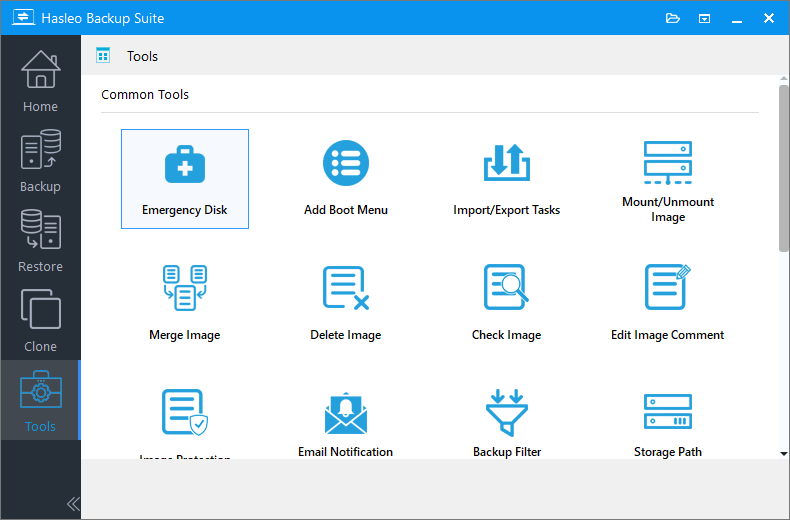
Step 1. Download, install, and run the latest version of Hasleo Backup Suite. Click the Tools menu on the left side of the navigation bar, and select Emergency Disk.
Step 2. In the pop-up window, select From custom WIM as the WinPE creation method. Next, click the  icon, browse to your boot.wim file, and click Next. If you need to inject additional drivers, click Add driver and select the drivers you want to inject.
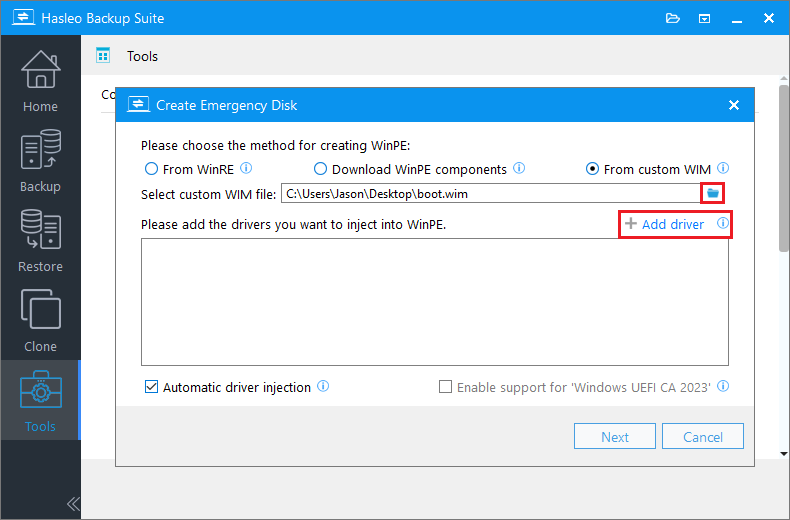
2. From WinRE: This option automatically extracts drivers from the current Windows operating system and injects them into WinPE. Please note that while Hasleo Backup Suite makes every effort to extract and inject all drivers, this process is not foolproof—we cannot guarantee that all hardware will function perfectly in the WinPE environment.
3. Download WinPE components: This option allows you to obtain these components from Microsoft.
4. Enable support for 'Windows UEFI CA 2023': The option lets you create bootable media that complies with the Microsoft UEFI CA 2023 security standard. This allows the media to pass Secure Boot validation on computers that trust only this new certificate.
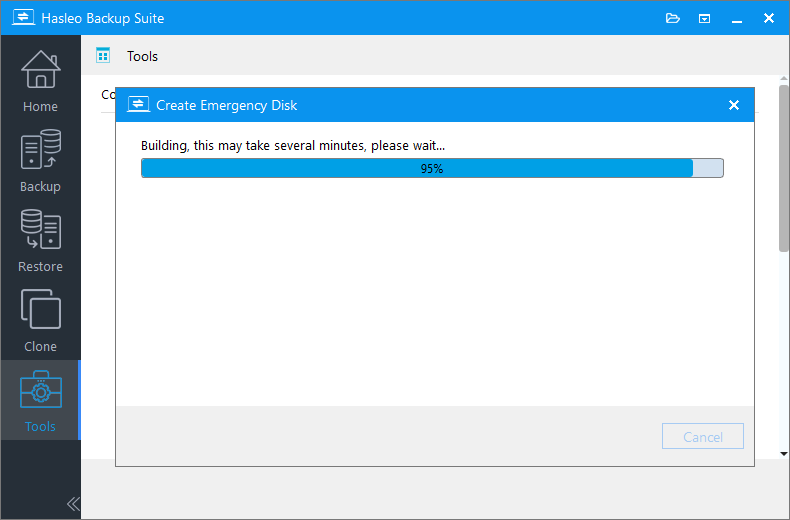
Step 3. Hasleo Backup Suite begins creating the WinPE image.
Step 4. Once the WinPE image has been created successfully, select USB and click Proceed to create a bootable USB rescue drive.
Alternatively, select Export ISO, then use third-party burning software (e.g., Hasleo WinToUSB, Nero Burning ROM) to manually burn the ISO file to a CD, DVD, or USB device.
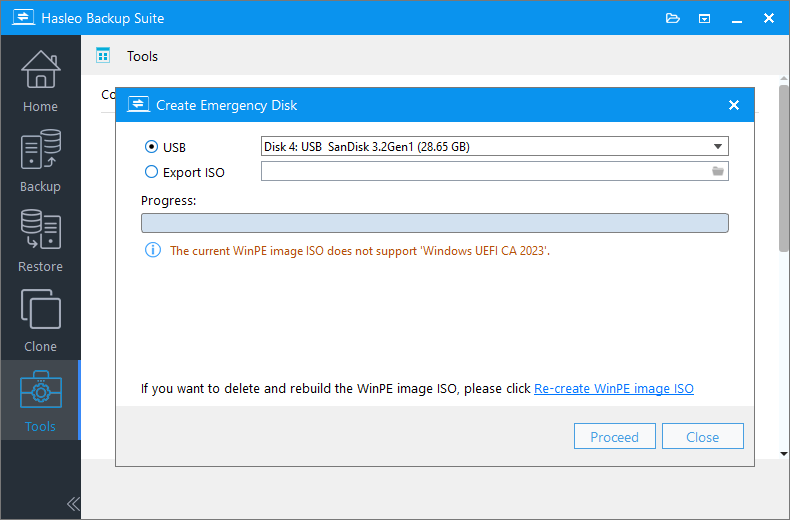
2. You can click the Re-create WinPE image ISO to re-create a new WinPE image ISO.
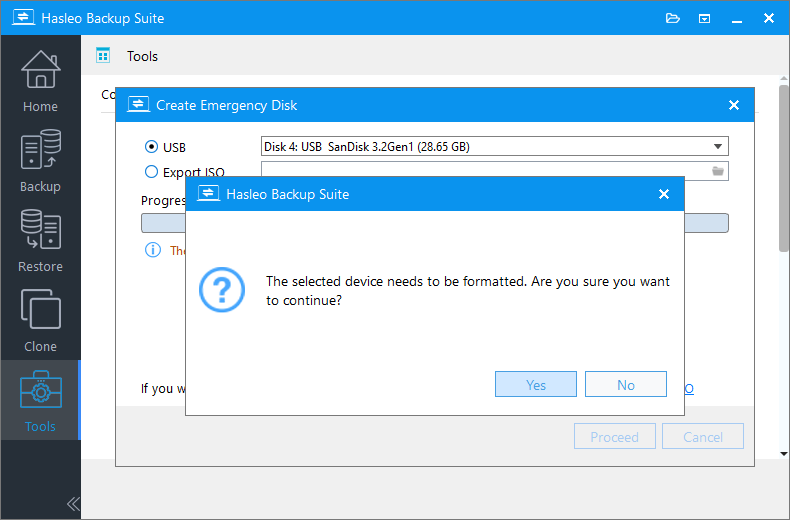
Step 5. The program will warn you that the selected USB drive will be formatted. Please ensure you have backed up any important files beforehand. Click Yes to confirm and continue.
Step 6. Wait for the process to complete, then click Close to exit.
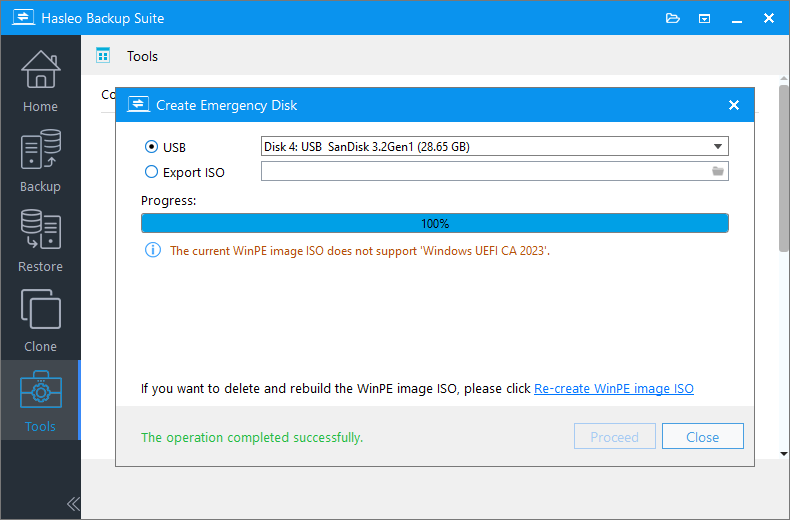
✅ Once complete, you will have a rescue drive containing your specified WinPE environment, with Hasleo Backup Suite's recovery features integrated.
Frequently Asked Questions
Q: What does the custom WIM update bring?
A: Hasleo Backup Suite's Emergency Disk feature now includes a new source option: From custom WIM. You can specify a local boot.wim file to build a bootable ISO or write to a USB device, giving you full control over the WinPE recovery environment.
Q: What should I prepare before using custom WIM?
A: You need to have a usable boot.wim file ready. This file can come from Windows ADK, a Windows installation ISO, or a WinPE image you maintain yourself.
Q: Can I still use all of Hasleo's recovery features on a rescue disk built from a custom WIM?
A: Yes. Hasleo Backup Suite integrates its own programs into the WinPE environment you specify, so recovery functionality remains unaffected.
Q: What is "Enable support for Windows UEFI CA 2023"?
A: The Windows UEFI CA 2011 certificate expired in June 2026. Enabling this option creates a WinPE bootable medium that is compatible with Microsoft UEFI CA 2023, allowing the recovery environment to boot on computers that only trust this newer certificate.
Summary
The core of this Emergency Disk update in Hasleo Backup Suite can be summarized in one sentence: it puts the power to build the recovery environment back in the user's hands. From a functional perspective, it simply adds a new WIM file source option. In terms of practical value, however, it resolves three long-standing issues:
Environment reliability: It no longer relies on the health status of the local WinRE and is not limited by the versions of pre-installed components; users can select validated, newer WinPE sources.
Operations standardization: It allows Hasleo's recovery capabilities to be integrated into existing WinPE maintenance systems, reducing management costs in multi-model environments.
For everyday individual users, the default WinRE and component download method remain simple and reliable. For advanced users dealing with heterogeneous hardware, specialized controllers, or standardized operations and maintenance, however, custom WIM builds provide a level of control that was previously lacking. The value of a recovery medium ultimately lies in its ability to recognize your hardware and access your backups when it matters most. The custom WIM build feature is precisely what makes this controllable.
Related Articles
- How to Create Bootable WinPE Media
- From First Backup to Regular Schedule - A Beginner's Guide to Hasleo Backup Suite
- How to Fix "Access is denied" Error When Creating an Emergency Disk?
- Hasleo Backup Suite + WinToUSB: A Complete Backup-to-Restore Solution - No WinPE Driver Issues
- 3 Ways to Create a Windows Recovery Drive for Free


