When a BitLocker encrypted drive is connected to a computer, it is locked by default (unless you have auto-unlock turned on for the drive on that computer), and you must enter the password or BitLocker recovery key to access files stored on the drive. We can double click on the icon of the drive in Windows Explorer and enter the password or recovery key to unlock it, here we will talk about how to unlock a Bitlocker encrypted drive with Hasleo BitLocker Anywhere For Windows.



Tutorial to Unlock a BitLocker Encrypted Drive in Windows with Hasleo BitLocker Anywhere For Windows
Step 1. Download and install Hasleo BitLocker Anywhere.
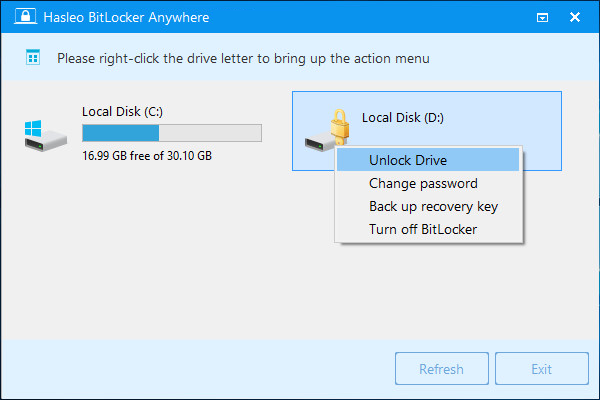
Step 2. Launch Hasleo BitLocker Anywhere, right-click the BitLocker encrypted drive you want to unlock, then click "Unlock Drive".
Step 3. Enter the password or recovery key, then click "Unlock" button to unlock the drive.
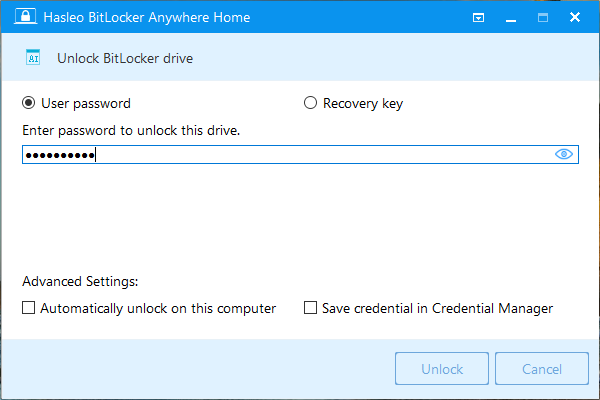
- Automatically unlock on this computer: Automatically unlock the BitLocker drive every time you sign in to your user account.
- Save credential in Credential Manager: Allows you to save the access credential in Windows Credential Manager, so you don't need to enter it again the next time you access the drive. Windows Credential Manager is the digital locker where Windows stores the sign-in information for websites, apps, and networks. If you are not familiar with or trust the Windows Credential Manager, don't check this option.
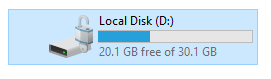
Step 4. When the operation completes successfully, the drive is unlocked.
As a professional BitLocker solution for Windows, you can use it not only to unlock a BitLocker encrypted drive, but also to lock a BitLocker encrypted drive, encrypt a drive with BitLocker, or decrypt a BitLocker encrypted drive.
Frequently Asked Questions (FAQ) for Unlocking BitLocker Drive
A: You need either the BitLocker password or recovery key to unlock the drive.
A: Yes, you can use the recovery key if you forgot the password.
A: No, unlocking only provides temporary access. The drive remains encrypted.
A: Auto-unlock automatically unlocks the drive when you sign in to Windows.
A: Credential Manager stores your password securely so you don't need to re-enter it.
A: Without auto-unlock, the drive re-locks after restart.
A: Yes, use Hasleo BitLocker Anywhere for Mac to unlock drives.
A: Yes, use Hasleo BitLocker Anywhere for Linux to unlock drives.
Related Articles
- How to turn on auto-unlock for BitLocker drive in Windows 11/10/8/7 Home?
- How to Remove BitLocker in Windows 10 Home?
- How to Encrypt Drive in Windows 11/10/8/7 Home & Windows 7 Pro?
- How to Change BitLocker Password in Windows 11/10/8/7 Home & Windows 7 Pro?
- How to Lock BitLocker Encrypted Drive in Windows 11/10/8/7 Home & Windows 7 Pro?