- Why Do You Need to Change BitLocker Password?
- Introduction to Hasleo BitLocker Anywhere for Mac
- How to Change BitLocker Password on macOS Using Hasleo BitLocker Anywhere for Mac?
- Password Settings Suggestions and Security Tips
- Frequently Asked Questions (FAQ)
- Conclusion
We can use the password set during encryption to access BitLocker encrypted drives. If that password is accidentally leaked one day, how can you ensure the data on the drive is secure? The answer: change the drive's password. Hasleo BitLocker Anywhere For Mac is the world's first solution that can change BitLocker encrypted drive password on macOS. Below are the detailed steps to change BitLocker password in macOS.
Why Do You Need to Change BitLocker Password?
BitLocker is a full disk encryption feature developed by Microsoft, widely used in Windows systems to protect data security. When you encrypt a drive with BitLocker, the system typically requires a password each time you boot or first access the drive (if "auto unlock" is not enabled). However, if you suspect your encryption password has been leaked, changing your BitLocker password is an important measure. It can effectively prevent unauthorized access and reduce the risk of data leakage.
However, on macOS systems, since BitLocker is not natively supported, you cannot directly change BitLocker password through system settings. At this point, you can use a third-party tool - Hasleo BitLocker Anywhere for Mac - to achieve this.
👍Introduction to Hasleo BitLocker Anywhere for Mac
Hasleo BitLocker Anywhere for Mac is the world's first and most powerful Mac system BitLocker solution. It allows you to perform the following operations on macOS:
- Drive Encryption: Encrypt drives using XTS-AES or AES-CBC encryption algorithms (supporting 128/256-bit).
- Drive Decryption: Easily remove BitLocker encryption protection.
- Password Management: Change BitLocker encryption password, supporting verification using old password or recovery key.
- Key Export: Back up your recovery key.
- Drive Lock/Unlock: Easily control access to encrypted drives.
- Command Line Interface: Convenient for advanced users to use scripts (such as batch files, PowerShell, etc.) or cmd.exe to encrypt and decrypt drives.
The software is compatible with macOS Tahoe 26 down to macOS 10.14 Mojave versions, supporting Mac devices with Intel and Apple Silicon M1/M2/M3/M4 chips.



How to Change BitLocker Password on macOS Using Hasleo BitLocker Anywhere for Mac?👑
Step 1. Download and Install Hasleo BitLocker Anywhere for Mac
First, download the Hasleo BitLocker Anywhere for Mac installation package from the official website, then follow the prompts to complete the software installation.
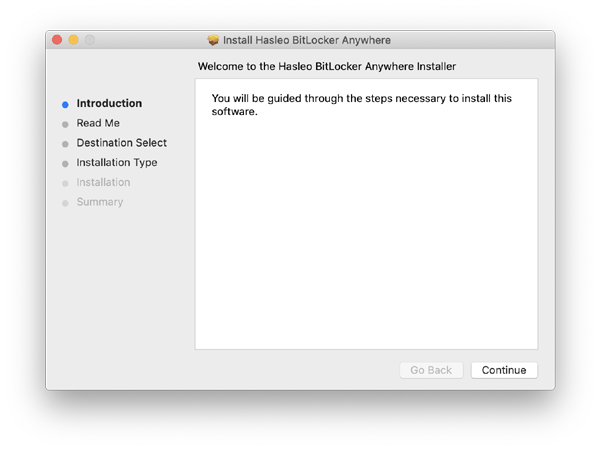
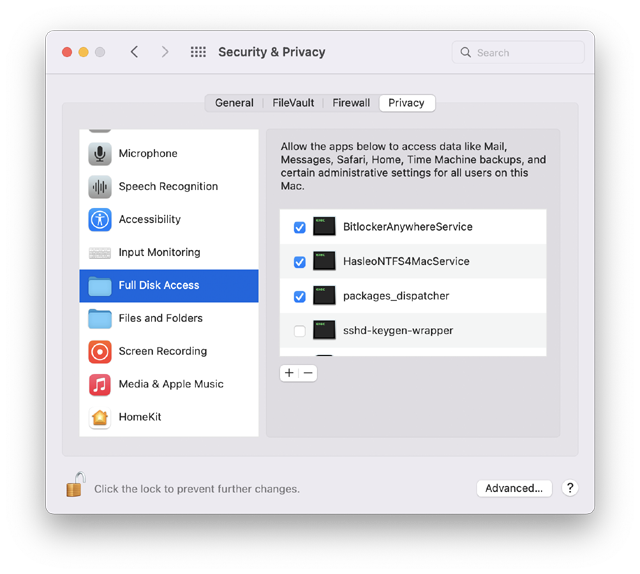
Step 2. Grant Full Disk Access (for macOS Mojave and later)
For macOS Mojave (10.14) and later versions, you need to grant Full Disk Access permission to the kernel service program of Hasleo BitLocker Anywhere for Mac. This is a required step; otherwise, the software cannot read BitLocker encryption information on system disks. For more information, please refer to Grant Full Disk Access to Hasleo BitLocker Anywhere For Mac.
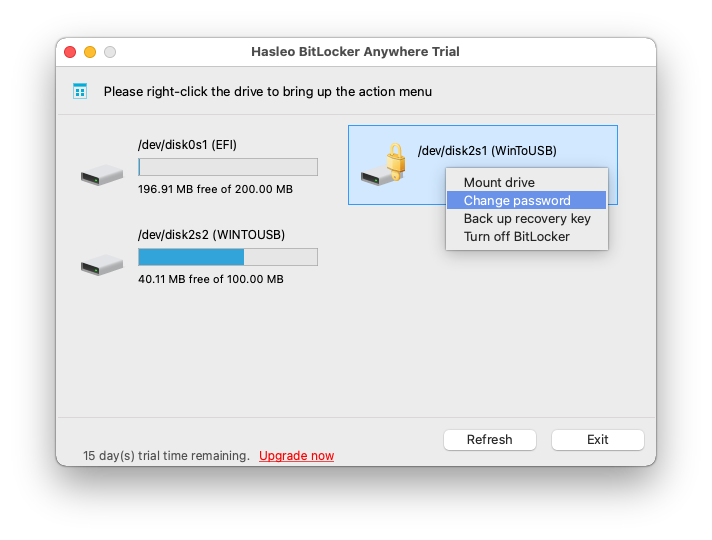
Step 3. Select the BitLocker Encrypted Drive to Change Password
Run Hasleo BitLocker Anywhere for Mac, find the BitLocker encrypted drive whose password you want to change in the main window. Right-click on the drive, then select "Change password" from the popup menu.
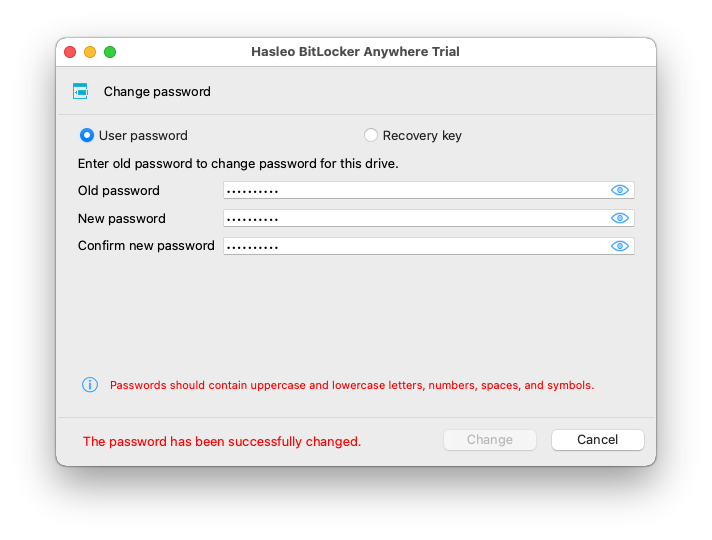
Step 4. Enter Old Password and New Password
In the change password dialog that appears, first enter the old password or recovery key, then enter the new password (enter twice to confirm), and click the "Change" button to change the password. To ensure data security, the new password should contain uppercase and lowercase letters, numbers, and special symbols.

Step 5. Confirm Password Changed Successfully
When the program indicates the password has been successfully changed, click the "Cancel" button to return to the main window. Now, you can only use the new password to mount and access that BitLocker encrypted drive.
🎯Password Settings Suggestions and Security Tips
To maximize the security of your BitLocker encrypted drive data, we recommend following these password setting best practices:
- Password Strength: Use at least 8 characters, recommended 12 or more characters, including a combination of uppercase and lowercase letters, numbers, and special symbols.
- Change Password: Change the password when anyone who knows it leaves your team or organization, or if you suspect it may have been compromised.
- Avoid Reuse: Do not use the same password on different drives or accounts.
- Backup Recovery Key: Be sure to save the BitLocker recovery key in a safe place. If you forget your password, the recovery key is the only way to restore access.
- Protect Recovery Key: Anyone with the recovery key can unlock your drive - even without the password. Store it securely and never share it with anyone.
ℹ️Frequently Asked Questions (FAQ) for BitLocker Password Change on Mac
A: If you forget your BitLocker password, you can use the BitLocker recovery key to change the password. The recovery key is usually generated and saved when you first enable BitLocker.
A: No. Once the password is successfully changed, the old password immediately becomes invalid. Only the new password can be used to mount and access that BitLocker-encrypted drive.
A: No. Changing the BitLocker password alone does not affect any data on the drive. The password change operation only updates the encryption key and does not modify or delete any files.
A: The new password takes effect immediately. However, once the drive is locked, ejected, or the system restarts, you must use the new password to access it.
A: Yes, you can use the BitLocker recovery key to change the password if you don't remember the old password. Both methods are supported by Hasleo BitLocker Anywhere for Mac.
A: Microsoft recommends using at least 8 characters, with 12 or more characters being optimal. The password should include uppercase and lowercase letters, numbers, and special symbols.
A: Change the password when anyone who knows it leaves your team or organization, or if you suspect it may have been compromised. Regular password changes are recommended for better security.
A: Yes, you need to unlock the BitLocker-encrypted drive first before you can change its password using Hasleo BitLocker Anywhere for Mac.
Conclusion
After following the steps above, you can easily change the password for your BitLocker-encrypted drive on macOS. As a powerful BitLocker solution for Mac, Hasleo BitLocker Anywhere for Mac supports password changes, drive encryption, mounting BitLocker-encrypted drives, and reading/writing BitLocker-encrypted drives - along with many other features.