

- Why Can Data Be Recovered After Formatting?
- Common Scenarios of Formatted Data Recovery
- Method 1: Recover Formatted Data Using Hasleo Data Recovery Free
- Method 2: Restore from Backup Using Hasleo Backup Suite Free
- Method 3: Recover Files Using Windows File History
- Important Considerations for Formatted Data Recovery
- Frequently Asked Questions
- Conclusion
In daily life and work, formatting operations are one of the main causes of data loss. Whether it's accidentally formatting a hard drive, USB drive, or SD card, or accidentally formatting an important partition during a system reinstall, all of these can cause us to lose precious files and data. In 2026, data recovery technology has become very mature, and there are many methods you can try to recover formatted files. This article will provide you with detailed information on free formatted data recovery methods to help you recover important files lost due to formatting.
Why Can Data Be Recovered After Formatting?
Many users worry about whether their data can still be recovered after formatting a hard drive or storage device. In fact, the formatting operation does not necessarily truly delete the data files on the storage device. When we format a storage device, the operating system actually only does the following:
- Create a new file system: Formatting creates a new file allocation table and directory structure on the storage device, preparing it for writing new data.
- Mark space as available: The operating system marks the space occupied by original data as "free" or "overwritable," but the data itself still physically exists on the disk.
- Data not actually erased: Unless special operations (such as low-level formatting or secure erase tools) are performed, the original data can still be scanned and recovered by data recovery software.
This explains why in many cases, even after formatting a storage device, data can still be successfully recovered by recovery software. Data recovery software can recover formatted files because they bypass the operating system and directly read every sector of the storage medium, looking for file signatures (called "file headers") unique to specific file formats, then reassemble data segments that appear to belong to the same file. However, it's important to note that the term "format" covers several different types of operations:
- Quick Format: The most common method, which only clears the file index and directory structure, does not scan for bad sectors or erase actual data, so it's extremely fast. This is the default formatting method for most operating systems.
- Full Format: Checks for bad sectors and writes zeros to all data areas (clearing data), so it's very slow (depending on hard drive size and speed), and data cannot be recovered by conventional software.
- Low-Level Format: Refers to the physical operation of dividing tracks and sectors performed at the factory before the hard drive is shipped. Regular users never need to do this (and can't - this command is locked on modern hard drives). What are sold as "low-level formatting tools" on the market actually perform repeated "secure erase" operations.
- Secure Erase: Uses professional tools to write specific data patterns (such as all zeros, all ones, or multiple rounds of random data) to every storage sector, completely overwriting the original information. After performing this operation, it's almost impossible to recover the original data even with professional data recovery equipment.
The difficulty of data recovery also depends on the type of storage device:
- Hard Disk Drive (HDD): As long as the data is not overwritten by new data, formatted data can remain stable for a long time, with a relatively high recovery success rate.
- Solid State Drive (SSD): Modern SSDs support the TRIM command. When you format an SSD on an operating system that supports TRIM (such as Windows 10/11 or macOS), the system notifies the SSD controller that these data are invalid. The SSD will physically erase these data blocks during idle time to optimize write performance. Therefore, if TRIM is enabled, formatted SSD data may become unrecoverable very quickly.
⚠️Regardless of which storage device you use, the most critical point if you want to recover formatted data is: immediately stop any write operations to that device. Any new file saved, program installed, or even the operating system's startup process may overwrite the data that could have been recovered, causing recovery failure or file corruption.
Common Scenarios of Formatted Data Recovery
Data loss due to formatting is very common in daily use. Here are some of the most common scenarios:
- Hard Drive Partition Formatting: When reinstalling the Windows system, users typically format the C drive for a clean installation. If the wrong partition is selected, or if other partitions like D: or E: are formatted, all data on those partitions will be lost.
- USB Flash Drive Formatting: USB drives may develop file system errors or turn into RAW format during use. Some users may choose to format to solve these problems. Additionally, accidental formatting can easily occur when creating bootable drives or encrypted USB drives.
- SD Card Formatting: When SD cards from digital cameras or smartphones are read on a computer, they may prompt that they need to be formatted before use. If formatted directly, important data like photos and videos on the card will be lost.
- External Hard Drive Formatting: External hard drives are popular for their large capacity and portability. However, they are also prone to being formatted for various reasons, such as misoperations in disk management or requiring reformatting due to connection issues.
- Formatting During System Reinstall: When reinstalling Windows and selecting "Custom Installation," if the wrong partition is accidentally selected for formatting, all data on that partition will be lost. This situation is very common in real life.
Method 1: Recover Formatted Data Using Hasleo Data Recovery Free👑
Hasleo Data Recovery Free is a professional data recovery software for Windows systems that helps users efficiently recover data lost due to accidental deletion, formatting, virus attacks, and other reasons from storage devices such as hard drives, SSDs, USB drives, SD cards, and external hard drives. It has the following advantages:
- Free 2GB Data Recovery: The free version allows users to recover up to 2GB of data, which is fully sufficient for small data recovery needs. If you need to recover more than 2GB or unlimited file sizes, please upgrade to Professional, Ultimate, or Technician versions.
- Wide Device Compatibility: Compatible with hard drives, SSDs, USB drives, SD cards, external hard drives, and other storage devices.
- Multiple File System Support: Supports FAT12/16/32, exFAT, NTFS, HFS+, and other file systems.
- Deep Scan Function: Uses sector-by-sector deep scanning to maximize recovery of lost files.

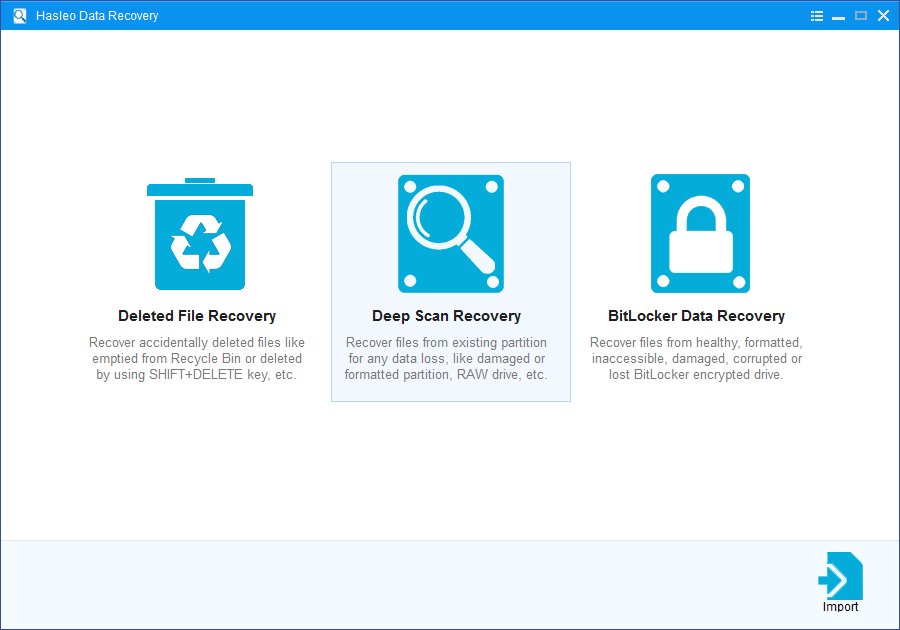
Step 1. Download, install and run Hasleo Data Recovery. On the main interface, you will see three recovery modes. Please select "Deep Scan Recovery" mode. Important: Do not install the software to the disk where data was lost.
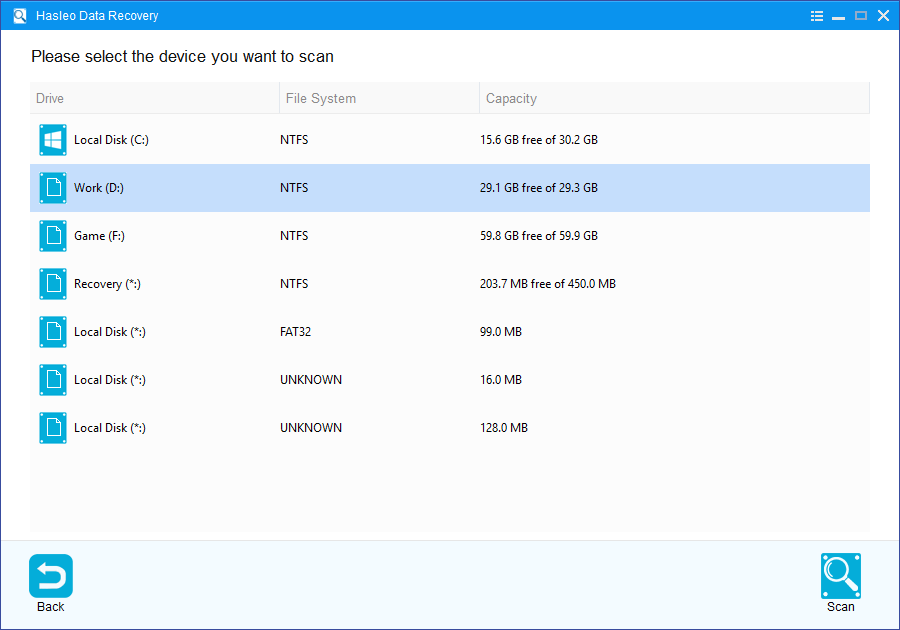
Step 2. Select the formatted storage device or partition, then click "Scan" to begin. This process may take a few minutes; please be patient.
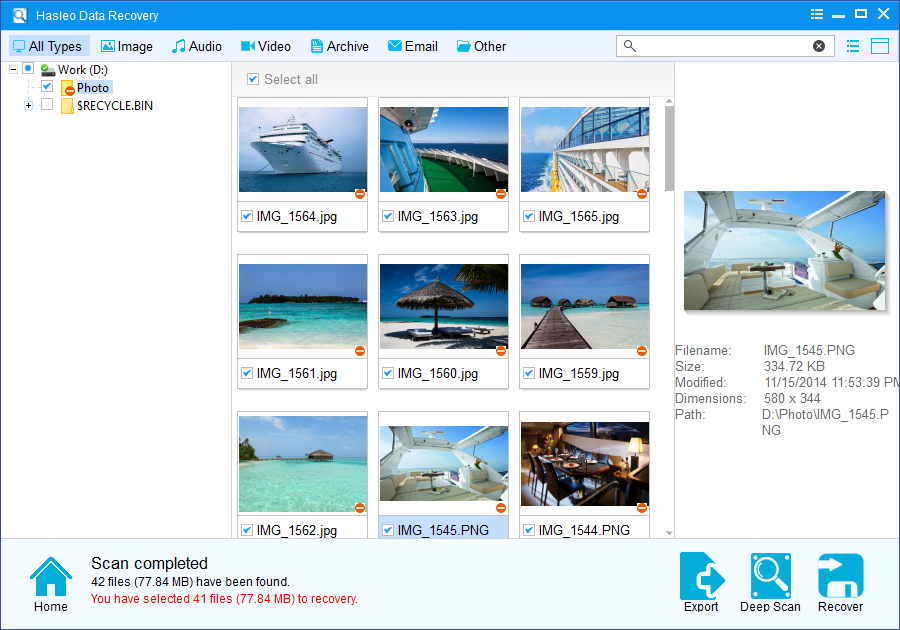
Step 3. After the scan completes, all found files will be displayed in the interface. You can quickly locate target files by path or file type. Before recovery, preview images, documents, videos, and other files to confirm they're intact. Select the files you want to recover, then click the "Recover" button.
💡Tips: If your device is encrypted with BitLocker, please upgrade to the Ultimate or Technician version and select "BitLocker Data Recovery" mode.
Method 2: Restore from Backup Using Hasleo Backup Suite Free
If you have created a backup image of the formatted disk using Hasleo Backup Suite Free before formatting, you can recover the entire disk through that image. Note: This method only applies if you have created a backup before formatting.
Hasleo Backup Suite Free is a powerful Windows backup and cloning software. It supports various backup types including system backup, disk/partition backup, and file/folder backup. It has the following advantages:
- Powerful and Comprehensive Features: The free version not only supports system, disk/partition, and file/folder backup and restore, but also provides advanced features like backup compression and encryption.
- Intelligent Backup Strategies: Supports full backup, incremental backup, and differential backup modes, effectively saving storage space and improving backup efficiency, especially suitable for users who need regular backups.
- Easy to Operate: Has an intuitive graphical user interface that both beginners and professionals can easily use.
- Emergency Recovery Protection: Built-in tools to create WinPE emergency disks, supporting data recovery when the system cannot boot, ensuring availability and security at critical moments.
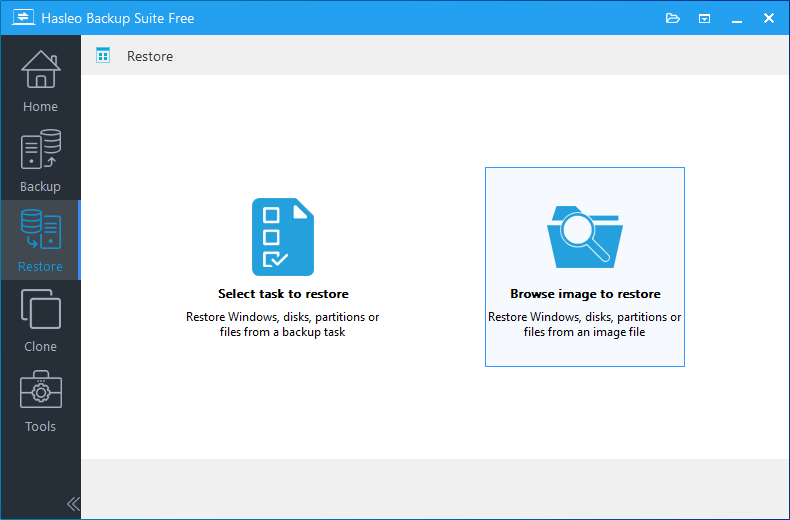
Step 1. Download, install and run Hasleo Backup Suite Free. Click the "Restore" button in the navigation bar, then click "Browse image to restore" in the operation area to select the backup image file created before formatting.
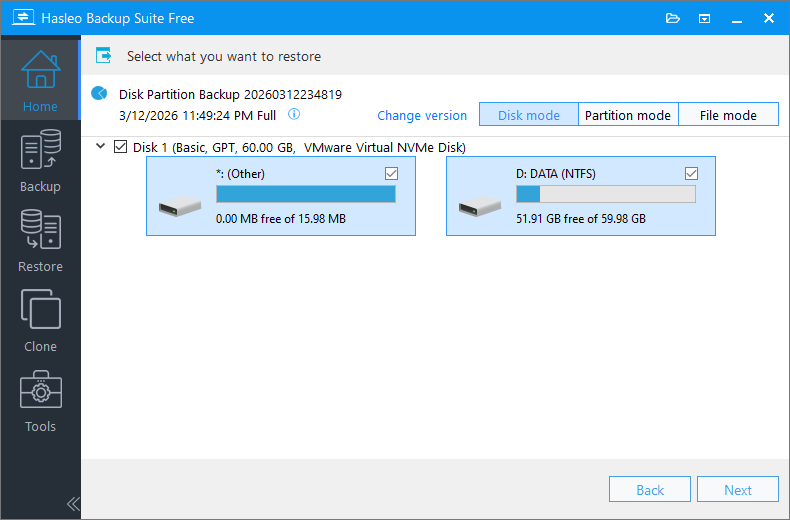
Step 2. Click "Change version" to select the backup version closest to the formatting date, select "Disk mode," then click "Next" to continue.
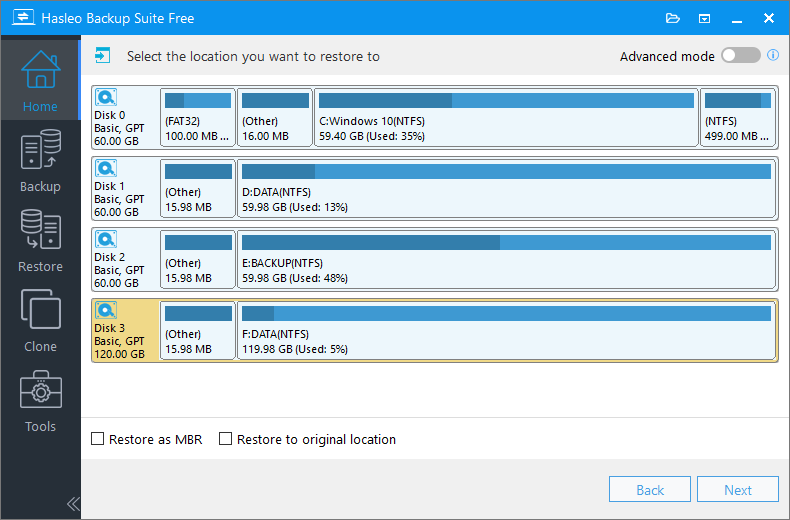
Step 3. Select the target disk to restore, then click "Next."
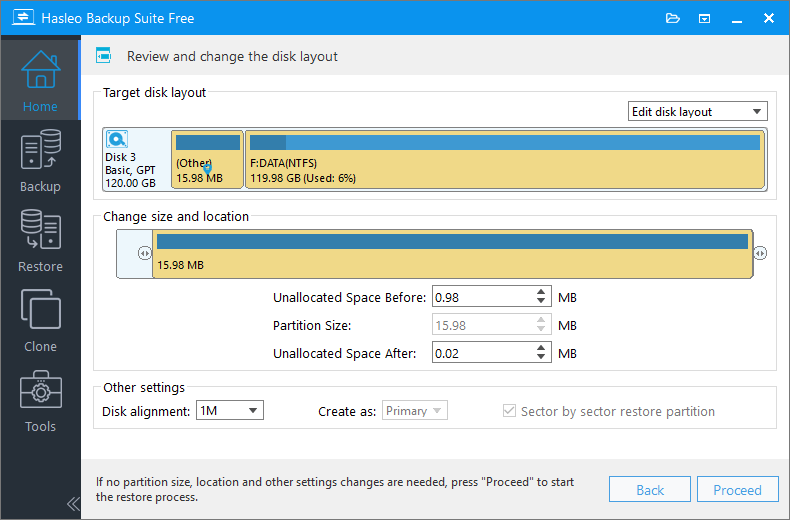
Step 4. You can adjust the partition size and alignment mode of the target disk as needed, then click "Proceed."
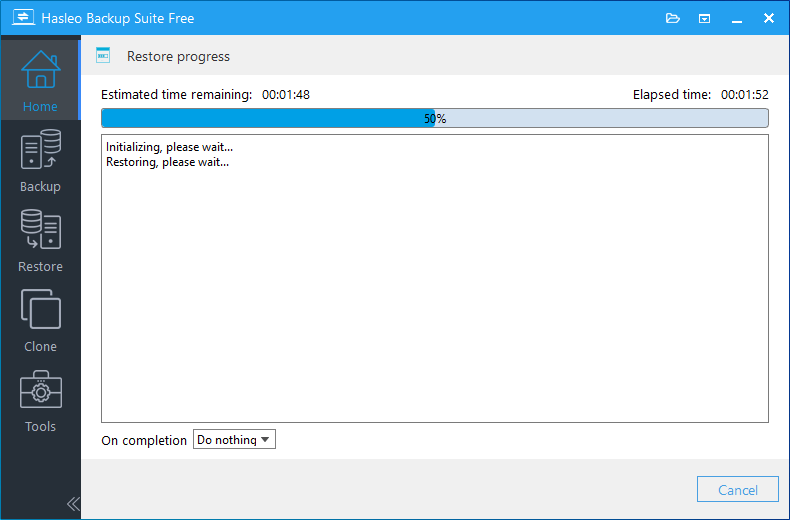
Step 5. Hasleo Backup Suite starts restoring data to the specified location. This process takes some time, please be patient. After restoration is complete, your disk will be restored to the state it was in at the time of backup.
How to Create a Backup (Preventive Measures):
- Download and install Hasleo Backup Suite Free.
- Click the "Backup" option in the navigation bar and your desired backup mode.
- Choose a destination to save the backup image file (an external hard drive is recommended for safety).
- (Optional) Click "Backup Schedule" to configure automatic daily, weekly, or monthly backups for unattended periodic protection.
- Click "Continue" to start creating the backup task.
Method 3: Recover Files Using Windows File History
If you have enabled Windows File History before formatting and included the folders or files you need to recover in the backup, you can recover data through File History. Note: This method only applies if you have a File History backup created before formatting, and the backup is stored on a different drive (not the formatted drive).
Step 1. Connect your backup drive to the computer. Open File Explorer and navigate to the original location of the file or folder before formatting. For example, if the lost content was in the "Documents" folder, right-click that folder. Alternatively, you can right-click the drive or directory where the files were originally stored.
Step 2. In the context menu:
- Windows 10/11: Select "Show more options", then click "Properties".
- Older Windows versions: Click "Properties" directly.
Step 3. In the Properties window, click the "Previous Versions" tab.
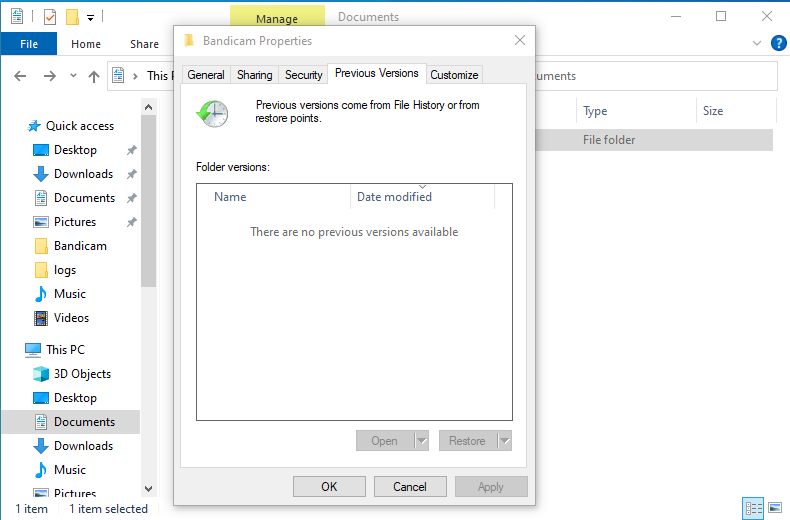
Step 4. The system will display available historical versions. Carefully review the dates and times, and choose a version dated before the formatting operation. (Note: These versions may come from File History or system restore points.)
Step 5. If a suitable previous version is available:
- Restore to original location: Select the version and click "Restore" (this may overwrite existing files).
- Restore to another location: Click the dropdown arrow next to "Restore" and select "Restore to...", or click "Copy..." to choose a new destination folder.
How to Enable File History (Preventive Measures):
- Click the Start menu and open "Settings".
- Select "Update & Security," then click "Backup."
- Click "Add a drive" and choose an external drive or network location to store your backups.
- Ensure "Automatically back up my files" is turned on. You can click "More options" to configure backup frequency and specify which folders to back up.
🎯Important Considerations for Formatted Data Recovery
To maximize the success rate of formatted data recovery, please pay attention to the following points:
- Stop Using Immediately (Most Critical): Once you discover data loss, immediately stop any write operations to that storage device, including copying files, installing software, etc. Writing new data will physically overwrite the space where recoverable data existed, causing permanent loss.
- Do Not Restore to Original Location: When recovering files, be sure to save the recovered files to another independent storage device (such as an external hard drive) or a different partition. Never save directly back to the original disk, as this will damage the remaining data structure.
- Recover as Soon as Possible: The sooner you perform data recovery after formatting, the higher the success rate. Over time, even if you don't perform any operations, the operating system or background processes may write cache or logs, overwriting the data that could have been recovered.
- Use Professional Recovery Software: It is recommended to use professional data recovery software (such as Hasleo Data Recovery) and select the appropriate scanning mode (quick scan or deep scan) based on the situation.
- Note for BitLocker Encrypted Devices: If your storage device uses BitLocker encryption, recovery becomes more difficult after formatting. Usually you need to unlock the drive first, or use the correct password/48-digit recovery key through specialized BitLocker Data Recovery features.
- Develop Backup Habits: Data recovery is not 100% successful. To avoid losses from important data loss, it is recommended to regularly back up important files. You can use free backup software to create automatic backups.
🔥Frequently Asked Questions (FAQ)
A: Not always. The success of formatted data recovery depends on several factors: whether a quick format or full format was performed, how long ago the formatting occurred, and whether new data has been written to the drive. Quick format has a higher recovery success rate because it doesn't actually erase the data, while full format writes zeros to all sectors making recovery much more difficult.
A: Quick format only clears the file allocation table and directory structure without actually erasing the data on the disk. This is why data can still be recovered after quick formatting. Full format, on the other hand, checks for bad sectors and writes zeros to all data areas, effectively overwriting the original data and making recovery impossible with regular software.
A: Quick scan only looks at file system records, which are cleared during formatting. Deep scan reads every sector of the drive and searches for file signatures to reconstruct files, making it much more effective for recovering data from formatted drives where file system information is no longer available.
A: SSD data recovery is more challenging than traditional hard drives. Modern SSDs support the TRIM command, which tells the drive to physically erase data blocks marked as deleted. When you format an SSD on Windows 10/11, TRIM is enabled by default, making formatted data potentially unrecoverable very quickly. The sooner you attempt recovery, the better your chances.
A: Stop using the drive immediately! Any new data written to the drive can overwrite the files you're trying to recover. Don't install any software to the drive, don't save any new files, and if possible, avoid booting from that drive. Use a separate computer or boot from another drive to run data recovery software.
Conclusion
Formatting does not mean permanent loss of data. Using the correct methods, you have a great chance to successfully recover important files lost due to formatting. The key is: once you discover data loss, immediately stop any write operations to the storage device and use professional data recovery software (such as Hasleo Data Recovery) to scan and recover as soon as possible. The earlier you start recovery, the higher the success rate.
Additionally, to avoid losses from data loss, it is recommended to develop the habit of regularly backing up important files. You can use Windows' built-in File History feature or use professional backup software (such as Hasleo Backup Suite) to protect your data security.


