
The EFI System Partition (also called ESP) is a FAT32 formatted physical partition from where the UEFI firmware launches bootloaders and applications. It is an OS-independent partition that acts as the storage place for EFI bootloaders and applications that the firmware launches. It is mandatory for UEFI boot.
The EFI System Partition (ESP) is a small partition formatted with the FAT32 file system that is required for booting Windows on UEFI-based computers. It stores the UEFI bootloaders, boot configuration data, and other essential files needed during the startup process. Unlike the traditional BIOS boot method where the boot code is stored in the Master Boot Record (MBR), UEFI firmware reads the bootloader directly from the ESP.
Key characteristics of an EFI System Partition:
{C12A7328-F81F-11D2-BA4B-00A0C93EC93B} on GPT disks\EFI\ directory with bootloader files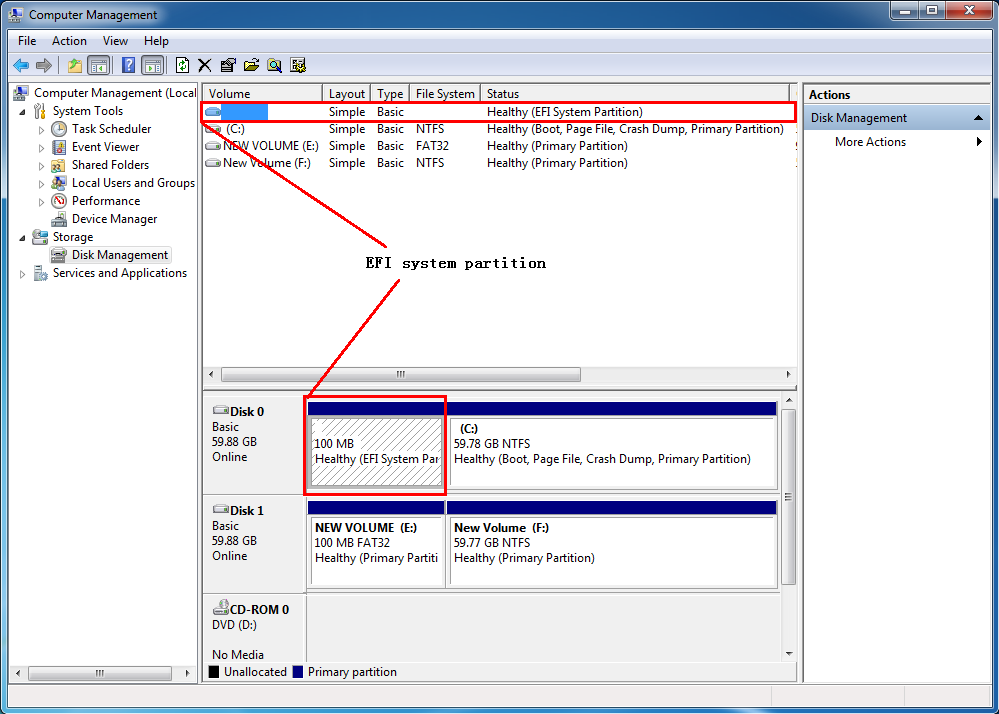
UEFI (Unified Extensible Firmware Interface) replaces the legacy BIOS and introduces a more flexible and secure boot process. Unlike BIOS which loads boot code from the MBR, UEFI firmware directly accesses the ESP to read and execute .efi bootloader files. This design allows:
\EFI\For more details on how system and boot partitions differ on BIOS vs UEFI systems, see What are system partitions and boot partitions?
The ESP is typically created at the beginning of the disk during Windows installation. Its default size varies by Windows version:
| Windows Version | Default ESP Size | Partition Scheme |
|---|---|---|
| Windows 7 (UEFI install) | 100 MB | GPT |
| Windows 8 / 8.1 | 350 MB | GPT |
| Windows 10 / 11 | 100 MB | GPT |
When you assign a drive letter to the ESP and view its contents, you will see the following directory structure:
EFI/
├── Boot/
│   └── bootx64.efi          (Default UEFI bootloader)
├── Microsoft/
│   └── Boot/
│       ├── bootmgfw.efi      (Windows Boot Manager)
│       ├── BCD               (Boot Configuration Database)
│       └── ...               (Other boot resources)
└── (Other OS folders for multi-boot setups)
The \EFI\Microsoft\Boot\ folder contains the Windows Boot Manager (bootmgfw.efi) and the Boot Configuration Data (BCD) store, which defines the boot options for Windows.
The ESP is normally hidden in Windows without a drive letter. To view it:
\EFI\ directory.⚠️Important: Do not modify or delete files in the ESP unless you are absolutely sure of what you are doing. Damaging the ESP can make your system unbootable.
bcdboot or diskpart to repair or recreate the ESP if needed.
A: No. Deleting the ESP will make your computer unbootable because the UEFI firmware cannot find the bootloader files. If you need to recreate it, boot from Windows installation media and use diskpart to create a new ESP.
A: For a single Windows installation, 100 MB is sufficient. If you plan to install multiple operating systems or store custom UEFI applications, consider creating a 500 MB ESP.
A: No. The UEFI specification requires the ESP to be FAT32. Some UEFI firmware may support NTFS, but it is not guaranteed. Always use FAT32 for compatibility.
A: If the ESP runs out of space, Windows may fail to update boot configuration or install system updates. In this case, you can use third-party tools to resize the ESP or clean up unnecessary files (e.g., bootloaders from old OS versions).
A: Yes, when booting Windows To Go from a USB drive on a UEFI-based computer, an ESP is required. WinToUSB automatically creates the ESP during the process. The ESP must be FAT32 and the boot partition must be NTFS.


