

- Overview of USB Flash Drive
- USB Flash Drive Interface Types and Speeds
- USB Flash Drives vs. USB Hard Drives
- How to Use a USB Flash Drive with WinToUSB
- Frequently Asked Questions
Overview of USB Flash Drive
A universal serial bus (USB) flash drive is a small, portable device that plugs into a computer's USB port. Like a hard disk, a USB flash drive stores information, but with a flash drive you can easily transfer that information from one computer to another. USB flash drives vary in size and shape and can hold gigabytes of information. USB flash drives are also called pen drives, key chain drives, key drives, thumb drives, and memory keys. Compared to USB hard drives, USB flash drives are generally slower, smaller in size and capacity.
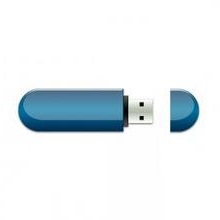
A typical USB flash drive
How Does a USB Flash Drive Work?
Inside every USB flash drive is a small printed circuit board (PCB) that typically contains one or more NAND flash memory chips, a controller chip, and auxiliary components such as a crystal oscillator, voltage regulators, and USB interface contacts. When you plug the drive into a USB port, the operating system recognizes it as a removable mass storage device and accesses it just as it would an external hard drive. The controller chip manages data reading and writing, error correction (ECC), bad block management, and wear leveling. Wear leveling evenly distributes write operations across all storage cells to prevent certain cells from being overwritten too frequently, thereby extending the drive's lifespan.
Because NAND flash memory is non-volatile, data is retained even when the drive is powered off. This makes USB flash drives ideal for backing up important files, carrying portable applications, or transferring files between computers that are not connected to the internet.
Common Uses of USB Flash Drives
USB flash drives are versatile tools with many practical applications:
- File Transfer: Move documents, photos, and videos between computers without internet access.
- Data Backup: Keep backups of important files - such as passwords, encryption keys, and critical documents - with you at all times. Note that a USB flash drive is not suitable as the sole backup medium, as flash memory has limited write endurance and the drives are prone to loss or damage.
- Portable Windows: Run a full Windows environment directly from a USB flash drive on any compatible computer.
- Portable Applications: Carry your favorite portable applications—browsers, editors, utilities—and run them on any computer without installation. The applications must support portable mode and not rely on installation or the registry.
- WinPE Boot Drive: Create a bootable WinPE USB drive for system troubleshooting and recovery.
USB Flash Drive Interface Types and Speeds ⭐
Not all USB flash drives are the same. The interface version determines the maximum data transfer speed, but actual speeds also depend on the quality of the flash memory chips and the controller. Here is a breakdown of the most common USB interface standards:
USB 2.0 (High-Speed)
Maximum theoretical transfer speed: 480 Mbps (~60 MB/s). Actual speeds typically range from 30 to 45 MB/s, though high-quality controllers and flash memory can exceed 50 MB/s under ideal conditions. This is the oldest standard still in widespread use. It is suitable for transferring small files and photos but is noticeably slower with large files such as videos or system images.
USB 3.0 / 3.1 Gen 1 / 3.2 Gen 1 (SuperSpeed)
USB 3.0 was later renamed USB 3.1 Gen 1 and subsequently merged into USB 3.2 Gen 1; all three refer to the same standard, with a speed of 5 Gbps (~500 MB/s theoretical bandwidth). Actual transfer speeds typically range from 100 to 300 MB/s, with top-tier products capable of exceeding 400 MB/s. If you plan to run Windows To Go or run applications directly from a flash drive, this is the minimum recommended interface.
USB 3.1 Gen 2 / 3.2 Gen 2 (SuperSpeed+, 10 Gbps)
Bandwidth doubles to 10 Gbps (~1,000 MB/s theoretical bandwidth) and was later incorporated into USB 3.2 Gen 2. High-end flash drives using this interface can achieve sequential read speeds of around 1,000 MB/s, approaching the performance of entry-level SSDs.
USB 3.2 Gen 2x2 (SuperSpeed+, 20 Gbps)
Utilizes dual lanes to achieve 20 Gbps (~2,000 MB/s theoretical bandwidth), which requires a dual-lane USB-C cable to function. It is currently one of the fastest interface standards for USB flash drives. This is an excellent choice for those looking to create a responsive, smooth-running portable Windows drive - but the host device must also support this standard to achieve full performance.
USB4 (20 Gbps / 40 Gbps / 80 Gbps)
Developed based on the Thunderbolt 3 protocol, USB4 is currently the fastest USB interface standard and requires a USB-C port. The current mainstream specification is USB4 40 Gbps (theoretical bandwidth of ~5,000 MB/s), with actual sequential read and write speeds reaching 3,500-3,800 MB/s—performance comparable to an internal NVMe SSD. USB4 is compatible with USB 3.2, USB 2.0, and Thunderbolt 3, but be sure to check the specific support of the host port when purchasing: some USB4 ports are only backward compatible with USB 3.2 Gen 2 (10 Gbps), not Gen 2×2 (20 Gbps), which may prevent high-speed drives from reaching their rated speeds. Additionally, Thunderbolt 3 devices may not operate at full speed on all USB4 hosts, as PCIe tunneling support is optional on some USB4 ports, which can affect the performance of external SSDs.
USB Type-C
USB Type-C is a reversible connector shape - it is not a speed standard in itself. Many modern flash drives feature a Type-C connector, which can be plugged into the increasingly common USB-C ports found on laptops, tablets, and smartphones. Some dual-purpose drives are equipped with both USB-A and USB-C connectors, offering greater flexibility when used with different devices.
It is important to note that a Type-C USB flash drive may operate at USB 2.0 speeds or up to 20 Gbps - the connector shape does not determine the speed; the specific standard depends on the product specifications. The USB-IF has also specifically emphasized that USB 3.2 is not the same as Type-C, and the two should not be confused.
USB Flash Drives vs. USB Hard Drives
It is important to distinguish between USB hard drives and USB flash drives, as they are used in different scenarios:
Size and Portability
USB flash drives are very small - usually no bigger than a finger—and weigh only a few grams. USB hard drives are larger, typically about the size of a wallet, and either require their own power source or draw more power from the USB port.
Durability
Since flash drives have no moving parts, they are highly resistant to physical shocks. USB hard drives contain spinning disks, making them more prone to damage if dropped.
Storage Capacity
USB hard drives offer larger capacities, typically ranging from 500 GB to 5 TB. Flash drives max out at about 2 TB, though most consumer models range from 32 GB to 512 GB.
Speed
This is one of the most noticeable differences between the two.
Sequential Read/Write
Standard USB 3.0 flash drives and USB hard drives have similar sequential speeds, typically 100-200 MB/s. However, high-end USB 3.2 flash drives can exceed 1,000 MB/s, far surpassing hard drives.
Random Access
Because flash drives lack a mechanical seek process, their random access latency is typically under 1 millisecond, whereas mechanical hard drives require 8 milliseconds or more. As a result, flash drives feel noticeably faster when handling small files, booting the system, or running programs.
Cost per GB
USB hard drives offer far more storage capacity per dollar than USB flash drives. If you need hundreds of GB of storage, a USB hard drive is the more cost-effective option.
Both options can be used to create a portable Windows installation, but a high-quality USB 3.0 flash drive with at least 128 GB of storage is the most convenient and portable choice. If you prioritize cost per unit of storage and ultra-high-capacity storage, a USB hard drive is the better option.
How to Use a USB Flash Drive with WinToUSB
Hasleo WinToUSB is the easiest way to create a portable Windows environment on a USB flash drive. Here is a quick overview of the process:
Step 1. Download and install WinToUSB from the official website.
Step 2. Insert your USB flash drive (USB 3.0 or faster, 32 GB+ capacity recommended).
Step 3. Launch WinToUSB and select the Windows ISO file or installation media.
Step 4. Choose your USB flash drive as the target disk and select the Windows edition.
Step 5. Click "Proceed" and wait for WinToUSB to create the portable Windows drive.
Step 6. Restart your computer, enter BIOS/UEFI, and set the USB drive as the first boot device.
For detailed step-by-step instructions, see our full guides on creating a portable Windows 11/10 USB drive and creating Windows 11 To Go.
Frequently Asked Questions 🔥
Q: What is a USB flash drive?
A: A USB flash drive is a small, portable storage device that connects to a computer via a USB port. It uses flash memory to store data and allows you to easily transfer files between computers. USB flash drives are also known as pen drives, thumb drives, key drives, or memory sticks.
Q: What is the difference between a USB flash drive and a USB hard drive?
A: USB flash drives use flash memory (no moving parts), making them smaller, lighter, and more durable, but typically with less storage capacity (up to 2TB). USB hard drives use spinning magnetic disks, offering larger capacities (up to 5TB+) and faster speeds, but are bulkier and more fragile.
Q: What USB interfaces do flash drives support?
A: USB flash drives come in several interface types: USB 2.0 (up to 480 Mbps), USB 3.0 (up to 5 Gbps), USB 3.1 Gen 2 (up to 10 Gbps), USB 3.2 (up to 20 Gbps), and USB Type-C (reversible connector). Higher versions offer significantly faster transfer speeds.
Q: Can I use a USB flash drive to create portable Windows?
A: Yes, you can use a USB flash drive with sufficient capacity (32GB or more recommended) and USB 3.0 or faster interface to create a portable Windows To Go drive using software like Hasleo WinToUSB.
Q: What is the best USB flash drive for Windows To Go?
A: For Windows To Go, choose a USB 3.0 or faster flash drive with at least 128GB capacity. Drives with high random write speeds (measured in IOPS) will provide a smoother experience. Avoid very cheap drives as they often have poor random write performance.
Related Guides
- How to create a portable Windows 11/10 USB drive?
- How to create a multi-Boot VHD(X)-based portable Windows?
- How to create Windows 11 To Go (All Windows 11 editions are supported)?Hot
- How to clone Windows 10 to an external hard drive as portable Windows 10?
- How to create Windows 10 To Go without an enterprise edition of Windows 10?


