- What is BitLocker and BitLocker Recovery Key?
- Why Does the "Enter the Recovery Key to Get Going Again" Error Occur?
- How to Retrieve the BitLocker Recovery Key and Start Windows?
- How to Fix the "Enter the Recovery Key to Get Going Again" Error by Repairing File System Errors?
- How to Fix the "Enter the Recovery Key to Get Going Again" Error by Decrypting the Drive?
- How to Retrieve Lost Files Using a BitLocker Password or Recovery Key?
- Frequently Asked Questions (FAQ)
- Conclusion
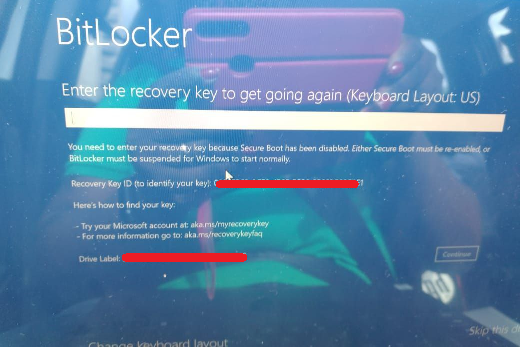
The "Enter the recovery key to get going again" error is rare but frustrating. It appears after encrypting your Windows partition with BitLocker when BitLocker cannot validate the normal authentication method. This tutorial covers BitLocker basics and provides four proven methods to resolve the issue or recover lost files.
Please note that while BitLocker is very safe and reliable, if you lose all access credentials, there is no way to retrieve your encrypted files. Your only options are to recover the password you previously set or locate the recovery key that was saved during encryption.
What is BitLocker and BitLocker Recovery Key?
BitLocker stands for BitLocker Drive Encryption. It is a full-volume encryption feature available in Windows Vista and later operating systems. BitLocker encrypts data on the drive using industry-standard AES-CBC and XTS-AES encryption algorithms, offering both 128-bit and 256-bit encryption strengths to meet different security needs. For more information about BitLocker, please refer to: What is BitLocker?
The BitLocker recovery key is a special key generated when a drive is encrypted. It allows access to the data on the drive when you encounter the "Enter the recovery key to get going again" error. Please note that the recovery key is not the same as the encryption password. The encryption password is the one you set when encrypting the drive, while the recovery key is automatically generated by the BitLocker encryption algorithm. BitLocker will prompt you to save the recovery key during the encryption process. For more information, please refer to: What is BitLocker Recovery Key?
Why Does the "Enter the Recovery Key to Get Going Again" Error Occur?
The "Enter the Recovery Key to Get Going Again" prompt typically appears when BitLocker cannot automatically unlock the system drive using standard protection mechanisms (such as TPM or TPM+PIN). Common causes include:
- The TPM is disabled, cleared, or malfunctioning; keys in the TPM cannot be unlocked.
- Changes to the boot environment or PCR metrics (e.g., BIOS/UEFI updates, Secure Boot setting changes, or boot configuration modifications).
- NTFS corruption on the system drive causing boot failures.
- Hardware changes such as a motherboard replacement or system drive migration.
- Damage to or loss of the BitLocker protector.
In such cases, BitLocker enters recovery mode and requires a 48-digit recovery key.
How to Retrieve the BitLocker Recovery Key and Start Windows?
If you encounter the "Enter the recovery key to get going again" error and you have the BitLocker recovery key for the drive, enter it to start Windows. In most cases, Windows will start normally. If you do not have the recovery key, try the following methods to retrieve it:
- Check saved locations: BitLocker prompts you to save or print the recovery key during encryption. Locate the saved file or printed copy.
- Contact your administrator: If your computer is connected to a domain, your system administrator can provide the BitLocker recovery key.
- Sign in to your Microsoft account: If you used a Microsoft account when encrypting the drive, find your BitLocker recovery key at account.microsoft.com/devices/recoverykey.
- Ask a local administrator: Another user with administrator privileges on the same computer may be able to unlock it using their own key.
If you have successfully retrieved the recovery key but still cannot boot into Windows after entering it, this usually indicates that the Windows partition has a file system error or has become corrupted. In this case, we recommend trying the following methods to fix the error or, if necessary, to retrieve lost data.
As mentioned above, accessing a BitLocker-encrypted drive requires the BitLocker password or recovery key. The methods below assume you already have the password or recovery key, yet you still cannot start Windows successfully.
How to Fix the "Enter the Recovery Key to Get Going Again" Error by Repairing File System Errors?
If you are still unable to start Windows successfully after entering the correct BitLocker password or recovery key, this usually means that there may be some file system errors on the BitLocker encrypted drive, and fixing the file system errors may simply resolve the issue. How do we try to fix file system errors since Windows won't start, this may be the question in your mind. The answer is that we can create a portable Windows, boot Windows from the USB drive and try to fix file system errors.
Step 1. Download and install Hasleo WinToUSB, run Hasleo WinToUSB to create a portable Windows on a USB drive. Here we do not explain in detail how to create portable Windows, please refer to the detailed steps: How to create a portable Windows 11/10 USB drive?
Step 2. Boot your computer from the USB drive. Once Windows loads, double-click the BitLocker-encrypted drive in Windows Explorer.
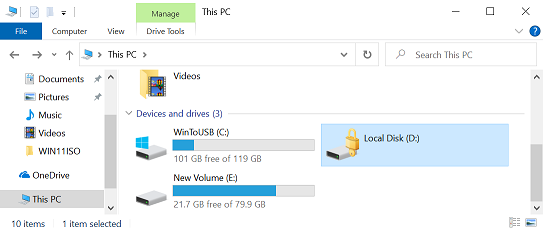
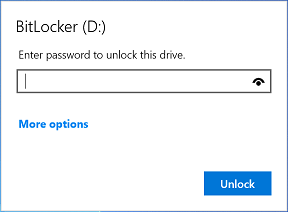
Step 3. Enter the BitLocker password or recovery key to unlock the drive. If you cannot unlock the drive, try the following solution: How to retrieve lost files using a BitLocker password or recovery key?
Step 4. Run Command Prompt (cmd.exe) as administrator. For more information about run cmd.exe as administrator, please refer to: How to run Command Prompt (cmd.exe) as administrator?
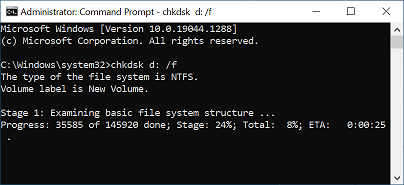
Step 5. Run "chkdsk D: /f" in cmd.exe to fix file system errors.
Step 6. After fixing the file system error, restart your computer to see if Windows can start properly.
How to Fix the "Enter the Recovery Key to Get Going Again" Error by Decrypting the Drive?
Before decrypting a drive, we recommend backing it up with Hasleo Backup Suite Free. Data on the drive may be corrupted, and decryption could cause further damage. A backup helps prevent additional data loss.
Step 1. Download, install, and run Hasleo WinToUSB. Then create a portable Windows on a USB drive. Here we do not explain in detail how to create portable Windows. Please refer to the detailed steps: How to create a portable Windows 11/10 USB drive?
Step 2. Boot Windows from the USB drive, download and install Hasleo BitLocker Anywhere. If your Windows operating system supports decrypting BitLocker encrypted drives, decrypt the drive and try to start Windows.
Step 3. Run Hasleo BitLocker Anywhere and decrypt the drive. Please note that we still recommend that you try to fix the file system errors first, because if there are file system errors on the drive, some of the data may be corrupted after decryption.
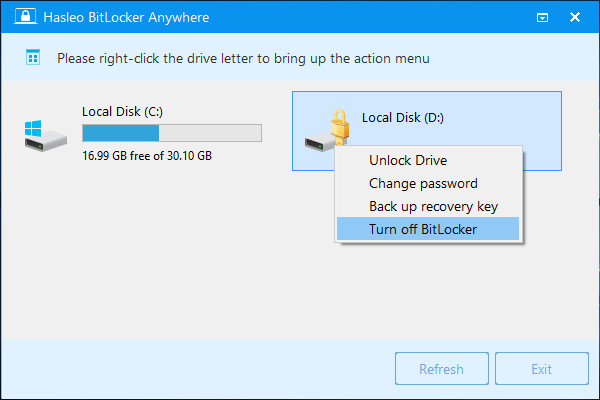
Step 4. After decrypting the drive, restart your computer to see if Windows can start properly.
How to Retrieve Lost Files Using a BitLocker Password or Recovery Key?
If the above mentioned methods still can't help you to fix "Enter the recovery key to get going again" error or you can't unlock the drive, then you have to consider using a BitLocker data recovery software to recover lost files, here we recommend you to try Hasleo BitLocker Data Recovery.
Step 1. Download and install Hasleo BitLocker Data Recovery on a computer running Windows. You can also install Hasleo BitLocker Data Recovery on the portable Windows created in the previous two methods.
Step 2. Create a bootable WinPE CD/DVD/USB drive with Hasleo BitLocker Data Recovery.
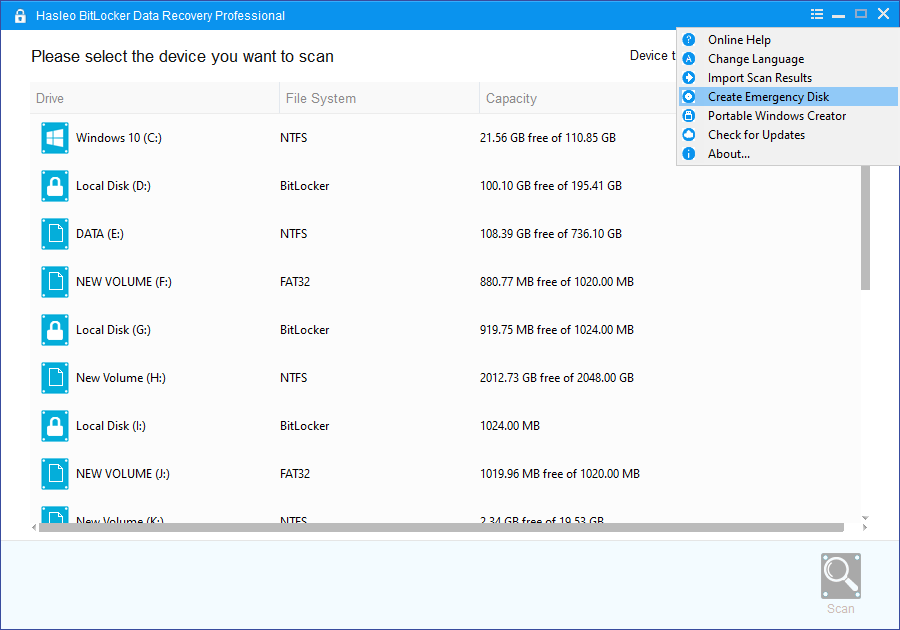
Step 3. Run Hasleo BitLocker Data Recovery from the bootable WinPE CD/DVD/USB drive to recover data.
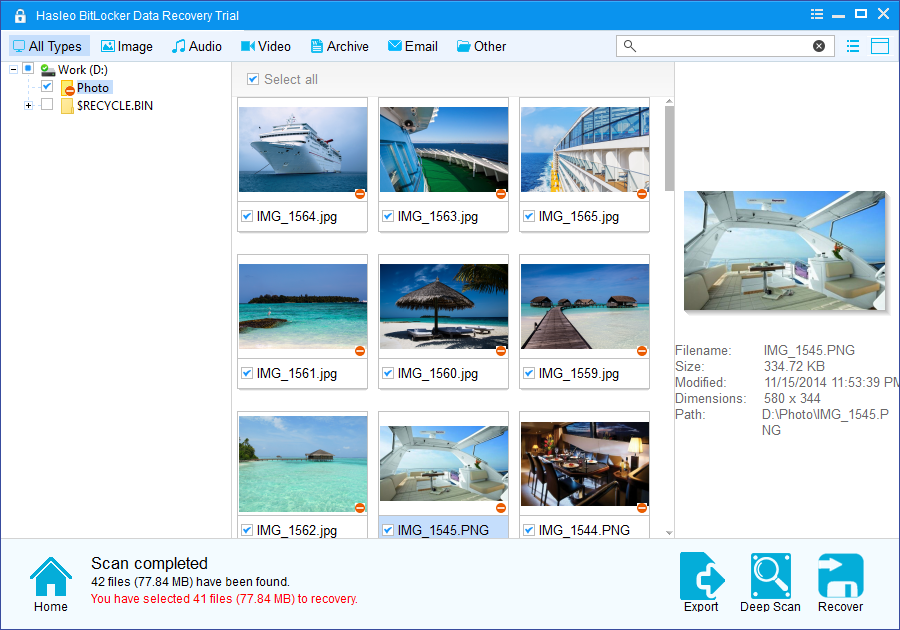
This guide does not cover the step-by-step process of recovering lost files with Hasleo BitLocker Data Recovery. For detailed instructions, please refer to: How to recover data after BitLocker encrypted Windows crashed?
Frequently Asked Questions (FAQ)
A: This error occurs when BitLocker cannot authenticate using the normal password or startup key. Common causes include: TPM detection failure, changes to boot configuration, file system corruption on the encrypted drive, or hardware changes (such as motherboard replacement).
A: No, you must have either the BitLocker password or the recovery key to access the encrypted drive. Without either key, there is no way to unlock the drive and recover your data.
A: You can find the recovery key in these locations: 1) Saved text file during encryption, 2) Printed copy, 3) Microsoft account (account.microsoft.com/devices/recoverykey), 4) Your domain administrator (for corporate computers).
A: If the recovery key is correct but still doesn't work, the Windows partition likely has file system errors or corruption. You can try creating portable Windows to run chkdsk to fix file system errors.
A: Yes, you can decrypt the drive using Hasleo BitLocker Anywhere from a portable Windows environment. However, this should be done after backing up the data if possible, as decryption may cause further data loss if there are file system errors.
A: The BitLocker password is set by you during encryption. The recovery key is a 48-digit numeric code automatically generated by BitLocker. The password is used for normal unlock, while the recovery key is used for emergency recovery situations.
A: Yes, you can use Hasleo BitLocker Data Recovery to create a bootable recovery disk and recover your files using the BitLocker password or recovery key.
A: Yes, formatting the drive will remove BitLocker encryption, but all data on the drive will be permanently lost. You cannot recover data from a formatted encrypted drive without the password or recovery key.
Conclusion
This tutorial describes four proven ways to resolve the "Enter the recovery key to get going again" error. Whether you need to retrieve your recovery key, repair file system errors with chkdsk, decrypt the drive using Hasleo BitLocker Anywhere, or recover lost files with Hasleo BitLocker Data Recovery, these methods can help you fix the error and regain access to your data.
Related Articles
- How to fix 'BitLocker Setup requires the drive file system to be NTFS error'?
- How to Turn On BitLocker in Windows 10 Home?
- How to Enable BitLocker in Windows 10 Home Edition?
- How to Encrypt Drive in Windows 11/10/8/7 Home & Windows 7 Pro?
- How to Protect Data with Best TrueCrypt Alternative in Windows 11/10/8.1/8/7 Home?