

- Common Causes of SD Card Formatting Failure
- Recover Data First with Hasleo Data Recovery
- Method 1: Check and Turn Off the Physical Write Protection Switch
- Method 2: Format SD Card Using Disk Management
- Method 3: Force Format Using the diskpart Command
- Method 4: Run CHKDSK to Repair File System Errors
- How to Prevent SD Card Problems
- Frequently Asked Questions (FAQ)
- Conclusion
SD cards are commonly used storage media widely applied in digital cameras, mobile phones, surveillance cameras, dashcams, and other devices. However, during use, have you ever encountered situations where the SD card suddenly cannot be formatted? Whether it's an error after clicking format, the system prompting "The disk is write protected", or the SD card becoming RAW format and unrecognizable, these issues can be frustrating. This tutorial will provide you with comprehensive solutions to help you resolve SD card formatting problems.
🚨Common Causes of SD Card Formatting Failure
Before solving the problem, we first need to understand the common causes of SD card formatting failure:
- Physical Write Protection Switch Locked: Some standard-sized SD cards have a physical write protection switch on the side. When the switch is slid to the "locked" position, the SD card becomes read-only, and any write, delete, or format operations will be rejected by the card itself.
- File System Corruption: The SD card's file system (such as FAT32, exFAT) may become corrupted due to abnormal power loss, improper removal, or other reasons, causing the system to fail to recognize it properly. Typical symptoms include showing as "RAW" format or "No Media" in Disk Management, where direct formatting may fail.
- SD Card Infected by Virus: Certain malware can modify the SD card's file system attributes or occupy disk resources, making it impossible to access and format normally. Even after antivirus software scans and removes threats, permission or occupancy issues may remain.
- SD Card Has Bad Sectors: Long-term use, frequent writes, or physical damage may cause the SD card to develop bad sectors. When the formatting process attempts to write critical data to these areas, the operation will fail. A small number of bad sectors can be repaired using tools, while a large number of bad sectors usually means the hardware has reached the end of its life.
- Card Reader or USB Port Issues: Sometimes the problem is not with the SD card itself. Poor card reader contact, poor main controller compatibility, or insufficient USB port power supply can all cause formatting to fail midway or the device to unexpectedly disconnect.
- SD Card Is In Use: If files on the SD card are being used by a program (such as File Explorer, antivirus software, background processes, etc.), the system will block formatting operations. This situation typically does not show a clear "in use" prompt, but formatting will fail or the option will be unavailable.
💡Tips: microSD cards typically do not have this switch, but if used with a card adapter, the write protection lock on the adapter can also cause issues.
👍Recover Data First with Hasleo Data Recovery
Important Reminder: Before attempting any formatting operation, if there are important files on the SD card, please first use data recovery software to try recovering files. Once formatting is successful, data cannot be recovered!
If your SD card can still be recognized (even if it cannot be formatted), you can try using Hasleo Data Recovery to recover important data first.
The main advantages of Hasleo Data Recovery include:
- Supports recovering data from formatted, corrupted, and RAW file system drives.
- Compatible with various file types and all types of storage devices.
- Provides deep scan function that can discover more hidden or lost files.
- Free version allows users to recover up to 2GB of data.

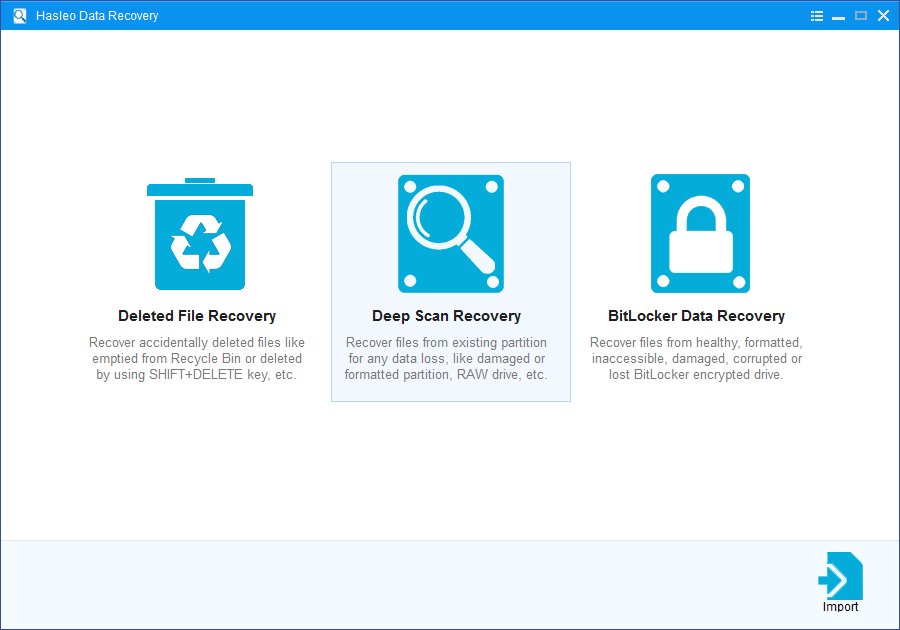
Step 1. Download, install, and run Hasleo Data Recovery. On the main interface, you will see three recovery modes. Please select "Deep Scan Recovery" mode.
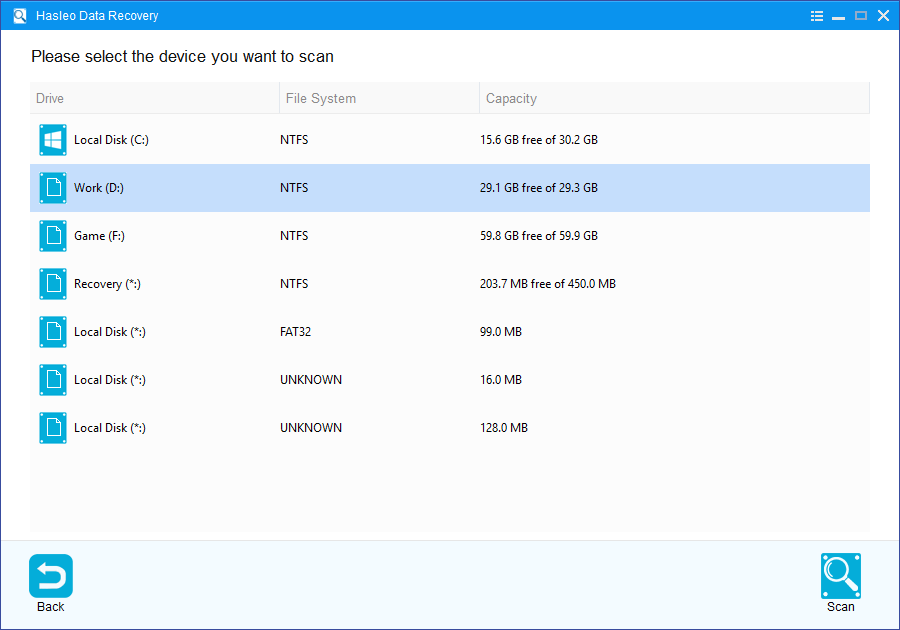
Step 2. Select the drive corresponding to your SD card, then click the "Scan" button.
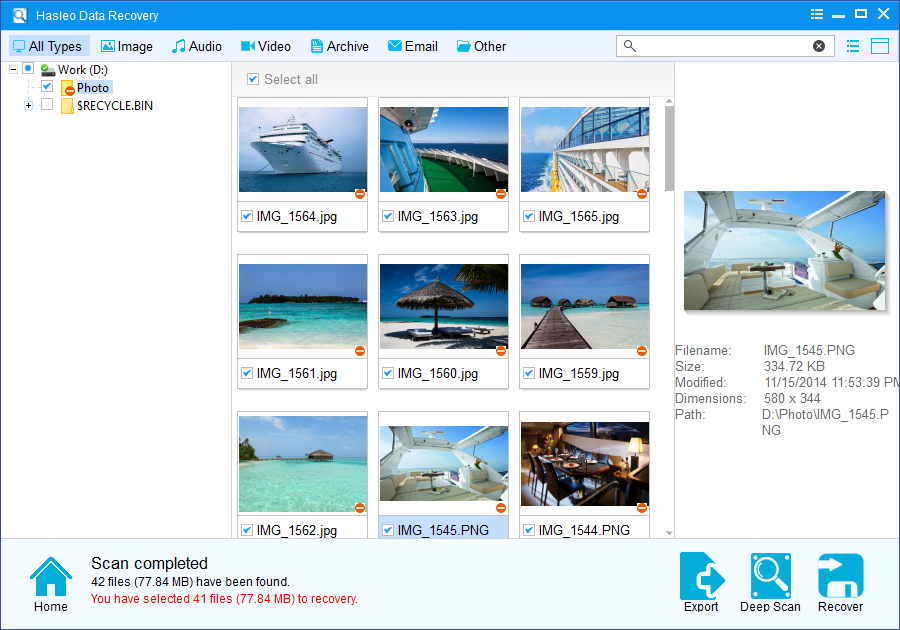
Step 3. After scanning completes, all found files will be displayed in the interface. You can quickly locate target files by path or file type. Before recovery, preview images, documents, videos, and other files to confirm they are intact. Select the files you want to recover, then click the "Recover" button.
💡Tips:
- If your device uses BitLocker Drive Encryption, please use the "BitLocker Data Recovery" function instead.
- Save recovered files to a different disk partition than the original location. This prevents overwriting recoverable data that may still exist in the original location.
Method 1: Check and Turn Off the Physical Write Protection Switch
This is the simplest but most easily overlooked issue. First check if there is a write protection switch on the side of your SD card.
Step 1. Remove the SD card and carefully examine the side of the card. Most SD cards have a small sliding switch on the side.
Step 2. Make sure the switch is slid to the "unlock" position (usually upward or toward the contact side).
Step 3. Reinsert the SD card into the card reader and try formatting again.
💡Tips: If your SD card does not have a physical write protection switch, or the switch is already in the unlock position but the problem persists, please continue with the methods below.
Method 2: Format SD Card Using Disk Management
When the SD card cannot be formatted through normal methods, you can try using Windows built-in Disk Management tool.
Step 1. Press Win + R to open the Run dialog, type diskmgmt.msc, then press Enter to open Disk Management.
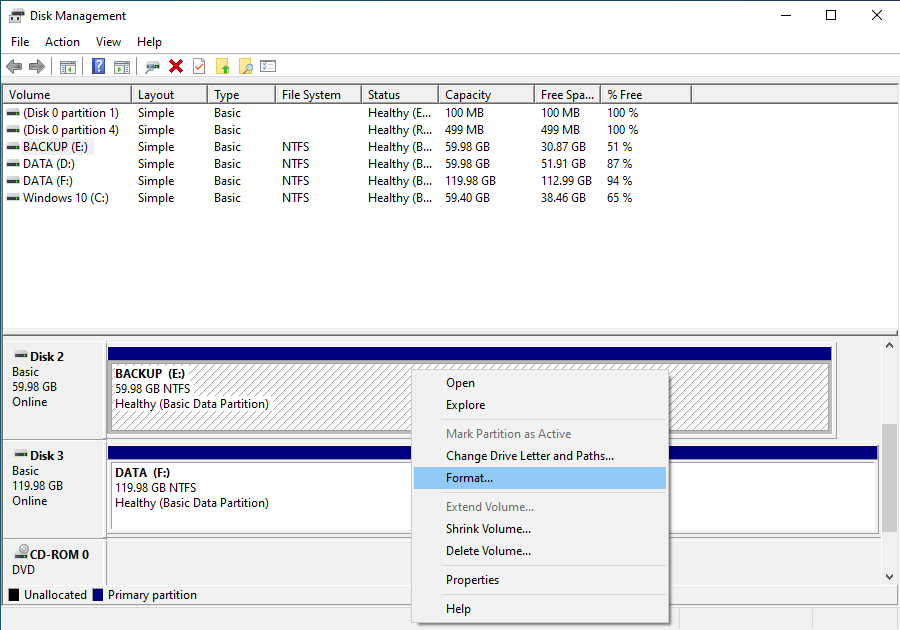
Step 2. In the Disk Management window, find your SD card (usually displayed as "Removable Disk"). Please right-click on the SD card partition area (the bar showing capacity and drive letter), not the disk label on the left side.
Step 3. In the popup menu, select "Format...".
Step 4. In the Format dialog, select the file system according to your needs:
- Capacity ≤32GB: Recommended to choose FAT32 (best compatibility, suitable for most devices)
- Capacity >32GB: Recommended to choose exFAT (supports large files, suitable for newer devices)
💡Tips: If the format option is grayed out or you get an error after clicking, the SD card may have more serious issues requiring other solutions.
Step 5. Check "Quick Format", then click "OK".
Method 3: Force Format Using the diskpart Command
If Disk Management also cannot format the SD card, you can try using the diskpart command-line tool for forced formatting.
⚠️Warning: This operation will erase all data on the SD card. If there are important files on the SD card, please first try the data recovery steps.
Step 1. Press Win + R to open the Run dialog, type cmd, then press Ctrl + Shift + Enter to open Command Prompt as administrator.
Step 2. In the Command Prompt window, enter the following command to enter the disk partition tool:
diskpart
Step 3. List all physical disks and find your SD card (judge by capacity, usually "Removable" type), and note the disk number corresponding to your SD card (for example, Disk 2).
list disk
Step 4. Select the disk corresponding to your SD card (please make absolutely sure the number is correct):
select disk 2
⚠️Tips: Replace 2 with the actual SD card disk number shown in Step 3. If you select the wrong disk, it will cause data loss on other storage devices!
Step 5. Execute the following commands in sequence to clear the disk, create a partition, and format:
clean
create partition primary
format fs=fat32 quick (or format fs=exfat quick for large capacity cards)
assign
Step 6. After completion, type "exit" to exit diskpart.
Important: Before executing the clean command, make absolutely sure you have selected the correct disk. Selecting the wrong disk may cause data loss on other storage devices!
Method 4: Run CHKDSK to Repair File System Errors
If the SD card shows as RAW format or file system is corrupted, you can try using the chkdsk command to repair it.
Step 1. Open Command Prompt (as administrator).
Step 2. Assuming your SD card is on drive D, enter the following command:
chkdsk D: /r
Parameter explanation: /r: Locates bad sectors and recovers readable information
Step 3. Wait for chkdsk to complete scanning and repair.
- If repair is successful, the SD card can usually be accessed normally. It is recommended to backup data first, then decide whether formatting is needed based on the situation.
- If formatting is needed, please perform it after backing up data.
💡Tips: If the SD card displays as "No Media", or capacity shows as 0 MB / unrecognizable in Disk Management, or chkdsk reports "Access denied as the volume is RAW", there is likely serious physical damage, main controller failure, or poor contact. At this point, chkdsk cannot repair. Please try: replacing the card reader or USB port, or testing on another computer.
🎯How to Prevent SD Card Problems
Prevention is always better than cure. Here are best practices for protecting SD card health and extending its service life:
Properly Eject SD Card
After using the SD card, be sure to properly eject it using the "Safely Remove Hardware" function in the system tray. Wait for the system to prompt "Safe to Remove" before taking it out. Forcing removal may cause file system corruption or data loss.
Avoid Removing During Data Transfer
During copying, deleting, or formatting files, do not remove the SD card. Wait for the operation to complete and confirm before safely ejecting.
Use High-Quality Card Readers
Low quality card readers may cause poor contact, insufficient power supply, or signal interference. It is recommended to use brand-name card readers to avoid SD card or data damage due to peripheral issues.
Regularly Backup Important Data
SD cards as storage media have the risk of sudden damage. Please regularly backup important data to your computer hard drive, cloud storage, or other reliable devices.
Avoid Important Write Operations When Battery Is Low
When phone, camera, or other device battery is low, it is recommended to connect to power or replace the battery before performing important read/write operations, to prevent data corruption due to unexpected device shutdown.
Pay Attention to Storage Environment
Avoid exposing SD cards to extreme temperatures, humidity, strong static electricity, or strong magnetic fields. When storing, place them in protective cases or card adapters to prevent physical damage.
Frequently Asked Questions (FAQ)
A: SD cards fail to format for several reasons: write protection is enabled (check the physical switch), the file system is corrupted and shows as RAW, the card has bad sectors, there's a driver issue, or the card is locked by malware. Solutions include using Disk Management to clean and reformat, running CHKDSK to fix file system errors, removing write protection, or using third-party formatting tools.
A: Before formatting a problematic SD card, always try to recover your data first. Use Hasleo Data Recovery to scan the card and save recovered files to a different location. The recovery software can read raw sectors and find files even from corrupted or RAW SD cards. Only after securing your important files should you attempt to format or repair the card.
A: If your SD card shows as RAW, don't format it immediately. First, recover your data using Hasleo Data Recovery's Deep Scan feature which reads raw sectors to reconstruct files. Then you can attempt to format the card using Windows Disk Management, diskpart commands, or third-party tools. If the card still won't format, it may have physical damage and should be replaced.
A: To remove write protection: 1) Check for a physical switch on the card and flip it to unlocked, 2) Open Disk Management, right-click the SD card partition, and deselect 'Read-only', 3) Run diskpart and use 'attributes disk clear readonly' command, 4) Edit the Windows Registry and set WriteProtect to 0 in StorageDevicePolicies, 5) Check for and remove any malware that may be locking the card.
A: A corrupted SD card can sometimes be repaired without data loss using methods like running CHKDSK (/f/r commands), using diskpart to clean and format, or using manufacturer-specific recovery tools. However, if the corruption is severe, repair attempts may cause further data loss. Always recover your data first with Hasleo Data Recovery before attempting any repair operations.
Conclusion
SD card cannot be formatted is a common but frustrating problem. Through the methods introduced in this tutorial, in most cases you can successfully resolve the issue. It is particularly important to note that data recovery should be performed before formatting. If there are still important data on the card, please first use professional data recovery software to export the data. Data still has a high chance of recovery after quick formatting, but full formatting will significantly increase recovery difficulty. Therefore, it is crucial to develop the habit of backing up or recovering data before operations.
If you have tried all methods but still cannot format the SD card, the SD card may have physical damage. In this case, it is recommended to purchase a new SD card, and develop the habit of regularly backing up important data in daily use. This is the best strategy for protecting data security.


