

- Why You Need Professional Data Recovery Software After a System Crash?
- Preparation: Create a WinPE Bootable Disk
- Using Hasleo Data Recovery to Recover Data from Crashed System
- BitLocker Encrypted Drive Data Recovery
- Frequently Asked Questions
When Windows system crashes and fails to boot, many people's first reaction is to worry whether the important data on the hard drive—work documents, precious photos, personal files, and so on—will be lost forever. In fact, as long as the hard drive itself has no physical damage, this data can usually be recovered. However, it is important to note that when the system cannot boot normally, you cannot directly install or run data recovery software on the crashed system. This guide will explain in detail how to use Hasleo Data Recovery, a professional data recovery tool, to urgently scan and recover important data after a system crash.
⭐Why You Need Professional Data Recovery Software After a System Crash?
When the system crashes and cannot boot normally, the standard Windows environment is inaccessible. At this time, you need professional data recovery software to help you extract important files from the crashed system. Here are the main reasons to choose Hasleo Data Recovery:
- Support recovering data from crashed systems: Hasleo Data Recovery is specifically designed for extreme situations like system crash, hard drive corruption, and unbootable systems. It can perform data recovery when Windows cannot boot normally.
- Support multiple file systems: Fully supports NTFS, FAT32, exFAT, RAW and other file systems, covering almost all Windows storage devices.
- Deep Scan for Maximum Recovery: Uses advanced deep scan algorithms to find lost files that regular scans cannot discover, maximizing recovery success rate.
- BitLocker encryption support: If you used BitLocker to encrypt your system drive, Hasleo Data Recovery can help you recover data from encrypted partitions after providing the recovery key.
- Support creating WinPE emergency disk: The built-in "Create Emergency Disk" feature allows you to create a WinPE-based bootable USB or ISO image with one click, and the entire process does not require downloading any additional software.
The success rate of recovery mainly depends on:
- Whether the data has been overwritten by newly written content
- Whether the hard drive has physical bad sectors or other hardware failures
- The extent of file system corruption
💡Tips: Taking action as early as possible and avoiding unnecessary writes to the failed hard drive are the keys to improving recovery success rate.
Preparation: Create a WinPE Bootable Disk
Since the system cannot boot into Windows after crash, you need to use a WinPE bootable disk to run Hasleo Data Recovery. WinPE (Windows Preinstallation Environment) is a lightweight Windows boot environment that can access hard drive files without booting the hard drive system. Hasleo Data Recovery has built-in WinPE creation feature. You don't need to download any additional tools. You can create a WinPE bootable disk with data recovery functionality with just one click from within Hasleo Data Recovery software.
Step 1. Download and Install Hasleo Data Recovery
First, download and install Hasleo Data Recovery on another working computer.
Step 2. Create WinPE Bootable Disk
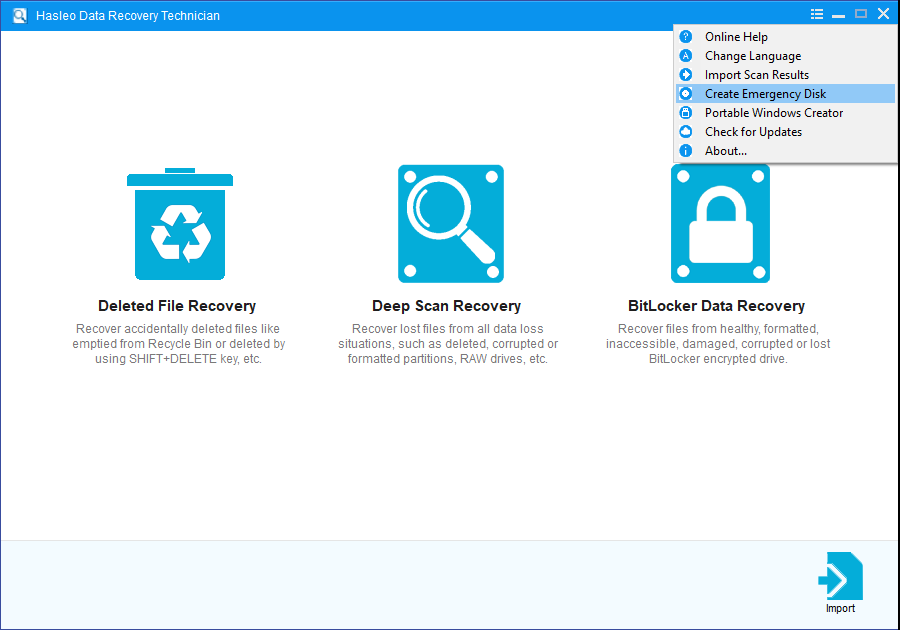
1. Run Hasleo Data Recovery, click  in the upper-right corner, and select "Create Emergency Disk".
2. Select the boot disk type you want to create (USB or ISO), then follow the wizard to complete the WinPE bootable disk creation.
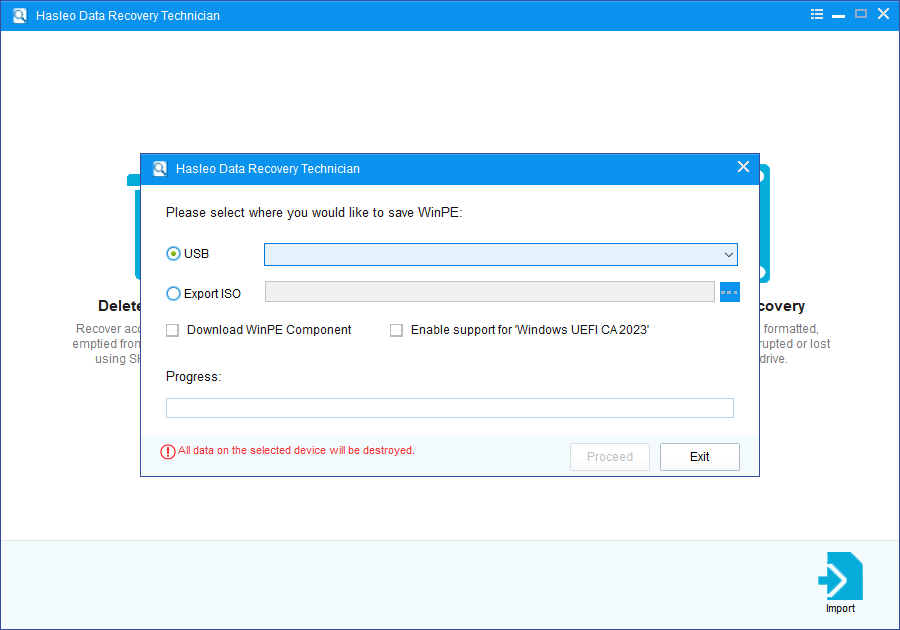
💡Tips: After exporting the ISO file, you can manually burn it to CD, DVD, or USB drive using third-party burning software.
3. Hasleo Data Recovery will start creating the WinPE image. Wait for this process to complete.
⚠️Tips: The creation process will format the USB drive, and all original data will be cleared. Be sure to back up important files in advance.
Step 3. Configure BIOS to Boot from USB
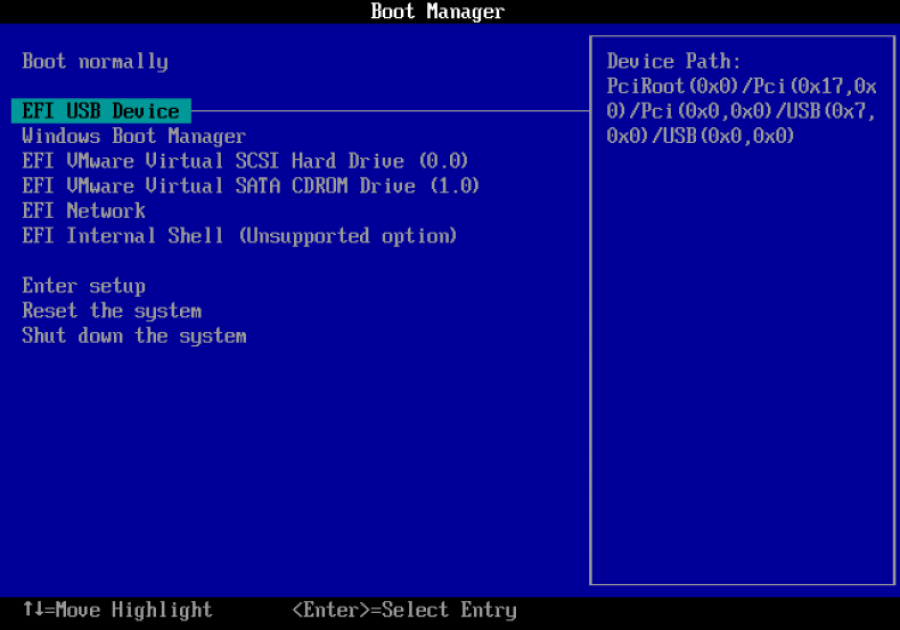
Insert the created WinPE bootable disk into the USB port of the crashed computer, start the computer, and enter UEFI/BIOS settings. Adjust the boot order to boot from USB device.
Step 4. Enter WinPE System
Save UEFI/BIOS settings and restart the computer. The system will boot from the WinPE bootable disk. After startup completes, you will see a desktop environment similar to standard Windows, and Hasleo Data Recovery is already pre-installed in the WinPE system, ready to use directly.
💡Tips:
- Make sure the WinPE bootable disk has sufficient capacity. It is recommended to use a USB flash drive with 8GB or larger.
- If your hard drive uses BitLocker encryption, prepare the recovery key in advance.
Using Hasleo Data Recovery to Recover Data from Crashed System
Now that you have entered the WinPE system, next use Hasleo Data Recovery to recover important data from the crashed system.
Step 1. Select Recovery Mode
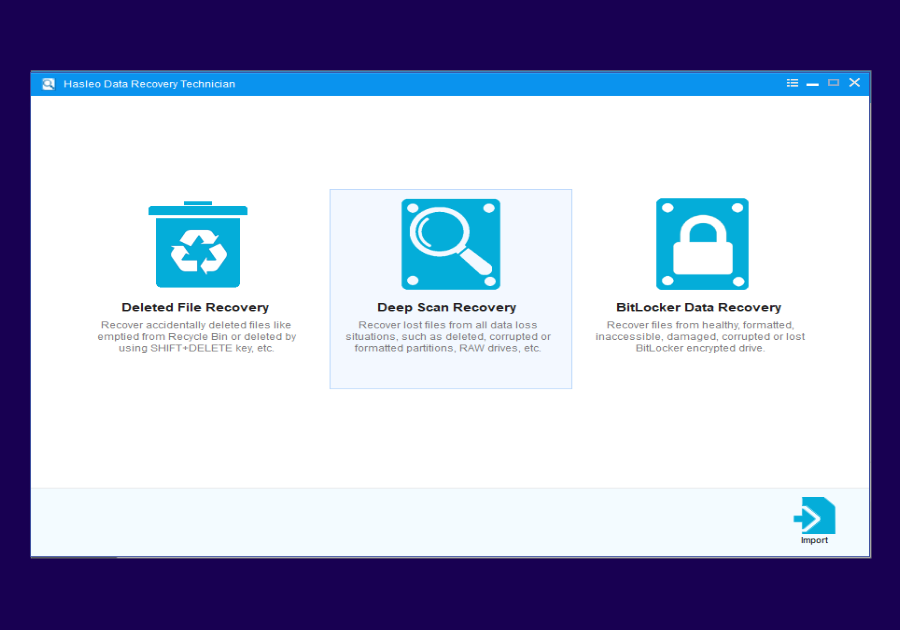
Run Hasleo Data Recovery. On the main interface, you will see three recovery modes. Select "Deep Scan Recovery" mode.
Step 2. Select Hard Drive Partition to Recover Data From
In the drive list, select the hard drive partition you need to recover data from. If you need to recover data from multiple partitions, you can scan and recover them one by one.
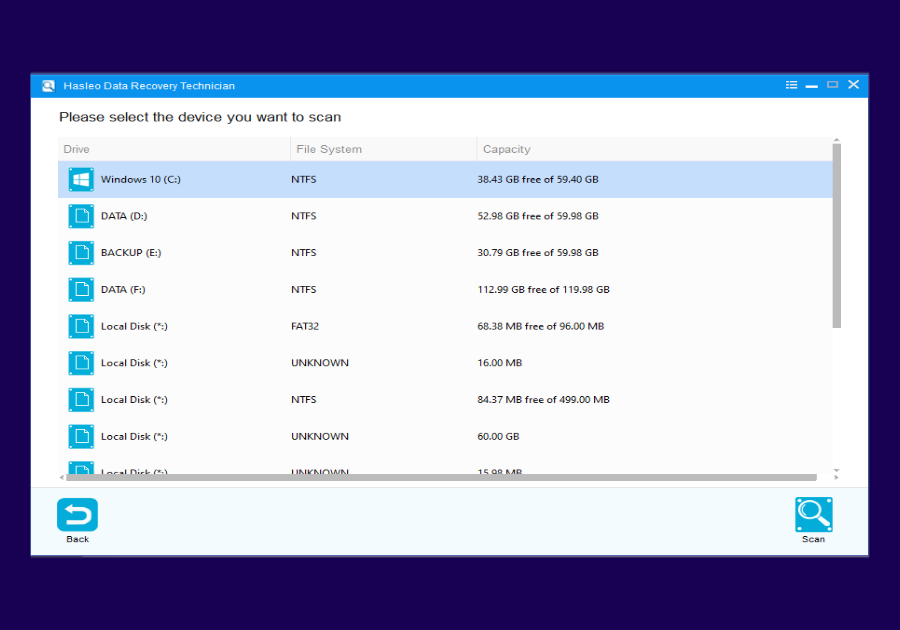
Step 3. Start Scanning
Click the "Scan" button to start deep scanning. The scanning process may take some time, depending on hard drive capacity and file count. Please wait patiently for the scan to complete. Do not interrupt the scanning process.
💡Tips: If the hard drive has bad sectors, scanning may take longer.
Step 4. Preview and Select Files to Recover
After scanning completes, all found files will be displayed in the interface. You can preview them by path or file type. Select the files you want to recover, then click the "Recover" button to save them to another healthy hard drive partition or external storage device (it is recommended to use external hard drive or USB flash drive).

⚠️Tips:
- Never save recovered files to the original hard drive partition, otherwise it may overwrite data that has not yet been recovered.
- It is recommended to use external hard drive or USB flash drive as the target storage device.
- Ensure the target storage device has sufficient available space.
BitLocker Encrypted Drive Data Recovery
If your system drive uses BitLocker encryption, recovering data after system crash will be relatively more complicated. Hasleo Data Recovery also supports recovering data from BitLocker encrypted drives.
Preparation Before Recovery
- Prepare BitLocker recovery key (48-digit number)
- Or prepare BitLocker password
Recovery Steps
Step 1. Run Hasleo Data Recovery in the WinPE system, select "BitLocker Data Recovery" mode.
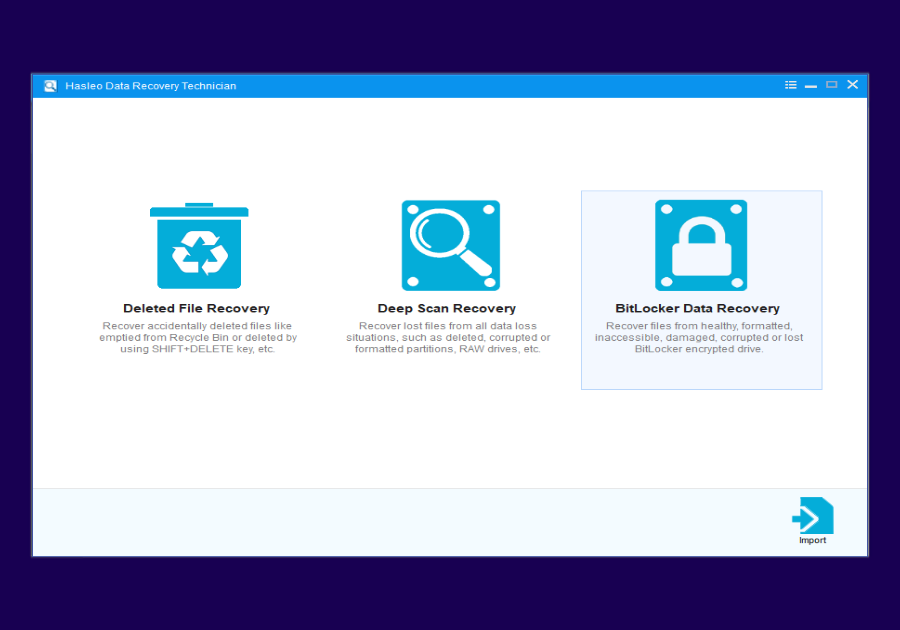
Step 2. Select the BitLocker encrypted hard drive partition.
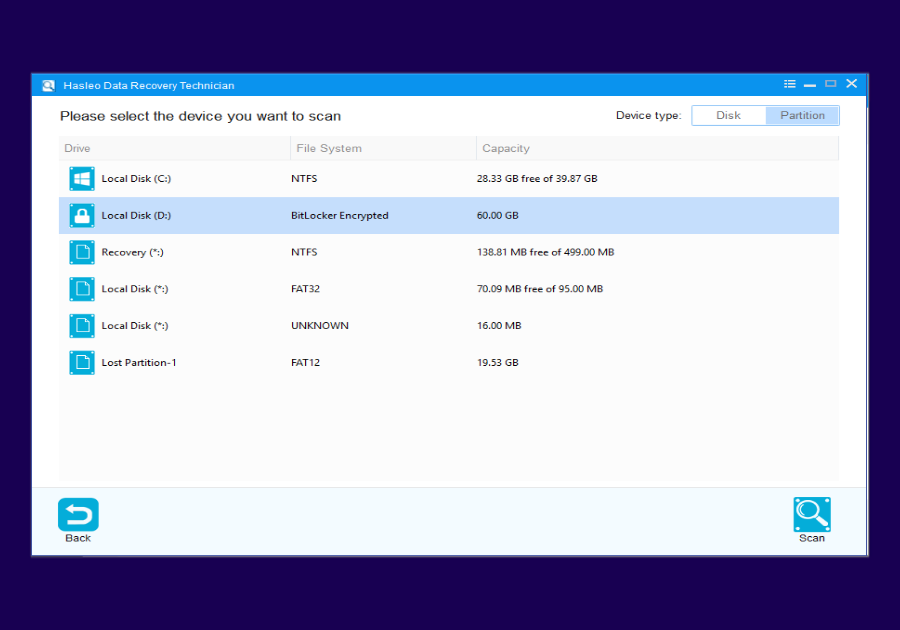
Step 3. The software will prompt you to enter recovery key or password. Enter the correct key and click "OK".
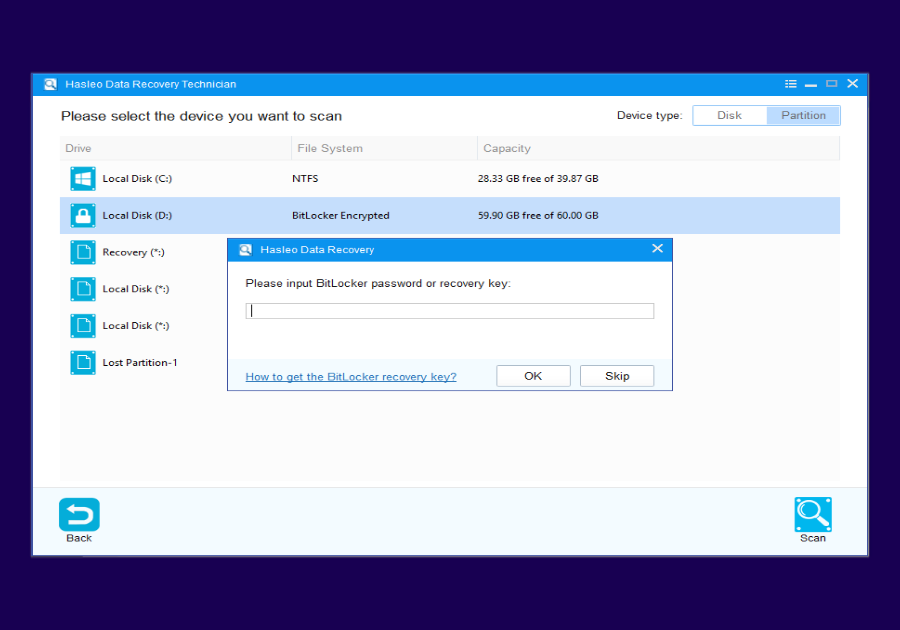
Step 4. After successful unlock, click "Scan" to scan and recover files.
⚠️Tips:
- If you do not have the BitLocker recovery key, you cannot access data in the encrypted partition.
- It is recommended to keep the recovery key in a safe place, preferably in the cloud or as paper backup.
After successfully recovering data to other external storage devices, you can proceed with reinstalling the system, formatting the hard drive, or repairing the hard drive.
Frequently Asked Questions (FAQ)
A: Usually, system crash does not mean hard drive data is lost. Data is still stored on the hard drive, it's just that the Windows system cannot boot normally to read it. Using professional data recovery software like Hasleo Data Recovery can successfully recover data in most cases.
A: Deep scan needs to scan the entire hard drive sector by sector. Scanning time depends on hard drive capacity and file count. If the hard drive has bad sectors, scanning will take longer. Please be patient and wait for scanning to complete.
A: The free version can recover up to 2GB of data. The professional version has no data recovery size limit. The free version is enough to test the software effect. After confirming it can find the files you need, upgrade to the professional version or other versions for complete recovery.
A: Yes, you can scan and recover each partition separately. It is recommended to recover the most important partition first (like the C: system partition), then handle other partitions.
A: If your system drive uses BitLocker encryption, you need to prepare the BitLocker recovery key (48-digit number) or password. Boot into WinPE system, run Hasleo Data Recovery, select BitLocker Data Recovery mode, select the encrypted partition, enter the recovery key or password, and then scan to recover files.


