

- Common Causes of File Corruption
- Method 1: Repair Corrupted Office Documents (Word/Excel/PowerPoint)
- Method 2: Use Windows Built-in Tools to Fix File Errors
- Method 3: Repair Other Common File Types
- How to Prevent File Corruption and Back Up Important Files
- Frequently Asked Questions
- Summary
In daily work and life, file corruption is a common and frustrating problem that many people encounter. Whether it's an important Word document, Excel spreadsheet, or precious photos and videos, being unable to open them can cause significant inconvenience. File corruption can occur for various reasons - sudden power outages, program crashes, hard drive bad sectors, virus attacks, or even physical failure of storage devices. This guide provides step-by-step solutions for fixing corrupted files across different file types, including Office documents, photos, archives, and more. It also covers Windows built-in repair tools and teaches you how to back up important files with Hasleo Backup Suite to prevent data loss. If your storage device has physical damage, stop using it immediately and seek professional data recovery services.
Common Causes of File Corruption
Understanding the causes of file corruption is the first step in solving the problem. Accurately identifying the "root cause" can significantly improve the success rate of data recovery. Here are the common causes of file corruption:
- Sudden power outage or unexpected shutdown: This is one of the most common causes of corruption. When the computer is writing files to the hard drive (such as saving a Word document or downloading data), a sudden power outage causes the write operation to be interrupted. At this time, the file header (directory information) or critical data structures have not been fully written, resulting in incomplete file logical structures. This manifests as files that cannot be opened or have missing content when opened.
- Storage device failure: Hard drive physical or logical bad sectors, SSD (Solid State Drive) lifespan degradation, USB flash drive/memory card physical damage, etc., can all cause files stored on them to become corrupted. When a hard drive has bad sectors, files in those areas may have errors when read.
- Software crashes and write cache errors: When an application crashes while processing large files, or when the operating system encounters errors while writing memory cache to the hard drive, files may not be saved completely. This is especially problematic for tightly structured files like videos, archives, and databases - even a small amount of missing data can make the entire file unrecognizable.
- Virus or malware attacks: Some viruses specifically damage file structures, encrypt file data, or even delete files. Some ransomware encrypts your files and demands ransom, making them unusable.
- File transfer interruption or errors: When copying, moving, or downloading files, network interruptions, connection errors, or transfer interruptions can cause incomplete or corrupted files. Using poor-quality cables or copying from unreliable sources (such as damaged CDs) can also cause data corruption (Bit Rot).
- Incorrect hot-swapping and operations: Forcefully removing USB drives/external hard drives during file transfer, or force-ending processes while programs are running (such as using Task Manager to end tasks), can cause file handles to not be released properly, resulting in data loss.
- Software version incompatibility: Using lower version software to open files created by higher version software that contain new features (such as new formulas or styles in high-version Office files) may cause rendering errors or file structure corruption if compatibility handling is improper.
- File system errors: Damage to hard drive partition tables or file indexes (such as NTFS MFT - Master File Table) can cause all files in a partition to show as 0 bytes or prompt "The file or directory is corrupted and unreadable". This is usually caused by hard drive bad sectors, forced shutdown, or partition software operation errors.
💡Tip: When you discover file corruption, immediately stop any write operations on that storage device (such as downloading new files or running defragmentation). Because corrupted files may still remain on the disk, once they are overwritten by new data, they will be permanently unrecoverable.
Method 1: Repair Corrupted Office Documents (Word/Excel/PowerPoint)
Office documents are used frequently in daily work but are also prone to corruption due to power outages, program crashes, and other reasons. When you encounter documents that won't open, you can try the following methods to repair them.
Using Office Built-in Document Repair Feature
Microsoft Office has a built-in document repair feature that can automatically try to repair corrupted documents.
- Open Word (or Excel/PowerPoint), click the "File" tab in the upper left corner, then select "Open".
- Click "Browse" to find and select the corrupted document.
- Click the dropdown arrow next to the "Open" button in the lower right corner.
- Select "Open and Repair" from the dropdown menu.
- The program will attempt to repair the document and automatically open it. After successful repair, it is recommended to save the document immediately to prevent further loss.
Recovering from File Backups
If you have a habit of regular backups, you can recover undamaged versions from backups. Using Hasleo Backup Suite as an example:
- Launch Hasleo Backup Suite, click the "Restore" button in the navigation bar.
- Select "Browse image to restore" in the operation area to find the backup file.
- Select the restore target location and version.
- Click "Proceed" to restore.
Method 2: Use Windows Built-in Tools to Fix File Errors
Windows system has multiple built-in utility tools that can help diagnose and repair various file and disk-related issues.
Using System File Checker (SFC)
The SFC tool is used to scan and repair damaged Windows system files.
- Right-click the "Start" button and select "Windows PowerShell (Administrator)" or "Command Prompt (Administrator)".
- Enter the following command in the administrator window and press Enter:
- Wait for the scan to complete. The system will automatically detect and repair damaged system files.
sfc /scannow
Using Disk Check Tool (CHKDSK)
The CHKDSK tool can scan for disk errors and attempt to repair damaged file sectors.
- Open Command Prompt or PowerShell as administrator.
- Enter the following command (replace C: with the drive letter you want to check):
- If checking the system drive (usually C:), the system will prompt "Cannot lock current drive" and ask whether to schedule the check for next restart. Type "Y" to confirm.
- Restart the computer. The system will automatically execute disk check and repair during startup.
chkdsk C: /f /r
💡Tips:
- When checking non-system drives (such as USB drives, external hard drives), you can run directly without restarting.
- The execution process may take a long time, please be patient.
Using DISM Tool to Repair System Image
The DISM (Deployment Image Servicing and Management) tool can repair Windows system image files and resolve deep system issues that SFC cannot handle.
- Open Command Prompt or PowerShell as administrator.
- Enter the following command and press Enter:
- Wait for the repair to complete. This process may take 10-30 minutes, depending on system condition and network speed.
DISM /Online /Cleanup-Image /RestoreHealth
💡Tips:
- This command requires an internet connection because the system will fetch healthy system files from Windows Update.
- After DISM repair is complete, it is recommended to run sfc /scannow again for verification.
Method 3: Repair Other Common File Types
Beyond Office documents, other file types such as images, and archives can also become corrupted. Here are methods to repair them or recover their contents.
Repair Corrupted Images and Photos
If your photos or images won't open or display incorrectly:
- Use image viewing software's built-in repair: Some image viewers like IrfanView or XnView can open partially corrupted images that Windows Photos cannot.
- Convert the file format: Try converting the image to another format (e.g., PNG to JPG) using free tools like GIMP or online converters. This can sometimes reconstruct the file header.
- Use dedicated image repair tools: Tools like Stellar Repair for Photo or JPEG-Repair can fix severely corrupted image files.
- Try Hasleo Data Recovery: If the image file is deleted or lost, data recovery software can help scan and recover it from the storage device.
Repair Corrupted Archives (ZIP/RAR)
Compressed archives can become corrupted due to incomplete downloads or transfer errors:
- WinRAR built-in repair: Open the archive in WinRAR, select "Tools" > "Repair archive" (or press Alt+R). WinRAR will attempt to reconstruct the archive.
- 7-Zip extraction: 7-Zip can often extract files from partially corrupted archives. Try extracting with the "Keep broken files" option enabled.
- Re-download the archive: If the archive was downloaded, try downloading it again from the source, ensuring a stable internet connection.
General File Recovery Tips
- Try opening with alternative software: Different programs handle file corruption differently. If one program cannot open a file, try another that supports the same format.
- Restore from previous versions: Right-click the corrupted file in File Explorer, select "Properties" > "Previous Versions" to see if Windows has saved an older, uncorrupted version.
- Use Hasleo Data Recovery: If you cannot repair the file, data recovery software may be able to recover an earlier version or undamaged fragments from the disk.
How to Prevent File Corruption and Back Up Important Files
Preventing file corruption is far more important than trying to repair files after they become corrupted. Data loss often happens in an instant, while establishing good prevention habits can build a strong defense for your digital assets.
Best Practices to Prevent File Corruption
- Regularly back up important files: Use professional backup software (such as Hasleo Backup Suite) to regularly back up important files. It is recommended to back up important files at least once a week, and more frequently for critical data. Also follow the 3-2-1 backup principle.
- Use Uninterruptible Power Supply (UPS): A UPS can provide backup power during sudden power outages, giving you time to properly save files and shut down.
- Avoid interrupting file transfers: When copying, moving, or downloading files, ensure the operation is complete before performing other operations.
- Use reliable storage devices: Choose high-quality hard drives, USB drives, and memory cards. Regularly check the health of storage devices and replace problematic devices in a timely manner.
- Install reliable antivirus software: Install and regularly update antivirus software to prevent viruses and malware from damaging your files.
- Keep software updated: Keep the operating system and commonly used software updated to fix known vulnerabilities and issues.
- Pay attention to disk space: Ensure the system drive and other important drives have sufficient free space.
- Close programs properly: Before closing programs, ensure files have been saved. Avoid force-closing programs or shutting down directly.
- Use cloud storage services: Sync important files to cloud storage (such as OneDrive, Google Drive, DropBox, etc.) so you can recover from the cloud when local files are corrupted.
Back Up Important Files with Hasleo Backup Suite Free
Hasleo Backup Suite provides powerful file backup features to help you regularly back up important files and ensure data security.
Steps to backup files using Hasleo Backup Suite:
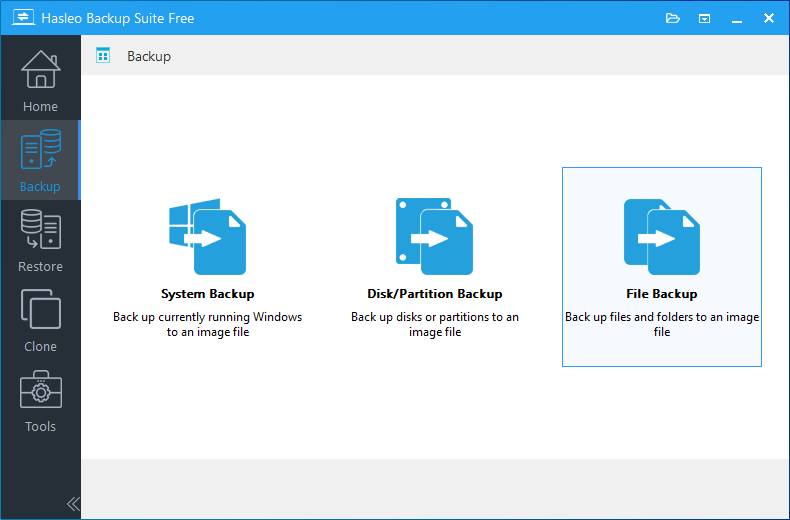
Step 1. Download, install and run Hasleo Backup Suite. Click the "Backup" button in the navigation bar, and select "File Backup" in the operation area.
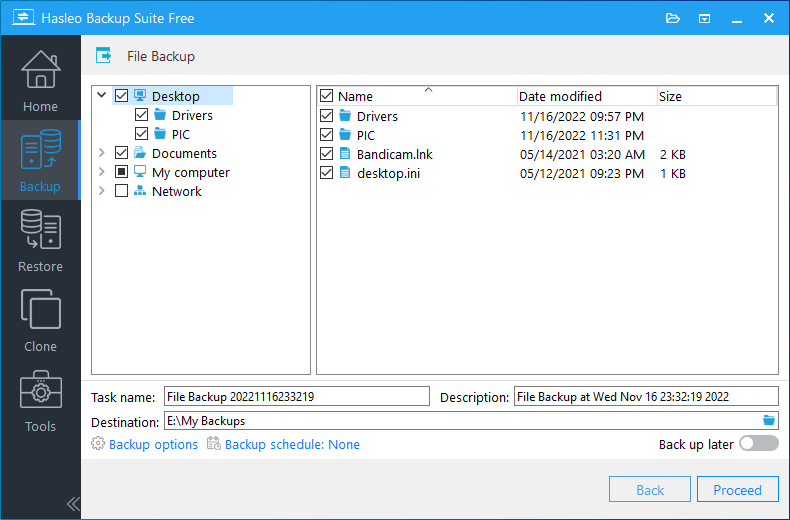
Step 2. Select the files or folders to backup. Then, customize the task name, description, destination, and backup options as needed. Click the "Proceed" button to proceed.
💡Tips:
- Task Name: Specify a task name so that you can quickly find and manage your backup task later.
- Description: Briefly describe the purpose of the task and any other relevant information.
- Destination: Modify the destination path where the backup image files will be stored by clicking the folder icon.
- Backup options: Advanced backup settings. For more details, please refer to Backup options.
- Backup schedule: Set up backup schedules to automatically perform your backup tasks on a regular basis. For more details, please refer to Backup schedule.
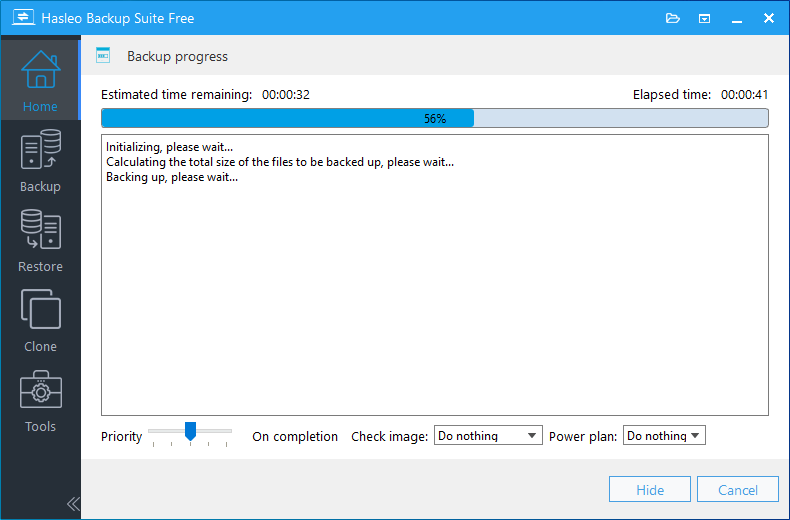
Step 3. Hasleo Backup Suite will start executing the file backup task. This process takes some time; please wait patiently.
💡Tip: Regularly backing up important files is the best strategy to prevent data loss. It is recommended to back up important files at least once a week, and more frequently for critical business files.
Frequently Asked Questions
A: Not all corrupted files can be fully repaired. Success depends on corruption extent and file type. Simple header corruption is often repairable, while severe physical damage may need professional data recovery.
A: Program crashes or power loss during saving can corrupt Word documents. Try 'Open and Repair' in Word, or restore from a backup if available.
A: Run CHKDSK scan (chkdsk C: /f /r) on the drive. If bad sectors are found, the scan will report them. You can also use disk health monitoring tools to check the drive's SMART status.
A: No. SFC and DISM only repair Windows system files, not personal documents, photos, or user files. Use backups or specialized recovery tools for personal files.
A: Stop using the storage device immediately to prevent data overwriting. Contact professional data recovery services as soon as possible for the best chance of recovery.
A: At least once a week, more frequently for critical business data. Use Hasleo Backup Suite's scheduling feature to automate regular backups.
A: Cloud storage provides version history that can help recover previous file versions. However, it should complement, not replace, a dedicated backup solution.
A: Not always. Corruption can result from power outages, crashes, or viruses. But frequent corruption may indicate hard drive issues. Check SMART data and consider replacement if problems persist.
Summary
File corruption is a common problem, but with the right approach, most corrupted files can be recovered. Start by identifying the cause of corruption, then choose the appropriate repair method based on the file type. For Office documents, use the built-in "Open and Repair" feature. For system-level issues, run SFC, CHKDSK, and DISM tools. For images, archives, and other file types, try alternative software or dedicated repair tools.
Remember, prevention is always better than cure. The most reliable way to protect your data is to maintain regular backups using Hasleo Backup Suite. By combining good prevention habits - regular backups, using a UPS, avoiding interrupted transfers, and monitoring disk health - with the repair methods covered in this guide, you can minimize data loss and recover quickly when file corruption occurs.
If all repair methods fail and the data is critical, stop using the device and contact professional data recovery services. Time is of the essence - the sooner you act, the higher the chance of successful recovery.
Related Articles
- How to Back Up and Restore Windows 11 for Free Using Hasleo Backup Suite Free?
- How to Fix "File Too Large for USB" Error (4GB Limit)?
- How to Create Full/Differential/Incremental Backups in Windows Using Hasleo Backup Suite Free
- How to Back Up Windows Automatically on a Regular Basis?
- Free Data Recovery Software - Hasleo Data Recovery


