- What is a BitLocker Recovery Key?
- Why Do You Need to Export and Backup the BitLocker Recovery Key?
- Why Can't You Export a BitLocker Recovery Key in Windows Home?
- Overview Hasleo BitLocker Anywhere
- How to Export a BitLocker Recovery Key Using Hasleo BitLocker Anywhere?
- BitLocker Recovery Key Storage Recommendations
- Frequently Asked Questions (FAQ) for BitLocker Recovery Key
- Conclusion
BitLocker password and BitLocker recovery key are important credentials for accessing a BitLocker encrypted drive. Losing either of them will result in inability to access the encrypted drive, and consequently, loss of important data. If you accidentally lose the recovery key but still remember the correct BitLocker password, in Windows Enterprise edition, you can use the "Back up your recovery key" feature to re-export the recovery key while the drive is already unlocked. However, in Windows 11/10/8/7 Home and Windows 7 Professional editions, Microsoft does not provide BitLocker and its related features. Fortunately, Hasleo BitLocker Anywhere has already implemented this feature. Using this tool, you can easily export the BitLocker recovery key from BitLocker encrypted drives in these editions of Windows. This article will help you understand the specific working principles and operation steps.
What is a BitLocker Recovery Key?
A BitLocker recovery key is a 48-digit numeric code used to unlock a BitLocker encrypted drive. When you forget your password, major hardware changes occur (such as replacing the motherboard), or the system fails to start normally, the recovery key serves as a backup method for accessing encrypted data.
🎯Main characteristics:
- Uniqueness: Each BitLocker encrypted drive has its own dedicated recovery key, bound to that specific drive
- Cannot be modified, but can be reset: Once the recovery key is generated, it cannot be changed. However, you can generate a new recovery key by decrypting and re-encrypting the drive or using management commands (such as manage-bde). The old key will then become invalid.
- 48 digits: The recovery key consists of 8 groups of 6 digits, format: XXXXXX-XXXXXX-XXXXXX-XXXXXX-XXXXXX-XXXXXX-XXXXXX-XXXXXX.
- Offline available: The recovery key is in pure numeric format; simply enter it to unlock the drive, no internet connection required.
💡Tips: The recovery key is not the only way to access encrypted data. Using the correct login password can unlock the drive. The recovery key is primarily used as a last resort when credentials are forgotten or in case of system failures.
Why Do You Need to Export and Backup the BitLocker Recovery Key?
Backing up the BitLocker recovery key is a critical step in ensuring data security. Here are the main reasons why you must back up your recovery key:
🔥Important Guarantee for Data Recovery
- Forgot password: The only way to unlock the drive when you forget your BitLocker password.
- Core hardware changes: Replacing the motherboard, disk controller, or other core hardware may cause TPM verification to fail. At this point, the recovery key is needed.
- System failure: When the system crashes or fails to start normally, the recovery key can help you access your data
- TPM issues: After TPM chip failure or reset, the recovery key is required to unlock the drive
🔑Enterprise Compliance and Management Requirements
- Data security regulations: Meet mandatory key backup requirements of industry regulations (such as GDPR, HIPAA).
- IT management: Allows IT departments to recover data after employee departure or in emergency situations with proper authorization.
- Audit requirements: Meet compliance audit requirements for complete records of key access and custody processes.
Why Can't You Export a BitLocker Recovery Key in Windows Home?
In Windows Enterprise or Professional editions, users can easily backup and export recovery keys through the Control Panel or BitLocker management interface. However, in Windows Home editions, Microsoft does not provide similar graphical export functions.
The main reasons are as follows:
- Feature limitations: Microsoft reserves the complete BitLocker Drive Encryption (including advanced features like key management and Group Policy) for Professional and Enterprise editions, primarily targeting enterprise users with IT management needs.
- Simplified user experience: Home editions target general consumers, and Microsoft believes average users don't need advanced key management features.
- Security considerations: Microsoft may believe home users are more likely to cause security issues through accidental operations.
This leads to a question: How can you encrypt a drive with BitLocker in Windows Home and back up the recovery key? The answer is to use a third-party tool - Hasleo BitLocker Anywhere for Windows.
Overview of Hasleo BitLocker Anywhere
Hasleo BitLocker Anywhere is the world's first third-party encryption tool specifically designed for Windows Home editions and other systems that do not natively support BitLocker. It enables users of these systems to use the full-featured BitLocker Drive Encryption.
👍Key features:
- System compatibility: Fully supports all editions including Windows 11/10/8.1/8/7 Home, Professional, Enterprise, and Server.
- Encryption/Decryption: Supports encrypting and decrypting drives using passwords or recovery keys. It also supports devices with TPM chips.
- Key management: Supports exporting BitLocker recovery keys as files or printing backups for secure storage.
- Password management: Supports directly modifying the unlock password of encrypted drives.
- Auto-unlock: Can set up auto-unlock for specified trusted computers, eliminating the need to manually enter passwords each time.
- Startup key: Supports generating and exporting startup keys for system drives, serving as an alternative verification method during startup.



How to Export a BitLocker Recovery Key Using Hasleo BitLocker Anywhere?
Step 1. Download and Install Hasleo BitLocker Anywhere
Visit the Hasleo BitLocker Anywhere official website, download the latest version of Hasleo BitLocker Anywhere for Windows, and follow the installation wizard to complete the installation.
Step 2: Launch the Program and Select the Drive
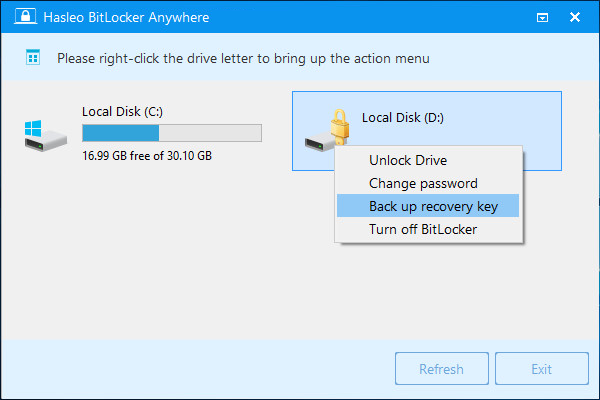
Launch Hasleo BitLocker Anywhere, find the BitLocker encrypted drive from which you want to export the recovery key (usually marked with a lock icon) in the main interface. Right-click on the target drive and select "Back up recovery Key" from the context menu.
Step 3: Enter BitLocker Password
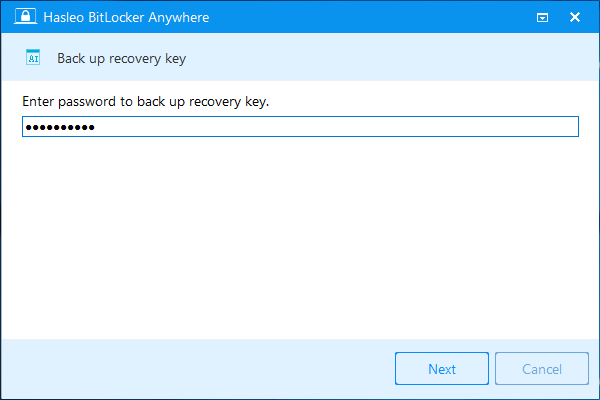
In the pop-up window, enter the password for this BitLocker encrypted drive, then click the "Next" button to continue.
Step 4: Save the Recovery Key
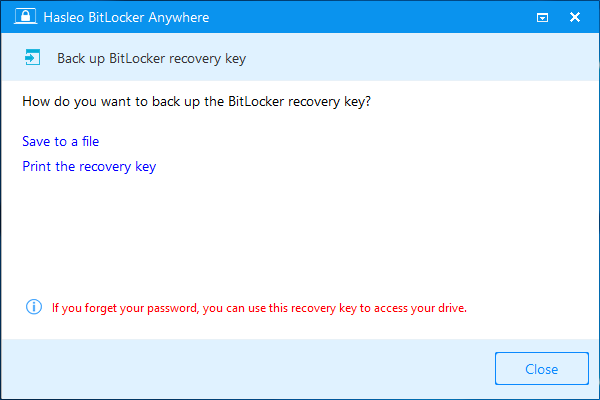
Hasleo BitLocker Anywhere will display the BitLocker recovery key. You can choose one of the following methods to save the recovery key:
- Save to a file: Save the recovery key as a text file, recommended to store on a secure external storage device or cloud.
- Print the recovery key: Print a paper copy of the recovery key, recommended to store in a secure physical location.
🚨Tips: Anyone can use the recovery key to access the drive, even if they don't know the correct decryption password. Therefore, please keep the recovery key properly secured and never disclose it to others.
BitLocker Recovery Key Storage Recommendations
Properly storing the BitLocker recovery key is crucial for data security. Here are some recommended storage methods:
💾Paper Backup
- Safe deposit: Store the printed recovery key in a home safe or bank safe deposit box, preferably fireproof and waterproof models.
- Multiple copies: At least 2-3 copies stored in different physical locations.
- Sealed envelope: Seal in an envelope and sign it; this can help detect if someone else has viewed it.
- Split storage (optional): Divide the 48-digit key into two parts and store them separately.
🔑Digital Backup
- Password manager: Use a reliable password manager to avoid manual input errors.
- Encrypted USB drive: Save the recovery key to an encrypted USB drive.
- Cloud storage: Upload the encrypted key to a cloud storage service, ensuring only you can access it.
💡Tips:
- Every 6-12 months, actually unlock the device once using the backed-up recovery key to confirm it works.
- After printing, immediately delete temporary files or print documents from your computer
⛔Practices to Avoid
- Avoid storing the recovery key in plain text on the encrypted drive or computer.
- Don't send it via email; it may be intercepted or leaked.
- Don't take screenshots; they may be stolen by malware or accidentally shared.
- Don't store it in the same location as your BitLocker password; keep them separate.
Frequently Asked Questions (FAQ) for BitLocker Recovery Key
A: A BitLocker recovery key is a unique 48-digit numeric code (formatted as 8 groups of 6 digits) used to unlock a BitLocker encrypted drive when you forget your password, hardware changes occur, or the system fails to start normally.
A: No, Windows Home editions do not include BitLocker's key export feature. You need to use third-party software like Hasleo BitLocker Anywhere to export and backup the recovery key.
A: Store the recovery key in multiple secure locations such as a safe deposit box, home safe, or password manager. Avoid storing it on the encrypted drive or sharing it with others.
A: If you lose the recovery key and forget the password, you will permanently lose access to the encrypted data. There is no way to reset or recover the recovery key without the original password.
A: Launch Hasleo BitLocker Anywhere, right-click on the encrypted drive, select 'Back up recovery Key', enter the password, and choose to save it as a file or print a copy.
A: The recovery key itself cannot be changed, but you can generate a new one by decrypting and re-encrypting the drive. The old key will then become invalid.
A: It is recommended to test the recovery key every 6-12 months by actually unlocking the drive with it to confirm it works properly.
A: No, the correct password can also unlock the drive. The recovery key is primarily used as a last resort when credentials are forgotten or in case of system failures.
Conclusion
Through this tutorial, you have learned how to export and backup BitLocker recovery keys in Windows Home editions and Windows 7 Professional using Hasleo BitLocker Anywhere. Backing up the recovery key is a critical step in ensuring data security and can effectively prevent data loss due to forgotten passwords, hardware changes, or system failures.
As a professional BitLocker solution, Hasleo BitLocker Anywhere not only helps you export BitLocker recovery keys but also supports encrypting drives with BitLocker, changing BitLocker passwords, locking BitLocker drives, and other rich features. It is the best choice for Windows Home users to manage BitLocker encryption.
Related Articles
- How to Enable BitLocker in Windows 10/11 Home?
- How to Change BitLocker Password in Windows Home?
- How to Lock BitLocker Encrypted Drive in Windows?
- Unlock vs. Decrypt: Understanding the Difference Between Unlocking and Turning Off BitLocker
- How to Encrypt External Hard Drive with BitLocker in Windows Home?