- Why Lock a BitLocker-Encrypted Drive?
- Overview of Hasleo BitLocker Anywhere for Windows
- How to Lock a BitLocker-Encrypted Drive Using Hasleo BitLocker Anywhere?
- Precautions and Security Recommendations
- Frequently Asked Questions (FAQ) for Locking BitLocker Drive
- Conclusion
BitLocker Drive Encryption is widely used to protect sensitive data in daily life and work. We know that we can use a password or BitLocker recovery key to unlock and access an encrypted drive. However, a common issue is that Microsoft has not provided a direct "Lock" button in the Windows graphical interface to immediately re-lock an unlocked drive. This can be inconvenient for some users.
Fortunately, Hasleo BitLocker Anywhere for Windows provides a convenient "Lock" option. In this tutorial, we will provide detailed instructions on how to lock a BitLocker encrypted drive in Windows using Hasleo BitLocker Anywhere.
🎯Why Lock a BitLocker-Encrypted Drive?
In daily use, "locking" a BitLocker-encrypted drive—returning it from an unlocked to a locked state—is a crucial security measure with the following benefits:
- Data protection when temporarily away: When you need to leave your computer temporarily (especially when you cannot immediately shut down or sleep), actively locking the drive can prevent others from accessing your encrypted data while you're away.
- Shared computer scenarios: In family or office shared computer environments, the lock feature allows you to quickly protect your personal privacy when you're not using the drive, preventing other users from accidentally or intentionally reading your data.
- Prevent unauthorized access: Even if you've already unlocked a BitLocker drive, re-locking it when you don't need access provides an extra layer of on-demand protection, without relying on automatic lock timeouts or system restarts.
- Quick and safe operation: Compared to shutting down, logging off, or disconnecting the drive, manual locking is faster, and the drive itself remains encrypted without affecting other unencrypted areas.
Hasleo BitLocker Anywhere for Windows not only provides a convenient "Lock" option, but more importantly, it provides the ability to encrypt and read/write BitLocker drives on Windows Home and other systems that don't support BitLocker natively.
👑Overview of Hasleo BitLocker Anywhere for Windows
Hasleo BitLocker Anywhere is the world's first third-party BitLocker solution specifically designed for Windows Home users. It not only supports locking BitLocker encrypted drives but also provides rich features:
- ✅Drive Unlocking: Unlock BitLocker encrypted drives using password or recovery key
- ✅Drive Encryption: Encrypt drives using XTS-AES or AES-CBC encryption algorithms (supporting 128/256-bit)
- ✅Drive Decryption: Remove BitLocker encryption protection and restore the drive to an unencrypted state
- ✅Password Management: Change BitLocker encryption passwords, supporting verification with old password or recovery key
- ✅Key Export: Export startup keys and recovery keys for secure backup
- ✅Auto Unlock: Set up automatic unlock for frequently used drives for convenient daily use
- ✅Command Line Interface: Support batch operations through command line or scripts, suitable for advanced users
Hasleo BitLocker Anywhere is fully compatible with Windows built-in BitLocker, using the same encryption standards, and works properly on all Windows versions including Windows 11/10/8.1/8/7 Home, Professional, Enterprise, and Server editions.



How to Lock a BitLocker-Encrypted Drive Using Hasleo BitLocker Anywhere?
Step 1. Download and install Hasleo BitLocker Anywhere for Windows. You can download the latest version installer from the official Hasleo website and complete the installation by following the installation wizard prompts.
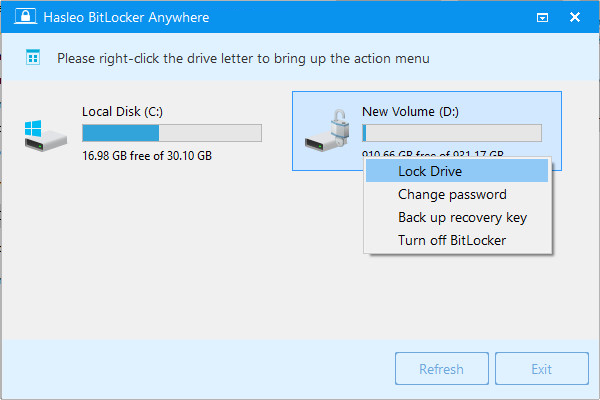
Step 2. Launch Hasleo BitLocker Anywhere. In the main interface, you can see all connected drives and their status. Find the BitLocker encrypted drive you want to lock (usually with a lock icon indicating the drive is encrypted but unlocked). Right-click the target drive and select "Lock Drive" from the context menu.
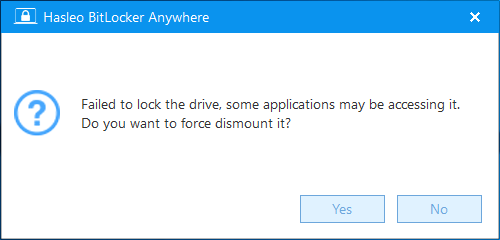
Step 3. If the drive is currently in use (for example, files are open), the program will display a prompt window. At this point, if you confirm you want to force lock the drive, click the "Yes" button. If you prefer to close all open files first before locking, you can click Cancel, then close the relevant programs and try again.
Step 4. When the operation completes successfully, the drive will be locked. You will see the lock icon on the drive change to a closed state, indicating the drive has been successfully locked.

Whether you're using Windows Home, Professional, Enterprise, or Server editions, Hasleo BitLocker Anywhere can help you easily lock a BitLocker encrypted drive in the Windows system.
🚨Precautions and Security Recommendations
- Close related files: Before locking the drive, if there are files or programs running on the drive, please save your work and close them to avoid data loss.
- Memorize unlock credentials: After locking, you must use the correct password or recovery key to unlock the drive again. Please be sure to keep them safe.
- Do not force lock during data writing: If you force lock during data writing, it may cause data corruption. Please wait until the write operation is complete before locking.
- Regularly back up important data: The lock feature cannot replace backups. It is recommended to regularly back up important files to other storage devices or cloud storage to prevent data loss from hardware failures or accidental operations.
Frequently Asked Questions (FAQ) for Locking BitLocker Drive
A: Locking a BitLocker drive provides data protection when you're temporarily away, prevents unauthorized access on shared computers, and offers an extra layer of on-demand security without relying on automatic timeouts.
A: Windows doesn't provide a direct lock button in the graphical interface. You need to use Hasleo BitLocker Anywhere or command-line tools like manage-bde.exe to lock the drive.
A: No, locking a BitLocker drive does not erase your data. It simply re-locks the drive, requiring authentication to access again.
A: Yes, you can force lock a drive that's in use, but this may cause data loss. It's recommended to close all files and programs before locking the drive.
A: You can unlock the drive using the password or recovery key you set during encryption. Enter the correct credentials when prompted.
A: No, locking doesn't affect the encryption. The drive remains encrypted at all times - locking only controls access to view the data.
A: Auto-lock features depend on group policies or timeout settings in Windows, but you can also use Hasleo BitLocker Anywhere to manually lock drives as needed.
A: Yes, Hasleo BitLocker Anywhere provides the convenient lock feature. Without it, you'd need to use complex command-line tools or rely on system timeouts.
Conclusion
Through this tutorial, you've learned how to lock a BitLocker-encrypted drive in Windows using Hasleo BitLocker Anywhere. This lock feature is a practical security measure, ideal for scenarios like temporarily stepping away from your computer, sharing a device with others, or quickly protecting data privacy. With its simple and intuitive interface, Hasleo BitLocker Anywhere is accessible to all—whether you're using Windows Home, Professional, or Enterprise.
Related Tutorials
- How to Remove BitLocker in Windows 10 Home?
- How to Encrypt a Drive in Windows 11/10/8/7 Home & Windows 7 Pro?
- How to Change BitLocker Password in Windows 11/10/8/7 Home & Windows 7 Pro?
- How to Unlock BitLocker Encrypted Drive in Windows 11/10/8/7 Home & Windows 7 Pro?
- How to Recover Deleted/Lost Files from BitLocker Encrypted Drive?