- What is BitLocker Encryption?
- What Is Unlock Drive?
- Turn off BitLocker (Decrypt) Explained
- Core Differences Between Unlock Drive and Turn off BitLocker
- How to Unlock a Drive Using Hasleo BitLocker Anywhere?
- How to Decrypt a Drive Using Hasleo BitLocker Anywhere?
- Precautions and Security Recommendations
- Frequently Asked Questions (FAQ) About Unlock vs Turn off BitLocker
- Conclusion
In the digital age, data security has become increasingly important. BitLocker Drive Encryption is a professional data protection solution provided by Microsoft for Windows users, using industrial-grade AES encryption algorithms to protect your data. However, many users often confuse the two functions: Unlock Drive and Turn off BitLocker. This tutorial will explain in detail the differences between these two operations, helping you make the right choice when using Hasleo BitLocker Anywhere in Windows 11/10/8.1/8/7 Home and Windows 7 Pro editions.
What is BitLocker Encryption?
BitLocker is a full-volume encryption feature developed by Microsoft, first introduced in Windows Vista. It uses AES-CBC or XTS-AES industrial-grade encryption algorithms (supporting 128-bit and 256-bit encryption) to effectively protect your data security. When a drive is encrypted with BitLocker, authentication is required for every access. This is the background for the existence of the two concepts: Unlock Drive and Turn off BitLocker.
What Is Unlock Drive?
Unlock Drive is a temporary access operation that allows users to read from or write to an encrypted drive during the current session.
👍Key Features:
- Temporary Access: The unlocked state lasts only for the current session or while the drive remains connected. The drive automatically reverts to a locked state after a system restart, user logout, or disconnection (e.g., unplugging a USB device).
- Maintains Encryption: The data on the drive is always stored in ciphertext form on the physical media, without changing the encryption status of the data.
- Quick Operation: Users can complete unlocking by entering a password or using the 48-digit recovery key, without complex configuration.
- Reusable: For added convenience, users can set up auto-unlock or save credentials for faster access on subsequent sessions.
✅When to Use:
- When you need to temporarily access files on an encrypted drive.
- When you want to access data without permanently disabling encryption protection.
- When you need to safely transfer data between different computers.
- As your daily method for accessing encrypted drives.
Turn off BitLocker (Decrypt) Explained
Turn off BitLocker is a permanent decryption operation that completely removes BitLocker encryption from the drive and restores it to an unencrypted state.
👍Key Features:
- Permanent: After the decryption operation is completed, the drive will no longer be protected by encryption until the user re-enables encryption.
- Plaintext Storage: All data will be stored in plaintext form, and anyone with physical access to the drive can read it.
- Time-Consuming: The decryption process needs to traverse the entire drive, with time depending on data volume, drive type (HDD/SSD), and performance. It may take from several minutes to several hours.
- Re-encryption Requires Full Process: If you need to enable BitLocker again after decryption, you must go through the complete encryption process.
✅When to Use:
- When you no longer need data encryption protection for the drive
- When preparing to format the drive for normal data storage use
- Before selling, transferring, or disposing of the drive to remove encryption
- Before system reinstallation or hardware replacement to avoid compatibility issues caused by encryption status
🔥Core Differences Between Unlock Drive and Turn off BitLocker
To help you understand the differences more intuitively, here is a detailed comparison table:
| Comparison Item | Unlock Drive | Turn off BitLocker |
|---|---|---|
| Operation Nature | Temporary access granted for current session only | Permanent, completely removes BitLocker protection |
| Encryption Status | Maintains encryption, data on disk remains in ciphertext | Fully decrypted, data restored to plaintext storage |
| Data Protection | Data continues to be protected by encryption | Data is no longer protected by encryption |
| Status After Restart | Locked by default, requires unlocking again or auto-unlock setup | Remains decrypted, no need to unlock again |
| Operation Time | Completes within a few seconds | Depends on drive size and data volume, may take minutes to hours |
| Credential Saving | Supports "Auto-unlock" configuration; no manual entry required after setup | No credentials needed; security ensured by other mechanisms |
| Recoverable | Yes, can be re-locked at any time | No; must re-enable BitLocker if encryption is needed again |
⭐Applicable Scenario Comparison
Choose Unlock Drive when:
- Daily Office Work: You use a company-issued encrypted laptop in the office and need to access files on the encrypted drive multiple times daily
- Family Sharing: Family members share a computer but want to keep their respective data private
- Mobile Office: You work in different locations frequently and need to ensure data security during transmission
- Temporary Lending: You need to lend your computer to others temporarily but don't want them to access your private data
Choose Turn off BitLocker when:
- Selling Computer: You are preparing to sell an old computer or hard drive and need to fully decrypt and erase all data
- System Reinstallation: You need to perform a fresh Windows installation, and the encrypted system drive needs to be decrypted first
- Performance Considerations: On some older devices, encryption may affect performance and needs to be removed
- No Longer Needed: Data on the drive has been backed up or is no longer sensitive and no longer needs encryption protection
How to Unlock a Drive Using Hasleo BitLocker Anywhere?
Hasleo BitLocker Anywhere is the world's first third-party BitLocker solution specifically designed for Windows Home editions. It includes almost all features of built-in BitLocker, including drive encryption and decryption, password changes, and more, and runs on all Windows Home editions including Windows 11 Home.



Step 1. Download and install Hasleo BitLocker Anywhere for Windows.
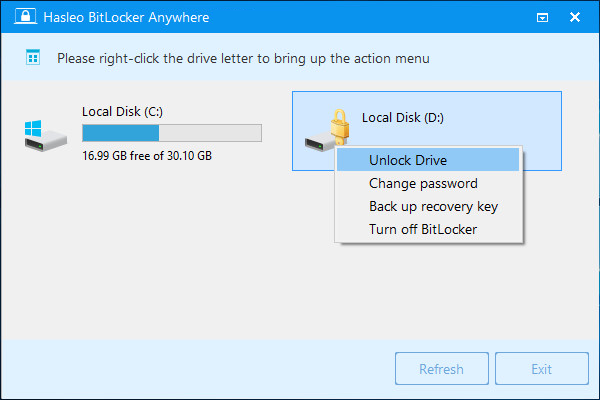
Step 2. Launch Hasleo BitLocker Anywhere, find the BitLocker encrypted drive you want to unlock in the main interface (usually with a lock icon). Right-click the target drive and select "Unlock Drive" from the context menu.
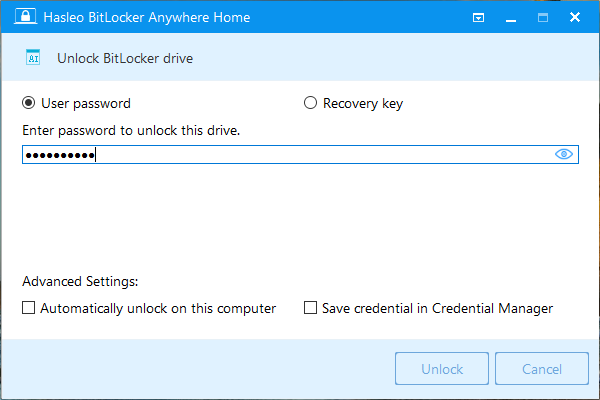
Step 3. In the popup window, enter the password or recovery key, then click the "Unlock" button to unlock the drive.
💡Tips:
- Automatically unlock on this computer: After enabling, the drive will automatically unlock every time you log into your user account.
- Save credential in Credential Manager: Saves the access credential to Windows Credential Manager, eliminating the need to enter it again the next time you access the drive.
How to Decrypt a Drive Using Hasleo BitLocker Anywhere?
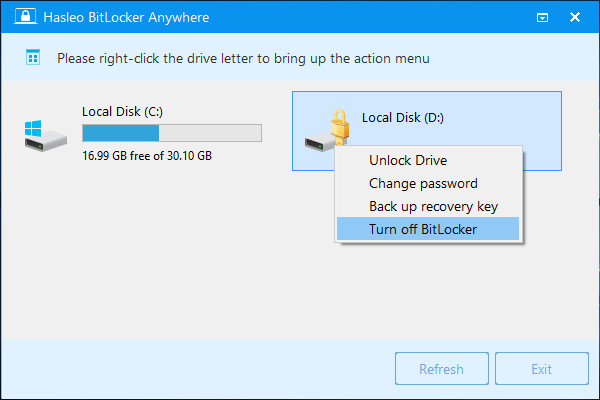
Step 1. Launch Hasleo BitLocker Anywhere, find the BitLocker encrypted drive you want to decrypt in the main interface. Right-click the target drive and select "Turn off BitLocker" from the context menu.
Step 2. Enter the password or recovery key, then click "Next" to continue.
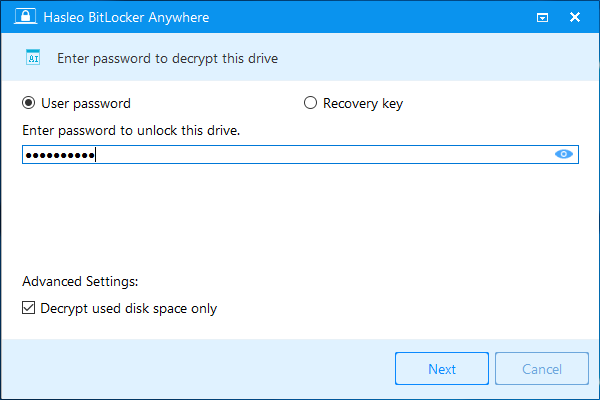
- Decrypt used disk space only: This option only decrypts the space currently used by the drive's file system, which can significantly reduce decryption time.
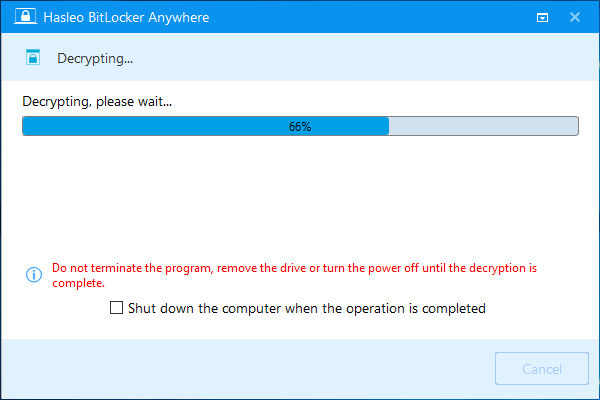
Step 3. Hasleo BitLocker Anywhere will begin decrypting the contents of the selected drive. The decryption process may take a long time depending on the drive size. Please be patient and wait. If you want the computer to automatically shut down after decryption completes, you can check the "Shut down the computer when the operation is completed" option.
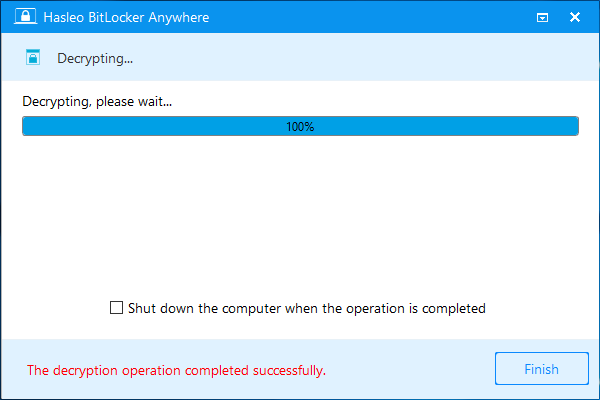
Step 4. After decryption is complete, click the "Finish" button to close the window.
🎯Precautions and Security Recommendations
BitLocker Daily Use and Key Management:
- Protect your password and recovery key: The unlock password and recovery key are the only ways to access encrypted data. Keep them secure. If both are lost, the data will be permanently unrecoverable.
- Back up the recovery key: After encryption is complete, back up the recovery key to a safe location, such as a password manager or a physical record.
- Use auto-unlock cautiously: The auto-unlock feature (dependent on TPM chip) allows you to enter the system without entering a password at startup. While convenient, if the computer is lost and the Windows login password is compromised, your data will be at risk.
- Regularly change passwords: Periodically change your BitLocker password to enhance security.
Decryption Precautions:
- Back up important data in advance: Before decryption, back up critical data to external storage or the cloud to prevent data corruption due to unexpected issues during the decryption process.
- Do not interrupt the decryption process: Interrupting decryption may cause file system corruption, rendering the partition as a RAW format and making data unreadable.
- Re-encrypt if protection is still needed: If you still need data protection after decryption, re-enable BitLocker encryption once the decryption process is complete.
- Perform secure erase when selling or transferring the drive: If you are selling the hard drive or transferring ownership, use professional tools to perform a secure erase.
Frequently Asked Questions (FAQ) About Unlock vs Turn off BitLocker
A: Unlock Drive is a temporary access operation that allows you to access the drive during the current session, while the encryption remains. Turn off BitLocker permanently decrypts the drive and removes encryption protection.
A: No, Unlock Drive only provides temporary access. The drive remains encrypted and will automatically lock after restart or disconnection.
A: Once decrypted, the data becomes accessible without any key. However, if you need encryption again, you must re-encrypt the entire drive.
A: You should Turn off BitLocker to fully decrypt the drive before selling, so the buyer can access the data without a password.
A: Yes, you can re-lock the drive at any time using Hasleo BitLocker Anywhere. The encryption remains intact.
A: Decryption time depends on the drive size and speed. Large drives may take several hours to decrypt.
A: If you don't enable auto-unlock, yes. With auto-unlock enabled, the drive will automatically unlock when you log in.
A: Yes, you can unlock the drive for daily access, and later turn off BitLocker when you no longer need encryption.
Conclusion
Through this tutorial, you should now clearly understand the difference between Unlock Drive and Turn off BitLocker: Unlock Drive is a temporary operation used to access data on an encrypted drive temporarily; after unlocking, BitLocker encryption protection remains, and the drive will return to a locked state after restarting the computer. Turn off BitLocker is a permanent operation that completely decrypts the drive and removes BitLocker encryption protection, allowing access to the data without any keys, restoring the drive to an unencrypted state.
You can choose according to your actual needs: if you only need to access the data, select Unlock Drive; if you no longer need encryption protection, you can choose Turn off BitLocker. Whatever option you choose, Hasleo BitLocker Anywhere provides you with a simple and secure solution. As the world's first third-party BitLocker solution for Windows Home users, it not only supports unlocking and decryption functions, but also offers a range of features such as drive encryption and key export, ensuring comprehensive protection for your data.