

- Method 1: Fix VSS Provider Conflicts
- Method 2: Enable Volume Shadow Copy Service
- Method 3: Repair System Files
- Method 4: Repair System Disk
- Method 5: Increase Shadow Storage
- Frequently Asked Questions
- Conclusion
This tutorial mainly describes how to fix 0xXXXXXXXX80042306 (VSS 0x80042306 error - VSS_E_PROVIDER_VETO, The shadow copy provider had an error. Check the System and Application event logs for more information.) error you encounter when performing backups or clones while using Hasleo Backup Suite.
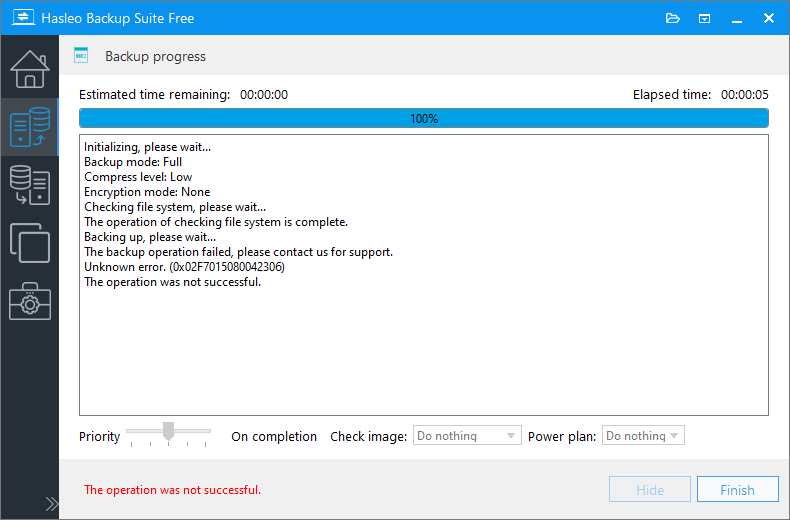
Hasleo Backup Suite uses Microsoft's Volume Shadow Copy Service (VSS) technology to perform Windows hot backup/cloning. During these processes, you might encounter 0xXXXXXXXX80042306 error. The final 8 bytes (0x80042306) represent the VSS error code returned by Windows. The VSS error code 0x80042306 (VSS_E_PROVIDER_VETO) typically indicates that the backup process failed to initialize. This is often due to a corrupted VSS provider component or the presence of a conflicting third-party VSS provider on the system. The following sections describe how to resolve this error.
Method 1: Resolve VSS Error 0x80042306 by Fixing VSS Provider Conflicts
Step 1. Open an elevated cmd.exe prompt and type "vssadmin list providers".
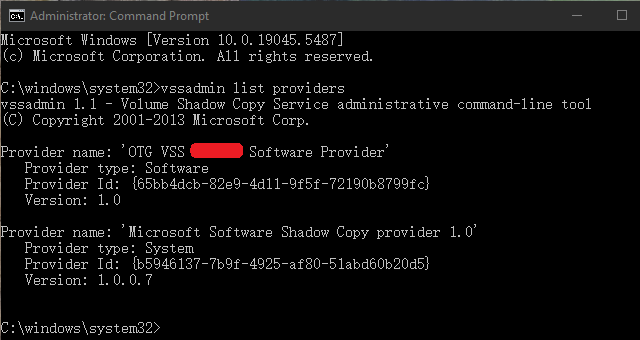
The presence of multiple VSS providers can cause conflicts. If third-party backup software (e.g., Acronis, Symantec, or Macrium) has been installed, its VSS provider might remain on the system even after the software is uninstalled. These residual providers can interfere with native backup tools (Microsoft Software Shadow Copy provider) and other applications that attempt to perform a VSS backup or clone.
Step 2. To uninstall third-party software, identify the target program from the VSS providers listed in Step 1.
Step 3. Remove the registry keys for these third-party VSS Providers. The installed VSS Providers can be found in the Registry Key: HKEY_LOCAL_MACHINE\SYSTEM\CurrentControlSet\Services\VSS\Providers\
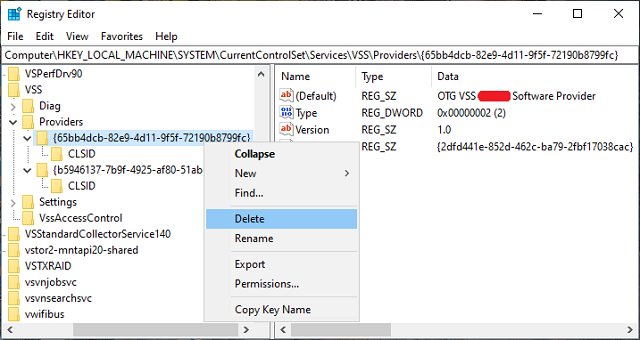
Step 4. Restart Windows and try Hasleo Backup Suite again.
Method 2: Enable the Volume Shadow Copy Service to Fix VSS 0x80042306 Issue
Step 1. Press the Windows + R keys to open the Windows Run dialog.
Step 2. Enter services.msc and press Enter or click OK.
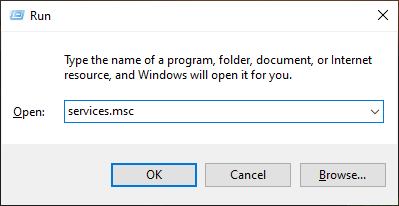
Step 3. Double-click "Volume Shadow Copy" Service program.
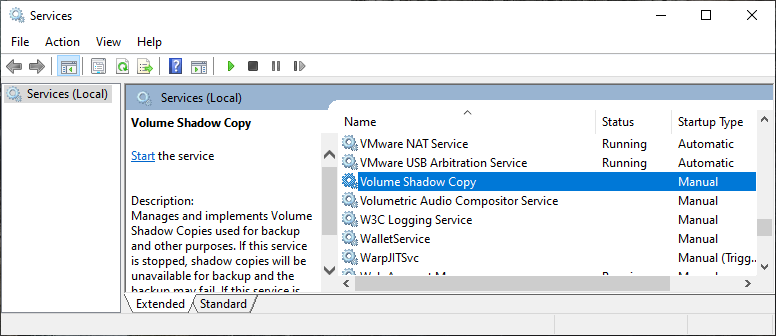
Step 4. Set the service program to start automatically and start the service program.
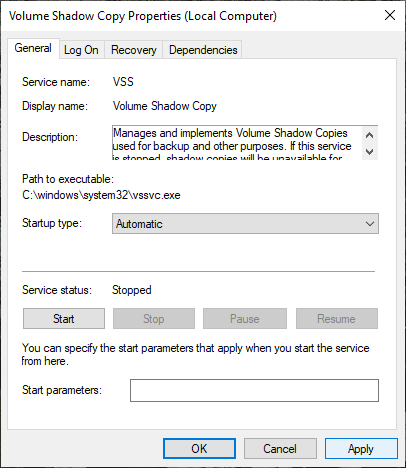
Step 5. Ensure that the "Microsoft Software Shadow Copy Provider" service is not disabled here.
Method 3: Repair System Files Error to Fix VSS 0x80042306 Issue
Open Command Prompt as administrator and run sfc /scannow to scan and repair corrupted system files.
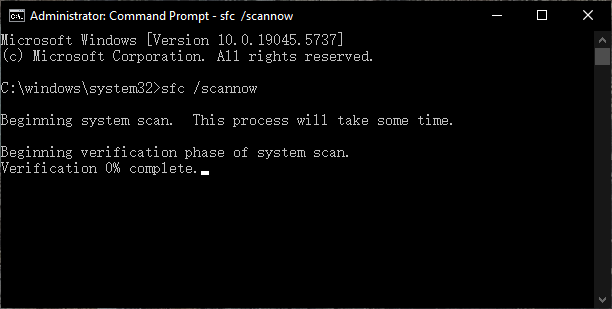
Method 4: Repair System Disk Issues to Fix VSS 0x80042306 Error
Use the chkdsk C: /f /r command to scan for hard drive bad sectors or file system errors.
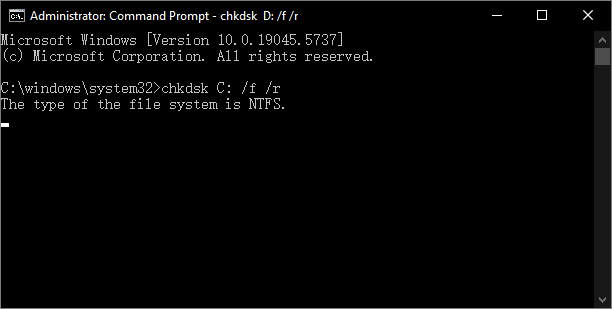
Method 5: Increase Shadow Storage to fix VSS 0x80042306 issue.
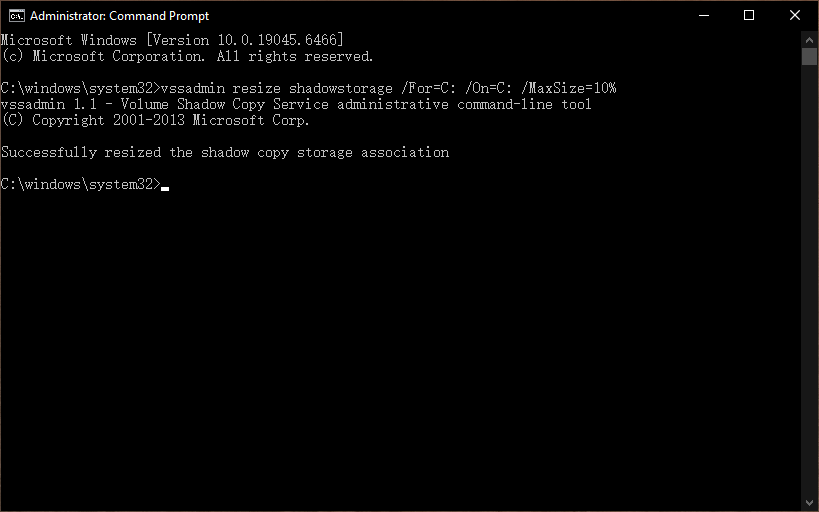
Open Command Prompt as administrator, then run 'vssadmin resize shadowstorage /For=C: /On=C: /MaxSize=10GB' or 'vssadmin resize shadowstorage /For=X: /On=X: /MaxSize=10%' to increase the storage space for a specific volume (X: is the drive letter of the volume to be imaged).
Frequently Asked Questions
A: This error occurs when VSS (Volume Shadow Copy Service) fails to initialize. Common causes include corrupted VSS providers, conflicting third-party backup software, disabled VSS service, or insufficient shadow storage.
A: Open Command Prompt as administrator and run "vssadmin list providers". If you see multiple providers, especially from uninstalled backup software, remove the unwanted ones from the registry.
A: Yes, Volume Shadow Copy service must be set to Automatic and running for Hasleo Backup Suite to perform hot backups. Check services.msc to ensure it's enabled.
A: Yes, if shadow storage is full, VSS cannot create shadow copies. Use "vssadmin resize shadowstorage /For=C: /On=C: /MaxSize=10GB" to increase storage.
A: Yes, run "chkdsk C: /f /r" to check for bad sectors and file system errors on your hard drive.
A: Yes, restart your computer after making changes to VSS providers or services for the changes to take effect.
A: Try running "sfc /scannow" to repair system files. If the problem persists, your system may have deeper issues requiring professional help.
A: Yes, software like Acronis, Symantec, or Macrium can leave residual VSS providers. Remove them from the registry at HKEY_LOCAL_MACHINE\SYSTEM\CurrentControlSet\Services\VSS\Providers\.
Conclusion
This tutorial describes how to fix the 0xXXXXXXXX80042306 (VSS 0x80042306 error - VSS_E_PROVIDER_VETO) error you encounter when performing backups or clones while using Hasleo Backup Suite.
Related Articles
- How to create an App Password in Gmail that you can use to send emails in Hasleo Backup Suite?
- How to fix Dokan not installed or Dokan version not supported error?
- How to fix VSS 0x8004230F (VSS_E_UNEXPECTED_PROVIDER_ERROR) error?
- How to back up and restore Windows 11 for free?
- Top 4 Free Windows Backup and Restore Tools in 2026


